
Xentra booking number, guest number and customer number
What the Xentra booking number, guest number and customer number mean, how they are built and which bookings have no number.
Updated on November 6, 2026
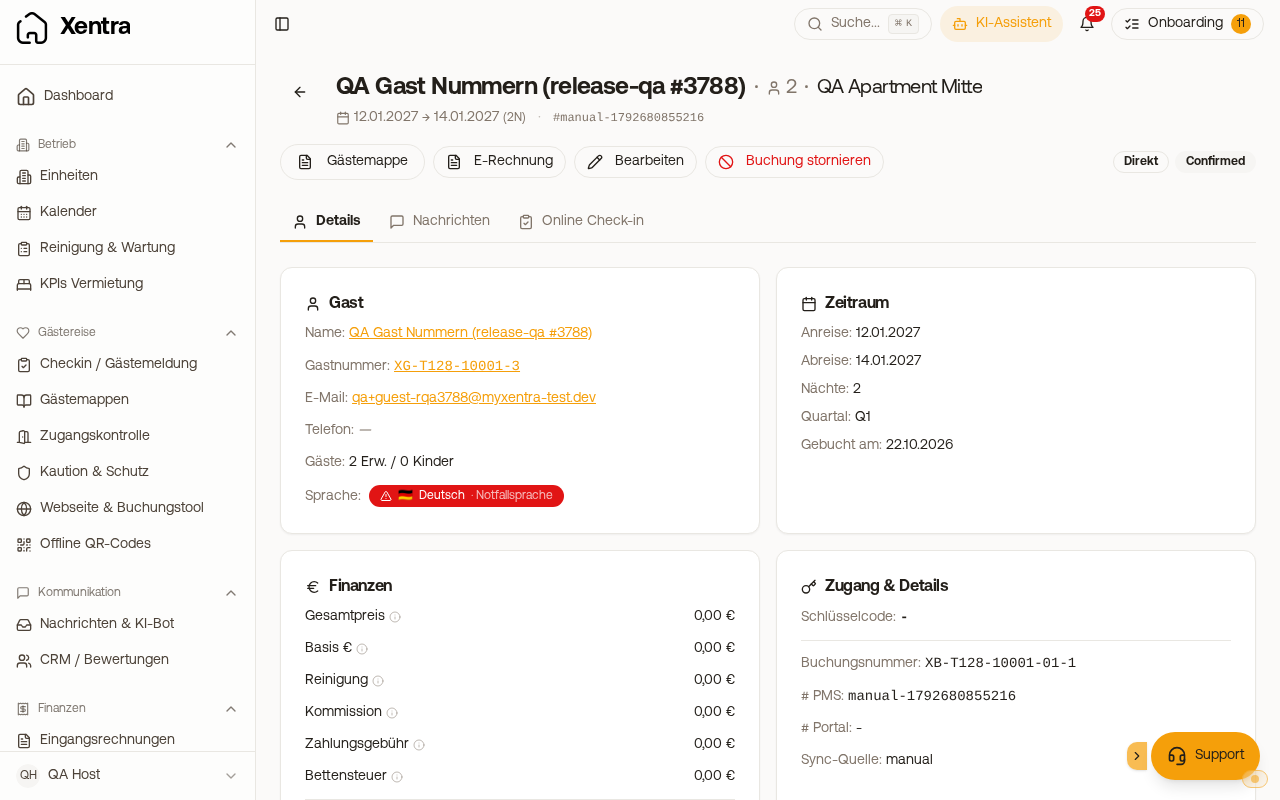
Every new booking automatically gets a Xentra booking number, for example XB-1042-10007-03-5: your customer number, the guest number, which stay this is for the guest, and finally a check digit. Each guest gets a guest number, for example XG-1042-10007-1. The numbers stay the same, even if the booking is later rebooked or cancelled.
Bookings created before the numbers were introduced, blocks, bookings from iCal calendars and older bookings that are only imported later (for example when connecting a PMS) have no number.
The portal's number does not replace it: that remains under # Portal.
Where you find the numbers
- In the booking: the guest number in the card Guest (one click opens the contact), and the booking number in the card Period under “Booked on”. There, everyone who may see the booking sees it, including owners.
- At the contact: under the guest number in the contact, and in its booking list on every booking.
- In messages: on the right, in the guest column next to the chat.
- In the search (⌘K / Ctrl+K): type the number, with or without hyphens, upper or lower case. A typo finds nothing, rather than a wrong booking.
On invoices
In the invoice settings, under Appearance, switch on “Xentra booking number and guest number on invoices” and save. New invoices then show “Booking no.” and “Guest no.” under the invoice number, also in the e-invoice (ZUGFeRD, XRechnung). Invoices already issued do not change.
In messages, webhooks and API
- Placeholders:
{{xentra_booking_number}}and{{xentra_guest_number}}, in the placeholder menu under Booking. - Webhooks: tick the fields “Xentra booking number” and “Xentra guest number” in the webhook settings.
- Data API: every booking returns
xentra_booking_numberandxentra_guest_number; you can also filter by them.
Your customer number
Your own Xentra customer number (XH-…) is under Settings → Profile → Business data. Give it when you write to us or call us.