
Blocked periods: add, remove and why they come back
How to create a block and get rid of it again, why some come back on their own, and how buffer nights and owner use work.
Updated on November 4, 2026
Add a block
For periods without a guest (owner use, maintenance, renovation) you do not need a €0 booking. At the top of the New booking window (in the calendar or under Bookings), select "Blocked" under "Type". Instead of the guest name, enter a title, for example "Heating maintenance", select the unit, arrival and departure, and click "Create block". The price and guest fields are not shown. In the calendar, the block appears as a grey hatched bar.
If the owner lives in the apartment themselves, select "Owner use" under "Reason" instead of "Blocked". The block then counts as owner use in the owner settlement, for example for a cleaning fee. Otherwise it behaves like any block: Xentra creates no cleaning task for it (you create one yourself if needed), it is not revenue and no commission applies. You only charge the owner a cleaning or laundry fee if you set it up in their settlement settings under "Fees per stay" with "Applies to: Owner use" or "Both", see Owner settlement: commission and settlement settings. If you have already created a block as "Blocked", open it and switch on "Owner use". The switch only exists for blocks created in Xentra, not for blocks from a PMS or channel manager.
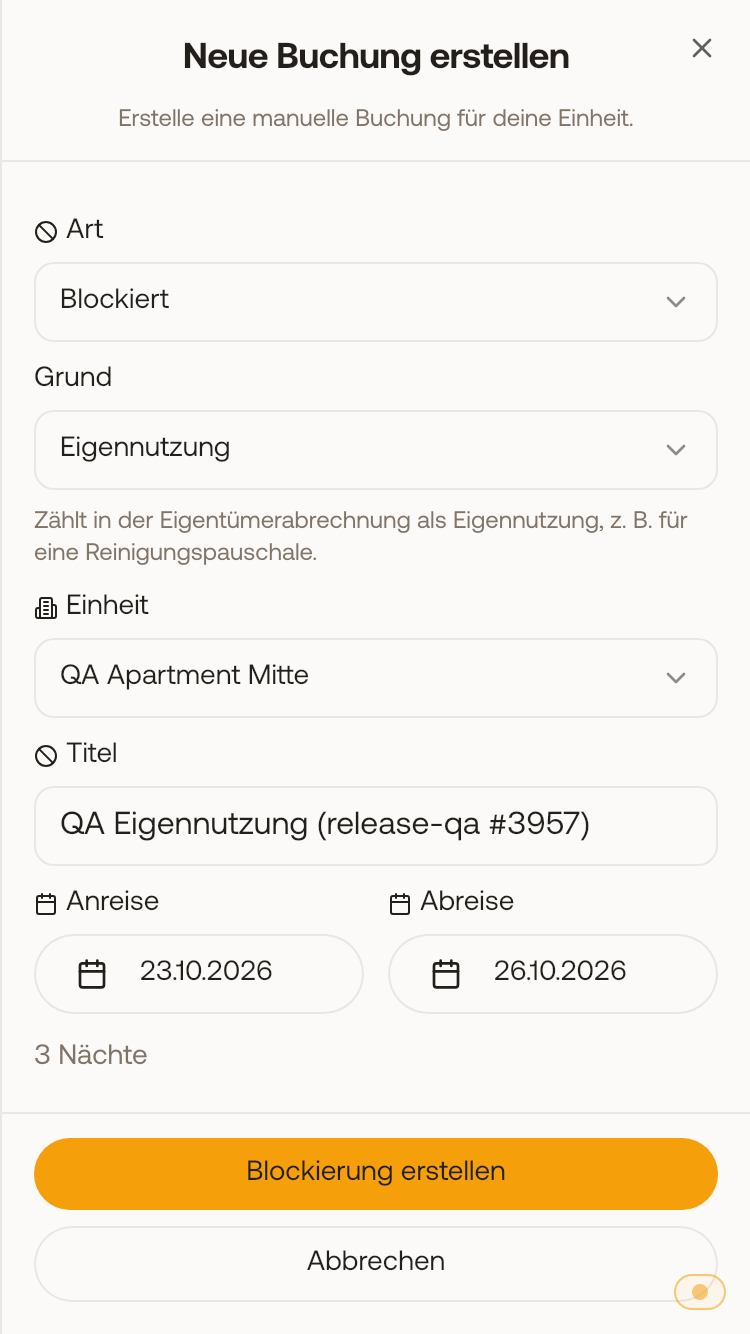 New booking with type "Blocked" and reason "Owner use".
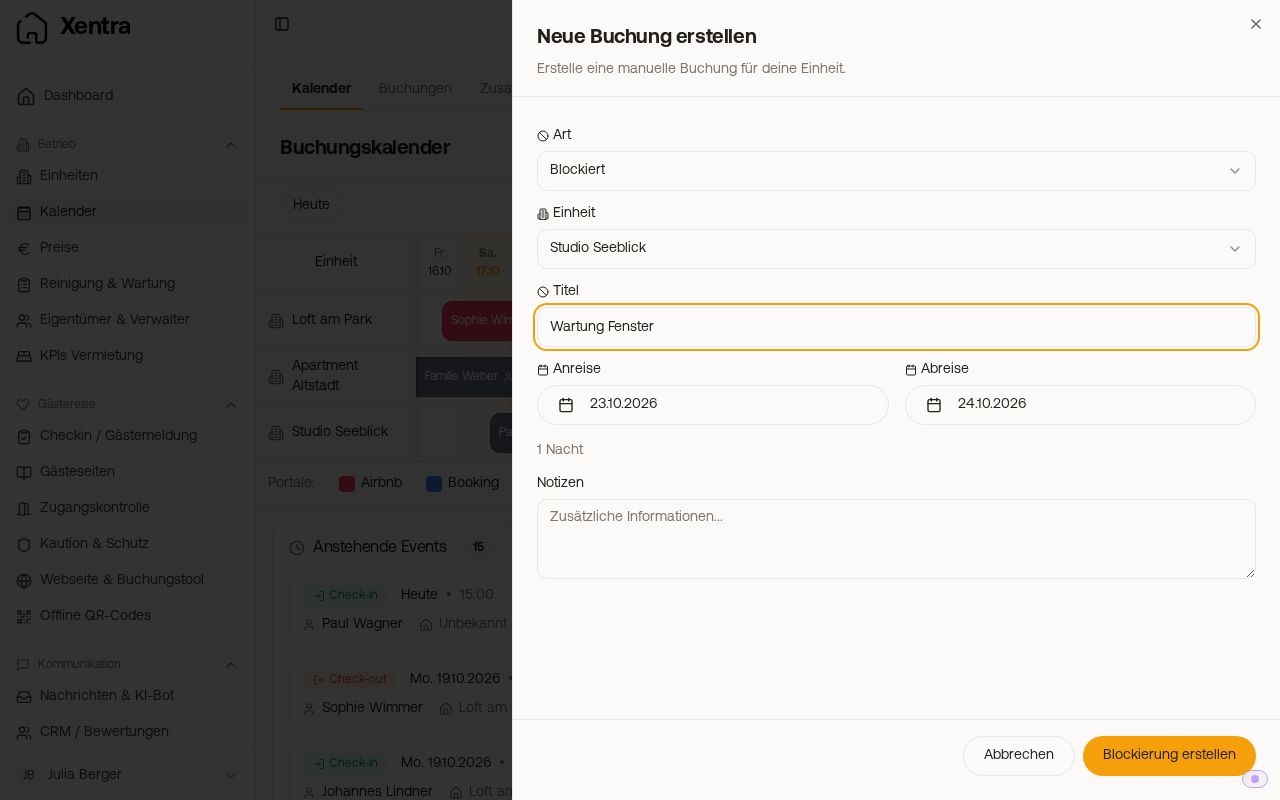 "Type: Blocked" in the New booking window, with a title instead of a guest name
Your owner can also do this themselves with their own login, if you grant them "Create bookings" (Settings, Team & additional users, open Owner). For them the window is called Add owner use, and there is no choice under "Type": they can only block days for themselves, not create a guest booking. The calendar shows these entries in their own color, labeled Owner use.
Block a single day or only until a time
A block always applies to nights, like any booking, from arrival to departure; the departure must be at least one day after the arrival. Individual days or times cannot be blocked. If you need a day free during the day, for example for maintenance, block the night before: arrival on the day before, departure on that day. The unit is then empty from check-out the day before, and on the day itself someone can check in again from your check-in time.
Remove a block
A block is removed like a booking: click the block in the calendar, then "Cancel booking". The days are free again immediately, and this is passed on to the portals as well. To remove several at once: under Bookings, tick the rows and use the red button with the crossed-out circle at the top. This is a cancellation, not a deletion: the rows stay visible as cancelled.
Check first whether it really is a block. If the entry shows a guest name, a portal such as Booking.com or Airbnb and a booking number, it is a real reservation. Do not cancel it in Xentra: it stays with the portal, but the nights become free with us and can be sold a second time. If you have cancelled such a booking by mistake: open the booking, click Edit, set the status to "Confirmed" and save.
Where a block comes from decides whether it comes back
- Created by you (owner use, maintenance): it stays removed.
- Taken over from the channel manager or PMS ("Blocked / Blocked channel"): it mirrors the occupancy in the other system. As long as the connection is active, cancelling in Xentra is locked, and the next sync would create it again anyway. Remove it where it comes from, i.e. in the portal or the PMS; then it disappears from Xentra by itself. If the connection is disconnected, you can cancel it in Xentra.
- Automatic buffer night: it comes from the setting "Buffer nights between bookings" of the unit (Pricing, tab "Settings"). If you do need a single buffer night after all, open it in the calendar and tap "Remove buffer night". The night is immediately bookable again, including on the portals, and this exact date is not blocked automatically again. If you want no buffers at all, set the setting to "None".
Hiding blocks is not possible, but the grid helps
The calendar itself has no switch for "Hide blocks", and the list view shows everything that is in the calendar. In the lists below the calendar, you can separate blocks from bookings: under Upcoming Events, choose "All", "Check-ins/-outs" or "Blocks" at the top (the option appears as soon as a block exists there); under Activities, choose "All", "Bookings" or "Blocks"; there you also see when a block was created, changed or removed. Under Bookings, the filter "Type" does this. It is calmer in the grid: at the top of the calendar, tap "View" (on mobile, the icon with the sliders) and under "Appearance" select "Grid". Blocks appear there as a hatched bar in the unit's row.
More
- With a connected PMS (Smoobu, Hostaway, Lodgify …), a block from Xentra reaches the portals only under one condition, and reservations from a second portal account arrive only as a block: see Blocks with a PMS: portal shows the day as free, block without a guest.
- Read and set blocks via the data API: see Reading and setting blocks via the data API.