
Booking list: filters, columns and export
Filter bookings (period by arrival or departure, paid, invoice, source, cancellation date), columns such as Booked and Cancelled on, export as Excel or CSV.
Updated on October 28, 2026
You find the booking list under Calendar, tab Bookings (Open bookings). At the top are key figures such as bookings, nights and revenue, below them the filter bar and the table with search and sorting. The key figures always count the bookings your current filter shows; cancelled bookings and blocks are not included in the totals. Next to the count it shows how many of them are cancelled and how many are blocked, for example “24/27 (3 cancelled) (2 blocked)”.
Blocks and owner use in the list
Blocked periods are included in the list too, but recognisable: instead of a status such as “Confirmed” it says “Block” or, if your owner has entered the days for themselves, “Owner use”, plus the hatched stripes from the calendar on the left edge. The money columns stay empty (“-”), and the guest column shows the title of the block. A lifted block is crossed out. With the filter “Type” you show only Bookings, only Blocks or only Owner use; next to each option it shows how many there are. The filter appears as soon as your list contains at least one block.
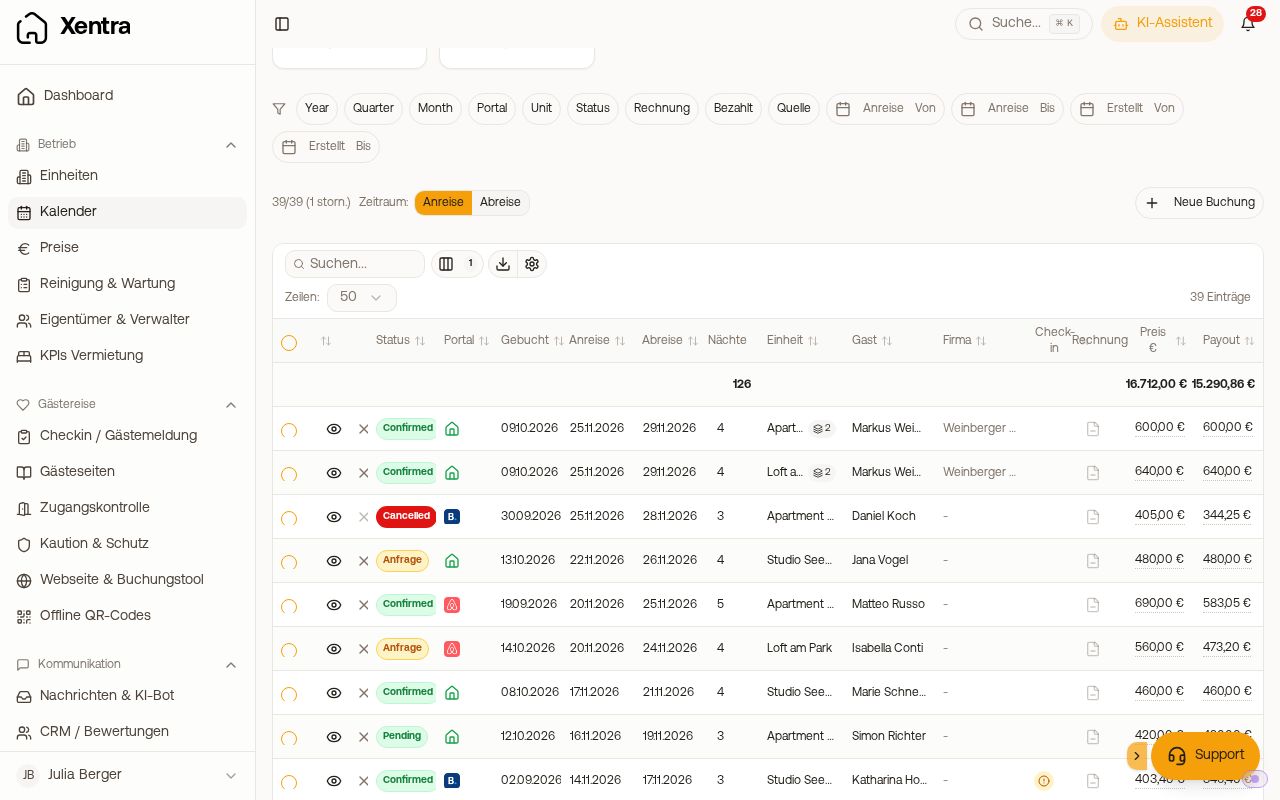 The booking list with key figures, filter bar and table
The filters
In the filter bar you choose Year, Quarter, Month, Portal, Unit and Status, plus:
- Invoice: “Invoice created” or “No invoice”.
- Payment: “Paid” or “Not marked as paid”.
- Source: where the booking comes from, for example your PMS, “Manual” or “Excel Import”.
- From / To: a period.
- Created (from / to): filters by the day in the column “Booked”.
- Cancelled (from / to): appears as soon as you select the cancelled bookings in the status filter. Bookings without a cancellation date drop out.
Period: arrival or departure. Above the table you set whether quarter, month and From/To filter by the arrival or the departure date. A booking from 30 September to 3 October therefore counts toward September or October, depending on the setting.
If a filter hides bookings, the bar above the table shows how many. With “Reset” at the end of the filter bar you clear all set filters; on the phone the button only shows an X and the number of filters. Your selection stays saved, even if you reload the page. Team members who may not see prices do not have the filters “Invoice” and “Payment”.
Filter by payment: “Payment”
- Paid shows only bookings marked as paid.
- Not marked as paid shows all others, including bookings with no payment information at all.
- If you select both or neither, you see all bookings.
Mark a booking as paid by hand
If the money arrives outside Xentra, for example by bank transfer or in cash, you mark the booking yourself: open the booking, tab Details, card Finance, field “Mark payment”, then “Paid” or “Not paid”. The row “Payment” above shows the status immediately, and below it says when it was marked (for a team member also by whom).
- A “Paid” mark is no longer reset to open by the sync with your PMS.
- If you selected “Not paid” and your PMS later reports the booking as paid, it counts as paid and your mark is removed.
- With “Remove mark” in the same field you hand the payment status back to your PMS.
- Team members only see the field with the right to edit bookings.
When no entry matches the filter
If your filter hides all bookings, the key figures show 0 and the list says “No bookings for this filter”. With “Reset filters” below it you clear all filters in the filter bar. If only your entry in the table's search field finds nothing, this button does not exist: just clear the search field.
Columns
- Via the column icon above the table (menu “Visible columns”) you show and hide columns.
- “Booked” is the day the booking came in at Xentra; for bookings via the channel manager, that is the day it arrived there. Bookings from a PMS such as Smoobu keep the booking date from the PMS. Later changes and cancellations do not change the date.
- “Cancelled on” shows when a booking was cancelled. The column is hidden at first. It stays empty for bookings that already arrived cancelled at Xentra, for example when importing from your previous system.
- “Invoice” shows whether an outgoing invoice already exists for the booking.
- If a booking belongs to a booking across several units, each row carries the note “2 units” (or the matching number).
Export and cancelling
- Export as Excel or CSV: in the table bar click Export. The column “Booked” is included, so you can analyse, for example, how far ahead your guests book. If the portal does not provide a booking date, the cell stays empty.
- Count guests and tourist tax: the export also contains per booking “Adults” and “Children”, the bed tax according to the booking, and under “Real bed tax internal” the tourist tax that the guest actually paid through Xentra (empty if nothing was collected). If you first filter by unit and period and deselect the cancelled bookings, you see how many guests were in a unit and for which bookings the tourist tax was paid. A ready-made guest count per unit does not exist.
- Extras: price, commission, payout and result also include extras from the booking tool and from accepted offers, just like the booking's Financials card. Hover over the price in the list and it says "incl. extras: …". The Excel and CSV export also lists them in the columns "Extras" and "USt Extras"; the DATEV export books the stay only.
- Cancel several: tick the rows on the left, then use the red button with the crossed-out circle at the top. See Cancel booking and undo cancellation.
- New booking: button on the right above the table.