
Edit booking: Dates, apartment and notes
The booking page, how you change check-in and check-out, apartment, status and channel, and the difference between notes, internal notes and cleaning notes.
Updated on November 12, 2026
You open a booking by clicking on its bar in the Calendar or on its row under Calendar, Bookings tab. At the top of the booking page are the tabs Details, Messages, Online Check-in, and, as soon as there is one, the review.
In the Details tab you will find the cards Guest, Period, Notes, Finance and Access & Details, and below them, depending on the booking, access, invoices, payments, refunds, extra services and scheduled messages.
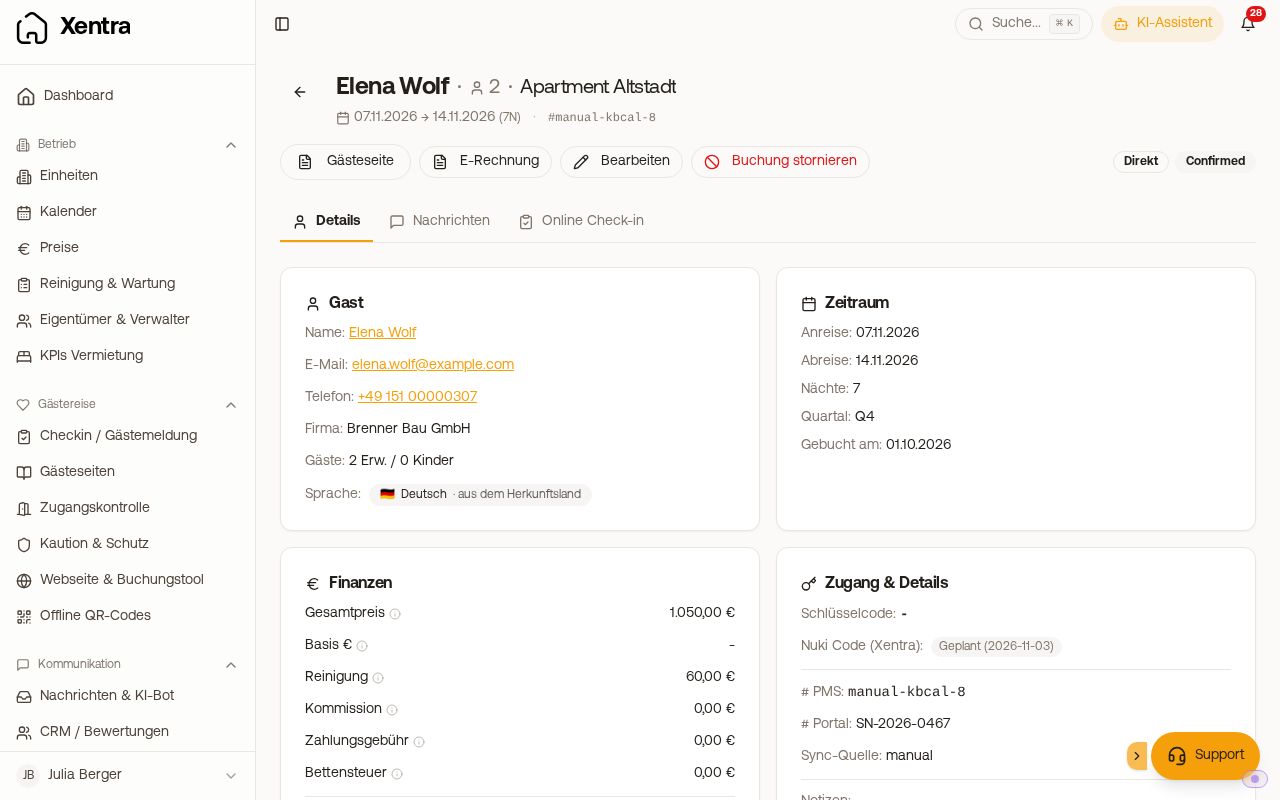 The booking page with Guest, Period, Finance and Access & Details
How to change something
- Click Edit at the top. The fields on the cards become editable. It is faster from the Calendar or the Bookings tab: In the quick view of the booking, the pencil button opens the booking directly in edit mode.
- Change what you need. As soon as something has changed, the Unsaved changes bar appears at the bottom.
- Click Save, at the top or in the bar (or Cancel).
Change arrival and departure
This works for bookings created in Xentra (created manually, via your booking tool, via Excel import), and for bookings from a PMS that is no longer connected. For bookings from a connected PMS, the channel manager or an iCal calendar, the dates are locked: Change them there, Xentra will adopt them during the next synchronization.
The departure date must be after the arrival date. If you move the arrival date past the existing departure date, the message "The departure must be after arrival. Please correct the dates." appears when saving. Xentra does not recalculate the price when changing the dates, adjust it yourself if needed.
Move booking to another unit
In the card "Access & Details", field "Apartment", select another unit. This works for manually created bookings and for bookings via the channel manager (Airbnb, Booking.com, etc. via Xentra); the new unit remains even after the next synchronization. If the booking comes from a PMS such as Smoobu, Hostaway, Guesty, Lodgify or iLoca, the field is locked: Change the unit in the PMS. For bookings from an iCal calendar, you change it in the source calendar.
What happens next with the door code, cleaning and scheduled messages: see Moving a guest to another unit: what moves automatically.
Move to a lower category (downgrade)
In a hotel with room categories, the "Apartment" field (and the assignment conflict under Action needed) normally only shows rooms of the booked category and better. If the guest himself wants a room in a cheaper or smaller category, for example because he does not want to move for an extension, you can find these rooms in the group "Lower category (at the request of the guest)". After selection, Xentra asks "Move to a lower category?", clicking "Yes, move at guest's request" moves the booking.
- The price remains as the guest booked. Xentra does not refund anything automatically.
- On the channel, the booked room type remains unchanged. The booking receives the badge "Downgrade", and a later update from the channel does not push it back.
- The availability of both categories is automatically sent to the channels.
- Xentra never moves a booking to a lower category on its own, only when you confirm it.
Change number of guests
In booking edit mode, you change the number of adults and children. For bookings via the channel manager (Airbnb, Booking.com, etc.) and from an iCal calendar, your value stays and is not overwritten during the next synchronization; the modified field then displays a pin symbol. Fields you do not change continue to be adopted by Xentra from the channel.
Status, channel and booking number
Also in "Access & Details": Status ("Confirmed", "Pending" or "Inquiry"), Channel and # Channel (the booking number). "Booked on" shows when the booking was received.
Three types of notes
- Notes: normal notes on the booking. Among other things, they end up in the placeholder
{{notes}}and in the calendar export. - Note from channel: the note that the channel (for example Airbnb or Booking.com) sends via your PMS for the booking. It is located in Access & Details directly below your Notes, is read-only and is re-imported whenever there is a change on the channel. Your own note never overwrites it, and you do not need to confirm anything. As long as you have not written your own note, the channel note appears directly in Notes and is not displayed twice.
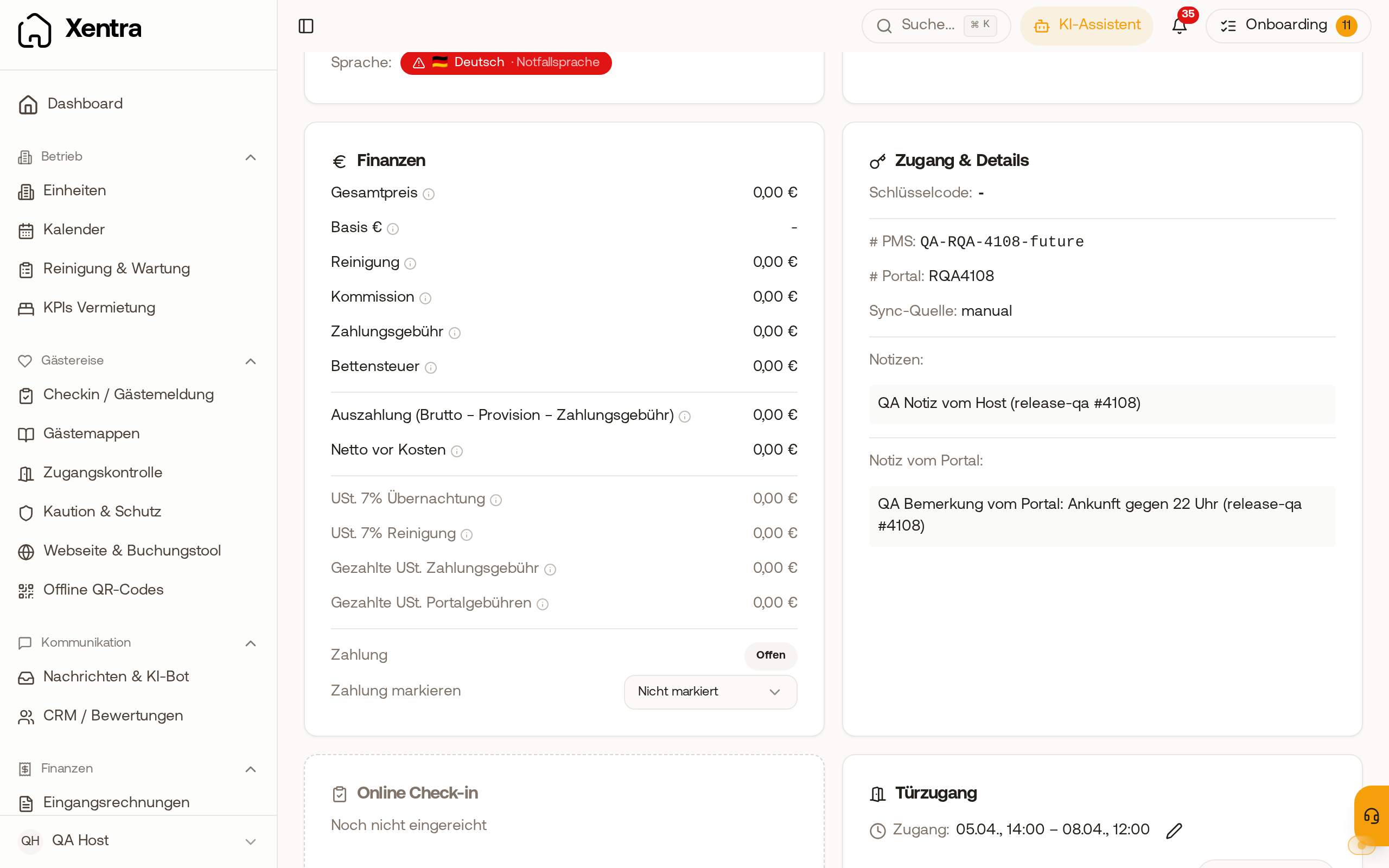 In "Access & Details", your notes are displayed, followed by the note from the channel.
- Internal note: for your eyes only, for example how the price was calculated. It is never sent to the guest, not included in the calendar export, and not shown on the invoice. Only you and team members who are allowed to see prices can view and edit it. This works for any booking, including imported ones.
- Cleaning notes: notes for cleaning this specific booking, for example "set up baby crib". Your cleaner sees them on their task.
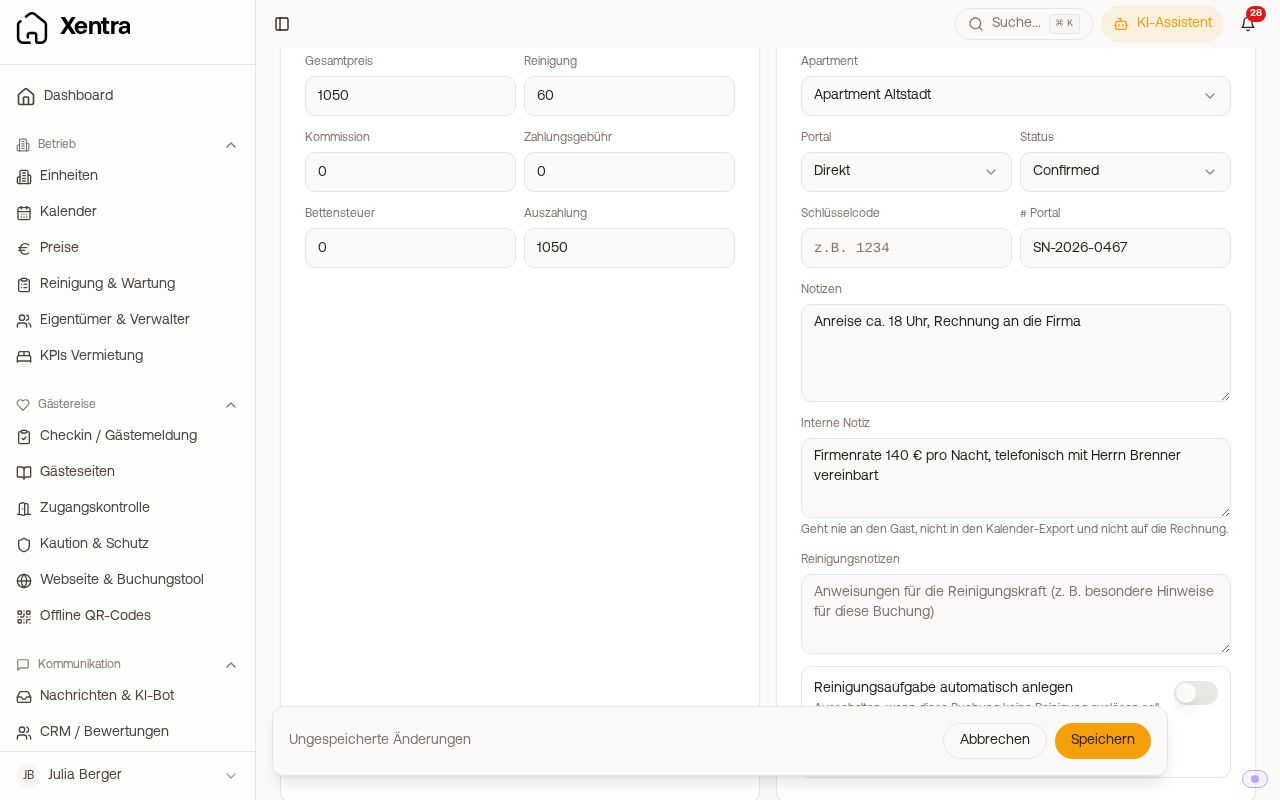 Editing in "Access & Details": Apartment, Status, Internal note, and Cleaning notes
No cleaning for this booking
Below the notes in edit mode is the toggle "Automatically create cleaning task". If you turn it off for a booking, no cleaning task will be created for it; the booking then receives the badge "Exception: no cleaning task".
Good to know
- A booking spanning multiple units always changes its dates for all units. See Creating a booking spanning multiple units.
- Canceling and reverting a cancellation: see Canceling a booking and undoing a cancellation.
- Team members only see the fields on the booking page that you have granted them access to.
Vrbo booking without guest e-mail
Vrbo and FeWo-direkt do not pass on the guest's contact details. As long as there is neither an email nor a phone number on the booking, no automatic message reaches the guest, not even the check-in link. The booking then displays a yellow notice, and under Action needed it appears under "Vrbo bookings without guest e-mail". Click "Enter e-mail", copy the address from your Vrbo inbox into the field Email and save. Messages that were already due and could not be sent due to missing contact details, such as the booking confirmation, Xentra then sends on its own: As soon as you save the email, they are sent to the guest by email within about a minute, and you can see them in the chat of the booking. This applies up to one day after departure, and for messages around departure (such as a request for a review) up to seven days after. For bookings created up to November 2, 2026, this does not happen: There you send the message in the chat of the booking or with Try again under Action needed.