
Calendar: View, navigation and colours
Timeline, scrolling, colours and bar preview, View menu, monthly view of a unit, overlaps and booking conflicts.
Updated on November 12, 2026
Under Calendar, you see all bookings and blocks as a timeline: one row per unit, one bar per stay. Next to Calendar and Bookings, the tabs Add-ons, Requests, Booking conflicts and Action needed only appear when there is something there.
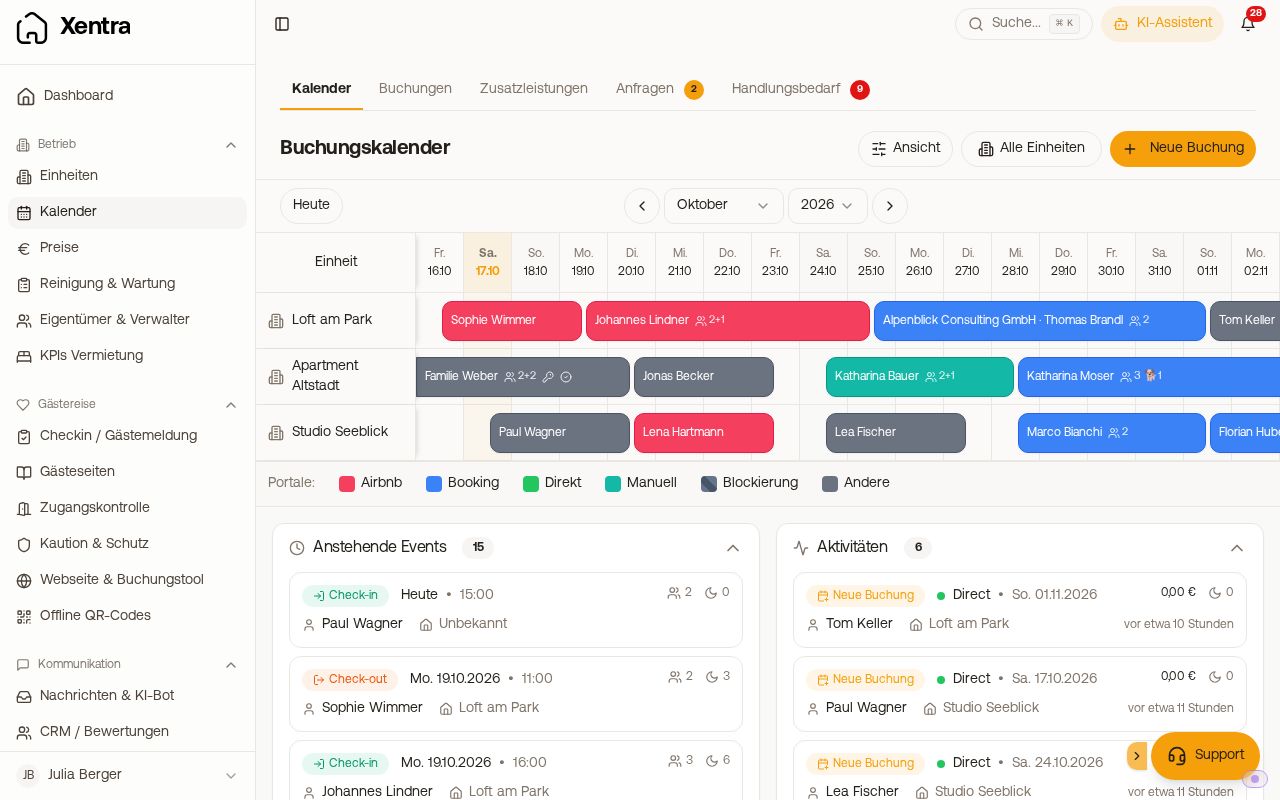 The booking calendar with three units, coloured booking bars and the legend below
Scrolling and jumping
- On a computer, the calendar shows six weeks, on a mobile phone two, starting from yesterday.
- The arrows to the left and right of the month selection scroll one week back or one week forward. Today brings you back.
- Use the selection fields for Month and Year to jump directly to a month, including in the past. The year list goes back two years and forward two years.
- If there is no booking in the visible timeframe, it says "No bookings in the visible timeframe. Next booking: …" at the top. With Jump there, you land directly there.
What the bars show
What colours, arrows, dashed gaps and icons on the booking bars mean and what the hover preview shows: see Calendar: What bars, colours and icons mean.
View: Grid or list, row height and prices
All display options are behind the "View" button at the top of the calendar (on mobile, only the icon with sliders):
- Layout: "Grid" (timeline with one row per unit) or "List".
- Row height: "Normal" or "Compact". Compact shows many units without scrolling, long names are shortened to one line. Only in the grid and only on a computer.
- Show prices: displays the daily price in every empty cell. If the minimum stay for this day is more than one night, it appears small underneath, for example "≥3". Only in the grid.
The selection stays saved. "View" opens a side panel on the right, every selection takes effect immediately. Under "Markers and colours", you also find your personal switches "Channel logos in the calendar", "Mark pending bookings" and "Colours for red-green colour blindness", see Calendar: Channel logos and colours for red-green colour blindness.
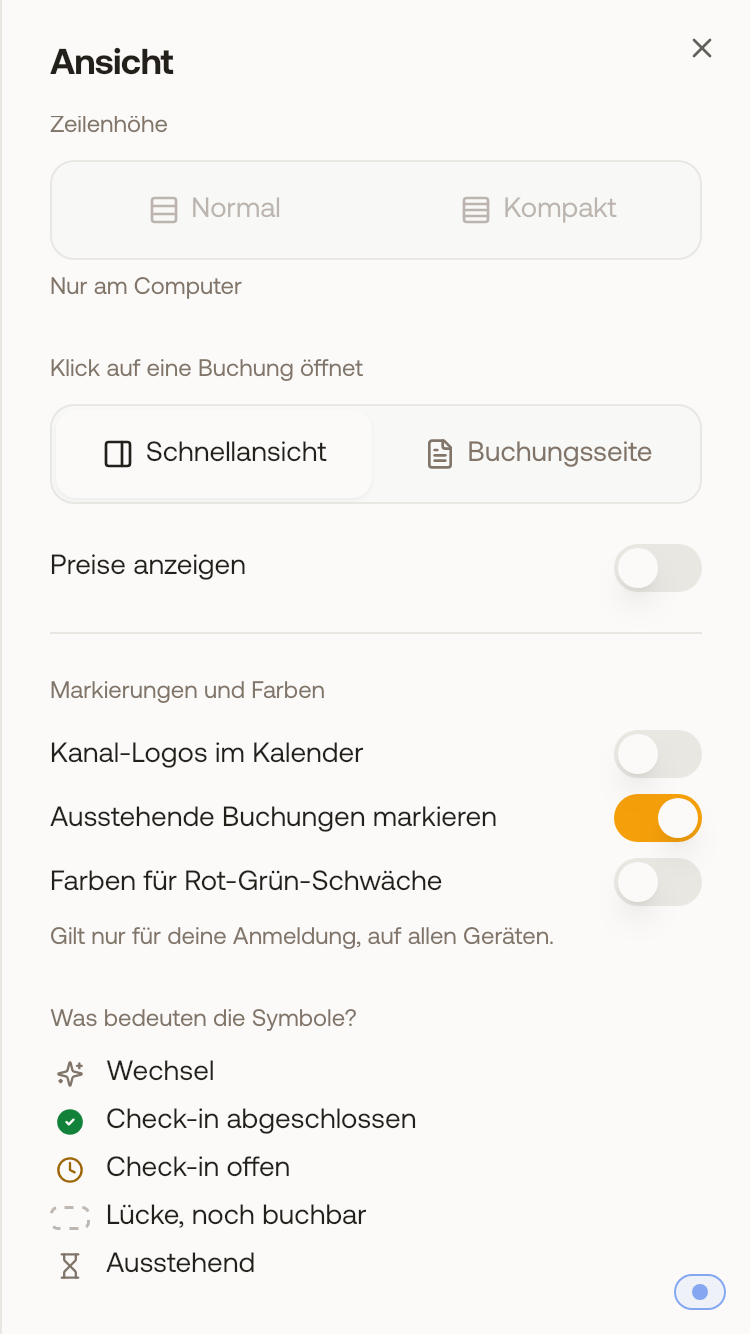 The "View" side panel on mobile with the switches under "Markers and colours" and the legend.
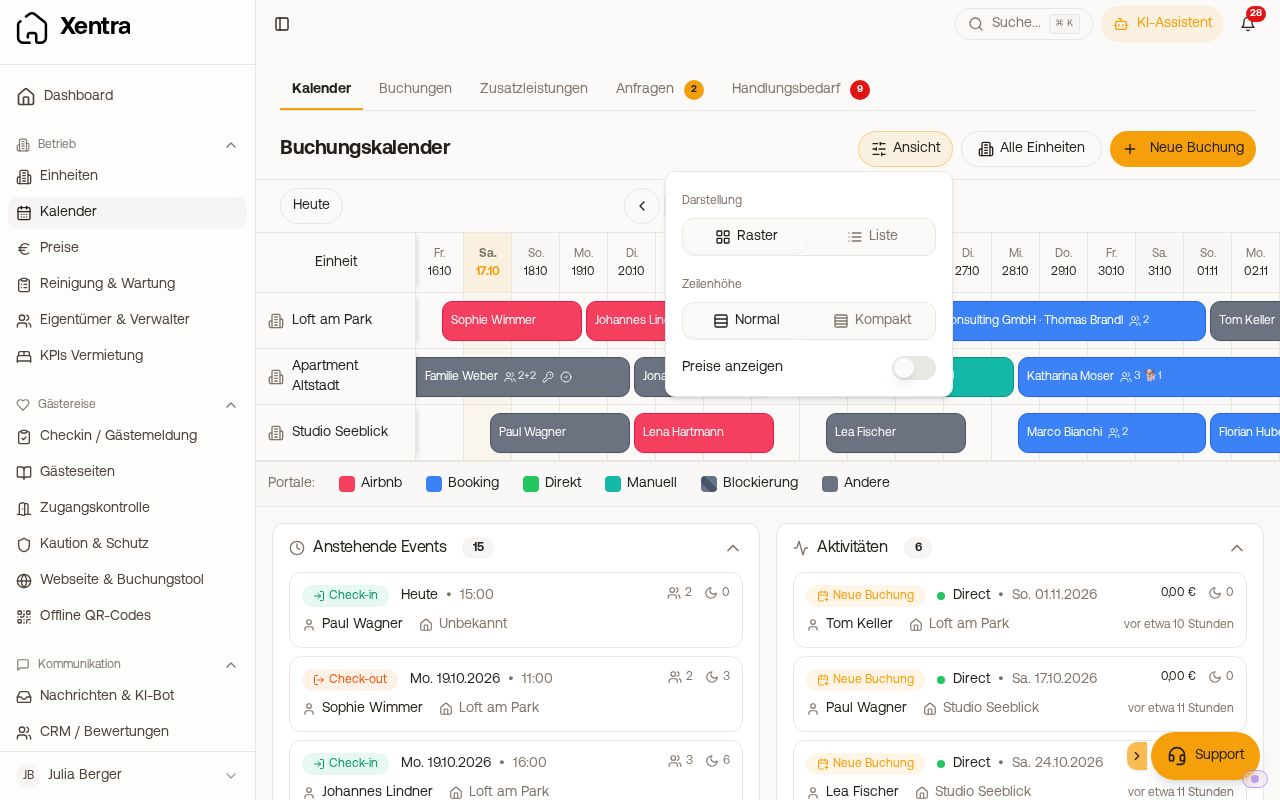 The "View" menu with display, row height and prices
Show a single unit or a location group
In the "All units" filter, you choose which units the calendar shows. If you created location groups, you also select a whole group there. If you select exactly one unit, the calendar shows the full month of this unit instead of the timeline; you scroll further with the arrows. The "View" button is not available then. The selection stays saved on the device.
New booking directly in the calendar
Click an available day in the grid, or on a computer, click and drag with the mouse button held down from the arrival date to the departure date: The New booking window opens with unit, arrival and departure already filled in. On a mobile phone, tapping an available day opens the window, swiping and scrolling do not. Everything else: see Creating a new booking: Suggested price, occupancy warning and data.
Overlaps: Overbooking and block over a booking
If two entries are on the same nights of a unit, the calendar displays both below each other: the row becomes tall enough so that each entry gets its own lane. Guest bookings are at the top, blocks underneath. A turnover day (one guest departs, the next arrives) is not an overlap. On the left side of the unit, it shows how many overlaps are in the visible timeframe.
- Red: Overbooking. Two bookings on the same night. One of them must be removed or moved to another unit. If the booking comes from a portal, you change it there.
- Yellow: Block over a booking. Either the block is outdated, or the booking does not belong there.
The preview of a highlighted bar states what it overlaps with. With two bookings, the Booking conflicts tab additionally appears with every overlap. A booking with the status "Pending" counts like a confirmed one, open requests do not count.
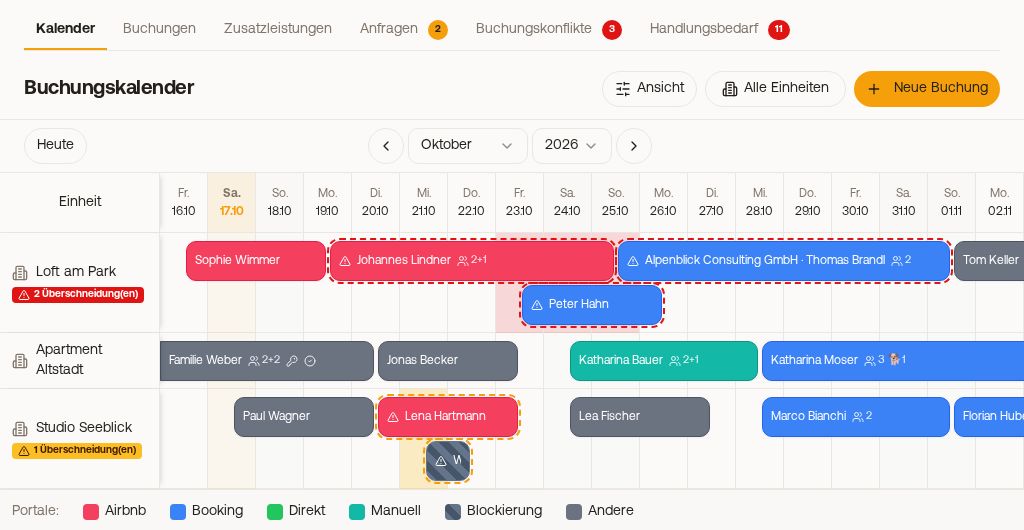 Overbooking (red) and block over a booking (yellow) in separate lanes
Below the calendar: Upcoming Events and Activities
Upcoming Events lists arrivals and departures for the next 14 days with time. Activities shows what happened recently: new, modified and cancelled bookings.
More on bookings
- Open booking, change dates, apartment and notes: see Edit booking: Dates, apartment and notes.
- Cancel and undo a cancellation: see Cancel booking and undo cancellation.
- Block for personal use or maintenance: see Blocked timeframes: Enter, remove and why they return.
- Calendar links for portals and calendar apps: see iCal export: Calendar link per apartment.