
Booking Tool: Direct bookings via your own booking page
Set up and activate the booking tool, payment methods, direct link and embedding, global defaults, as well as where guest count, times, and minimum stay come from.
Updated on November 7, 2026
With the booking tool, guests book directly with you, without a portal and without portal commission. If the guest pays online via Stripe, Xentra retains the platform fee; for bank transfers or requests, it does not (see Platform fee: how high it is and where to find it). It displays available dates from your Xentra calendar in real time, calculates the price from your price calendar, and accepts payment.
You find it under Guest Journey → Website & Booking Tool (Open booking tool). At the top, you choose between Website, the Settings of the booking tool, Availability calendar, and Pricing.
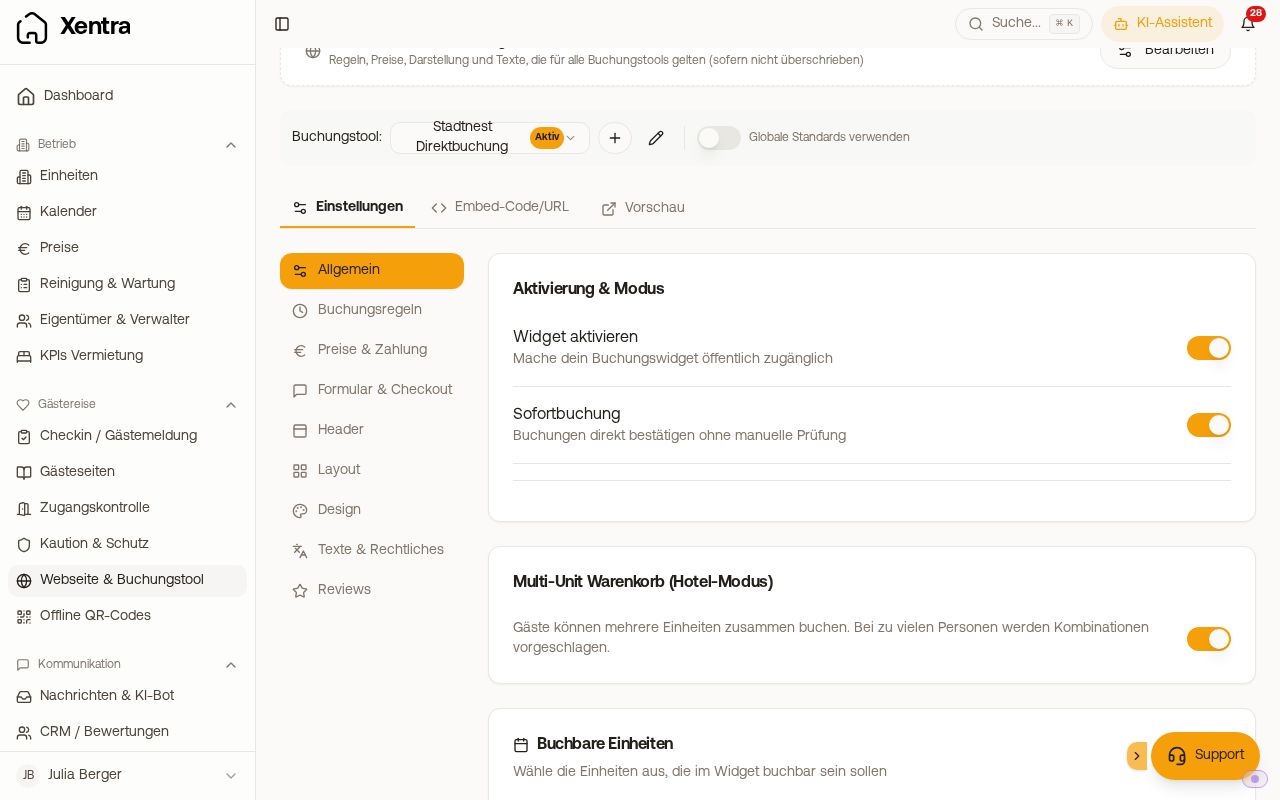 Booking tool settings with activation, hotel mode, and bookable units
Ready to go in three steps
- Under Settings → General, Bookable Units card, check the accommodations that guests can book.
- In the Activation & Mode card, turn on the Activate widget switch. New booking tools start switched off. With Instant Booking, Xentra confirms bookings directly without you reviewing them.
- Under Pricing & Payment, select the payment methods: Online Payment (Stripe), Bank Transfer (Prepayment), No Payment (Request), or On request.
Then save in the bar below. With Preview, you open the actual booking page in a new tab.
You do not need your own website
Every booking tool has its own booking page hosted by Xentra. You can find the link in the Embed Code/URL tab under Direct link (with language, for example /de/book/...). You can send it to guests, put it in your Instagram profile, or link it on your website.
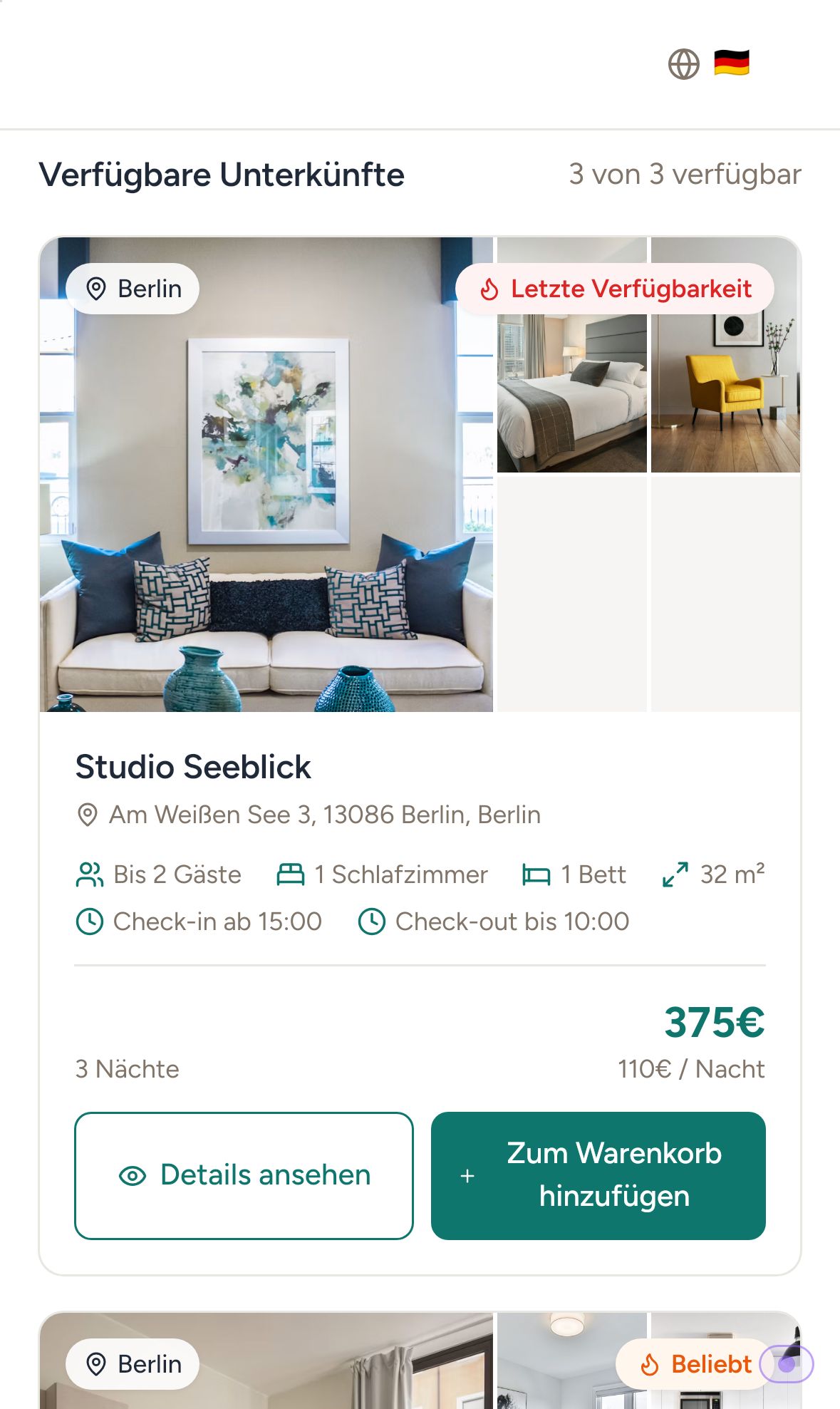 How a guest sees the booking page on a mobile phone
Embed on your own website
In the Embed Code/URL tab, copy the JS Snippet and paste it into your website (in WordPress, Wix, or Webflow as an HTML or code block). It renders the booking tool directly at this location, adapts to mobile phones, and does not affect the design of your site. We do not offer iFrame embedding for hosts.
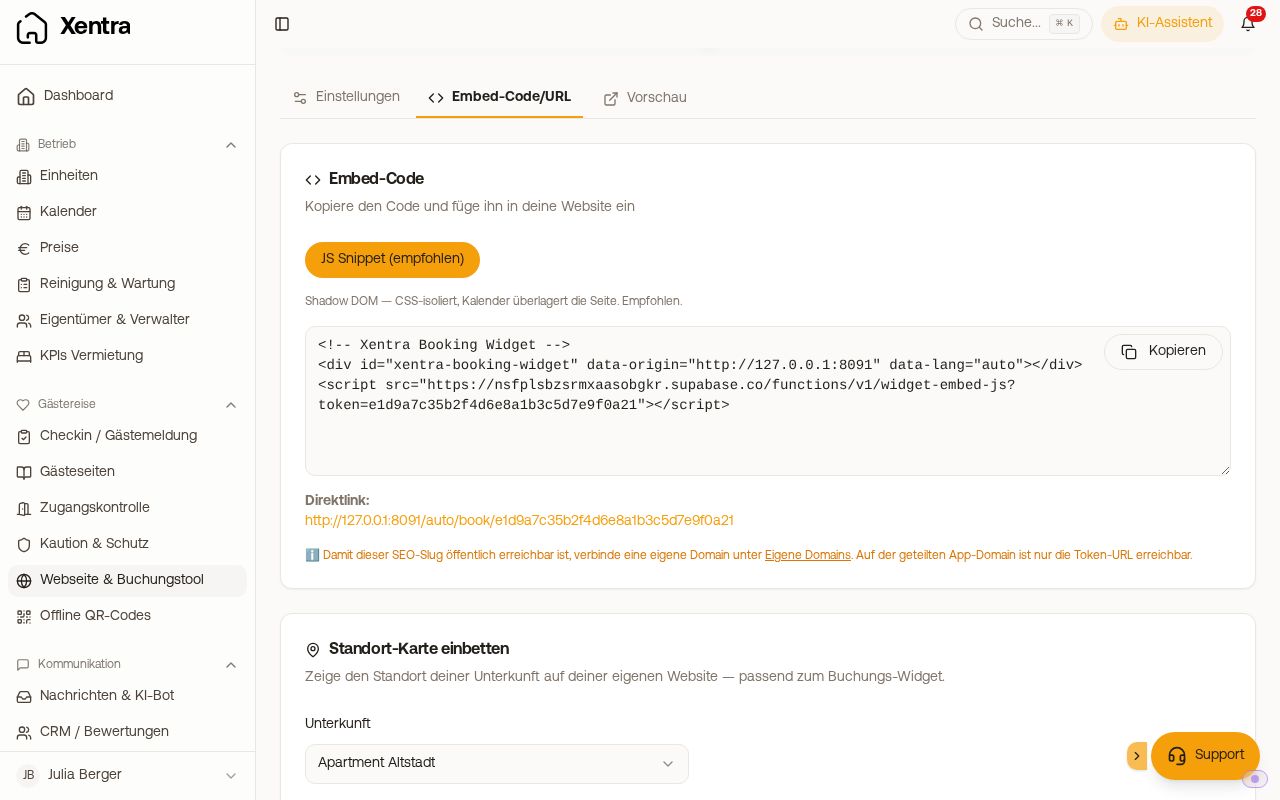 Embed Code/URL tab with JS Snippet, direct link, and location map
Instructions for your web agency (direct link with language, all URL parameters, script, availability calendar) can be found in the API documentation at https://rest.myxentra.com/docs in the "Website integration" section. Which values you can pre-fill via link is also described in the article "Pre-filling the booking tool via link".
Where search results appear: Under Settings → General, Search results card, you determine whether the results Open in a new tab or Show within widget (meaning directly on your website). There you will also find the switch Hide "View details" in embedded booking tool, for websites with an individual page per accommodation.
Back link and notification to your website after a request: see "Booking tool on your own website: Back link".
Custom address (slug): You can only set a user-friendly address like booking.deinedomain.de/de/book/sommerhaus in the Embed Code/URL tab if a custom domain is connected (see "Custom Domains"). On the shared Xentra address, the link with the token always applies.
What else the booking tool can do
- Multiple booking tools, shared settings, name in the header, and deleting: see "Booking tool: multiple booking tools, name in the header, and deleting".
- Trust badges / USPs: up to 4 short benefits with an icon, for example "Book directly with confidence", at the top of your booking page. Under Settings → Layout, create them with "Add badge" and choose an icon and German text. You maintain the text per language under Settings → Texts & legal, where "Translate all" also translates it via AI. Without a translation, guests see the German text.
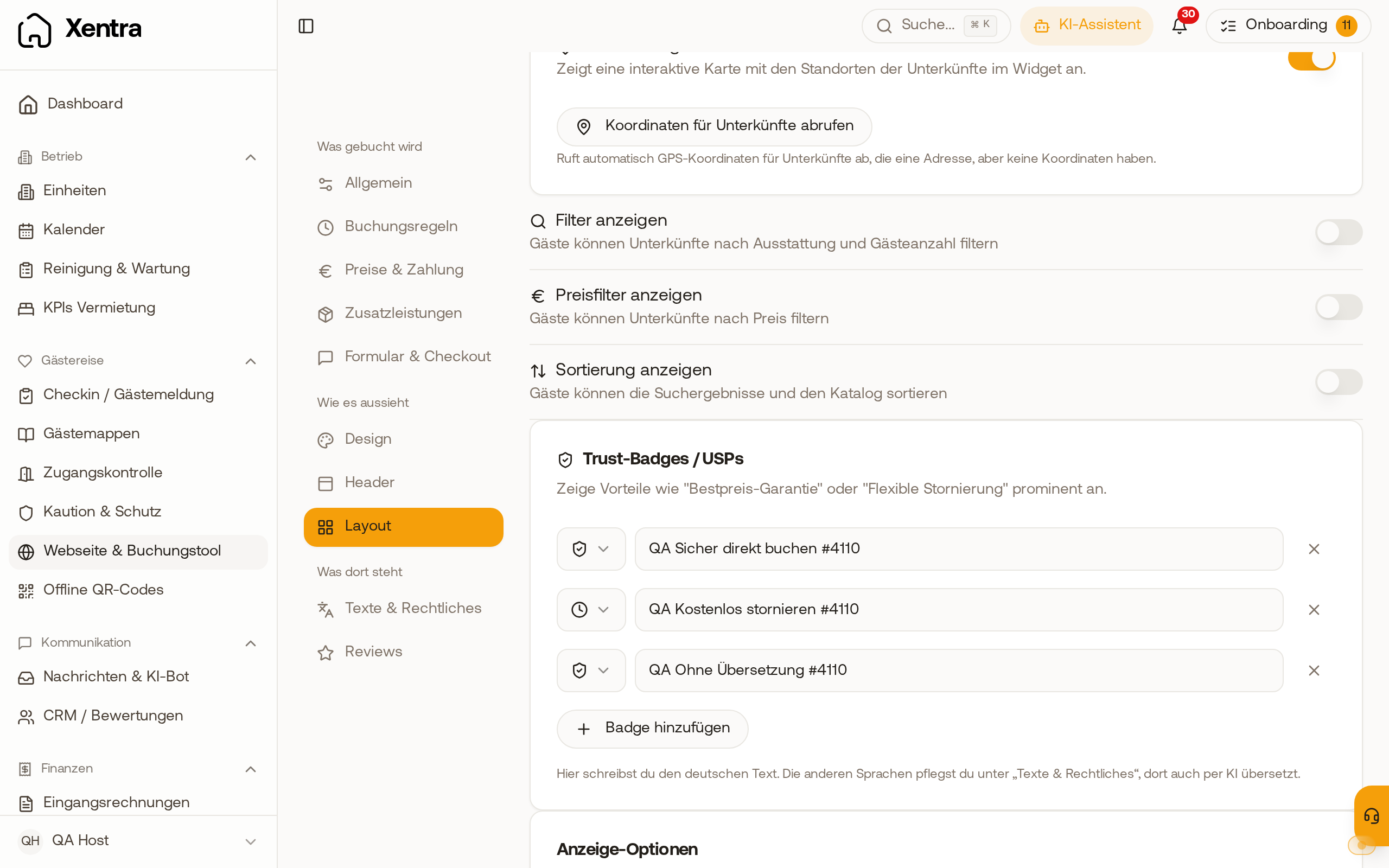 Under Layout, you create the trust badges with icon and German text.
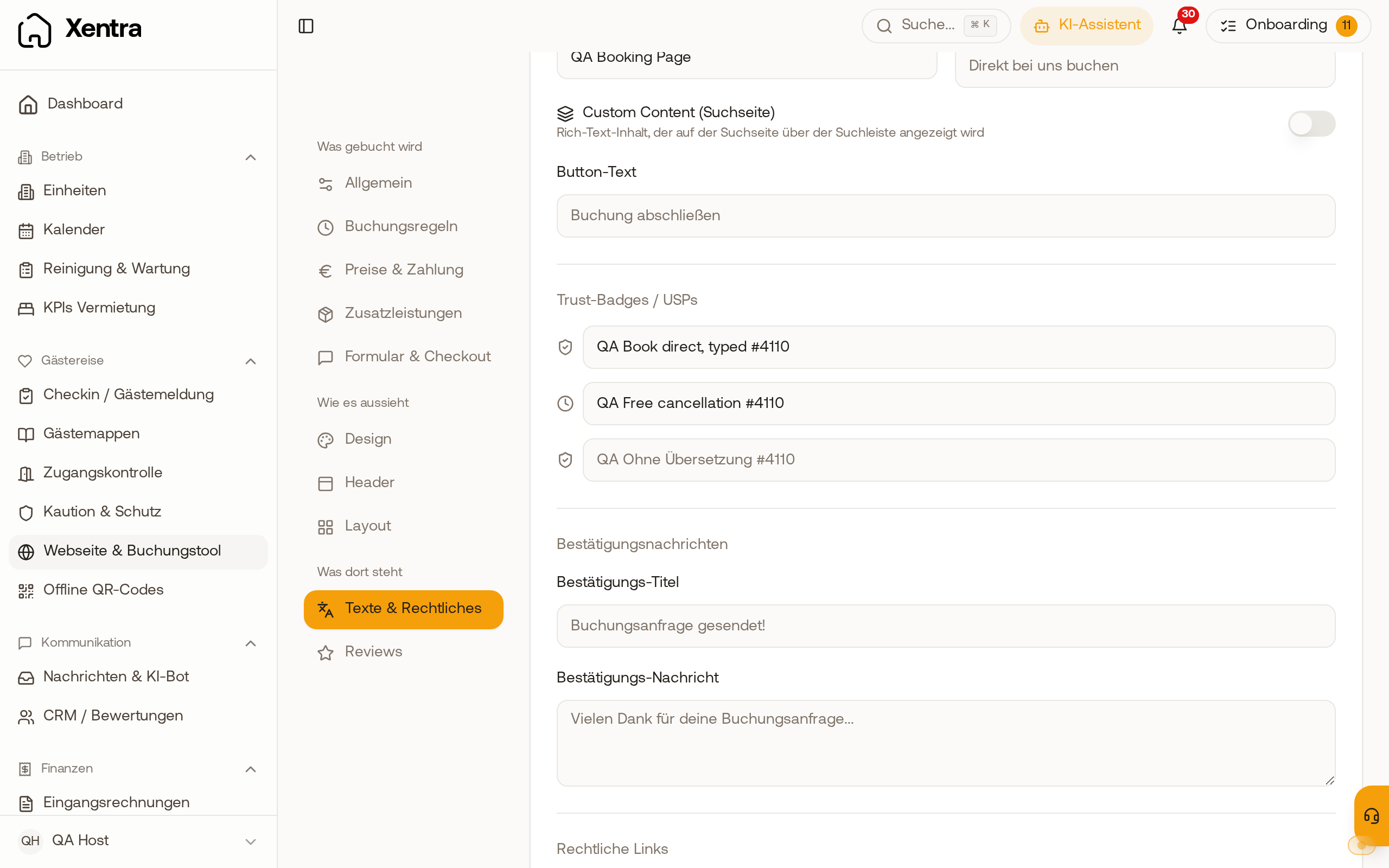 Under Texts & legal, you enter the text for each badge for each language.
- Hotel mode: Guests place multiple units in a cart; for large groups, the booking tool suggests suitable combinations (see "Hotel mode in the booking tool").
- Discount Codes under Pricing & Payment (see "Discount codes for guests in the booking tool").
- Guest data under Form & Checkout: for example arrival time, children's ages, special requests, and which guest categories (children, toddlers, dogs) are requested. Business travelers can enter company name and tax ID (switch "Company & tax ID"); both end up on the contact and on the invoice. If the guest checks "I am booking for a company", the booking tool also requests the company address (street & house number, postal code, city, country). As soon as a company name is entered, street, postal code, and city are mandatory. The company address then appears as the billing address on the invoice, even if the unit has no online check-in; in the "Create guest invoice" window, it is already entered under "Address".
- Custom note before booking: Under Settings → Texts & legal, field "Additional Notes", enter custom text, for example what your cleaning fee includes. It appears in the final booking step directly above the checkbox for terms and privacy policy.
- Legal Links: Under Settings → Texts & legal, card "Legal Links", enter links to your terms and conditions, privacy policy, cancellation policy ("Cancellation Policy URL"), and legal notice for each language. The booking tool does not write its own cancellation policy; it links to your page. The guest sees the links during booking in the sentence accepting the conditions, and also at the bottom in the footer on the booking page hosted by Xentra. An empty field shows no link.
- PMS Sync in the Activation & Mode card (only with a connected PMS): automatically send new bookings from the booking tool to your PMS. Under Pricing & Payment, you specify under PMS Push per Payment Method for which payment methods this happens.
More about the booking tool
Guest count, times, minimum stay, and tourist tax do not come from the booking tool: see "Booking tool: guest count, times, minimum stay, and tourist tax".
Further reading: "Booking tool: grouping units and what accommodation cards show" and "Booking tool: accepting requests and confirmation email".
Error "Booking widget not active"
This message only depends on the Activate widget switch in the Activation & Mode card. Stripe, PMS, pricing, or request mode do not trigger this specific message. Turn the booking tool on and save.