
Booking tool: grouping units and what the accommodation cards show
Unit grouping per booking tool, show accommodations directly, and which details (bedrooms, beds, price per night) the cards show.
Updated on October 19, 2026
Grouping units in the booking tool
If your booking tool offers several accommodations, you can bundle them, for example by location or by house. Guests then filter by group first.
Open the booking tool and select the booking tool you want to edit at the top, under “Booking tool:”. The groups belong to a booking tool, not to the account. Under Settings → General you find the card Unit Clustering.
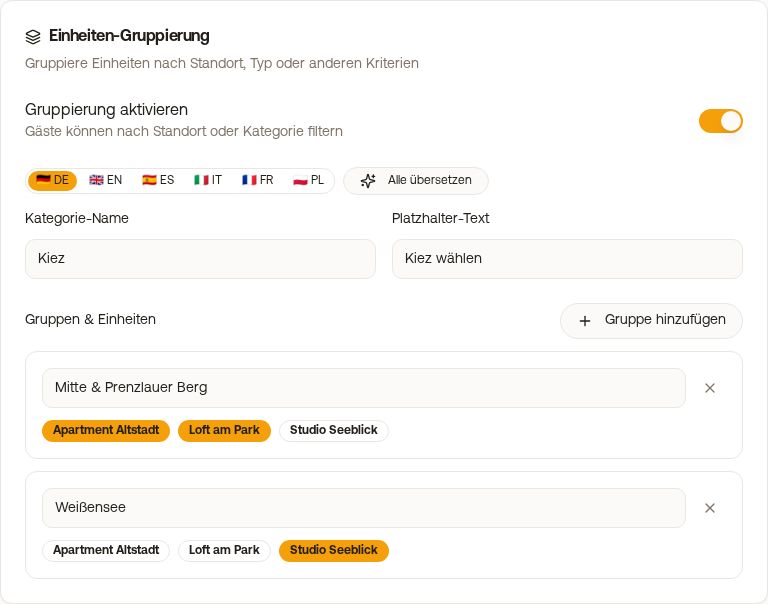 Unit Clustering card in the booking tool
- Turn on the switch Enable clustering.
- Under Groups & Units, click Add group and type the name.
- Below are your bookable units as small fields. One click puts a unit into the group, another click takes it out again.
- Save at the bottom.
Each unit can only be in one group. If the switch is on but no group is created, nothing changes in the display.
New unit missing from “Groups & Units”? Only units that are ticked under Bookable units in the same booking tool appear there. Tick the new unit there first; then it shows up in the grouping. Units without a group are only shown by the booking tool when the guest doesn't select a group.
Show accommodations directly
In the Browse Accommodations card, switch on Show accommodations directly: then the guest sees all accommodations right away when opening it, instead of an empty search bar. Under Number to show (0 = all) you set how many appear first; the guest loads more via “Show more”.
What the accommodation cards show
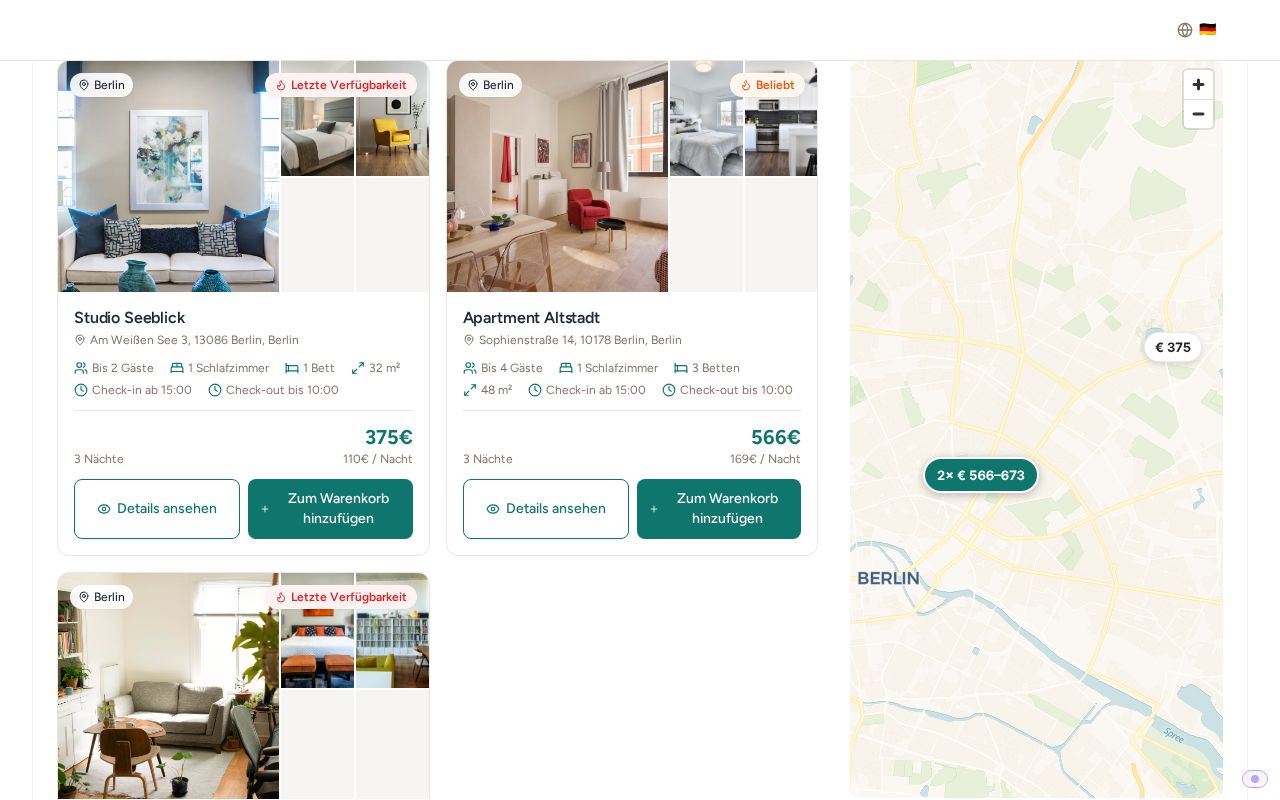 Accommodation cards in the search results with number of guests, bedrooms and price per night
- Number of guests, bedrooms, beds and size from the unit's fields (Units → Edit unit). For Bedrooms 1 is preset. For a studio enter 0; then no bedroom count appears on the card.
- Photos of the unit.
- Total price for the chosen period and below it the average price per night. The price per night does not include the cleaning fee; the total price does.
If you switch off Show price breakdown under Pricing & Payment, the line with the price per night disappears, and the guest sees only the total price, on the card as well as in checkout.
Why a period cannot be booked
If the booking tool rejects a period, it tells the guest the reason, for example minimum stay or blocked days. An accommodation that is too small for the number of guests searched shows “Maximum guests: N” instead of a price.