
Prices, Settings tab: cleaning fee, guests and surcharge per guest
Set cleaning fee, guests, extra guest fee, dogs and arrival and departure days per unit, where each value goes and how to copy it to others.
Updated on November 6, 2026
You set what applies to each booking per unit under Open pricing, Settings tab. At the top, under “Select properties”, choose the units. With several, they are listed on the left (on a phone as a select field at the top), and on the right you see the unit you click, in sections: Price & guests, Pets, Booking window, Buffer nights between bookings, Arrival & departure days and Property.
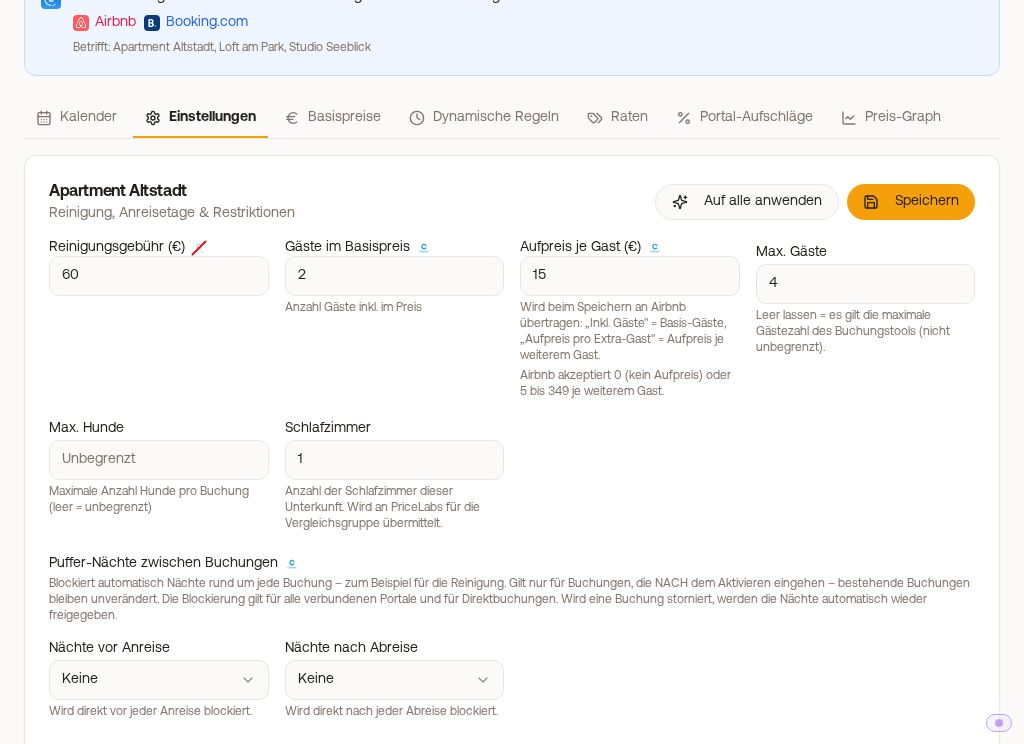 Settings tab of a unit: cleaning fee, guests in base price, surcharge per guest, max. guests, max. dogs, bedrooms and buffer nights
Saving
When you change a value, the unit gets a dot in the list and a bar appears at the bottom, for example “1 property changed”, with “Discard” and “Save”. Feel free to change several units one after another and save everything at once; switching units loses nothing. If you switch tabs or leave the page without saving, Xentra asks first.
The fields
- Cleaning fee: fixed amount per stay, regardless of the number of guests. It applies to your booking tool and to bookings you create yourself. It is not sent to the portals: the portal logos next to the field are crossed out. A cleaning fee at Airbnb or Booking.com you set in the portal itself, or you cover it via a portal surcharge (see “Portal Surcharges”).
- Guests in base price: this many guests are included in the price per night.
- Surcharge per guest: amount per night for each guest above this number (“Per night, per extra guest”). Children count like adults.
- Max. guests: upper limit for bookings. If you leave it empty, the maximum number of guests of the booking tool applies, not unlimited.
- Max. dogs: how many dogs are allowed per booking. Empty means unlimited.
- Dog fee and Charge the dog fee: amount per dog that guests pay directly when booking on your booking page and through the data API, either Per dog per stay or Per dog per night. Empty means: no fee. The booking page shows it as its own line “Dog fee” and adds it to the total price. So that guests can enter dogs, your booking tool must ask for dogs: Open booking tool, Booking rules, Guest categories, Dogs. Guests who paid the dog fee when booking are no longer offered products priced per pet in the online check-in; bookings from portals keep them. A dog product with another price type (for example per stay) stays visible to all guests: switch it to a price per pet or remove it (Online check-in, your template, Products).
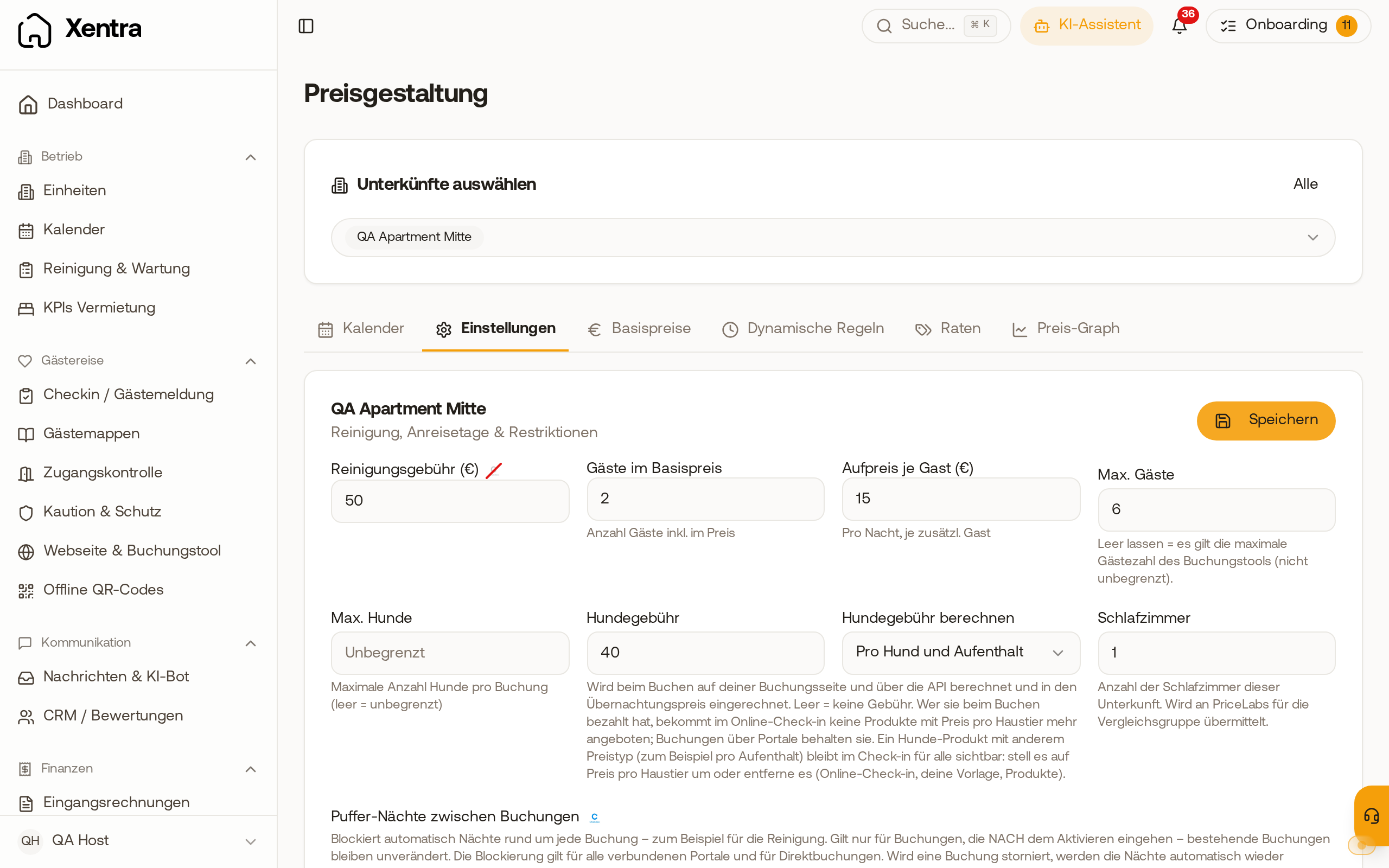 Settings tab: dog fee and “Charge the dog fee” right next to max. dogs.
- Bedrooms (Property section): the same number as in the unit's master data. It is shown in the booking tool and sent to PriceLabs.
The fields belong together but act separately: the cleaning fee never changes with the number of guests, and the surcharge per guest has nothing to do with the price types of the add-on products.
Arrival & departure days
Under Allowed arrival days and Allowed departure days you tap the weekdays on which guests may arrive or leave. Below, your choice is repeated in words, for example “Only: Sat”. Nothing selected means: every day is allowed. The days apply to your booking tool and, with a channel manager, go to all connected portals. If PriceLabs sets the days for a unit, the PriceLabs days apply.
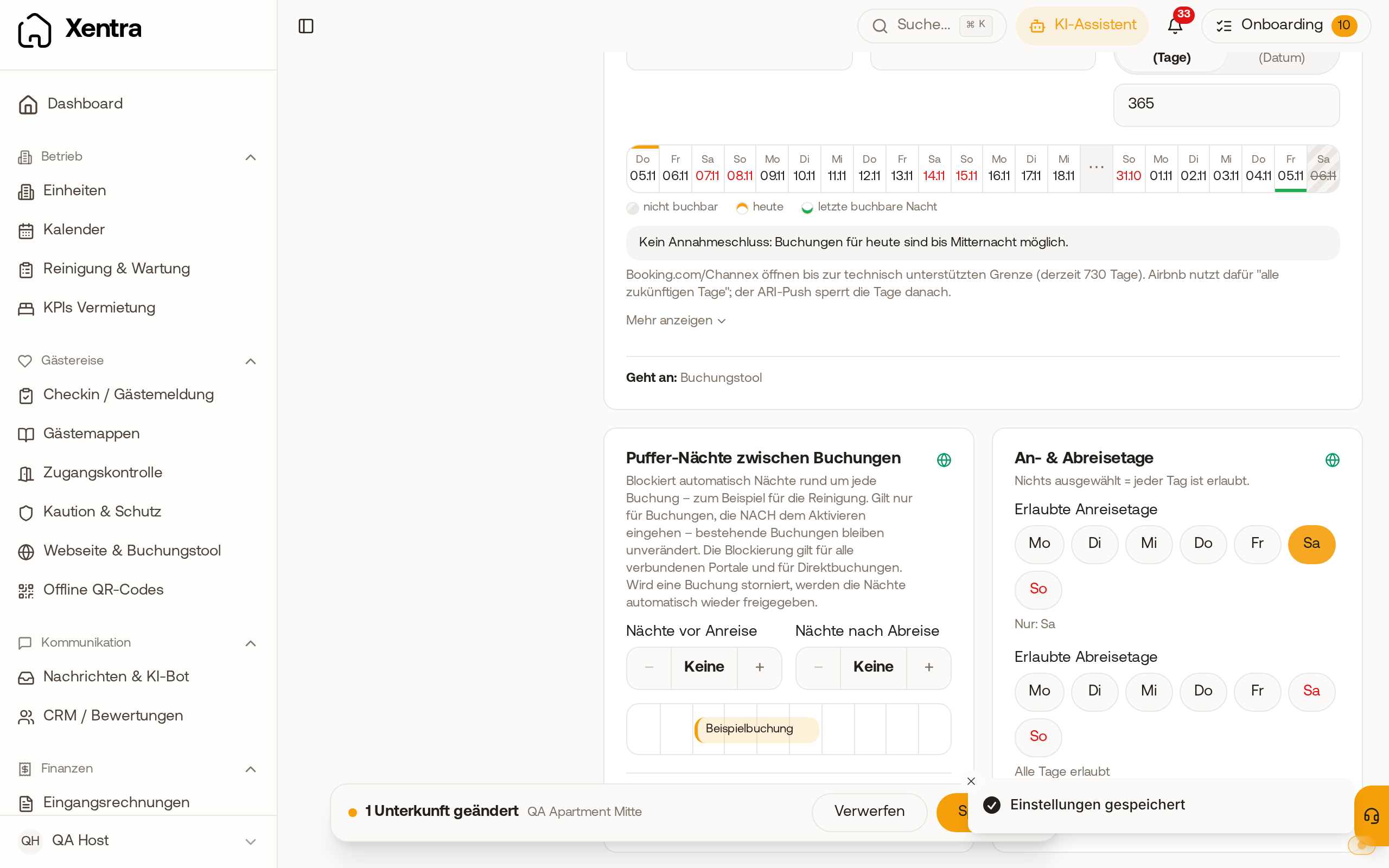 Arrival & departure days: Saturday chosen as the only arrival day, below it “Nur: Sa”.
What goes to the portals
Small logos next to each field show where the value goes: the booking tool, each portal of the unit and PriceLabs. A crossed-out logo means the value does not arrive there. Below each section it says “Goes to: …”, and at the top “What goes where?” opens an overview for the whole unit. “only at setup” means the value is only sent when the portal is connected.
- Guests in base price and Surcharge per guest go to Airbnb as soon as the unit is connected to Airbnb. Airbnb accepts 0 (no surcharge) or 5 to 349 per additional guest, and Xentra shows you this directly below the field. Details in “Airbnb discounts: what goes through Xentra and what does not”.
- Booking.com and the other portals receive one price per night for the whole unit, without a surcharge per guest. See “Who sets the price when a portal is connected via Channex”.
- Min. Lead Time, Booking cut-off and Max. Lead Time go to all connected portals. See “Booking cut-off: until when you can still book today” and “Minimum stay and buffer nights between bookings”.
- Buffer nights between bookings only appear for units with a channel manager.
Copy to other units
If you have selected several units, “Copy to others” appears next to the unit's name. In the “Copy settings” window, tick the sections under “What to copy” and the targets under “To which properties”; the other units of your selection are preselected. Before you confirm, Xentra shows how many units change and where the values go. “Copy to …” overwrites the targets' values in these sections. Bedrooms are never copied. If saving does not work for individual units, Xentra reports the number of failed units instead of a success.
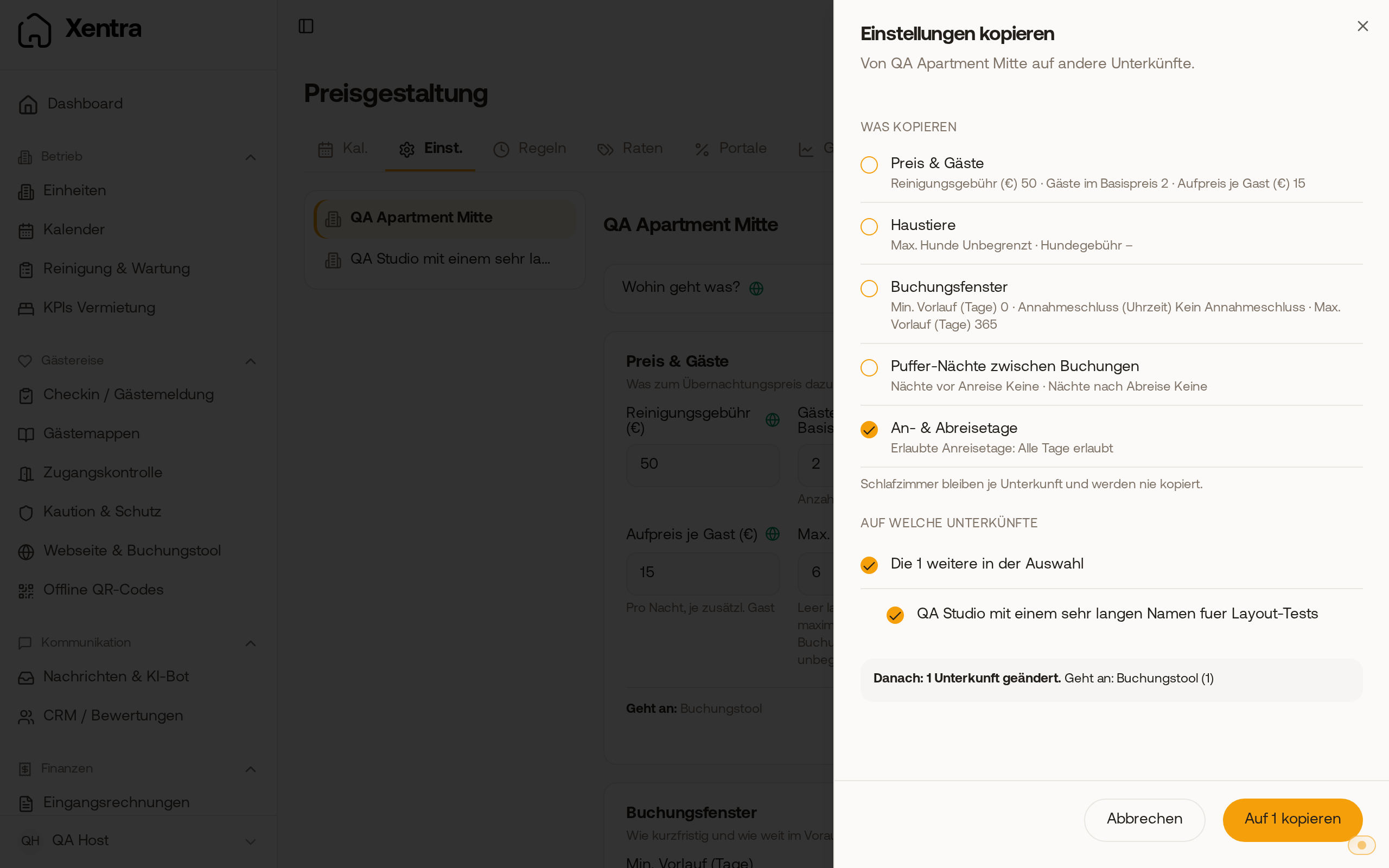 Copy settings: one section ticked, one target property, the preview below.