
Pricing: where you maintain your prices
An overview of the pricing page: maintaining prices for periods and individual days, closing days, reading the price graph, and when prices arrive at portals.
Updated on November 7, 2026
You maintain your nightly prices, minimum stays, and closed days on the Pricing page. You can reach it in two ways:
- In the menu on the left under Pricing. You will see this menu item as soon as your channel manager is connected to at least one unit.
- Always via Website & Booking Tool, button Pricing. This is the exact same page, just in a different place. This is how you maintain prices for your booking tool even without a channel manager.
At the top under "Select properties", you select the units you want to edit. With "All", you select all of them at once.
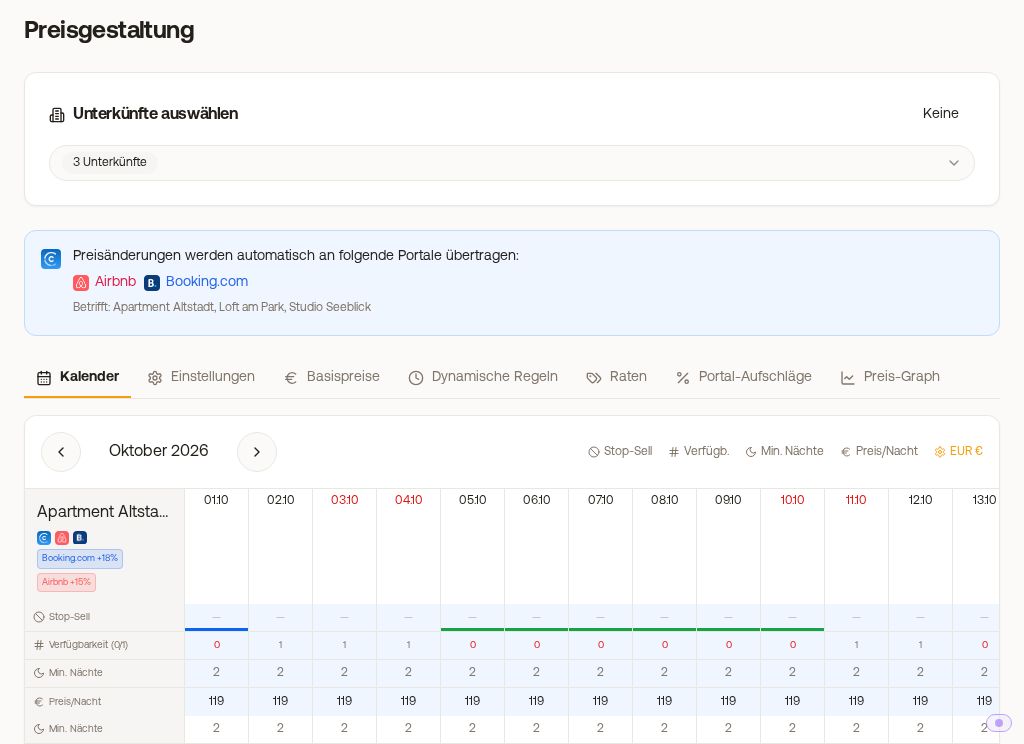 Pricing with the calendar, three properties, and rows per portal
The tabs at a glance
- Calendar: looks like the booking calendar: one row per unit, your bookings as bars, and for each available night the price and the minimum stay ("min 2"). At the top, you select the view Week, 2 weeks, or Month, Today, and the arrows scroll further. If you have portal surcharges, you expand the prices per portal using the arrow before the unit name. On mobile, you see a list per unit instead (below).
- Settings: cleaning fee, guests included in base price, extra fee per guest, max. guests, cutoff time, advance notice, and buffer nights per unit. See "Pricing, Settings tab: Cleaning fee, guests, and extra fee per guest".
- Edit period (button above the calendar): prices, minimum stay, and closes for an entire period (below).
- Rules (Dynamic rules): automatic surcharges and discounts, for example for weekends or last minute. See "Dynamic Price Rules".
- Rates: additional rates like "Non-refundable" for your booking tool. See "Additional rates for direct bookings".
- Portals (Portal Surcharges): channel manager only. See "Portal Surcharges".
- Graph (Price graph): shows typos and days without a price (below).
Setting prices for a period (Edit period)
In the Calendar tab, click "Edit period" at the top:
- Select Units, set From (first night) and To (last night).
- Under "Only on these weekdays", select the days, for example only Fri + Sat.
- Under "What to change", check: Price/Night (Fixed price, ± %, or ± Amount on the previous price of each night), Min. Nights, or Availability (Close / Open). What you do not check remains unchanged.
- Check the preview and click "Save".
This is also how you create seasonal prices: each season is its own period with its own price. Anything you enter later for individual days only overwrites the value on those days.
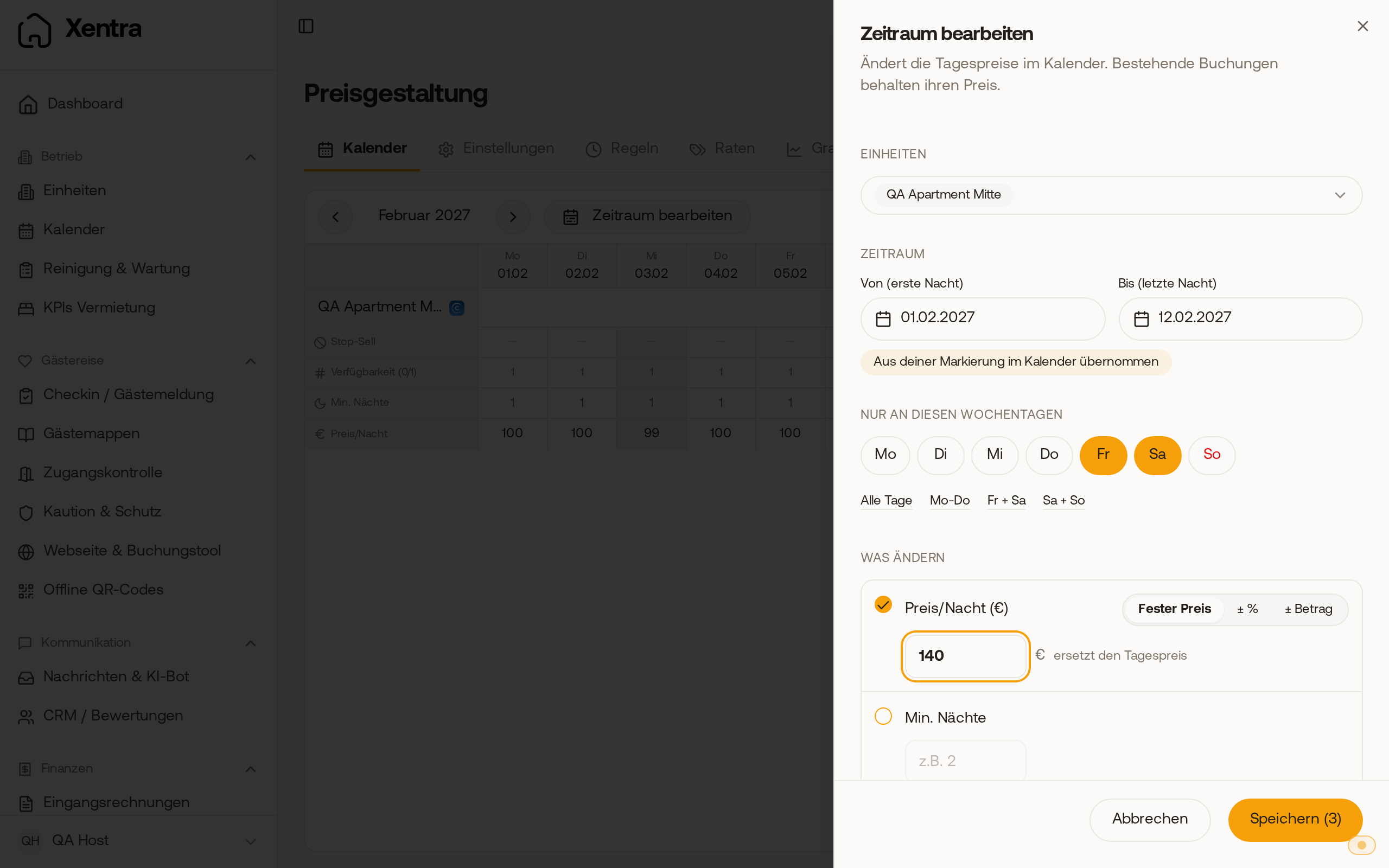 Edit period: February 1 to 12, Friday and Saturday only, fixed price €140
Changing individual days in the calendar
How to change individual nights, select multiple nights, edit multiple units at once, and use the price calendar on your phone is explained in "Price calendar: Changing nights individually or multiple at once".
Closing and reopening days (stop-sell)
- Closing: in Edit period, select the period, check Availability, select Close, and save. With channel manager, the days will then be closed on all connected portals.
- Reopening: the same way, with Open. A new price alone does not open a closed day.
A close here is not a calendar block. For personal use or maintenance, see "Blocked periods" in the article "Calendar & Bookings".
Price graph: errors at a glance
The Graph tab shows under "Price history" the prices of the selected units as a curve over 3, 6, or 12 months. These are the nightly prices according to the calendar, without rules, rates, and surcharges. Below that, Xentra lists "Possible price mistakes" (days whose price deviates by more than 40% from the unit's usual price, for example 19 instead of 119; intentional high-season prices also appear there) and under "Days without a price", how many days per unit have no price. You can see which days these are in the Calendar tab by the empty row Price/Night. A day without a price cannot be sold on portals, check this list after every major price change.
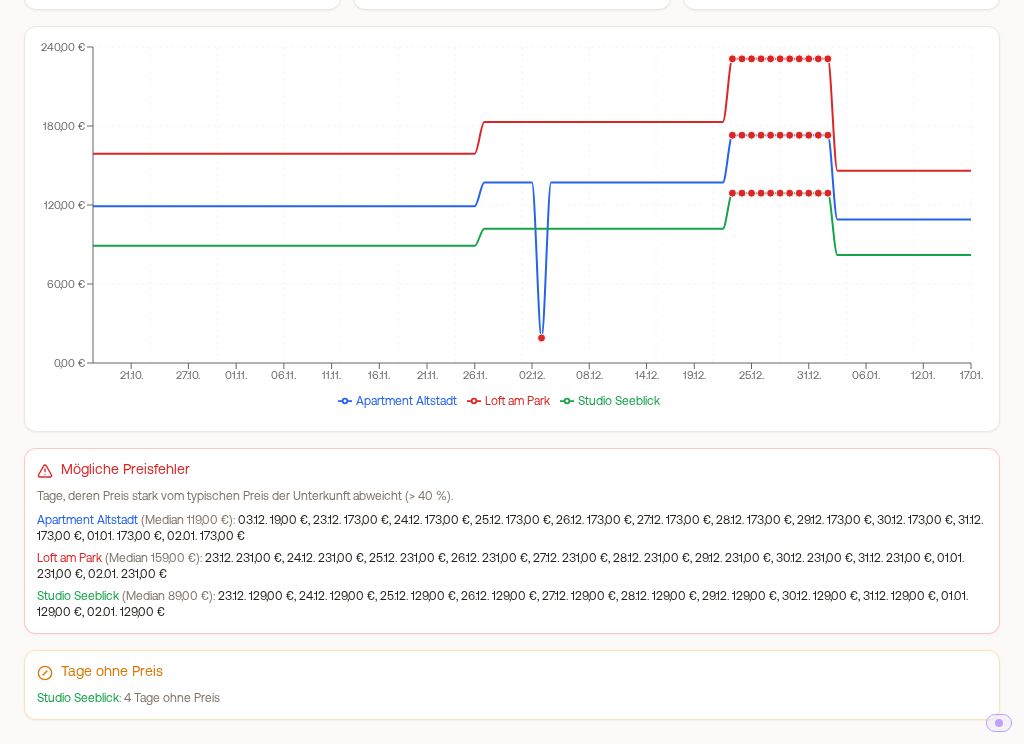 Price graph with an unusual price and days without a price
When prices arrive at the portals
With a channel manager, price, minimum stay, and close changes are sent to all connected portals within a few minutes after saving. The top of the page shows which portals the prices of the selected units go to. In addition, Xentra syncs all prices again every night (from 03:15 UTC onwards) and catches up on failed transfers. Without a channel manager, your prices apply to your booking tool and to bookings you create yourself. If your unit comes from a PMS like Smoobu, you continue to change prices on portals in your PMS; Xentra does not send them there.
PriceLabs
If PriceLabs controls the prices of a unit, the calendar and "Edit period" are locked for this unit ("Locked by PriceLabs"). You can still create rules and rates, which then apply only to direct bookings. Read more about this in "Connecting PriceLabs with Xentra".
Read more
- Minimum stay and buffer nights: "Minimum stay and buffer nights between bookings"
- Cutoff time for bookings today: "Cutoff time: until when bookings can be made today"
- Who sets the price on portals: "Who sets the price when a portal is connected via Channex"
- Airbnb discounts: "Airbnb discounts: what works via Xentra and what does not"