
Portal Surcharges: Adjust prices per channel (and the difference to Financial Import)
Set up surcharges per channel, copy them to multiple apartments, and check what arrives. Plus the difference to commissions in Financial Import.
Updated on November 13, 2026
Portal Surcharges: Adjust prices per channel
With a portal surcharge, you increase the price that a channel publishes, so that after deducting commission, you keep your desired price. This is the setting you might know from Smoobu, for example.
Open Prices, select the apartments at the top, tab "Portals" (on wide screens "Portal Surcharges").
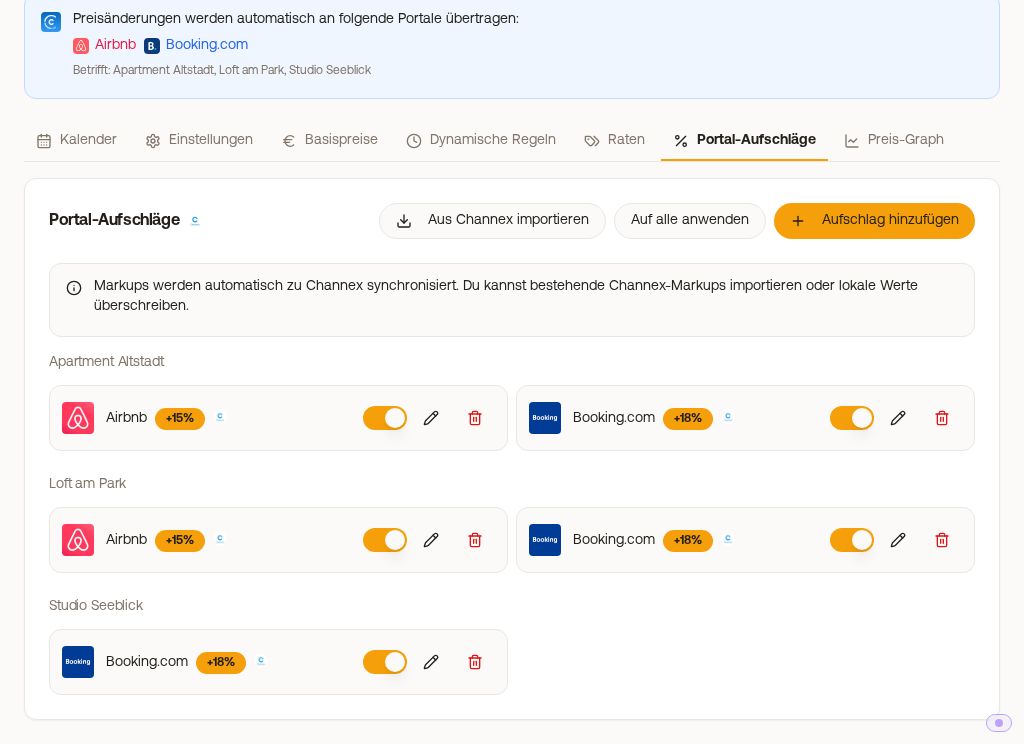 Portal Surcharges tab with surcharges for Airbnb and Booking.com per apartment
This tab is only available with Channel Manager. Xentra can only calculate a surcharge on prices that it sends to the channel itself. If Airbnb or Booking.com run via another PMS (e.g. Smoobu), the bookings arrive in Xentra, but the prices do not go through Xentra. You set the surcharge in the system that reports the prices to the channel.
Create or edit a surcharge
- "Add Surcharge", or open an existing entry via the pencil icon.
- Select Property and Channel. Available channels are those connected to the apartment via the Channel Manager (Airbnb, Booking.com, Vrbo, Expedia), plus Direct booking. You can select Booking.com even while the channel is not yet live: create the surcharge before going live, even 0% if Booking.com should not be more expensive.
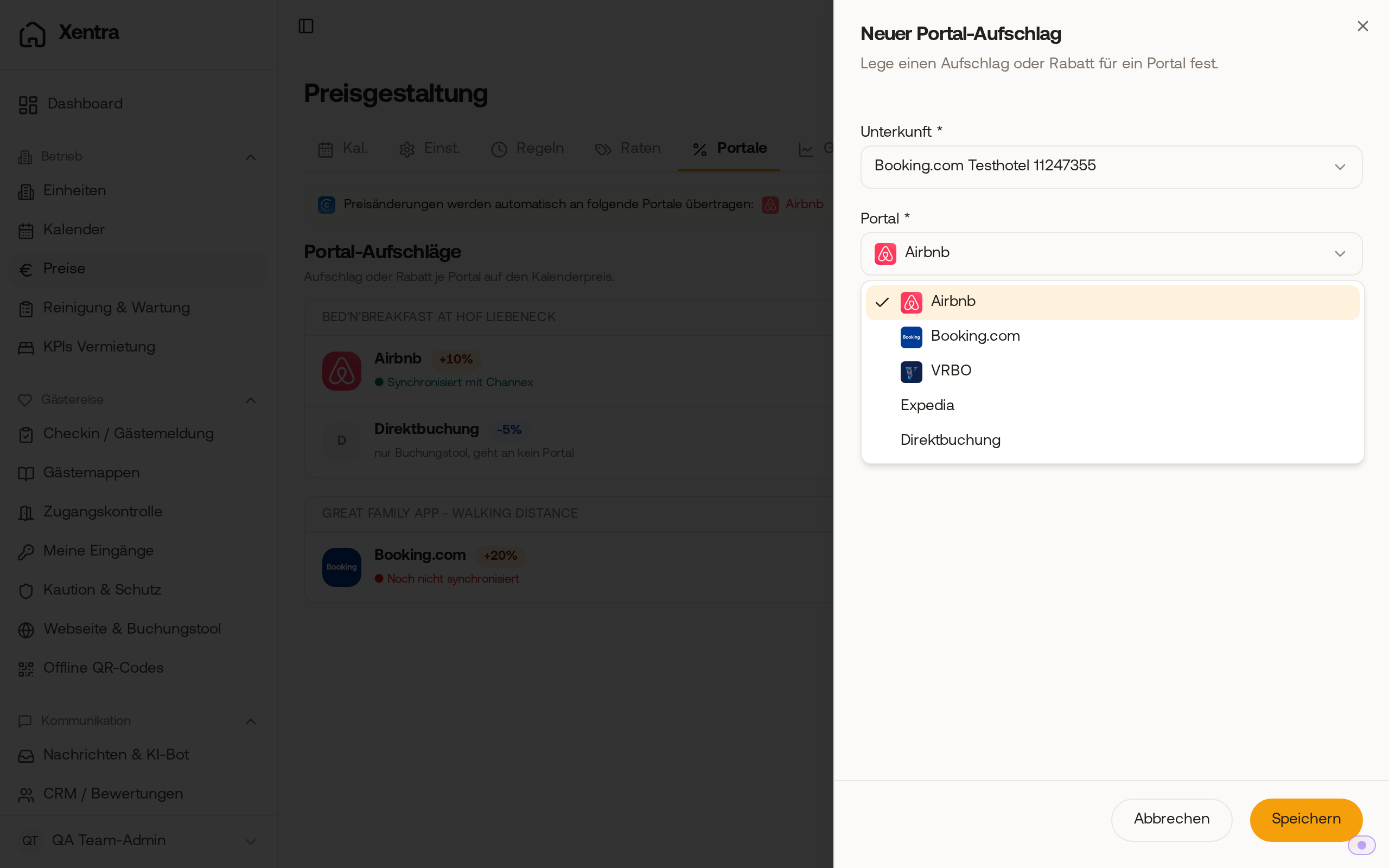 Even while Booking.com is not yet live, you can select it when creating a new portal surcharge.
3. Adjustment Type (percentage or fixed amount) and Value. Positive values increase the price for this channel, negative values decrease it.
4. Save. The new price goes to the channel automatically, you do not need to update anything in the portal. Below each surcharge, it shows whether it arrived at the channel: "Synced with Channex" or "Not synced yet", with the reason if there is a problem. Deleting asks for confirmation first.
Direct booking is always included: this lets you set a surcharge or discount on your own booking tool, just like for a channel. In the list, it says "booking tool only, goes to no portal".
Travanto has its own card below, "Surcharge for Travanto": see Surcharge for Travanto.
You see the actual price sent to a channel in the Calendar tab: under each apartment there is a separate line per channel, for example "Booking.com (+18%)", with the price per night. If the apartment is not connected to the surcharge's channel, for example after disconnecting the channel, the line remains but is grayed out: the prices are crossed out, a plug icon appears next to the channel name, and hovering with the mouse shows "Not active" with the reason. This price goes to no channel.
Apartments in a hotel (Booking.com categories)
If Booking.com lists several apartments under one Booking ID, Xentra sells them there via categories. The Booking.com surcharge then applies per category, while Airbnb and other channels remain per apartment. If you create a Booking.com surcharge for such an apartment, Xentra automatically saves it for its category. Enter it for each category: if it is missing for one, its price goes to Booking.com without a surcharge.
"Copy to others": which apartment gets copied
The button "Copy to others" copies the surcharges of one apartment to all other selected ones. Before anything is written, the dialog "Copy surcharges" opens:
- Under "Copy from", the apartment you saved last is preselected. If you have not saved anything yet, select the source yourself.
- Below that, it shows what is copied, for example "Airbnb +15%".
- Only clicking "Copy to ... properties" saves the changes. Surcharges for the same channel are overwritten on the other apartments.
A channel is only copied to apartments that actually have this channel, and for Booking.com also if it is not live yet. The message afterwards mentions the source, how many apartments were updated, and which channels were skipped.
What the channel shows in the end, and where cleaning stays
The channel receives the nightly price with your surcharge already included. The cleaning fee from the unit settings does not go to the channel. If you include it via the surcharge, compare a direct offer against base price × surcharge (for +41%, base price × 1.41), not against base price + cleaning. If you want a separate cleaning fee displayed on a channel, add it in the channel's extranet.
Do not confuse: Settings, Financial Import
Under Settings, Financial Import, there are also percentages per channel, but for the opposite direction: what the channel retains from you (commission, payment fee) and the cleaning fee per apartment. These values do not change any guest price, they form the basis for invoices and reports. There, cleaning is also calculated out of the channel price so that accommodation and cleaning remain separate.
| You want to ... | The right place |
|---|---|
| sell at a higher price on a channel | Prices, Portal Surcharges |
| reflect what a channel deducts from you | Settings, Financial Import |
Both are separate per channel: a change in Booking.com does not touch Airbnb, and vice versa.