
Discount codes for guests in the booking tool
Create, edit and evaluate discount codes for direct bookings: discount type, applies to, validity, units and which bookings used a code.
Updated on November 6, 2026
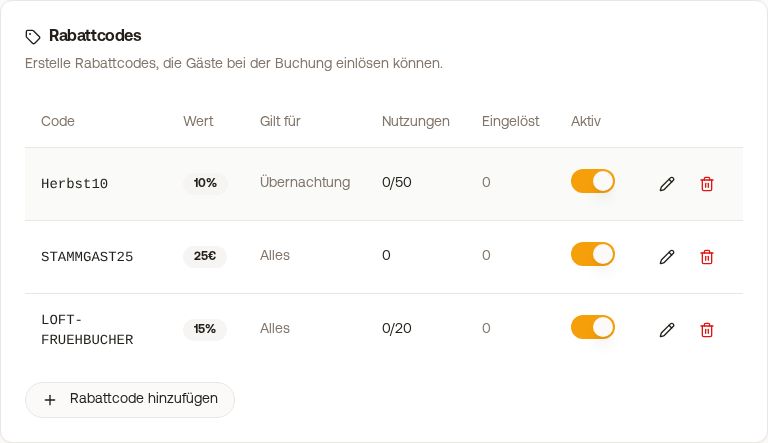
You create discount codes yourself for your own guests: for flyers, newsletters, regulars or a promotion. The guest enters the code in the booking tool when paying. Not to be confused with the referral program (your referral link for other hosts).
Where to set it up
Open booking tool → Settings → Pricing & Payment → card Discount Codes → Add Discount Code.
 Discount codes card in the booking tool with value, applies to, uses and redeemed
Discount codes are one list for your whole account, above it stands “Applies to all booking tools”. If you have several booking tools, every code applies in all of them, and the card stays editable even when a booking tool takes over the settings from “All booking tools”. The Pricing & Payment section then shows a padlock, yet the Discount Codes card inside it stays open.
Can't find the discount codes? The Pricing button at the top of the booking tool opens the page for your daily rates, and it has no discount codes. You will find the card under Booking tool → Settings → Pricing & Payment.
What you can set
- Code, written exactly as on your advertising material
- Discount type: percent or fixed amount
- Applies to: Everything, Accommodation or Final cleaning
- Max. Uses (empty = unlimited) and Min. Nights
- Bookable from and Bookable until (the booking date, see below)
- Travel period and Excluded periods (the travel dates, see below)
- Restrict to Units
 Dialog for creating a discount code
What the code applies to and what it does not
Discount codes apply to direct bookings through your booking tool and your website. On Booking.com, Airbnb and other portals they do not apply, because the portal sets the price there. In the product shop of the guest guide (breakfast, wine and similar) they do not apply either.
Within the booking, Applies to decides what the discount works on. If it only says Accommodation, the cleaning stays without discount; for “10% off everything” choose Everything. In hotel mode, a code applies to the whole cart.
Booking date and travel dates
Bookable from / until refers to the day on which the guest books. A code with “Bookable until 28 February” can be redeemed until 28 February, even for a trip in summer.
For the travel dates there are two separate fields:
- Travel period: all nights of the stay must fall inside it. The departure day does not count: with a travel period until 30 November, a booking from 28 November to 1 December still goes through.
- Excluded periods: if one night of the stay falls into one, the code does not apply, for example 22 December to 1 January for Christmas and New Year's Eve. You can create several periods.
With several units in the cart, every stay must fit.
Spelling
Xentra stores the code exactly as you write it: sommer10!! stays sommer10!!. When redeeming, upper and lower case do not matter, and neither do spaces at the start or end: Sommer10, SOMMER10 and sommer10 are the same code. Special characters such as ! on the other hand belong to the code and must be typed exactly as they are. That is why you can only create the same code once: Sommer10 next to SOMMER10 is rejected (“This code already exists”).
For all units or only some
With For all units (including ones added later) the code applies to every unit, including those you create later. As soon as you select individual units, it applies only to those. The list only shows the units that the booking tool currently open offers. “All boxes ticked” is therefore not the same as “all units”.
Editing
Every code can be changed via Edit: spelling, discount, limits, validity, units. The number of past uses stays as it is. Changes apply from now on, and bookings that are already confirmed stay unchanged.
Ideally do not rename a code while a guest is standing at the checkout. Their booking goes through, but the redemption may then not be counted.
What the guest sees
The guest types the code in the checkout. Xentra checks validity, travel dates, usage limit, units and minimum nights against all units in the cart, the longest stay and the total, exactly as when booking. A code that the booking tool shows as valid therefore does not fail only in the last step. The discount then also appears on the booking confirmation.
Showing codes on your website
With the website builder you can publicly show selected codes in the block Special offers. All other codes stay invisible until the guest types them in.
See which booking used a code
The price of a booking with a discount code is already the discounted price. Xentra shows the code in three places:
- Booking list: a small discount icon next to the price; hover over the price and it reads, for example, “Discount code SOMMER10: -45.00 €”.
- Open booking: in the price breakdown a separate line “Discount code SOMMER10” with the amount.
- Discount codes in the booking tool: the column Redeemed shows how often the code is part of a booking and how much discount you have granted with it in total. One click opens the list of bookings with guest, arrival and discount.
If several units were booked together, the discount is split proportionally across the individual bookings.