
Booking tool: Payment method Bank Transfer (Prepayment)
Store an IBAN so guests can book directly via bank transfer, and specify the payment reference they see.
Updated on November 11, 2026
Bank Transfer (Prepayment) in the booking tool
With the payment method Bank Transfer (Prepayment), the guest books directly and transfers the amount themselves. Your bank details must be saved for this:
- Open settings for outgoing invoices (the "Settings" button in outgoing invoices) → "Bank details" section: enter account holder, IBAN, BIC, and bank and save.
- Open booking tool → Settings → Pricing & Payment → Payment Methods → check Bank Transfer (Prepayment) and save.
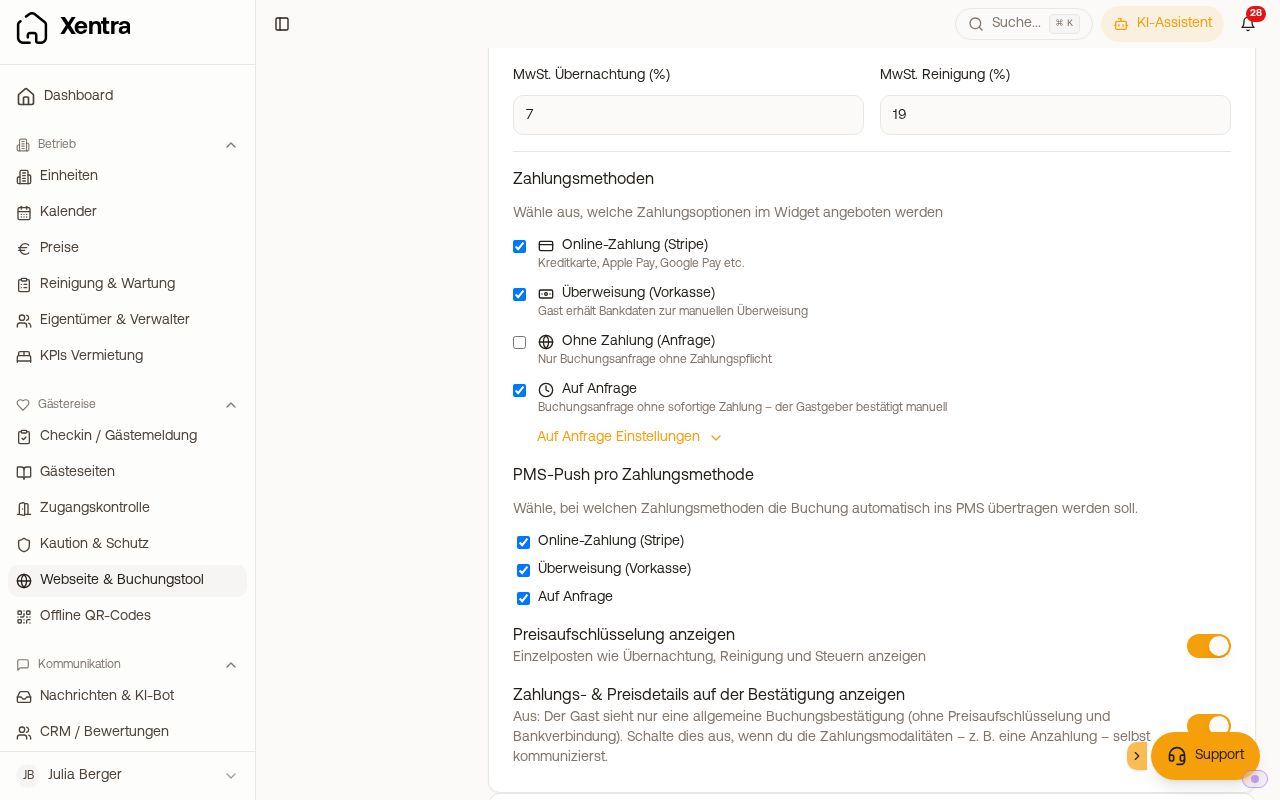 Payment Methods in the booking tool with online payment and Bank Transfer (Prepayment)
Guests then see the bank details on the booking confirmation and transfer the payment themselves. It is the bank details of the booked unit, the same as on their guest invoices: If the unit has its own invoice sender ("Invoice series" card), the guest sees its account holder, bank, IBAN, and BIC, otherwise the bank details from your settings. If there is no account for a unit (its invoice sender has no IBAN, or it does not have its own and the IBAN is missing in your settings), bank transfer is not offered for it, unless it is the only payment method. Then the guest sees a note that you will send them the bank details separately.
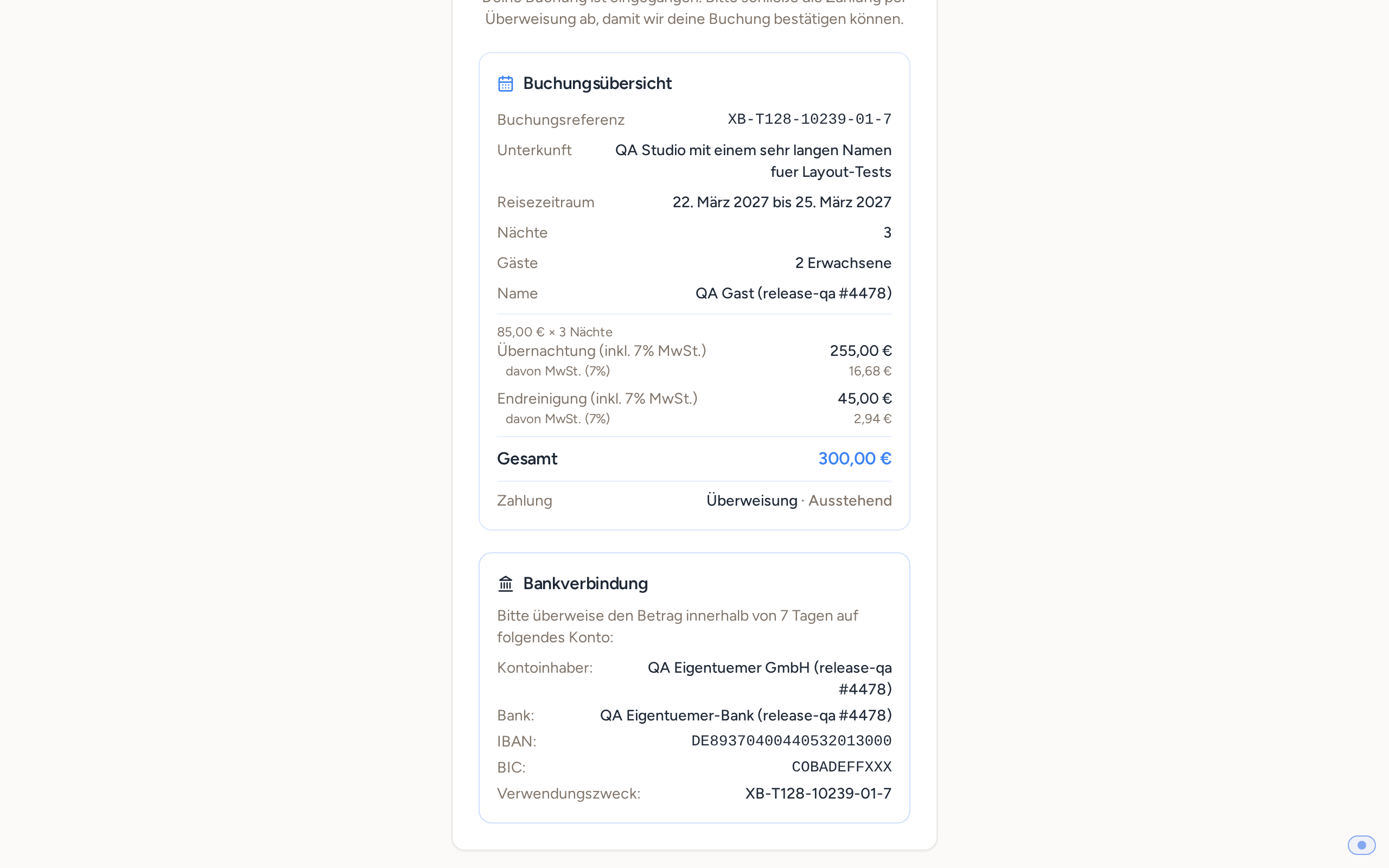 Confirmation page after a booking via bank transfer: Account holder, bank, IBAN, and BIC come from the invoice sender of the booked unit.
Set payment reference
As soon as Bank Transfer (Prepayment) is checked, the field "Payment reference" appears below it. There you define which payment reference the guest sees next to your bank details. You can use these placeholders:
{{booking_number}}: the Xentra booking number (e.g.,XB-…){{apartment}}: the booked accommodation{{arrival}}and{{departure}}: arrival and departure as DD.MM.{{guest_name}}and{{guest_last_name}}: first name and last name of the guest
Below the field, the Example shows you what comes out of it. From {{apartment}} {{arrival}}-{{departure}} {{guest_last_name}}, for instance, "Lake View 07.11.-09.11. Smith" is created. Then save.
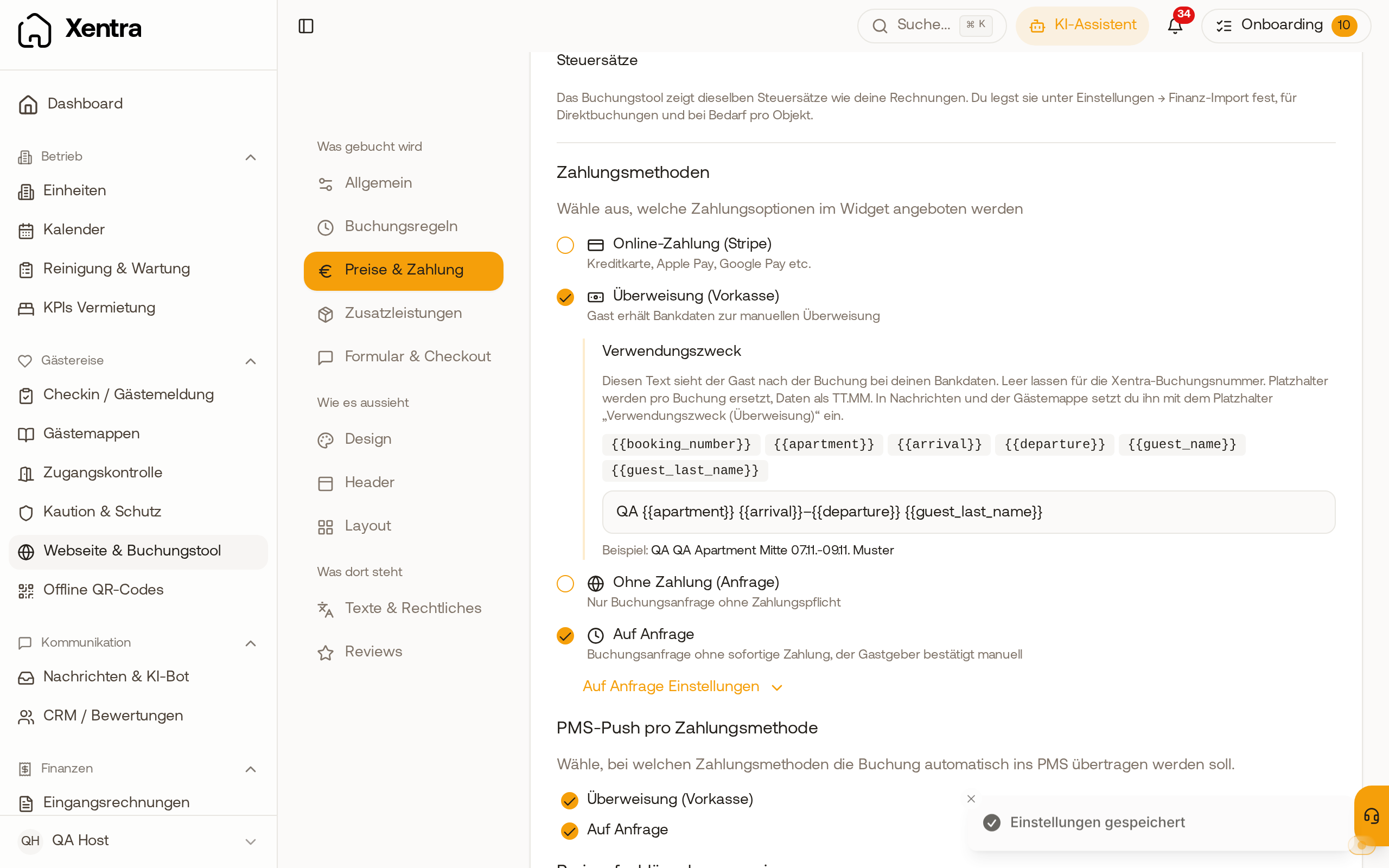 Payment reference field below Bank Transfer (Prepayment) with the placeholders and the example below
- Field empty: The guest sees your Xentra booking number as the payment reference.
- The payment reference is on a single line with a maximum of 140 characters. Typographic dashes and quotation marks (-, " ") are converted to simple ones (-, "), because many banks do not accept them.
- It is recorded for every booking. If you change the field later, existing bookings keep their payment reference.
- On the confirmation page, it appears next to your bank details. As a booking reference, the guest sees the Xentra booking number there.
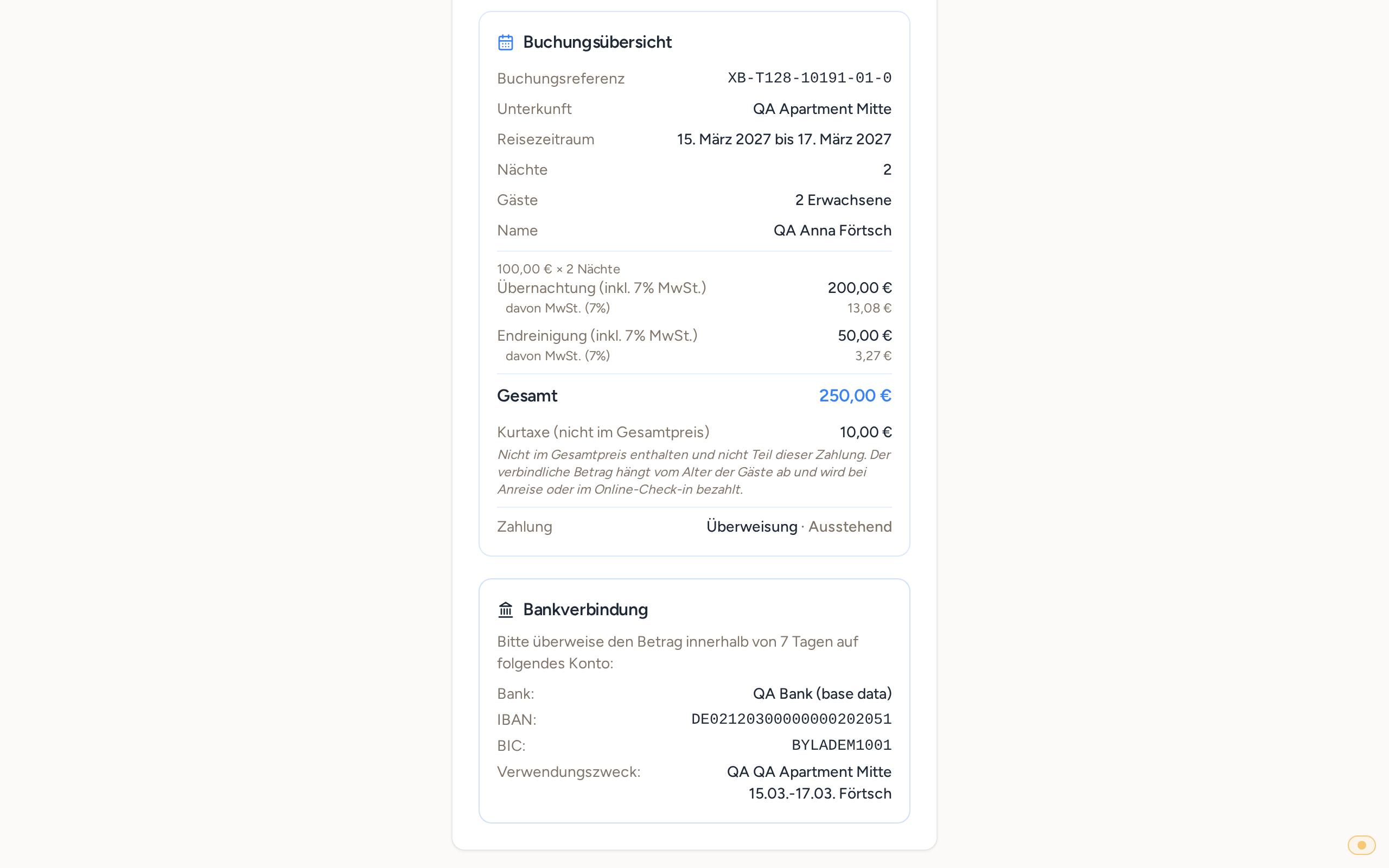 Confirmation page after a booking via bank transfer with bank details and filled-in payment reference
So the guest does not lose it: Place the placeholder "Payment reference (bank transfer)" ({{transfer_reference}}) in your booking confirmation or in the guest guide. It shows exactly the payment reference that the guest saw during booking, and for other bookings the Xentra booking number.
Bank details missing on confirmation? Under Pricing & Payment, there is the switch Show payment & price details on the confirmation. If it is off, the guest only sees a general confirmation without price breakdown and without bank details. This is intended for hosts who communicate payment terms like a deposit themselves.
Hotel mode: The guest always pays for a shopping cart with multiple units online by card. Prepayment only applies to bookings of a single unit.
The checkbox "Bank Transfer (Prepayment)" remains gray
Then there is no IBAN anywhere: neither in the settings for outgoing invoices ("Bank details" section, see step 1) nor with an invoice sender to which a unit is assigned. Under the checkbox, you will then see the note "Enter your IBAN first: Outgoing invoices, Settings, Bank details." The link Go to bank account next to it takes you directly to the IBAN field. Good to know:
- If you have no IBAN in your settings, but assigned an Invoice sender with its own IBAN to a unit ("Invoice series" card), the checkbox can still be set. Bank transfer is then only offered for units that have an account stored.
The "Pricing & Payment" section is locked
Then this booking tool adopts the settings from "All booking tools". At the top next to the name is the switch Use the settings of "All booking tools". As long as it is on, Pricing & Payment shows a lock icon, and the payment methods cannot be changed here, even with a stored IBAN.
- Only this booking tool should offer prepayment: click "Customize for this booking tool" above the area, then check the box under Pricing & Payment → Payment Methods and save.
- All booking tools should offer it: leave the switch on, click "Edit there" above the area (or select All booking tools (default) in the selection at the top) and set the payment methods there.