
Offers: language, occupancy and own dates per unit
How to send an offer in your guest's language, set the occupancy and give each unit its own date range.
Updated on November 6, 2026
How to create and send an offer: see “Offers to guests” (Open offers).
Offer in the guest's language
In the offer, under “Guest language”, you choose the language in which the guest reads the message and the price lines. If you write your message in German, “Translate to ” next to “Bot draft” translates it into the guest's language. Read it through briefly before you send. The offer page opens in the language of the offer, and the guest can switch at the top.
You maintain your templates under Calendar, Offers, Settings: under “Templates” you choose a language, write the message and cancellation terms, and click “Translate all languages”. The other five languages get filled in, the placeholders stay. Then click “Save”.
See occupied units
As soon as arrival and departure are set, “taken” appears in the unit selection next to every unit that is already booked or blocked in that period. The selection has a search field. Under the dates, a strip shows the nights of the selected unit: green free, red taken. You can still select taken units, but the offer can only be sent once all nights are free.
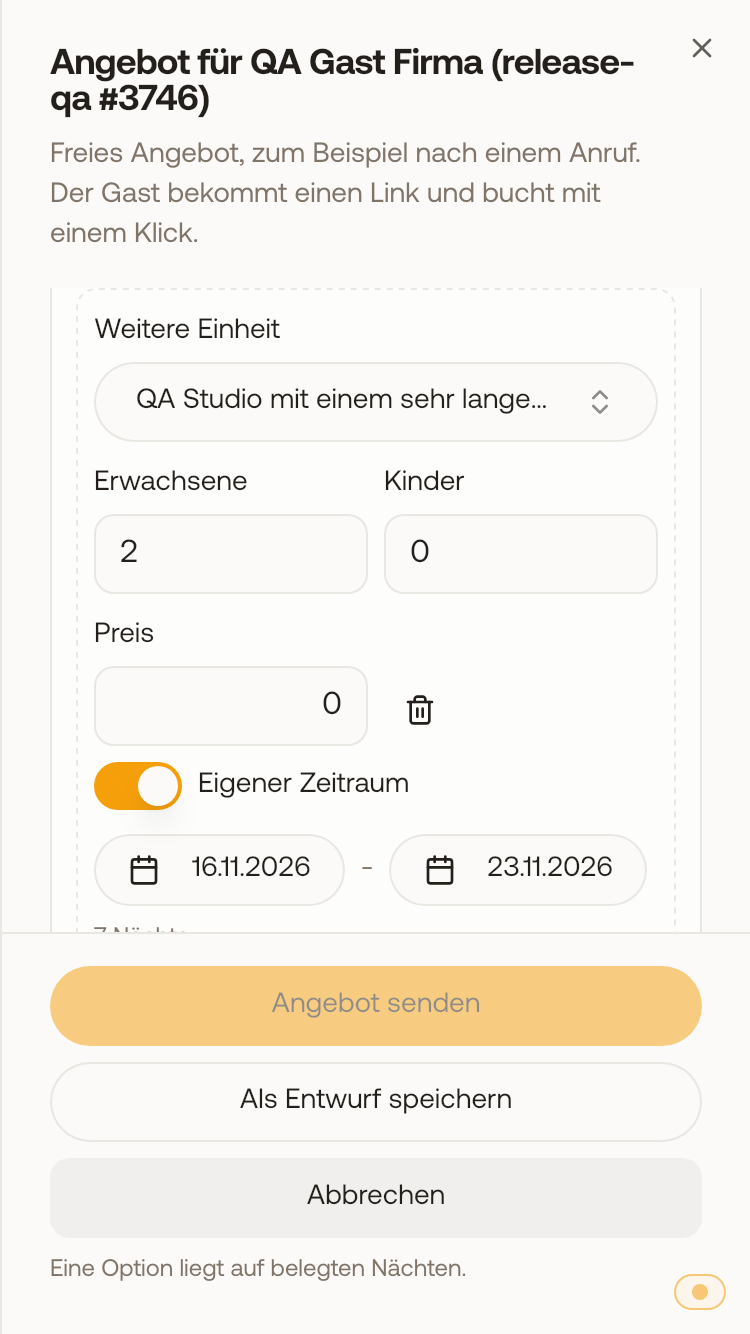
Further unit with own dates
With “Further unit” you add a second unit to the offer. Without any other entry, the period of the option applies. If you switch on “Own dates” for the unit, you give it its own arrival and departure, for example one room for two weeks and the other for three. If the guest accepts, a group booking is created with one booking per unit and its own dates. Deposit and balance are calculated from the earliest arrival.
Company customers and guest details
On the offer page, a company customer ticks “I am booking for a company” and enters company, VAT ID, invoice email and reference. The phone field has a country dialling code. After acceptance, phone, company and VAT ID go into the CRM contact, only into empty fields; for private guests, the address too. If a company books, the invoice address in the online check-in is already prefilled with company and address, if your check-in asks for the invoice address.
Payment on acceptance
Under Calendar, Offers, Settings, in the section “Payment and validity”, you define what the guest pays on acceptance: “Deposit in %”, “Fixed amount”, “Everything” or “Nothing, just confirm”. With “Everything” no balance remains open, so “Balance due” does not matter then. With a deposit, the balance is due as many days before arrival as stated under “Balance due”. If the guest arrives within the days stated under “Full amount on arrival within”, they pay everything at once.
Under “On acceptance by bank transfer” you choose the document:
- “Nothing extra”: the invoice is created as before, after the stay, with tourist tax and extras from the check-in.
- “Create and send the invoice right away”: the invoice for the whole stay goes out immediately. After the stay no second invoice is created, and tourist tax collected later and extras then appear on no invoice.
- “Provide a proforma invoice”: the guest downloads a PDF without an invoice number on the offer page; the real invoice comes after the stay.
Offer and request
“Send offer” does not accept a request. The request stays open until the guest accepts the offer; then it automatically becomes a confirmed booking. Until then you can still decline it or confirm it directly.