
Create your own request without blocking the calendar
How to record a non-binding offer as a request without blocking the days, what happens when you create it and how to confirm or decline it later.
Updated on October 25, 2026
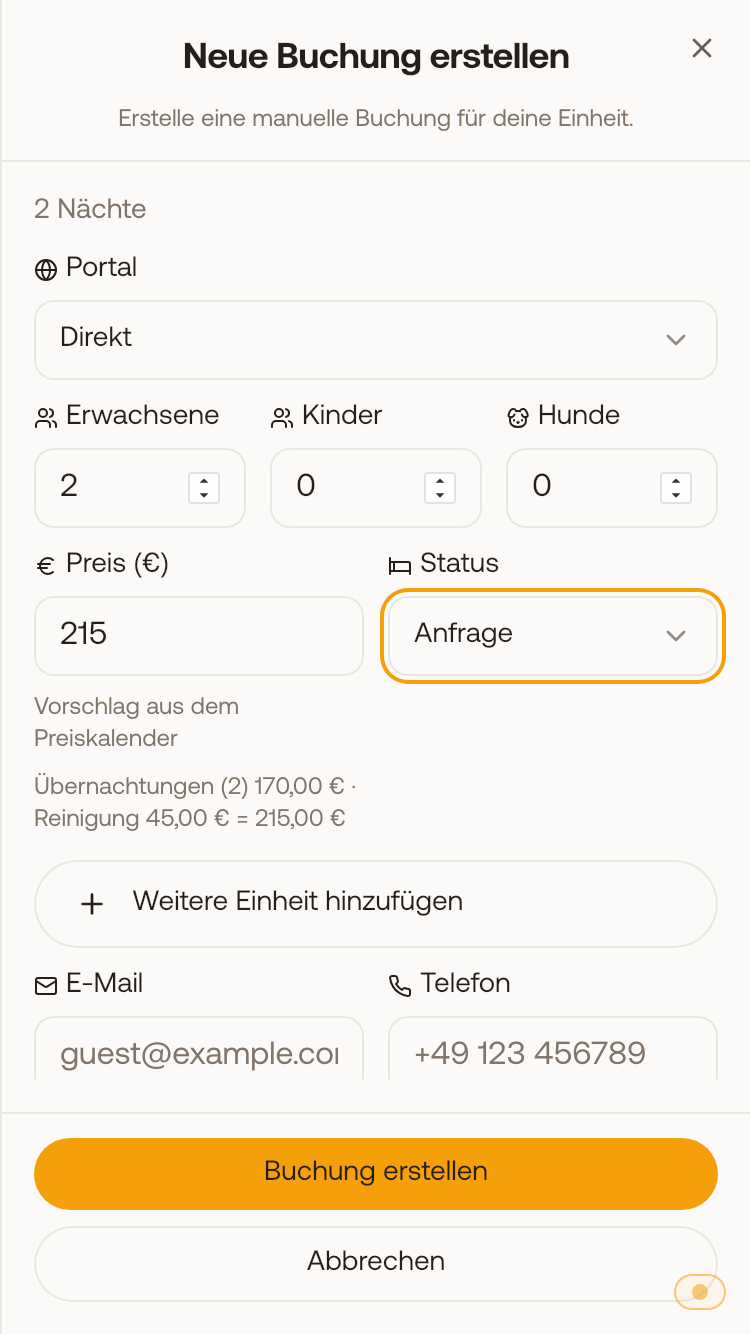
Not every request comes from a portal. If you want to record an offer that is not yet binding, give the booking the status “Request”. This status does not block the period: the days stay bookable on all channels, no new cleaning task is created, and your automations skip a request, unless you have explicitly set them up for requests.
Create a request from an email
If a guest writes to you by email and the email does not belong to any booking, it appears in the Inbox as “Unassigned”. Open it and click “Create as request” at the top. Xentra reads arrival, departure, adults, children, name and reply address from the email and pre-fills the window. Check the details, select the unit and click “Create request”. The request is then under Calendar, tab “Requests”, and the email is in its thread. There you confirm it, decline it, or send an offer with “Send offer”.
Xentra recognizes details in lines such as “Arrival: 16.11.2026” or “Adults: 2”. Whatever is missing, you enter yourself in the window.
Create by hand
If you take a request by phone, for example, you create it directly as a request:
- In the Calendar or under Bookings, click New booking (on mobile via the +).
- Select Unit, Guest, Arrival and Departure.
- For Status, select “Request” and click “Create booking”.
The days stay free, your automations skip the request, and it only goes to a connected PMS or the channel manager once you confirm it.
To turn a booking that already exists into a request, open it, click Edit and, in the “Access & Details” card, set the Status to “Request”. Save.
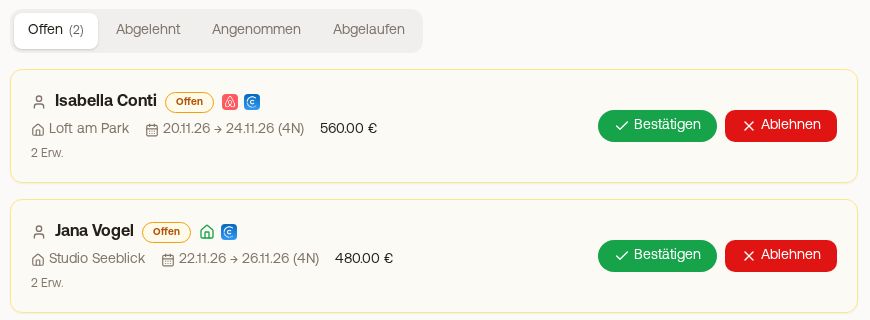 An own request in the “Requests” tab with “Confirm” and “Decline”
Where the request is
Open requests with arrival from today onwards are under Calendar, tab “Requests”, section “Open”, and in the booking list.
The guest accepts
In the “Requests” tab click “Confirm”, or in the booking click Edit and set the status to “Confirmed”. From then on it blocks the calendar, goes to your connected PMS or channel manager, and your automations run as they do for a new booking: what you have set up for “New booking”, for example the welcome message or the check-in link, goes out once now, and your time-based automations (for example before arrival) schedule their messages as for any other booking. If you confirm the same request again later, nothing is sent twice. This applies to requests that you create yourself, including via the data API. Requests from your booking tool instead receive your confirmation email for “On request” when confirmed. Xentra checks on confirmation whether the unit is now occupied, and reports the booking that is in the way.
The guest declines
In the “Requests” tab, click “Decline”. The request moves to “Declined”.
Send an offer with a price
If you want to send the guest a fixed price, click “Send offer” on the open request. The guest gets a link, and if they accept it, the request becomes a booking. More on this under “Offers to guests”.
One exception: the Airbnb booking request
An open Airbnb booking request (Request to Book) blocks the days for as long as it is not decided. This only applies to requests that come in from Airbnb, not to those you create yourself. More on this under “Requests & booking requests”.