
Requests & Booking requests
How you process Airbnb requests and booking requests: pre-approve, send a special offer, confirm, or decline.
Updated on November 14, 2026
Under Calendar, tab "Requests" (Requests), all open requests and booking requests come together. The tab appears as soon as an open request exists and shows its number. If none is open, the tab is missing; you can then reach the sections "Declined", "Accepted", and "Expired" via Open requests.
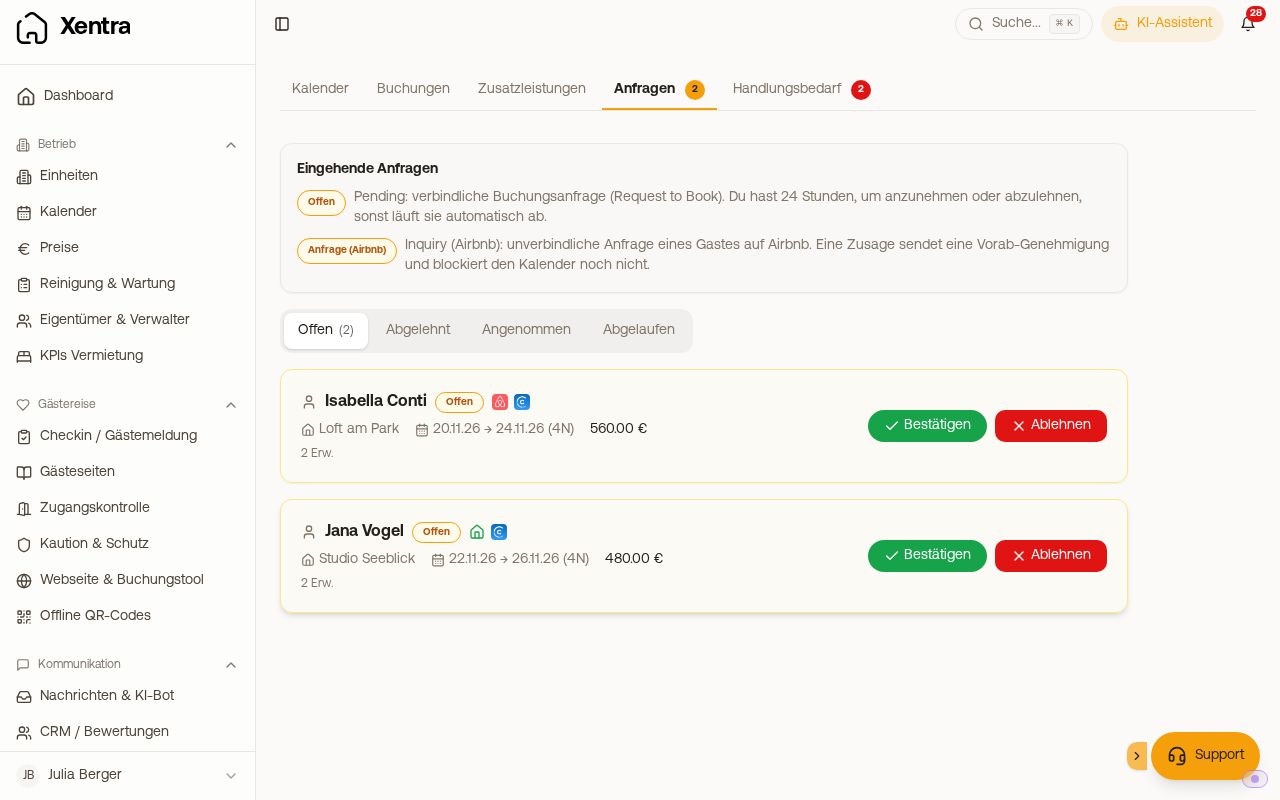 The tab "Requests" with open requests and the buttons "Confirm" and "Decline"
Two types of incoming requests
| Type | Meaning | Blocks calendar? | Deadline |
|---|---|---|---|
| Booking request (Request to Book) | Binding booking request from the guest | Yes, as long as it is open | 24 h, then automatic expiration |
| Request (Inquiry) | Non-binding question from the guest before booking | No | Automatically expires on Airbnb after 24 h |
At the top of the page, a box explains both types again. Requests from your booking tool (booking "on request") and requests that you created yourself with the status "Request" are also listed here.
The sections
- Open: not yet decided.
- Declined: declined by you or marked as declined.
- Accepted: accepted booking requests and pre-approved requests.
- Expired: automatically expired or never became a booking. A binding booking request via Airbnb expires after 24 hours without an answer. Your own requests, for example by phone or email, remain open until you decide or the arrival day has passed.
Actions for an Airbnb request
The same actions are available in the tab "Requests" and in the booking under Messages, there additionally with an optional guest message in the same step:
- Pre-approve: invites the guest to book. Optionally, "Block Instant Booking" blocks the days for other guests during this time. The guest still has to book themselves.
- Send special offer: sends the guest a custom total price for the days. The guest must accept the offer.
- Mark as declined: takes the request out of "Open".
"Mark as declined" only takes effect in Xentra
An Airbnb request cannot be declined from the outside. If you mark it as declined, it only disappears from "Open" in Xentra. On Airbnb, it remains open and expires on its own 24 hours after receipt. The period is not blocked anywhere; if you want to keep it free, create a block in the calendar.
This is not a problem: A request is non-binding and expires on its own. A short text reply to the guest already counts as a response on Airbnb.
It is different with a booking request: Its decline actually goes to Airbnb, with a decline reason and an optional message to the guest and Airbnb.
Confirm and Decline
For booking requests and your own requests, "Confirm" and "Decline" are available. Before confirming, Xentra checks whether the unit is now occupied and names the booking that is in the way. For a request from your booking tool, your confirmation email goes to the guest upon confirming.
If the request comes from a connected PMS (for example Beds24, Hostaway, Guesty, Smoobu), Confirm and Decline are locked in Xentra as long as the connection is active, because your PMS would not learn about it. It then says, for example, "This request comes from Beds24. Confirm or decline it there, Xentra will adopt it during the next sync." Answer the guest in the inbox and decide in the PMS. Pre-approve and special offer are only available for Airbnb via the Xentra channel connection.
If a request becomes a booking, the full workflow starts
If the guest actually books after a request, the request becomes a confirmed booking, and after that everything happens as with a new booking: booking confirmation, online check-in link, door code, and all automations for the trigger New booking. If a booking is missing the confirmation or the check-in link, you send both manually in the booking under Messages.
The AI bot answers requests like bookings
If a request arrives with its message, the AI bot treats it like any other guest message: It answers or creates a draft for you, following the same rules as for a booking. The bot just needs to be active (bot settings).
Change requests for existing bookings
If a guest wants to change an existing booking (different dates, more guests), the portal sends a change request. You do not see this under "Requests", and Xentra cannot confirm it manually or automatically. Accept or decline the change directly on the portal, for example on Airbnb in the respective reservation.
Read more
- You do not see any requests although some are coming in on Airbnb: see Requests do not arrive: which connection provides them.
- Record your own non-binding offer: see Create your own request without blocking the calendar.