
Booking tool: accepting requests and confirmation email
Turn on the On request payment method and set up an automatic confirmation email with bank details.
Updated on October 19, 2026
Not every booking has to be final right away. With the payment method On request, the guest sends a booking request, and you decide whether to accept it.
Turn on On request
Open the booking tool, Settings → Pricing & Payment, and under Payment Methods tick On request. If Pricing & Payment is locked with a padlock, this booking tool takes over the settings of “All booking tools”: click Customize for this booking tool above the section, or set it for all booking tools with Edit there.
After sending, the guest sees “Request sent!”. Open requests are found under Requests and on the booking.
Confirmation email to the guest
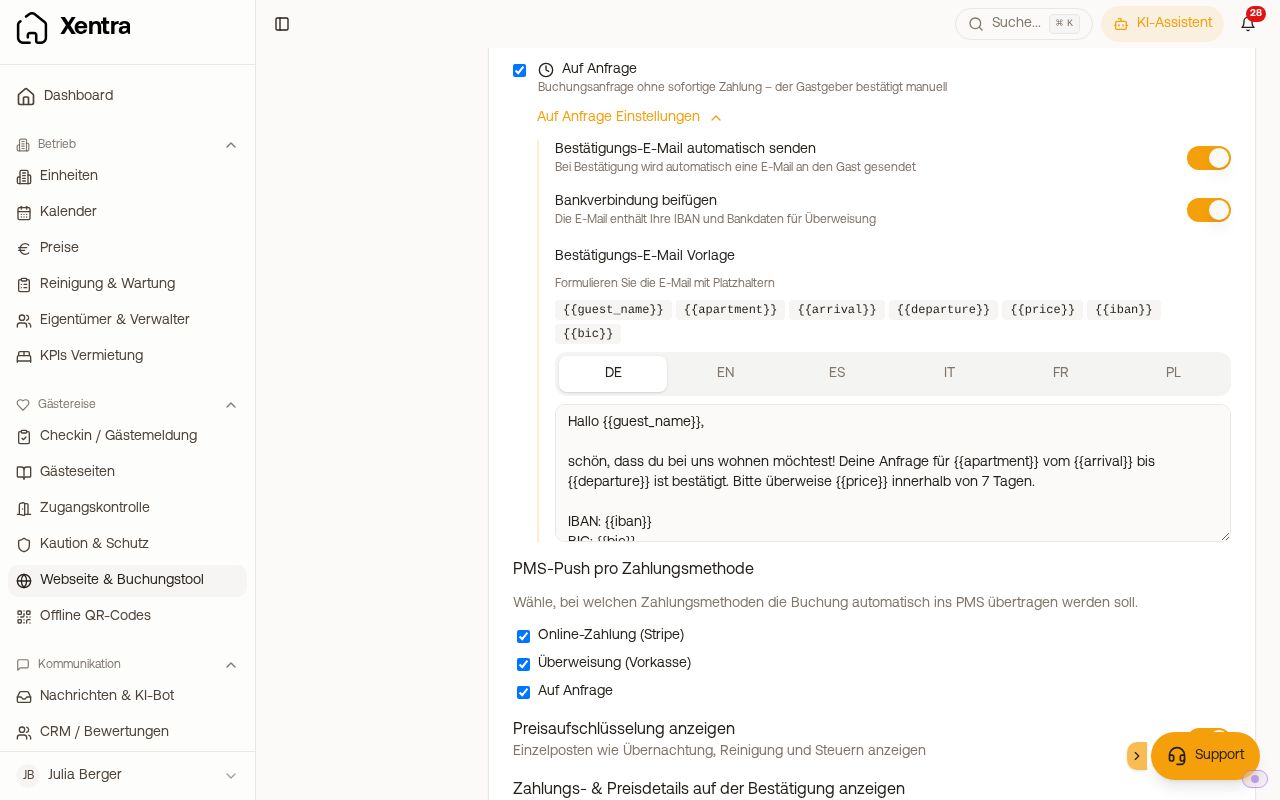 On request settings with confirmation email and bank details
Under the tick, expand On Request Settings:
- Turn on the switch Auto-send confirmation email.
- Under Confirmation email template, write the text for each language. Placeholders:
{{guest_name}},{{apartment}},{{arrival}},{{departure}},{{price}},{{iban}},{{bic}}. - With Include bank details, IBAN and BIC are added.
The email goes out as soon as you accept the request: with Confirm under Requests or in the booking, via the status “Confirmed” when editing the booking, or via the API. It is sent only once per booking, in the guest's language, and afterwards appears in the booking's message history. A short note right after confirming shows you whether it was sent. Requests you accepted earlier do not get one sent afterwards.
Bank details in the email
These are the same bank details as for advance payment: Guest Invoices → Settings → Bank details. If {{iban}} is not in your text, Xentra adds the bank details at the bottom. If the IBAN is missing, the email is not sent and you get a note. The email does not contain a payment link.