
Offers to guests
Send your guest an offer with a fixed price and validity. They book via a link with one click, and the booking is created automatically.
Updated on November 12, 2026
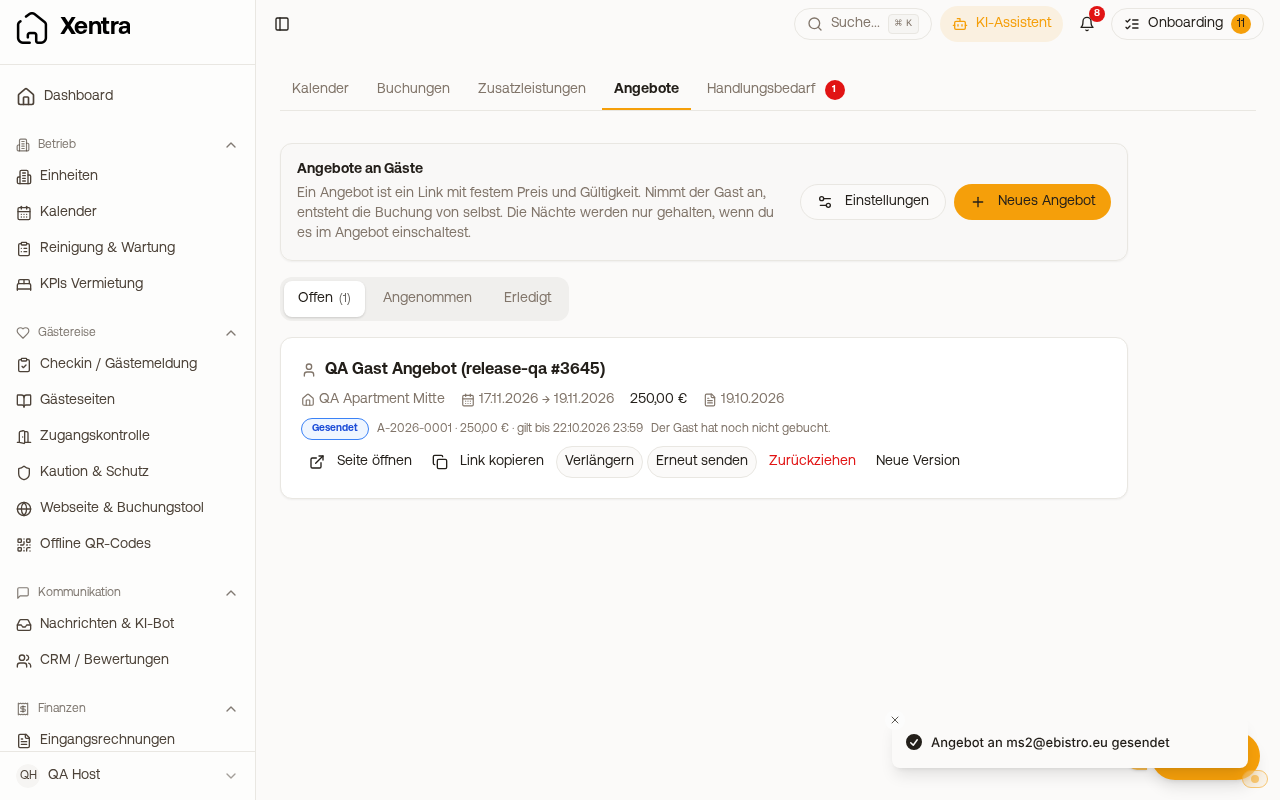
You can send a guest an offer with a fixed price and validity. The guest receives a link, sees the accommodation, price, and terms, and books with one click. Then the booking is created automatically.
Under the name of the unit, the guest sees bedrooms, beds, and bathrooms, just as you entered them under units. What you have not entered is simply missing. If you offer multiple units, the card is named "2 units", for example, and lists each unit identically, with its guests and nights; arrival, departure, guests, and nights at the top apply to the entire stay, including in the PDF.
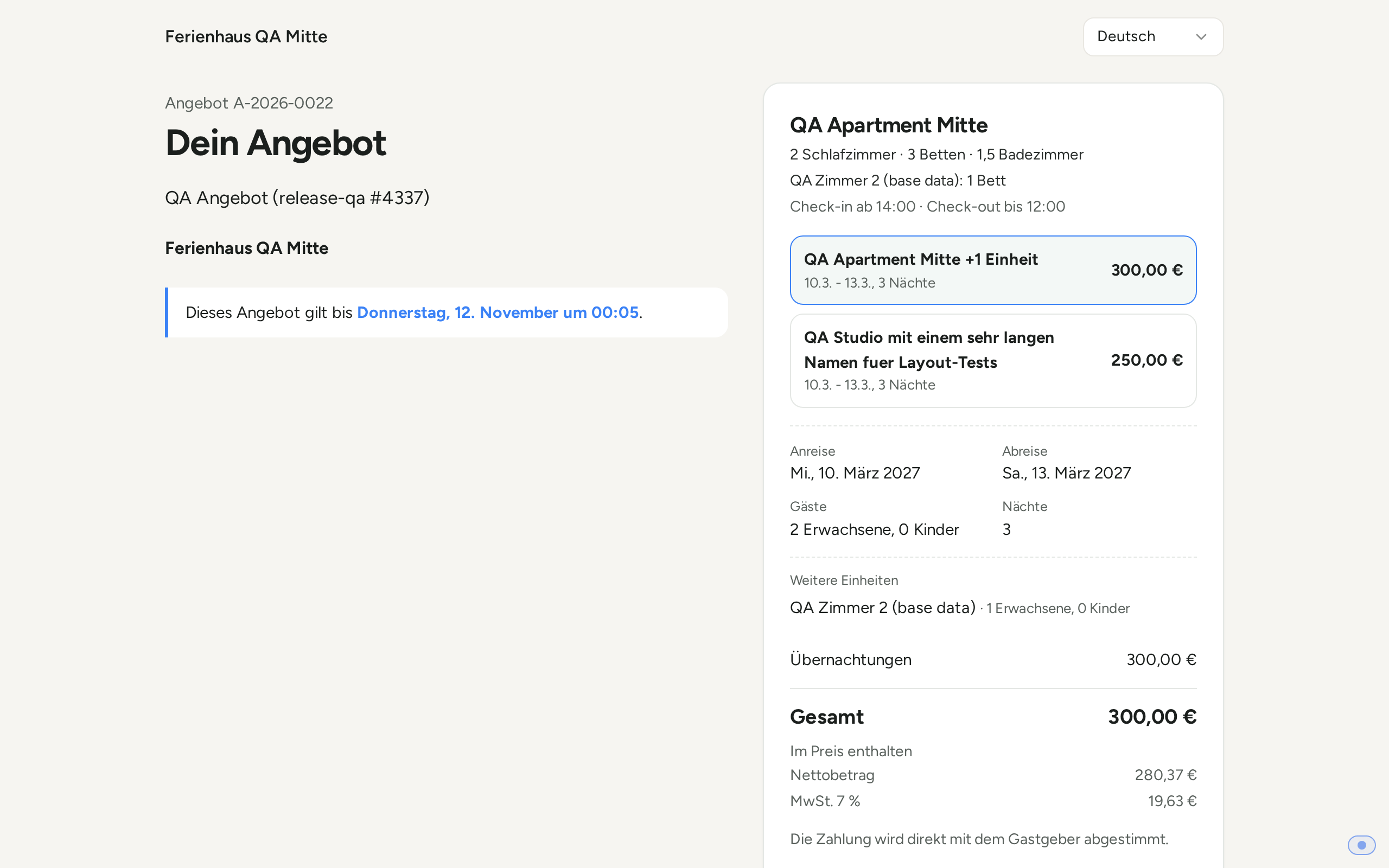 On the offer page, under the name of the unit, it shows how many bedrooms, beds, and bathrooms it has.
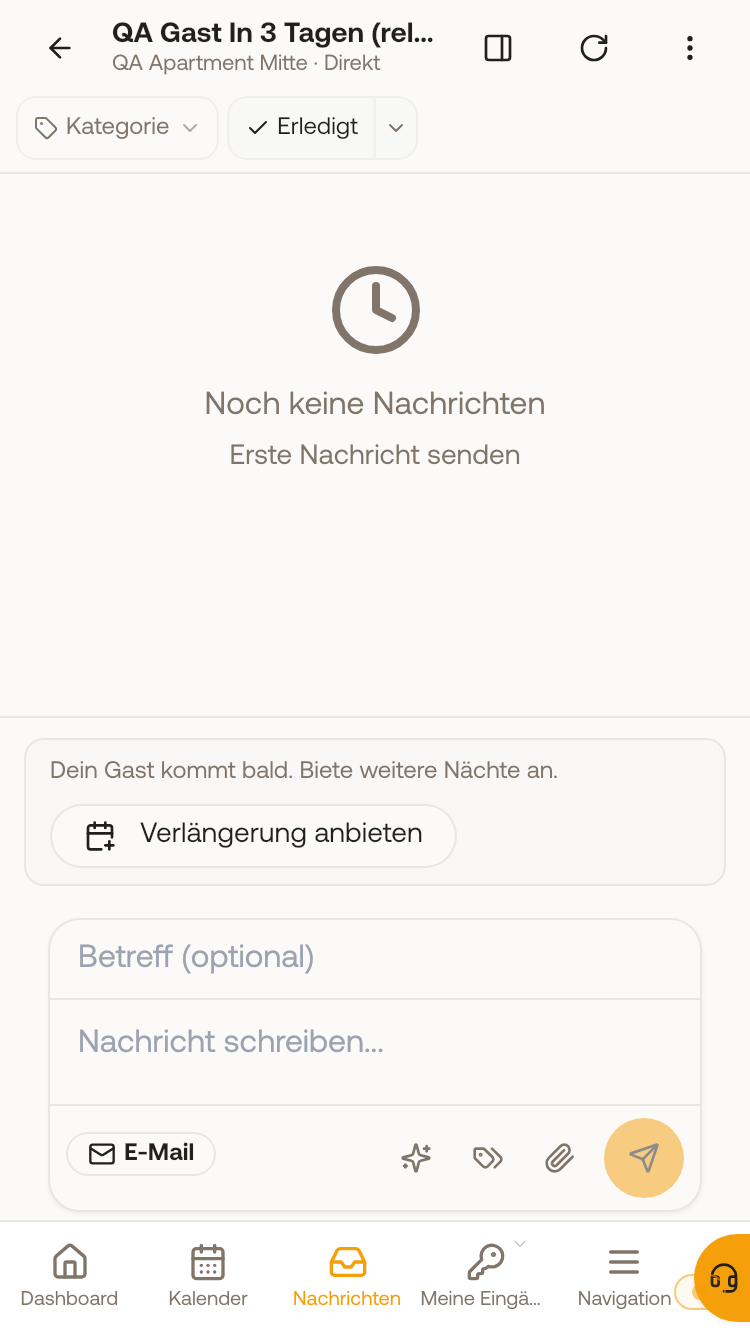
Where: on an open inquiry (Inquiries, Booking page, Inbox) "Send offer", in the calendar "New offer" (for example after a phone call), on an ongoing booking "Offer an extension". In the inbox, starting 3 days before arrival, Xentra suggests offering your guest additional nights; during the stay it says The guest is here there. You can make an offer via the booking at any time beforehand.
 All offers: Calendar, Offers, with the tabs Open, Accepted, and Done.
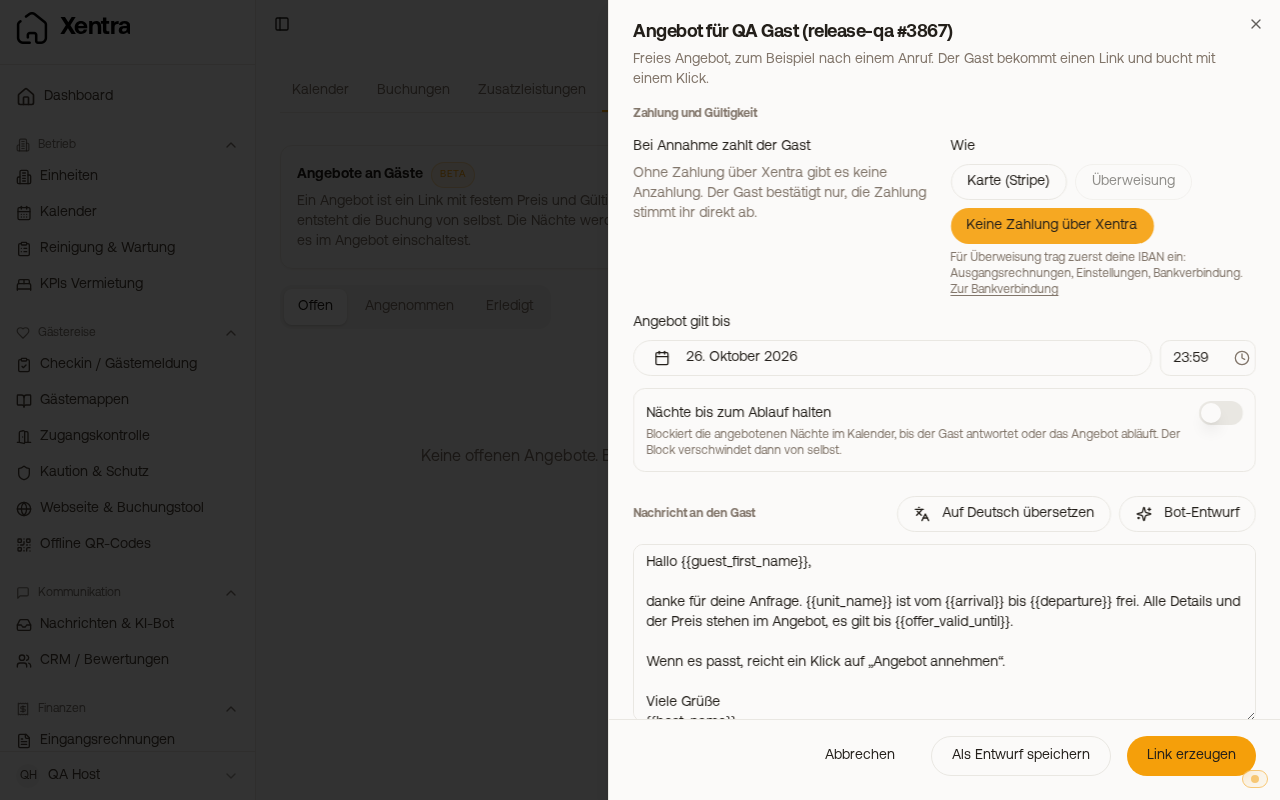
In the offer: unit, dates, guests, price lines (discount, extras), up to three variants, additional units (a group booking upon acceptance), deposit in percent or fixed, payment by card (Stripe), bank transfer (IBAN under Outgoing invoices, Settings, Bank account; if it is still missing, the link "Go to bank account" in the offer takes you there. If you work with multiple invoice profiles, the guest gets the IBAN of the invoice sender to which the unit is assigned; if this sender has no IBAN, bank transfer is grayed out for this unit and the offer shows you where to enter it. If you have multiple Stripe accounts, the guest pays by card to the account of the unit; you assign a unit without an account under Settings, Payments, Assign units)
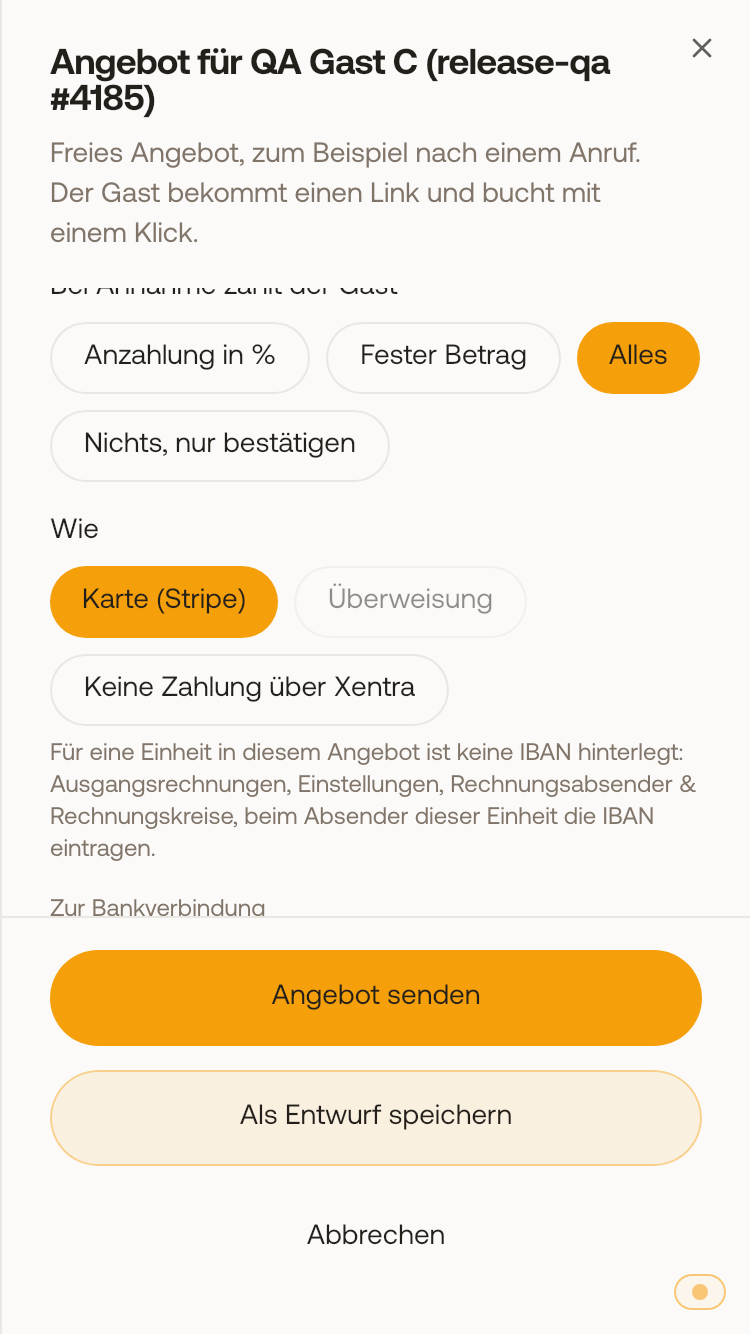 For a unit without IBAN, bank transfer is grayed out in the offer, below it shows where you enter the IBAN. or "No payment through Xentra" (then there is no deposit and no due date, you settle the payment directly; under Accepted it then says "No payment through Xentra" and there is nothing to mark as paid), validity, optionally hold the nights until expiration, message from your template or drafted by the bot. Sending via email, WhatsApp, or SMS from the inquiry, or just as a link.
Preview: With "Open page" you see an offer just as the guest reads it, as a draft and also after sending. Your view does not count as opened by the guest. In a draft, placeholders like {{guest_first_name}} or {{arrival}} are already filled with the values from the offer and highlighted in color.
Heading: If your message starts with its own greeting (the default template does so with "Hello {{guest_first_name}},"), only "Your offer" appears above it, or "Stay a little longer." for an extension. Without a message, the heading greets the guest by name.
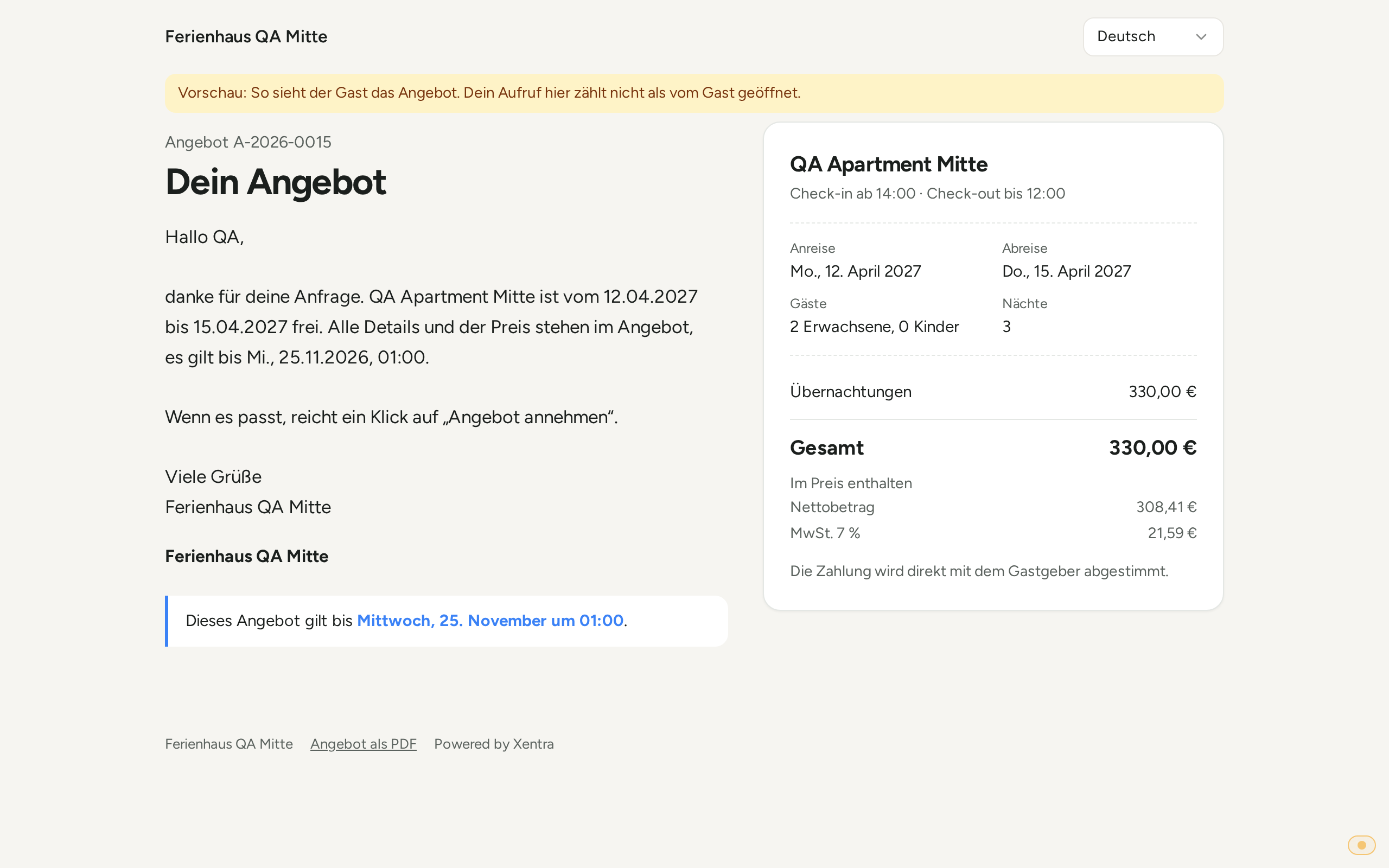 The preview of a sent offer: at the top the note that your view does not count as opened by the guest, below it "Your offer" and your message. If a placeholder stays empty, it says "stays empty" in gray; the offer number is only added upon sending ("No. assigned on sending").
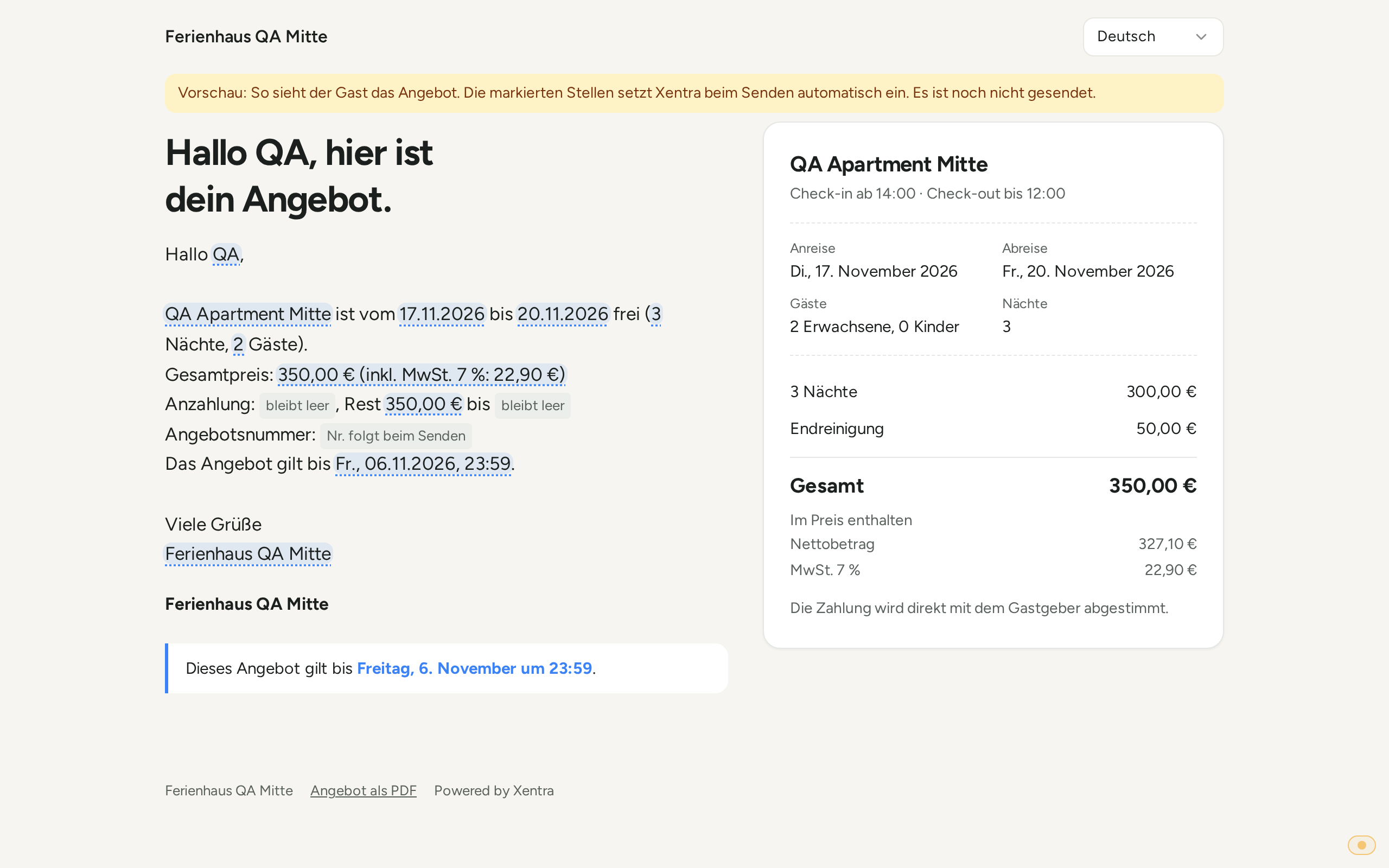 In the preview of a draft, the placeholders are filled with the values from the offer and highlighted in color, empty ones appear in gray as "stays empty".
 Offers to guests
Afterwards: You see whether the guest opened the offer, can extend, resend, revoke, or send a new version. If the guest pays the deposit by card, the booking is confirmed immediately. If the guest accepts an offer, the booking also goes to your connected PMS (for example Smoobu or Hostaway) if Send bookings to PMS is enabled there and the unit is assigned, so that the nights are blocked there and on all connected channels. Holding the nights before acceptance only blocks them in Xentra and via Channex, not yet in your PMS. For bank transfer, you mark the deposit and remaining balance as paid.
If the booking of an accepted offer is cancelled or deleted, the label "Booking cancelled" or "Booking deleted" appears next to "Accepted", without a payment line and without the option to mark anything as paid; the offer then counts under "Done". The guest sees on the offer page that the booking is cancelled.
Extension: If the guest accepts an extension, Xentra extends the existing booking; departure, nights, and price are updated. A second booking is not created. "Offer an extension" is available for bookings that you created in Xentra or that came via your booking tool, not for bookings from Airbnb, Booking.com, or a connected PMS: There, the next sync would write back the departure and price.
VAT and extras from the product catalog in the offer: see Offers: VAT and extras from the product catalog.
Deposit per unit: In the offer under "Deposit", you enter an amount per unit. The guest sees it as "Security deposit, refundable" below the total price, not in the price and not in the deposit; the confirmation email also mentions it. If they accept, Xentra creates a requested deposit per room, due on arrival, on the booking in the "Security deposit (bank transfer)" card. How to proceed from there: see Security deposit via bank transfer: request, receive, settle.
Guest name from the CRM: If you type the guest's name in the offer, Xentra suggests matching contacts from your CRM. One click imports email, phone, company, and language.
Defaults: Calendar, Offers, Settings (validity, deposit, payment methods, remaining payment, templates per language, cancellation policy, number range, deposit per unit).