
Add-on services in the booking tool: extras directly at booking
Your guests add extras like breakfast, early check-in or parking right in the booking tool. How to turn it on and choose the products.
Updated on November 6, 2026
Add-on services in the booking tool
Your guests can add extras such as breakfast, an earlier check-in or a parking space directly when booking in the booking tool.
Set up
- Open booking tool, tab Settings, section Add-ons.
- Switch on "Offer add-on services at booking". If it is off, guests see no extras; your selection stays saved.
- Under "Offered extras", tick the products that the booking tool should offer. You create the products themselves as usual under Settings → Products.
The selection applies to all your booking tools. Via the settings icon next to a product, you set price, pricing type and VAT for the booking tool, independent of the online check-in, and if needed restrict it to individual units.
Take over from the online check-in
If you have already set up your products in a check-in template, select the template in the box "Already set up in the online check-in?" and click Apply. The selection in the booking tool is then replaced by the products of the template, with prices, pricing types and settings. If the template only applies to certain units, the extras taken over also apply only there. An extra that is preselected in the check-in is not automatically highlighted in the booking tool; you switch that on there yourself.
Order and highlighting
The extras appear in the booking tool in your order. On a computer, you drag an extra into place by the handle on the left, or use the arrows that appear when you hover over it. On a phone, you move it with the arrows.
With Highlight (settings icon next to the product), an extra gets the badge "Popular". It stays in its place in your order. Nothing is preselected at booking: the guest chooses each extra themselves.
Each row shows what is set without expanding: Popular, On request and, if you have several properties, where the extra is offered (All properties or Only: with the names).
What the guest sees
The preview "This is what the guest sees" shows the extras the way they appear in the booking tool. In the Example stay above it you set adults and nights, and each row shows its calculation, for example "14.00 € × 2 guests × 3 nights". If you have several properties, you select one below and see only the extras offered there. With View in the booking tool you open your real booking tool.
Under Settings → Products, you see for each product where it is offered: check-in, guest page or booking tool.
Charge dogs or pets
A dog fee is set up as an add-on: under Add-ons, add your dog product and choose the pricing type Per pet via the cog wheel. For guests to be able to enter dogs, Dogs must be switched on under Booking Rules, section Guest categories. The extra only appears to the guest once they select at least one dog. The preview "This is what the guest sees" always calculates without a dog, which is why a pet extra is missing there even though it is set up correctly.
Whatever the guest has already booked in the booking tool, the online check-in does not offer again. Only a paid extra with pricing type Per item can the guest buy once more there. So use the same products in the booking tool as in the check-in.
What the guest sees when booking
In the last step of the booking tool, under "Extras for your stay", your extras appear. The guest taps what they want; for extras with the pricing type Per item they choose the quantity. For Per day and person, guest chooses (for example breakfast), they choose the days of their stay (the mornings after each night) and for how many people; the price is price × days × people. The chosen days appear in the summary, at payment, under Booked services and in Add-ons → Orders per day. You set the pricing type via the settings icon next to the product.
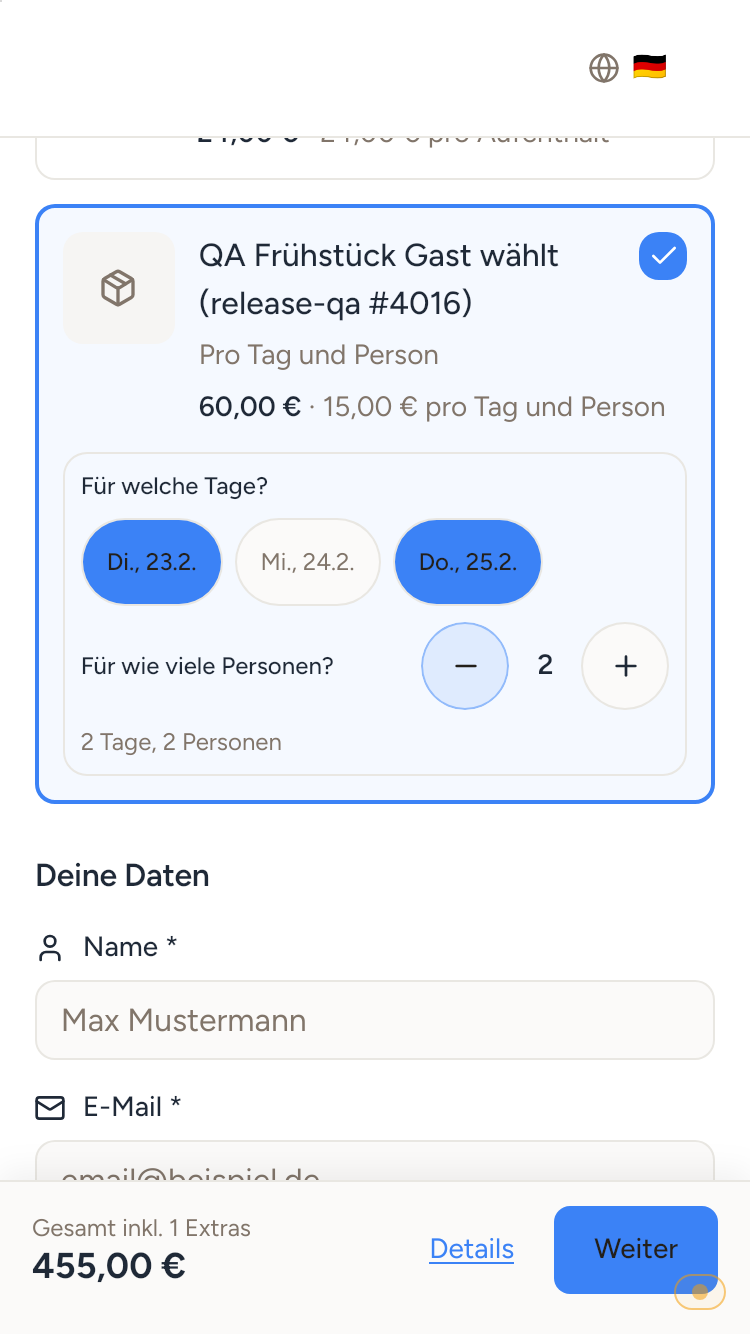 The guest chooses the breakfast days and the number of people in the booking tool. The summary shows the extras individually and includes them in the total price. Discount codes apply only to the accommodation, not to extras.
Payment and where you find the extras
- Card payment: the guest pays the extras together with the stay.
- Bank transfer: the extras appear as open items on the booking, like "On invoice" in the online check-in.
- Extras "On request" (approval required): they are not charged at booking. You confirm them afterwards, and then the guest gets a payment link.
You see the booked extras in the booking, on the tab Online check-in under Booked services, and in the booking notes. The booking price contains only accommodation and cleaning; the extras appear as separate items with their VAT on the guest invoice.
In the booking, tab Details, card Finance, the extras still count: Total price includes them, below it is the line Extras (the info icon next to it names each extra with its VAT rate) and further down VAT extras. Payout and Net before costs also include the extras; for card payments, Xentra's commission on the extras is part of Commission. This applies in the same way to extras from an accepted offer, and the booking list, its Excel and CSV export and Rental KPIs include them as well.
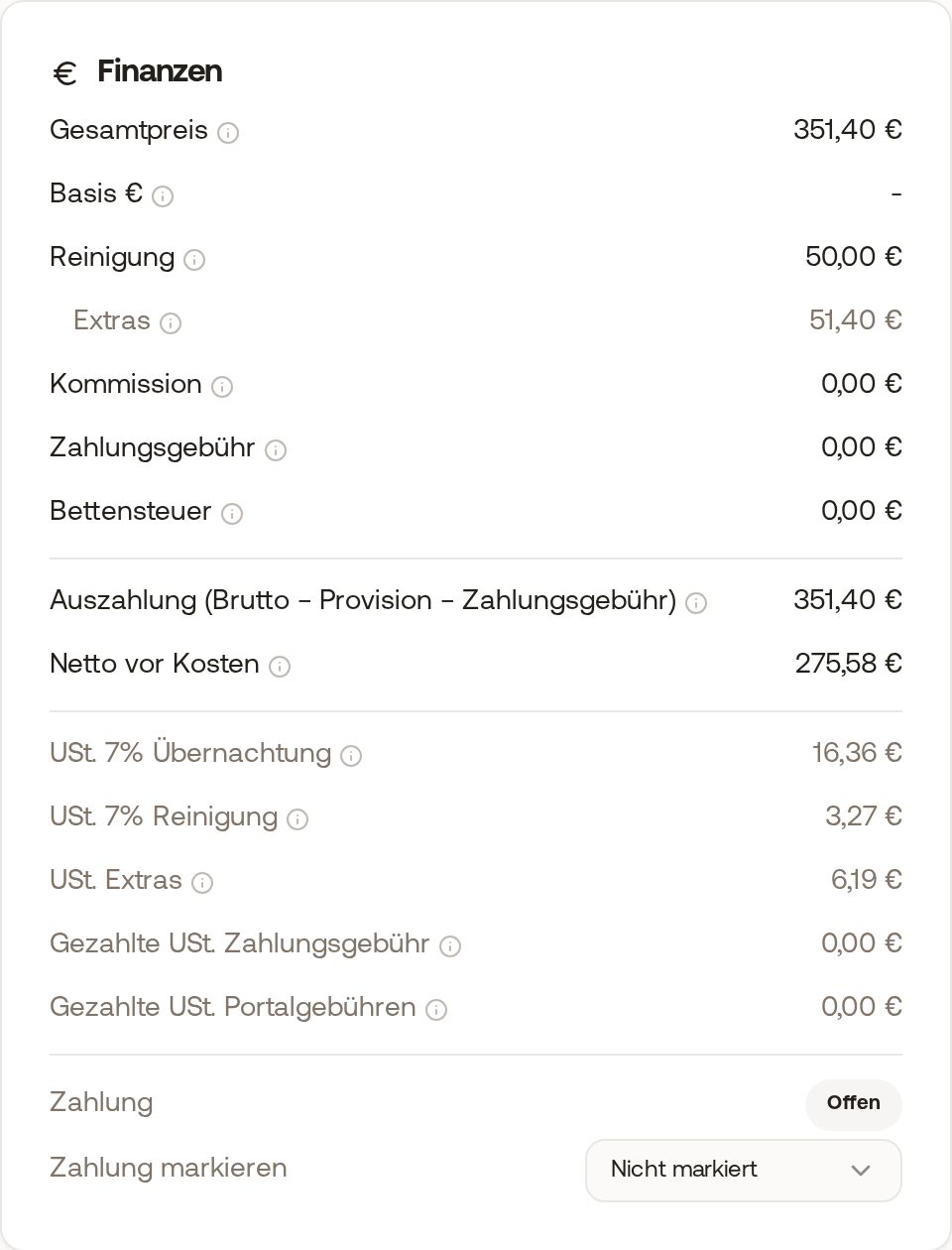 The Finance card of a booking with a 300 € stay and 51.40 € extras: total price 351.40 €, below it the lines Extras and VAT extras.
Extras on request only
If you switch on "Approval required" for an extra, the booking tool shows it with "On request". If the guest selects it, it appears in the summary under "Requested, not yet in the price" and is not paid with the booking. You decide in the booking, on the tab Online check-in under Booked services, with Approve or Decline. After approval, the guest gets a payment link; with Copy payment link you can also pass it on yourself.
A booking request (payment method "On request") can also contain extras. They then appear as open items on the booking.
Cleaning and automations
An extra booked in the booking tool counts like a service booked in the online check-in:
- An automation with the trigger "When an extra service is booked" under Automations also fires for it. With the recipient Custom email and the placeholder
{{booked_services}}, for example, your cleaning crew gets "1x bed linen" by email. - The extras appear on the cleaning task of the booking. A team member sees them there only if you have released the booked services for them.
- Extras "On request" only count once you have confirmed them. The booking tool only offers them for units that have a check-in template.