
Create a booking across multiple units
Book a guest or a group into multiple units at once: one booking, one message, one invoice, and one check-in.
Updated on November 13, 2026
If a guest or a group (for example a company) stays in several of your units during the same period, you create one booking for it, not several individual ones.
How it works
- Open the Calendar or Bookings and create a booking via New booking (on mobile via the +).
- Select the first unit, the guest, and the period.
- Tap Add another unit and select the next unit. For each unit, you enter adults, children, and price; as usual, the price is suggested from the pricing calendar.
- Repeat this for each additional unit. Below, you see the total price of all units.
- Tap Create booking.
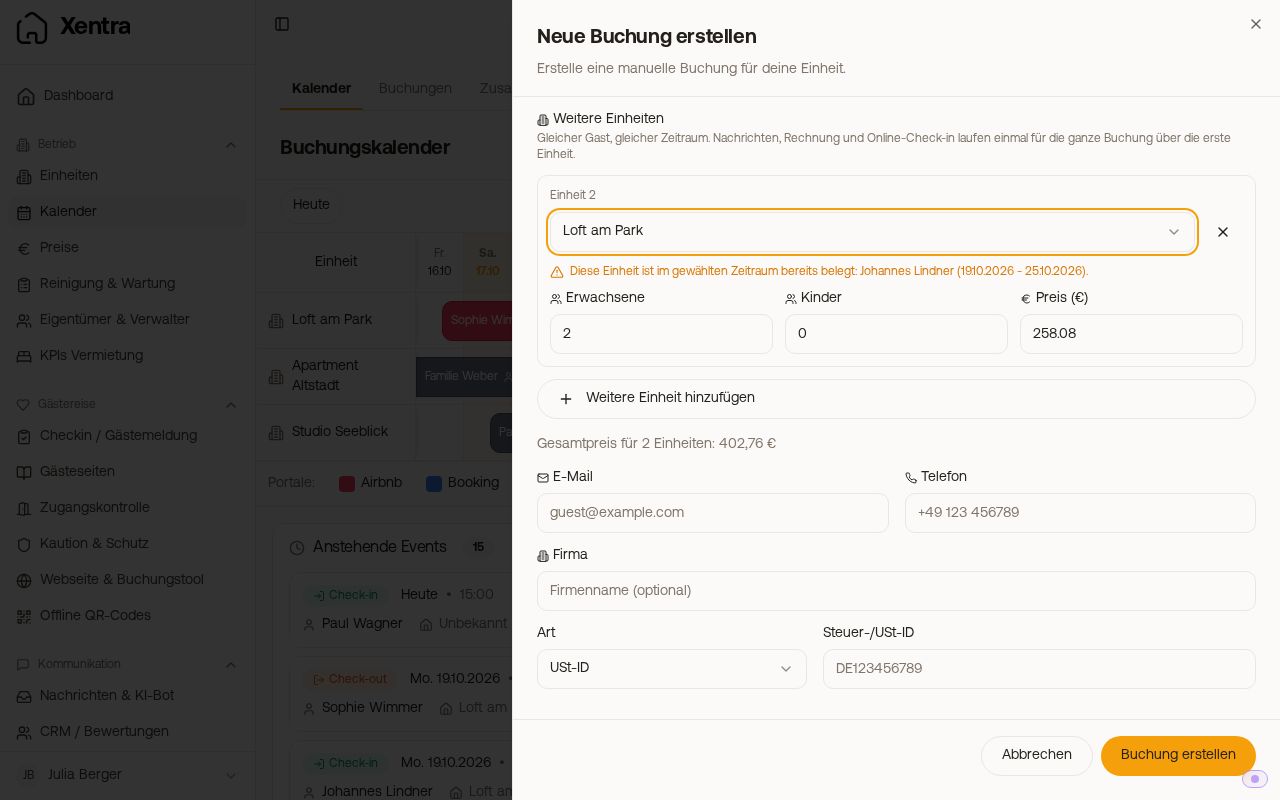 Neue Buchung mit zwei Einheiten und dem Gesamtpreis darunter
Guest and period apply to all units. If a unit is already occupied during the period, Xentra shows this directly on that unit.
Select directly in the calendar (computer)
On the computer, you can also do it directly in the Calendar: Hold ⌘ (Mac) or Ctrl (Windows) and drag across the available nights of the first unit. During normal dragging, the label reminds you ("2 nights · … · Multiple units: hold Ctrl"); if you press the key while dragging, it also becomes a selection. A bar with your selection appears at the bottom. ⌘ + Click or Ctrl + Click on another unit adds it, a second click removes it again. Continue with "Create booking", or discard the selection with "Cancel".
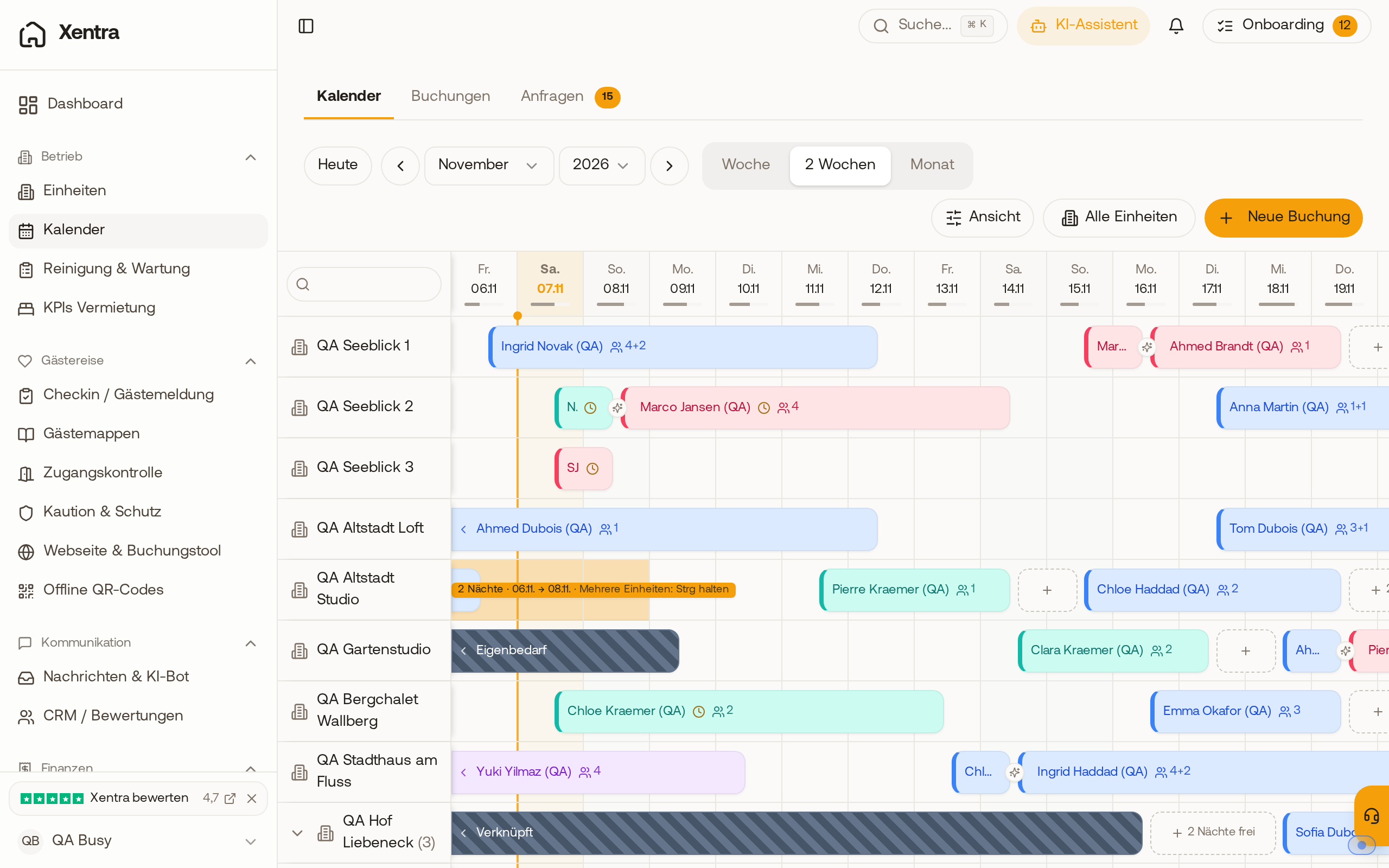 Kalender beim Ziehen über freie Nächte: das Etikett zeigt die Nächte und den Hinweis „Mehrere Einheiten: Strg halten“.
What this does
- One message instead of several. Your automated messages are sent once to the guest, not once per unit. Placeholders like
{{room_names}}and{{rooms_access_codes}}list each unit. - One invoice with separate items per unit.
- One online check-in for the whole group.
- In the booking list, each unit bears the note "2 units" (or the corresponding number). On the booking page, under Part of a reservation, you see all units; the first one is the Main booking, through which messages, online check-in, and the shared invoice run. The note below the units also states this.
Changing dates
If you change the arrival or departure of a unit, the other units with the same dates automatically move with it. Units with their own dates remain as they are. When editing, Xentra displays the note below the dates "This booking includes ... units. Changed dates also apply to units with the same dates; units with their own dates remain."
- Xentra does not recalculate Pricing here, just like with a single booking. Adjust the price of each unit yourself if needed.
- Canceled units do not move with it.
Making only one unit longer or shorter
For example, if a guest departs earlier, you give their unit its own dates:
- Open the booking for this unit and tap Edit.
- Under Period, turn on the switch Own dates for this unit.
- Change the arrival or departure and tap Save.
The other units remain as they are, and this unit will no longer move along later if you change the dates of another unit. If you turn the switch off again and give the unit the same dates as the others, it will move along again. You will find the switch on the booking page; it does not exist in the calendar and booking list.
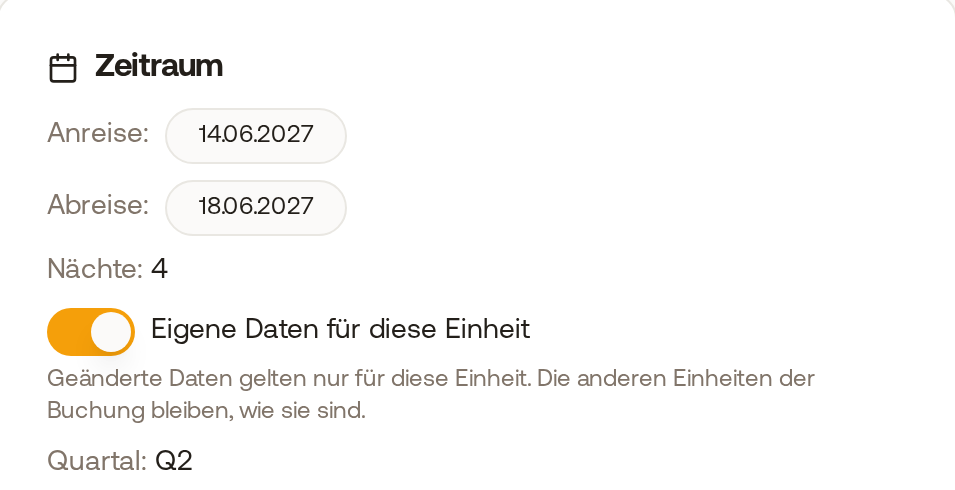 Zeitraum einer Einheit im Bearbeiten-Modus: „Eigene Daten für diese Einheit“ ist eingeschaltet und die Abreise gekürzt, die anderen Einheiten bleiben
Canceling a unit
If you cancel a unit, the rest of the booking remains. If you cancel the main booking, the next unit automatically becomes the main booking, and an online check-in that has already been started or completed moves along with it, including paid tourist tax and guest registration form. Guest registration form and tourist tax still count the whole group afterwards: If guests of the canceled unit do not come, adjust the guest count and tourist tax yourself.
Good to know
- Multiple units only exist for a booking, not for a block.
- All units of a booking run through one guest and one shared invoice. If different people or companies pay for individual units (for example 8 rooms company A, 2 rooms company B), you create a separate booking for each payer. Each then gets its own invoice.
- If you select a room category instead of a room in New booking, this books exactly one room, and Add another unit does not appear. For multiple rooms, select a specific room first.
- If a guest books multiple units with the same dates in the booking tool using hotel mode, the same type of booking is created automatically, see Hotel mode in the booking tool: multiple units in one booking.
- Existing individual bookings cannot be merged into one retroactively. In that case, create the booking again.
- If a PMS is connected, each unit arrives there as its own reservation.
- Dogs, commission, payout, occupancy tax, and price details from the advanced fields apply to the whole booking and are located at the main booking.