
Price calendar: Edit nights individually or multiple at once
Edit individual nights in the price calendar, select multiple nights and units at once, close them, and edit on mobile.
Updated on November 7, 2026
In the Calendar tab, you click on an available night and type in the new price. Clicking on "min 1" below it changes the minimum stay. With the Lock at the bottom left of the night (it appears when you hover over it with the mouse), you close it, a second click opens it again. Locked nights are hatched, booked nights cannot be closed. Every changed night is highlighted in yellow, and above the calendar "unsaved change(s)" appears with "Discard" and "Save & push to Channex" (without a channel manager, the button is called "Save").
Type faster: Tab jumps to the next day (Shift+Tab back), the value is highlighted, and you simply type over it. Skipped days remain unchanged. Multiple days: drag across the row on the computer or Shift+click, then enter Price or Min. Nights below and click "Apply", close or open all selected nights with "Close" or "Open", or proceed to "Edit period" with "More: weekdays, ± %".
Multiple units at once: If you have selected nights on the computer, use ⌘ + click (Mac) or Ctrl + click (Windows) on another unit to add the same nights there. A second click on this unit removes them again. The bar at the bottom then shows the number of rentals, for example "3 rentals", and Shift+click extends the period for all selected units. Whatever you enter in the bar and apply with "Apply" applies to all selected units. Then click "Save" as usual.
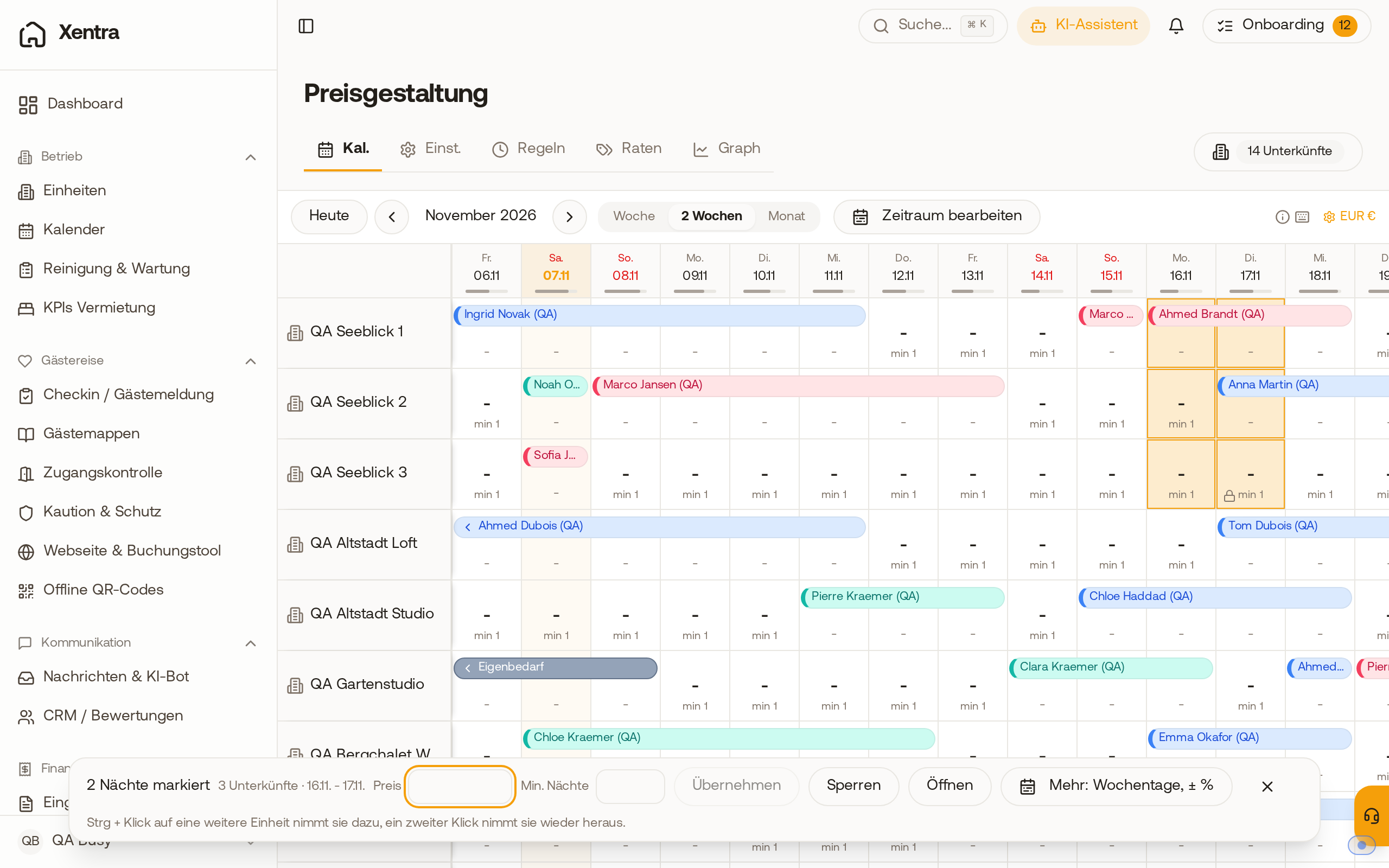 Price calendar on computer: two nights selected across three units, the bar at the bottom shows "3 rentals" and the note on Ctrl + click.
On mobile, you select the unit at the top; below, each night is listed as a card. If you tap on a night, a window opens at the bottom with price, Min. Nights, and Availability (Open or Locked); you navigate further with "Previous night" and "Next night". With "Select", you highlight multiple nights and set a price, a minimum stay, or Close / Open for all of them.
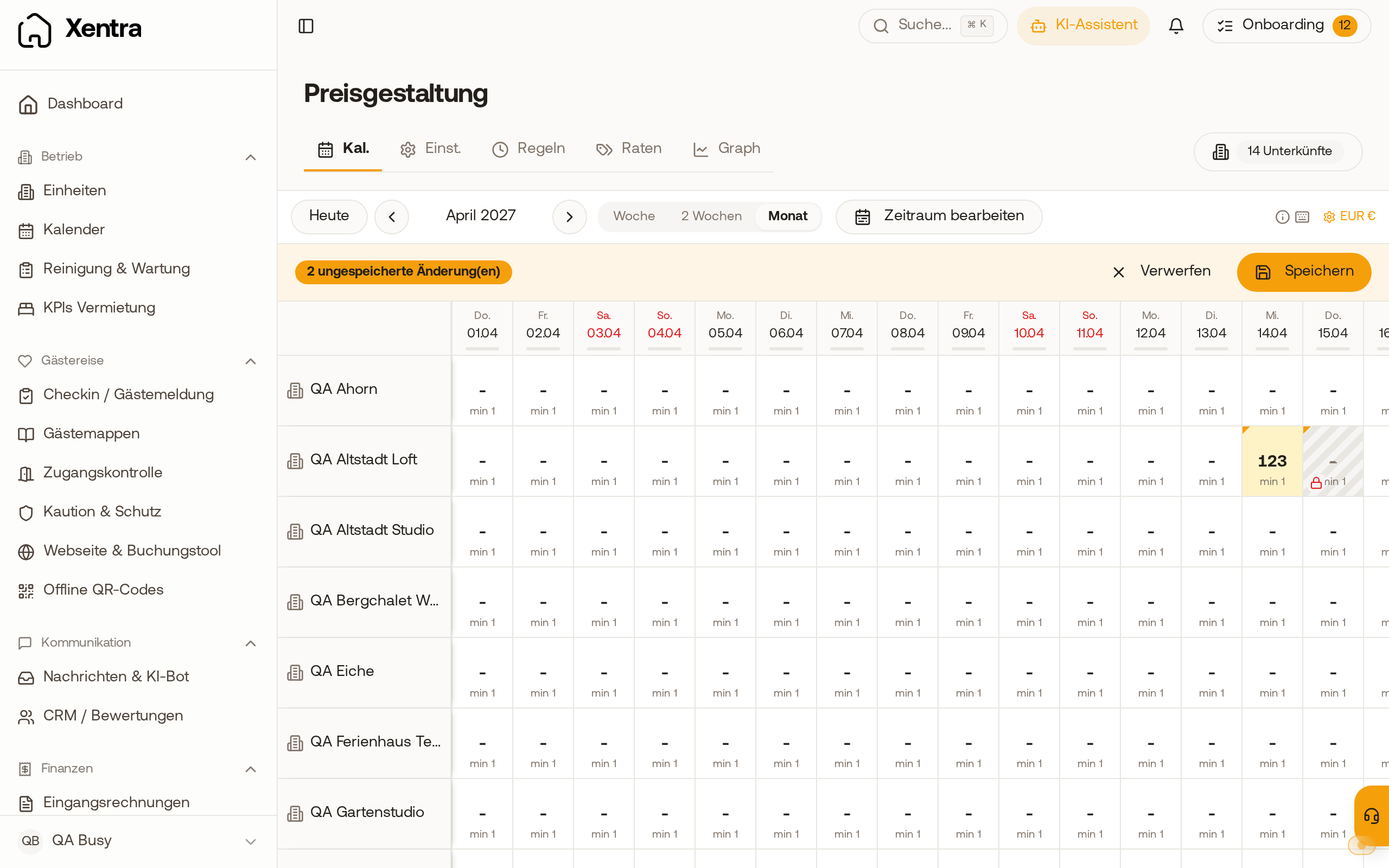 Price calendar: a changed night is highlighted in yellow, a night closed with the lock is hatched.
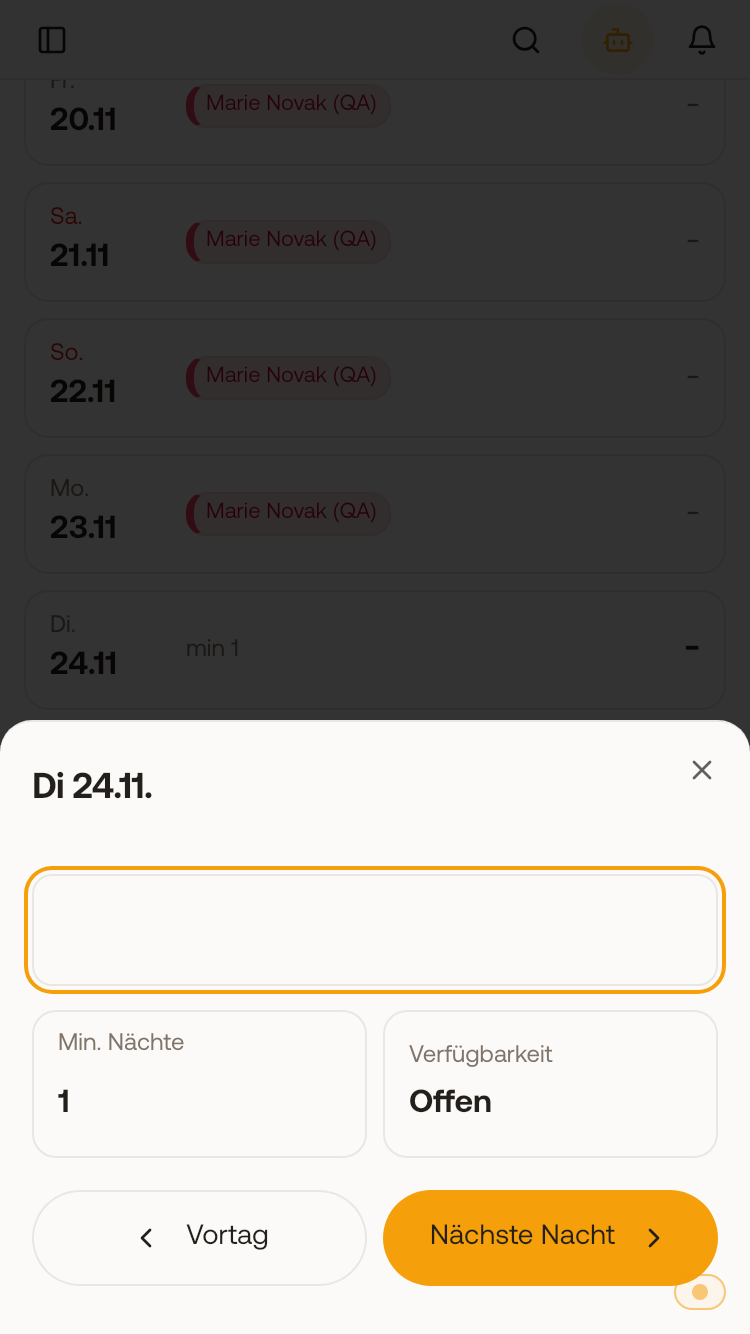 On mobile, tapping a night opens the window with price, Min. Nights, and availability.
On mobile, you always edit one unit; editing multiple units at once is done via "Edit period" (the calendar icon next to the month).
Read more
- Overview of the pricing page: "Pricing: where you manage your prices"
- Prices for an entire period: section "Edit period" in the same article