
Dynamic price rules
Automatic markups and discounts for weekends, seasons, last minute, early bird and length of stay, and what of it goes to the portals.
Updated on November 6, 2026
With dynamic rules, Xentra adjusts your prices automatically, so you do not have to change every day separately: Open pricing, Rules tab (on wide screens "Dynamic Rules"), "Add Rule". You edit the rule in a panel on the right with the sections What, When and Applies to.
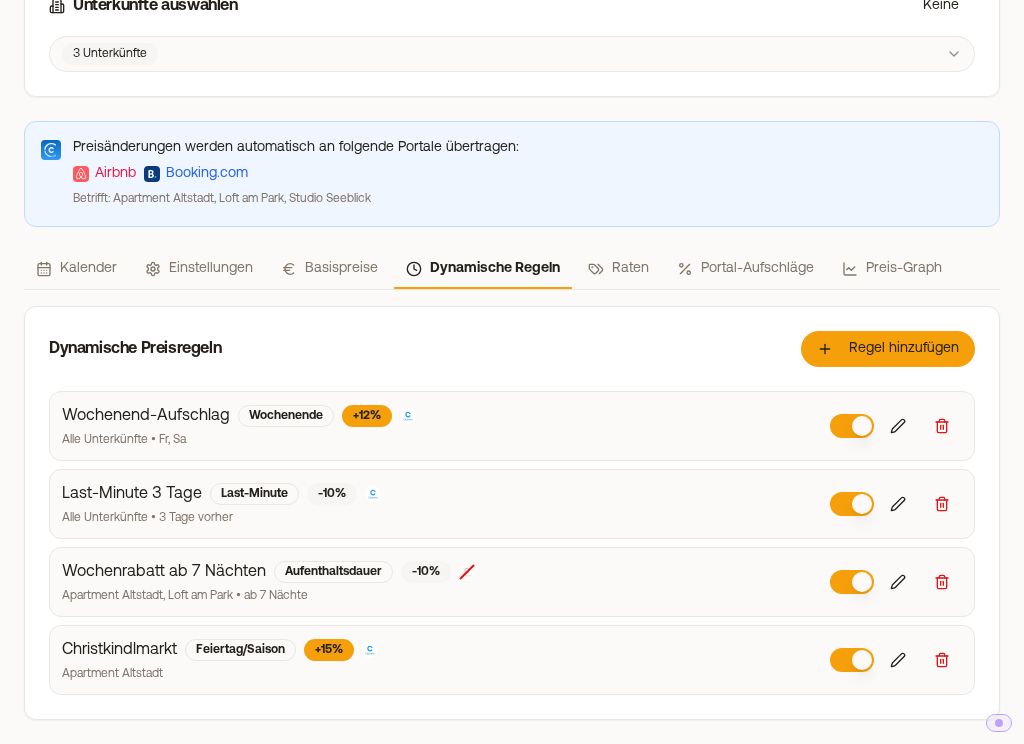 Dynamic price rules: weekend surcharge, last minute, weekly discount and season surcharge
The rule types
| Rule type | When it applies | Example |
|---|---|---|
| Weekend | on the selected weekdays | +12% on Fridays and Saturdays |
| Holiday/Season | between "Valid from" and "Valid until" | +15% during the Christmas market |
| Last Minute | if the booking is made X days or less before arrival | -10% from 3 days before |
| Early Bird | if the booking is made X days or more before arrival | -5% from 60 days before |
| Length of Stay | from a number of nights (optionally up to) | -10% from 7 nights |
For each rule you choose the Adjustment Type: Percent (%) or a fixed amount. Negative values are a discount, positive values a surcharge. A fixed amount applies per night, not once per stay: Xentra applies each rule to the price of each individual night. So a rule "Length of Stay from 7 nights, -€10" lowers the total price by €70 for 7 nights, not by €10. If you want a one-time amount per stay, convert it to the nights or use percent. With the switch in the list you deactivate a rule without deleting it. Deleting (trash can, on the phone at the bottom of the rule's panel) asks first and cannot be undone.
One rule for several units
Under "Applies to" you set where the rule applies. With the checkbox "All properties, including future ones" it applies to all units, including those you create later. Without the checkbox, you select individual units or whole location groups under "Select properties". This way you only create a weekly discount for three of five apartments once.
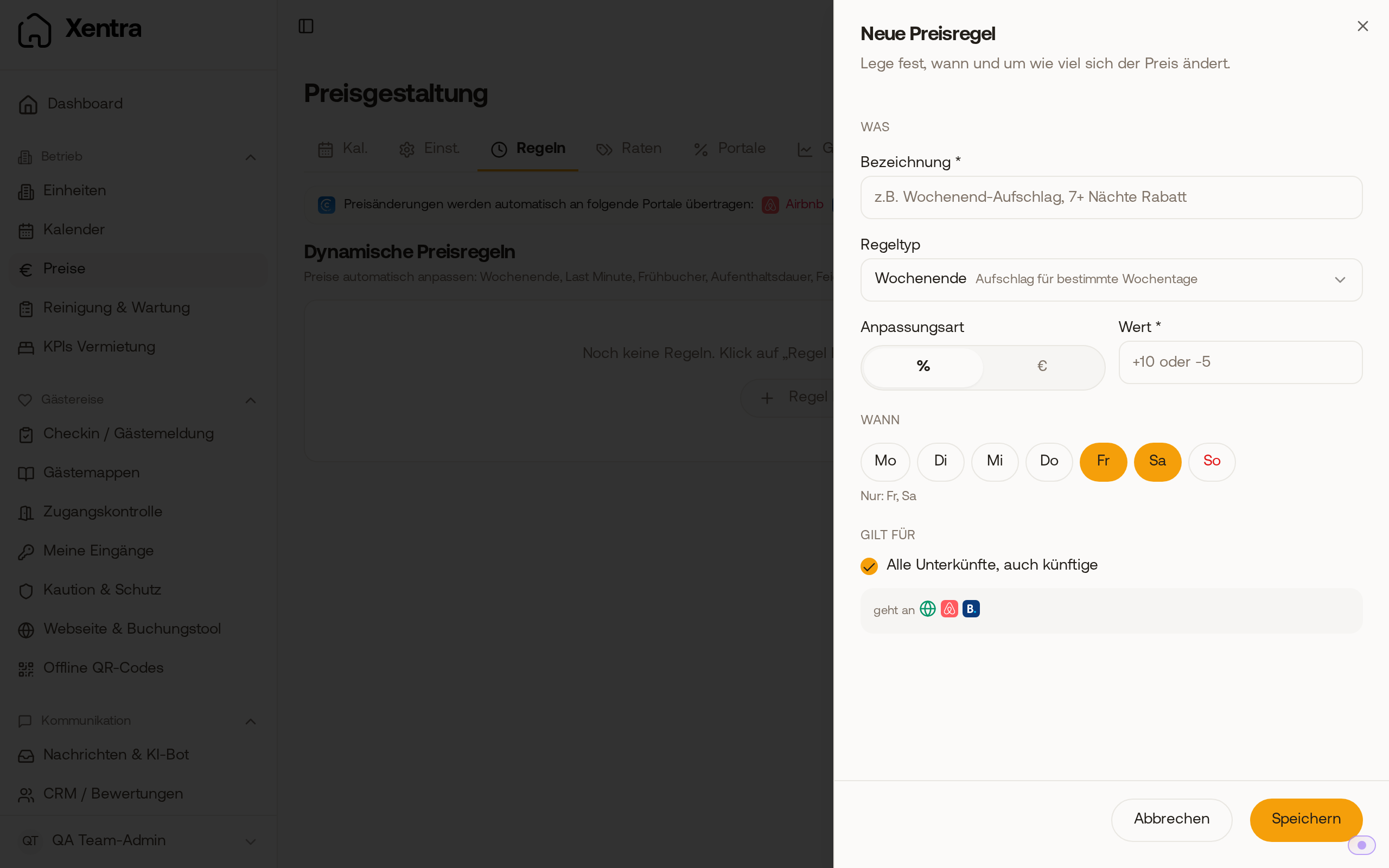 New price rule with rule type, value, weekdays and "Applies to"; the logos below show that the rule goes to the booking tool, Airbnb and Booking.com.
How rules work together
Several rules can apply at the same time, and their values are added. Percentages are always calculated from the base price of the day, not from the already adjusted price. Example: €100 with +12% weekend and -10% last minute gives €102. You do not have to set an order or priority.
Where the rules apply
- Your booking tool and bookings you create yourself: all rule types.
- Portals via the channel manager (Airbnb, Booking.com and co.): Weekend, Holiday/Season, Last Minute and Early Bird. They go to the portals immediately on saving. When you deactivate or delete a rule, Xentra takes it back there. In the list, and already before saving in the panel, small logos show where a rule goes: "goes to" with the booking tool and portals; "only" with the booking tool means it only applies to direct bookings.
- Length of Stay always only applies to direct bookings, because a portal only gets one price per night and does not know the length of the stay.
- Last Minute and Early Bird at the portals: Xentra calculates the discount per night according to how far that night is from today, and updates this every night. In the booking tool, by contrast, the arrival day counts for the whole stay.
With PriceLabs: For units whose prices PriceLabs sets, your rules are calculated on the PriceLabs price and only apply to direct bookings. For these units, only the PriceLabs price goes to the portals. The editor points this out.
Weekly or monthly discount for longer stays
Create a rule of the type Length of Stay, enter for example 7 or 28 under "From Nights", and the discount as a negative value. Guests do not need a code for this. Discount codes are the way to go if the discount should only apply when a code is entered. For Airbnb, you set weekly and monthly discounts directly in Airbnb, see "Airbnb discounts: what goes through Xentra and what does not".
When a rule does not apply
- Is the rule active (switch in the list)?
- Does it apply to the right unit ("Applies to")?
- For Holiday/Season: is "Valid until" after "Valid from"? An end date before the start date (for example from 01.09.2027 until 31.10.2026) can never apply. This happens easily when the year is mistyped.
- For Length of Stay: with Airbnb and Booking.com it never applies, see above.
- In the Calendar tab you see the base price of the day. Xentra only adds the rules when the price is offered in the booking tool and when it is transmitted to the portals.