
Website builder: create and publish your own website
Create a website from your data, website check, publish, custom address, Google, and how the page looks to guests.
Updated on November 13, 2026
With the website builder, you get a complete website hosted by Xentra for your accommodations: home page, accommodations with detail pages, About us, custom subpages, imprint, privacy policy, and house rules, in up to seven languages (including Dutch) and with built-in booking. You do not need a web agency or your own website.
You can find it under Guest Journey → Website & Booking Tool, Website button (Open website). The section is marked with Beta and is included in the Pro plan and trial phase, not in the Basic plan.
No "Website" tab visible? Then the Website module under Modules is turned off. Turn it on there.
Create
Click on Create my website now. Xentra builds the page from your data: units, photos, amenities, map, reviews, and booking tool. This usually takes less than a minute. Until the texts are ready, the card stays on "Your website is being created", after which your website opens automatically. It is only published when you want it to be.
If you already have a website on Wix, WordPress & Co., choose "Create from external website" instead: see Create website from your previous website.
If the AI texts do not work, you will see "Error creating the website". Your website has already been created, only the texts are missing. With Try again, the AI writes them again. If it does not work the second time either, you can work directly with the initial texts using Continue without AI texts.
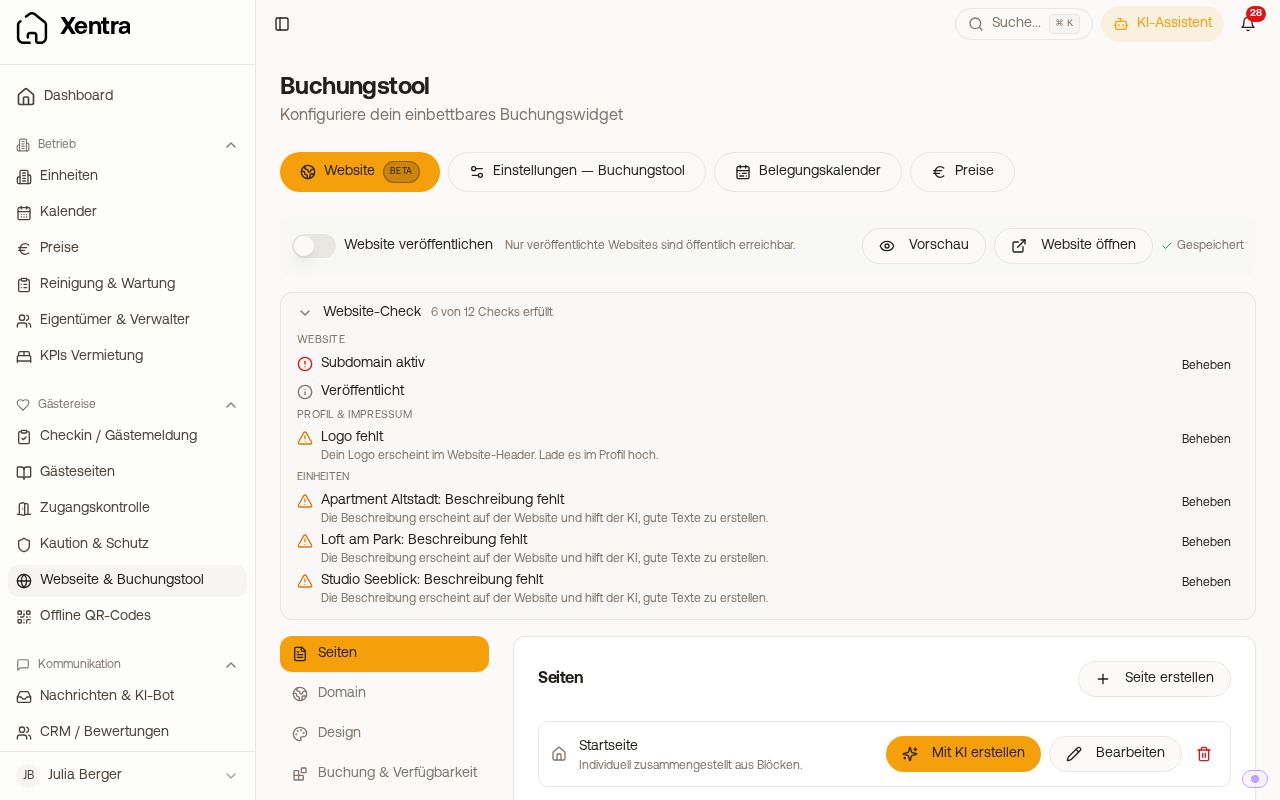 Website section in the booking tool with pages, website check, and preview
- Does it stop with "Error saving"? Under Modules, turn the Website module off and on once, then click again. If that does not help, write to us at hello@support.myxentra.com.
- If a step was not completed, start again with Continue setup; completed steps are skipped.
- With Create with AI, the AI writes the home page, About us, and FAQ from your real accommodation data, optionally with your Airbnb listing as a template and translated into all languages that your website offers. Your previous home page is replaced, but remains restorable in the History.
One website per account
There is exactly one website per Xentra account; a second one cannot be created. It is connected to one of your booking tools and shows exactly its Bookable Units. For a second homepage, for example for a different region, create another booking tool and embed it there or link its booking page.
Draft, checklist, and publishing
In the Overview, the Before publishing list shows what is still missing (photos and logo, texts, legal info, domain, booking), with a link to fix each item. Most items are recommendations: Xentra mentions them when publishing, and you can click Publish anyway. Two things you must fix beforehand: an invalid or insecure stored address (URL) and an incomplete imprint. For the imprint, your profile needs company name, email, street, postal code, and city.
Draft and live version. Whatever you change in the editor, Xentra automatically saves as a draft ("Saved, not published yet"). Guests only see it after publishing. If your website is already live, the overview shows how many changes are not published yet; with Publish changes, they go online. Until then, guests see the last published version at your address. The status always tells you what applies: Not published yet, Live, 1 change not published, or Offline.
Only published websites are publicly accessible, including under the default address. View as guest in the editor shows you the draft, the address in the overview opens the live version.
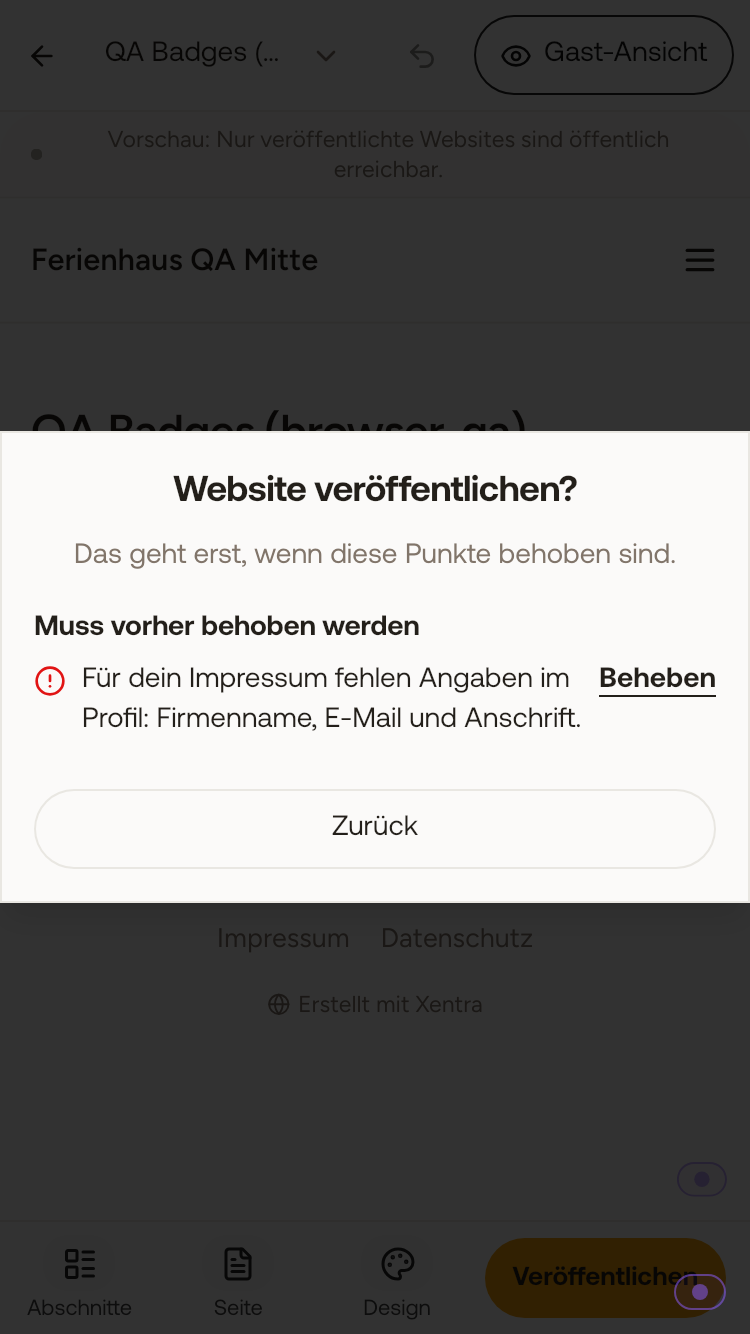 If details for the imprint are missing, the website can only be published after adding them to the profile.
Live preview: On a large screen, a preview of your website appears to the right of the settings. Color, font, style, and header image are visible immediately, everything else after automatic saving. At the top, switch between Desktop and Phone and close it with Close preview; "Preview" brings it back. On smaller screens, "Preview" opens the website in a new tab.
Address
Your website runs under <name>.web.myxentra.com. You connect your own domain such as www.deine-domain.de under Settings → Domains, Website card (see "Custom Domains").
Delete website
If you want to start fresh, delete the website under Domain, at the very bottom in the "Delete website" card. After "Delete permanently", all pages and texts are gone and the subdomain becomes available. This cannot be undone. If the website is currently online, guests will no longer be able to reach it afterwards.
- Your own domains remain intact.
- The booking tool created when setting up the website remains intact and stays live. If you no longer need it, turn off the "Activate widget" toggle under Booking tool → General.
- Only the primary account or a team admin can delete it.
- After that, you create a new website with "Create my website now".
Discoverable on Google
A published website is enabled for search engines; a sitemap is created automatically. You set the title and description for Google per page and language in the editor under Page & SEO in SEO title and SEO description. If you leave them empty, Xentra uses the page name and its first text; both appear gray in the field. Above it, "This is how your page could look on Google" shows how the result looks. A counter turns orange if the title is longer than 60 or the description is longer than 160 characters; you can still save. It can take a few days to weeks for new pages to appear in search results. When a link is shared, the preview card shows your website, not Xentra. You can see what runs automatically under Website → Settings → SEO.
Google Search Console (optional). There you can see how often your website appears in Google Search and what guests searched for. How to connect it: Under Settings → SEO, open the Open Google Search Console link and log in. Choose "URL prefix" and paste the address Xentra shows you there with a copy button. Choose "HTML tag" as verification, copy the text from Google, and paste it into Code from Google; it saves immediately. Then click "Confirm" on Google. This works as soon as your website is published.
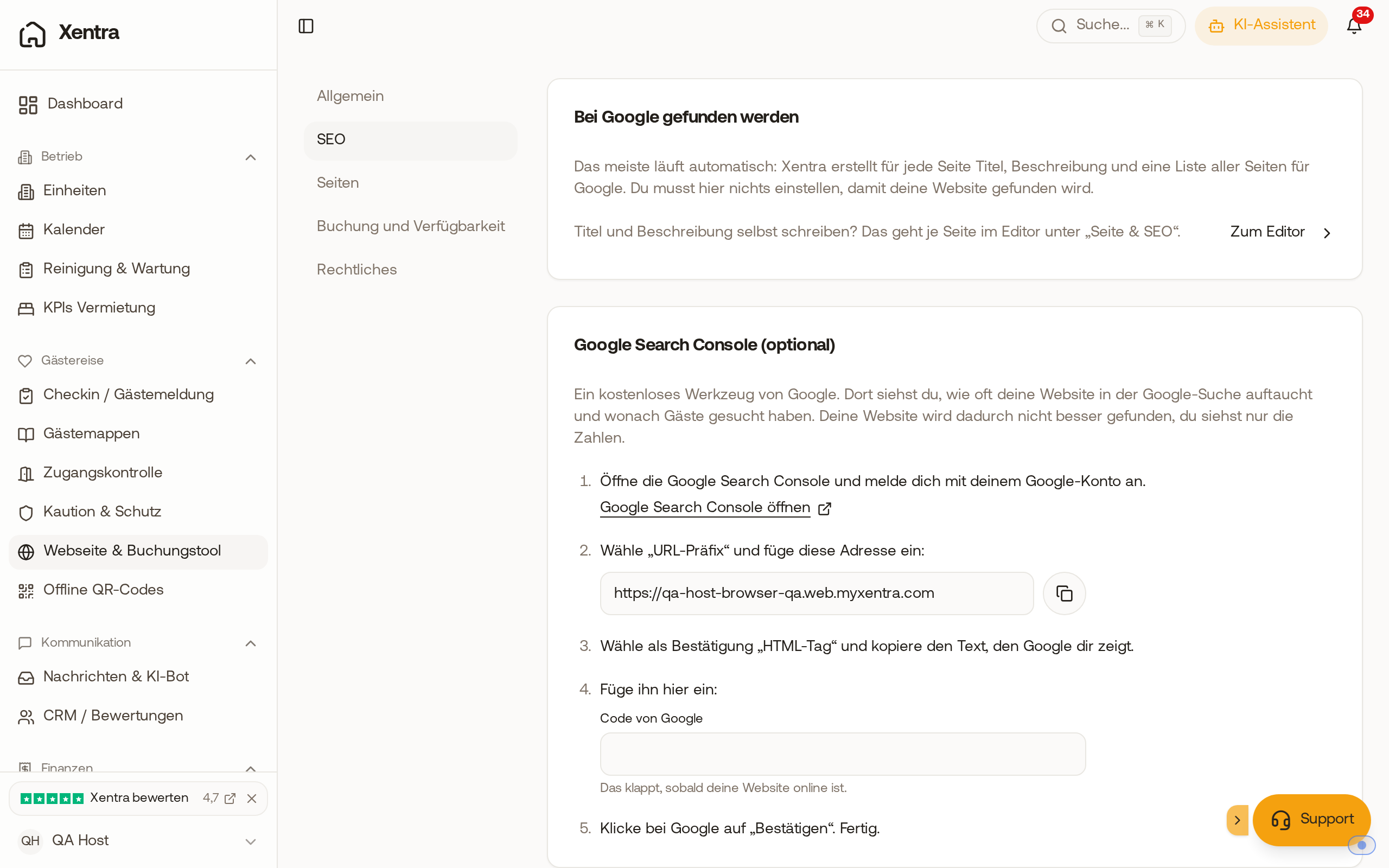 Under Settings → SEO, you can see what runs automatically and connect Google Search Console in five steps.
How the website looks to guests
- It is always displayed light, even if the guest's device is in dark mode. This also applies to the preview.
- Each accommodation has a readable address based on its name, for example
/de/unit/ferienwohnung-gruen. If you rename the unit, it gets a new address, and the old one automatically redirects guests. Old links with the long ID also continue to work. - An address that does not exist on your website shows a custom page "Page not found" with a link to the home page.
- Your Public host name appears as the website name, otherwise your company name. The imprint and privacy policy always state the company name.
How to edit pages, blocks, photos, and legal texts is explained in "Website builder: pages, blocks, photos, and legal info".