
Create a website from your existing website (Wix, WordPress & Co.)
Transfer text, pages, and photos from your existing website into a new Xentra website: enter address, select, create.
Updated on November 13, 2026
Create a website from your existing website
If you already have a website, for example with Wix, WordPress, Jimdo, or Squarespace, Xentra can build your new website from it if you want: text, pages, and photos come from your old website, contact details and legal notice from your Xentra profile, design, prices, reviews, and booking from Xentra.
How it works
Under Guest Journey → Website & Booking Tool, button Website, on the home screen you choose the card "Create from external website" and click "Enter website address". Xentra then guides you through three steps:
- Step 1: Enter your website address, confirm "This is my website. I am allowed to use text and photos from it.", and click "Read website". Xentra shows you the title of the found page and asks "Is this your website?". With "Yes, continue", Xentra reads your pages.
- Step 2: You select which Pages and Photos go onto the new website (if your website is not in German, also the main language), and set the large picture for the home page using "Make cover". A maximum of 15 pages, 4 legal texts, and 40 photos will be transferred.
- Step 3: In the Summary, you check what will be created, choose the languages for your guests, and see which contact details come from your profile. Then click "Create website".
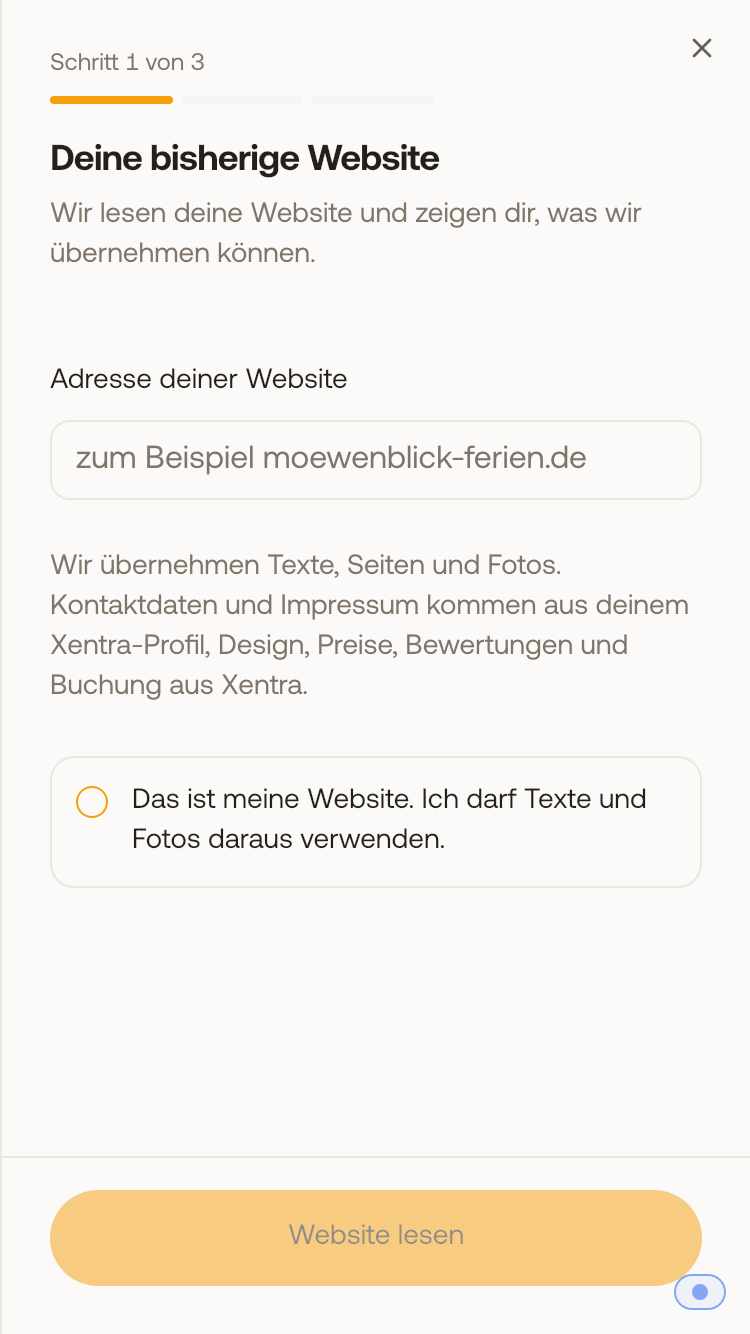 Step 1: Enter the address of your existing website and confirm that it is your website.
Creating takes one to two minutes. Keep the window open until your website is finished. After that, you will see a card "Transferred from..." in the Overview with the number of transferred pages and photos. It is only published when you click "Publish" in the editor.
Good to know
- For each transferred text page, the import costs one AI credit. The AI sorts the texts of each page into the sections of your new website.
- The transferred photos end up in your Xentra media library. There, they can be accessed publicly via their link, even before you publish.
- Terms and conditions, cancellation policies, and right of withdrawal policies are transferred word for word and end up on the "Please check" list. Xentra creates the legal notice and privacy policy from your profile.
- A website that is already running via Xentra cannot be imported.
- Your old website must still be reachable under its address during the import.
Do you already have a Xentra website?
There is one website per account. If you want to rebuild it from your external website, delete it first: Domain tab, "Import external website" card, "Go to "Delete website"", then "Delete website" and "Delete permanently". After that, the home screen with "Create from external website" appears again. Deleting cannot be undone.