
Custom Domains: custom address for your guest links
Add-on Custom URL: guest links under your domain, CNAME with asterisk, Additional domains, price and requirements.
Updated on November 9, 2026
Custom Domains (custom address for your guest links)
With the add-on Custom URL, your guest links run on your own domain instead of Xentra. The five guest functions each get their own sub-address:
| Type | Sub-address |
|---|---|
| Booking page | booking.x.deinedomain.de |
| Online check-in | checkin.x.deinedomain.de |
| Guest guide | guest.x.deinedomain.de |
| Access page | entrance.x.deinedomain.de |
| Invoice | invoice.x.deinedomain.de |
The x is the Subdomain Group that you set during setup (default is "x").
You can find everything under Settings → Domains (Open domains).
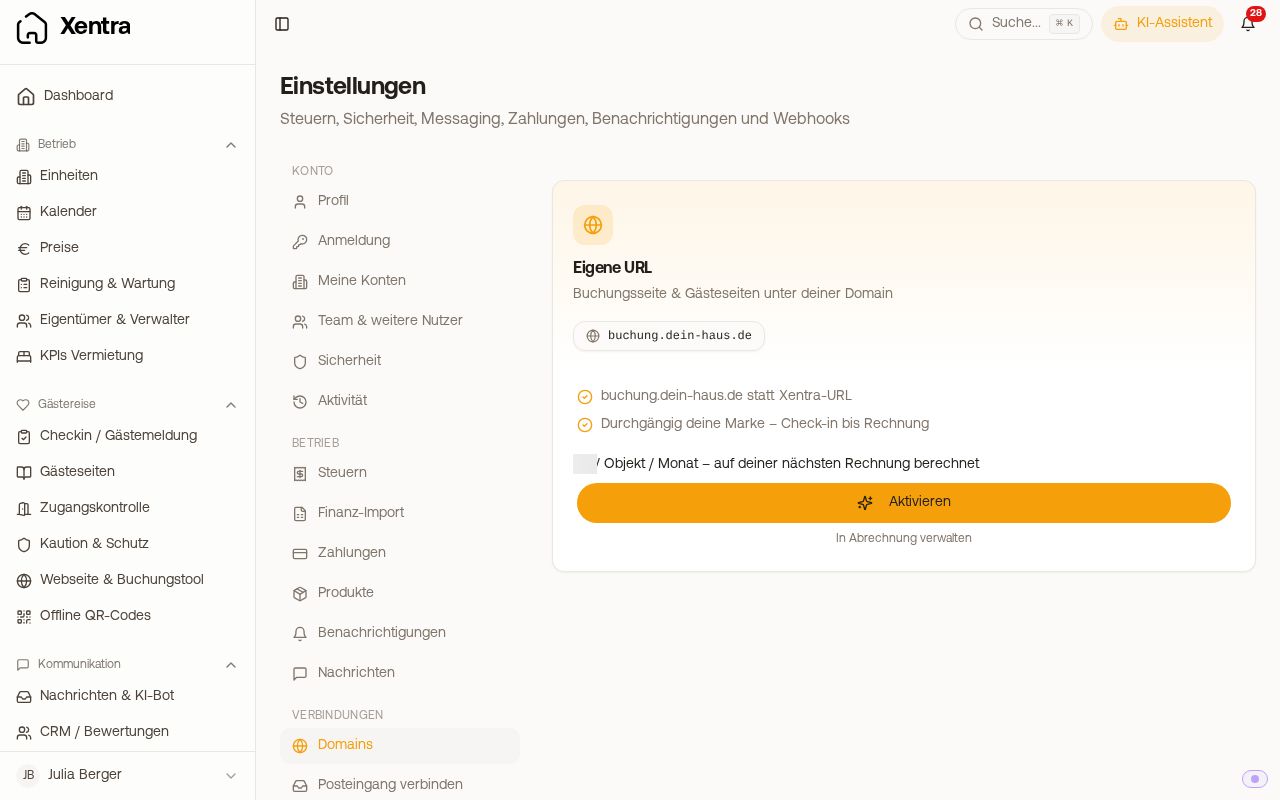 Settings, Domains: Custom URL add-on with price and Activate
Setup
- In the Custom URL card, click Activate. The add-on is charged per property and month, all your units are counted, billed on your next invoice. The card shows the current price, and it is listed on the pricing page.
- In the Custom domains card, click Set Up Domain and enter your domain.
- Set the CNAME with your domain provider (see next section) and click Review in Xentra.
You can find step-by-step instructions with pictures, including dedicated cards for Strato, IONOS, GoDaddy, Wix, Cloudflare, netcup, and All-Inkl, under Connect your own domain.
Afterwards, Xentra creates the SSL certificates; this usually takes a few minutes, the page refreshes automatically.
The CNAME needs the asterisk
Xentra shows you the target address with an asterisk in front, usually as *.x.deinedomain.de, and the asterisk belongs in the DNS entry. If you create it without, meaning only x.deinedomain.de, the entry applies only to x. itself and not to checkin.x., guest.x., and the others. Your guest links then remain dead, even though the entry seems to be there.
- Name / Host:
*.x(some providers want*.x.deinedomain.dewritten out) - Target:
cname.vercel-dns.com!
If your provider does not accept an asterisk (Strato rejects it, and this also happens with website builders like Wix), create five individual CNAME entries instead, all with the same target cname.vercel-dns.com. They work just like the entry with the asterisk. Xentra shows them to you directly below the line with the asterisk, during setup and in the note at the top of the card, under "Does your provider not accept *? Create these entries instead:". You copy each name there with its own copy button:
checkin.x · guest.x · entrance.x · invoice.x · booking.x!
If you entered your domain with www, the names are called checkin.x.www, for example. Take them over exactly as Xentra displays them.
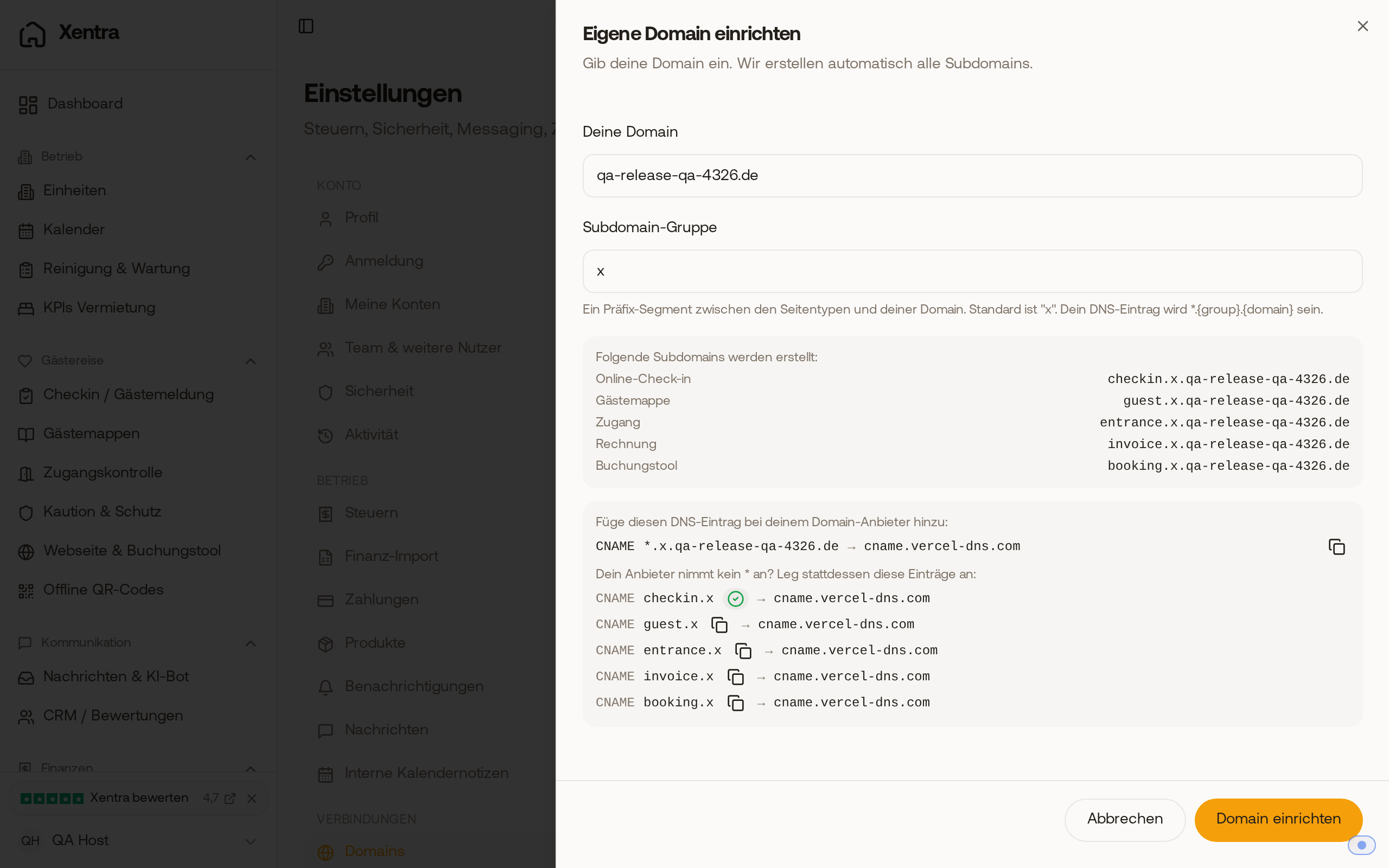 Below the entry with an asterisk, Xentra shows the five individual CNAME entries, each with its own copy button.
Dot at the end of the target. Some providers, for example Variomedia, append your own domain to any target that does not end with a dot. The target then becomes something like cname.vercel-dns.com.deinedomain.de, and your guest links remain dead, even though the entry seems correct. In that case, enter the target displayed by Xentra with a dot at the end, for example cname.vercel-dns.com., and then click Review in Xentra.
As long as a sub-address is still waiting for the DNS entry, the note with the CNAME remains at the top of the card, even while Xentra is already creating the certificates. You copy the target there with the copy button.
Additional domains: a domain directly for a function
In the Additional domains card, you can additionally connect a domain directly to a function, without a group segment, for example buchen.deine-domain.de for the booking page. Via Add another domain, you select the Function and enter the domain; Xentra shows you the matching DNS entries. For a domain without a sub-address, Xentra automatically sets up www and redirects the address without www there.
Custom domain for the website
For your website from the website builder, there is a dedicated Website card (between "Custom domains" and "Additional domains"). The website runs on the main domain itself, not on a sub-address. How you connect it is described in "Connect a custom domain for your website".
Add-on booking
- Bookable directly in the app, no support contact required
- Can be canceled at any time, booked domains run until the end of the billing period (in billing via Manage in Billing)
- Only with an active subscription: During the trial period without a plan, clicking Activate reports "You need an active subscription for this". Then first choose a plan under Billing.
- Main account only: As a team member, "Only the main account can activate this" appears. The owner of the account activates the add-on with their own login.
- Both apply in the exact same way to the add-on Email / SMTP.