
Website builder: Pages, blocks, photos, and legal
Edit pages and blocks, Appearance, Media library, Booking and availability, Imprint, Privacy, Terms, Cancellation policy, House rules, and contact form.
Updated on November 12, 2026
Your website has its own area: Open website, in the sidebar under Website & Booking Tool, with the tabs Overview, Domain, and Settings. In the Overview, "Keep designing" opens the editor. On the left is the toolbar with Sections, Page (Page & SEO), and Appearance; you create new pages with "Add page", and you fill an empty page with "Add first section". Under Settings, you find the parts General, SEO, Pages, Booking and availability, and Legal.
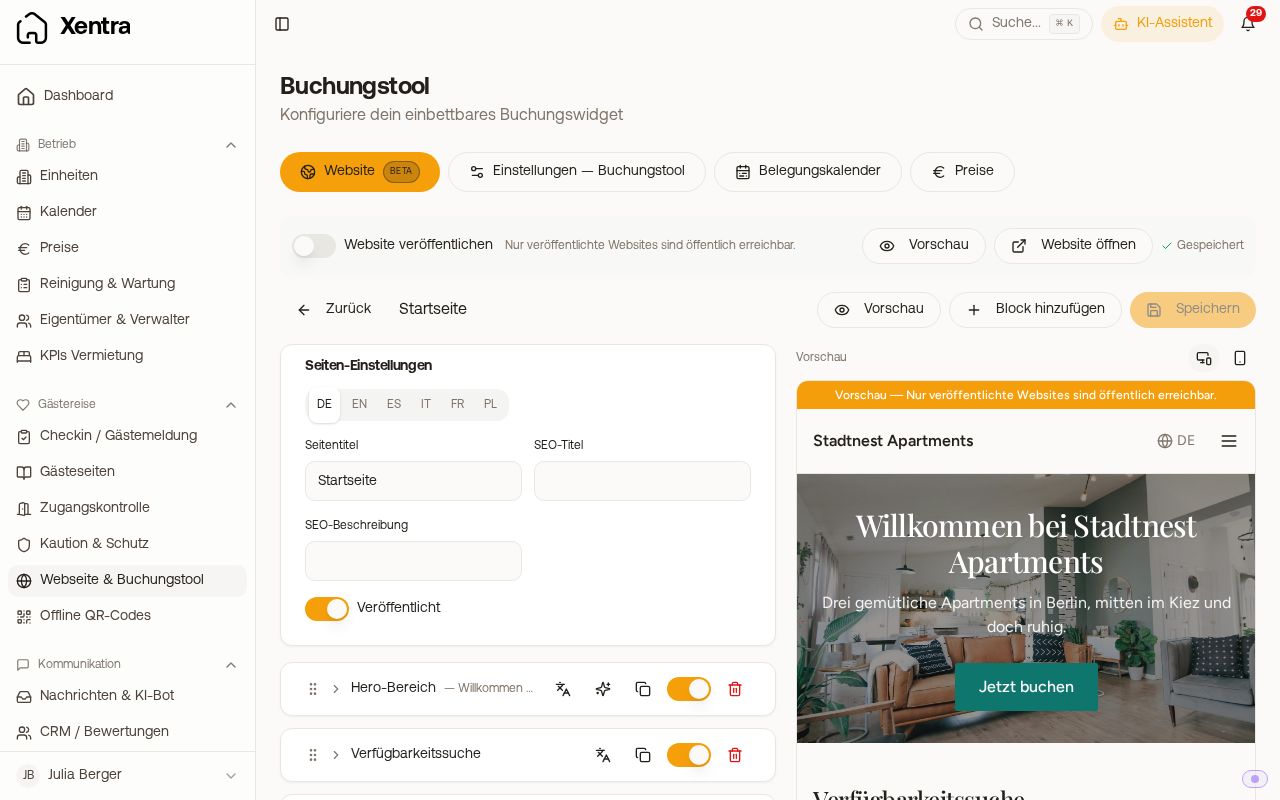 Page editor of the website builder with blocks and live preview
Pages and blocks
Under Pages, you open home page, about us, and your own subpages. Each page consists of blocks that you insert, move, duplicate, or hide via Add block. The selection includes: hero section, text, image and text, gallery, properties, amenities, availability search, availability calendar, map, reviews, special offers, benefits and features, trust badges, FAQ, contact form, call to action, video, as well as spacing and divider. Under Section presets, you insert ready-made groups, for example a booking landing page or "Surroundings and contact". You create entire new pages for surroundings, food & drink, or longer stays with a template, see "Website: Pages for surroundings, food & drink, and longer stays".
- Availability search leads directly to the booking tool with date and guest count.
- Reviews shows one of your review widgets (see "Review widget for your own website"). Under Display, you select Highlights (a selection) or All: Then the block shows every review of the widget with text, nine at a time, with portal and overall rating; with "Show more reviews", guests load the next ones.
- Special offers shows discount codes from the booking tool, but only those you select in the block.
- Map and videos only load when the visitor clicks them. If your properties are at two or more addresses, the map shows a house symbol for each address and the names below it. For only one address, or if you set a point yourself in the Map block, it shows that point; you set how close under Zoom there. If you clear the fields, it shows the house symbols again.
- Availability calendar shows months and weekdays in the language in which the guest reads your website. The starting price on the website is shown by the property cards, not the calendar. For the templates Coast, Clear, and Evening, it adopts the background, text color, accent color, and font of your website: available days appear as normal numbers, all others faded and crossed out.
- Buttons, for example in the call to action, link to an address with https:// or via Own page to one of your pages. The page then opens in the language in which the guest reads your website. If you type www.…, Xentra adds https:// automatically. A link that the website does not accept, such as mailto:, marks the field red with "Will not be saved" and does not apply it.
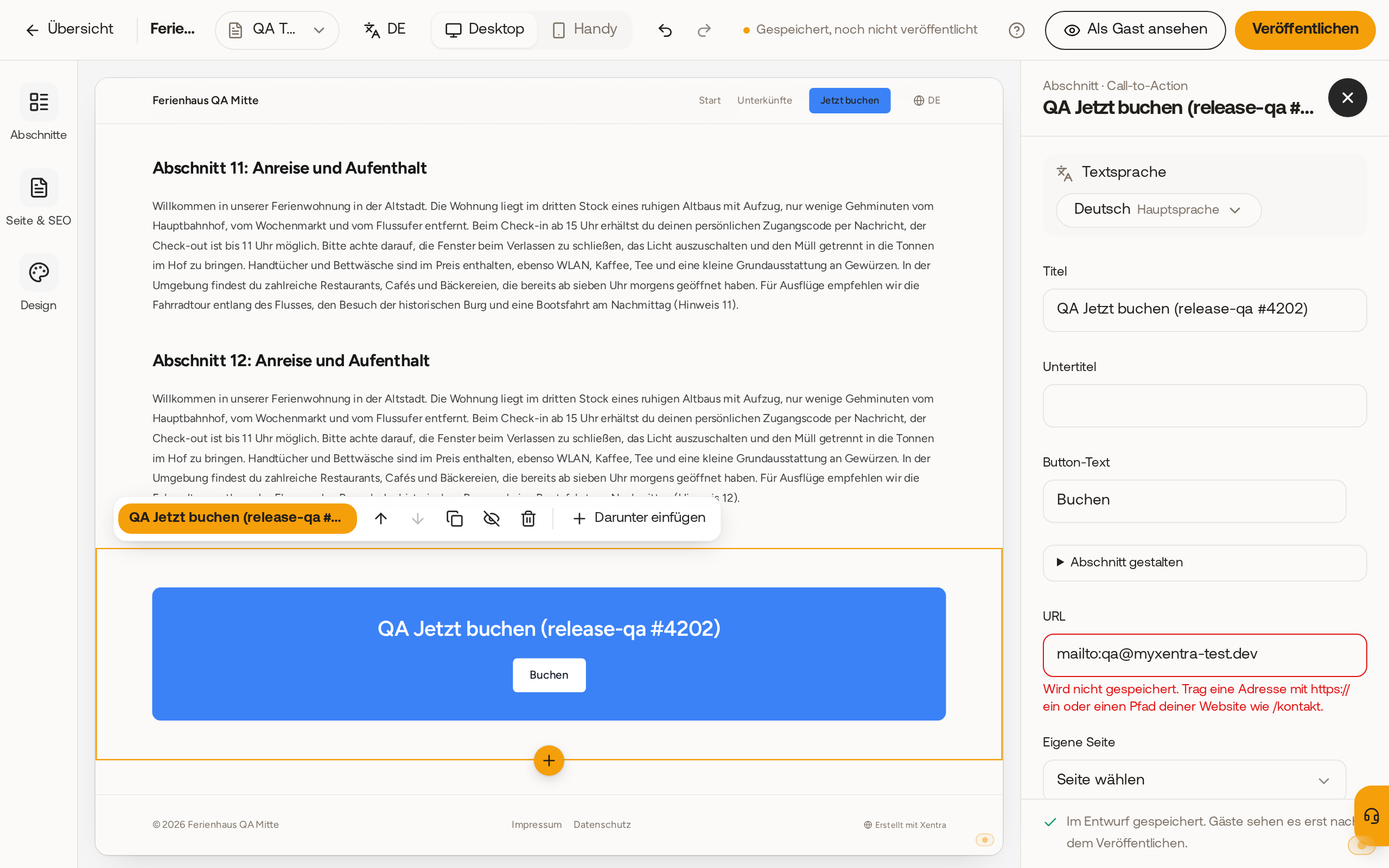 A mailto link remains in the field, is marked in red, and is not saved.
Global section. Each block has the Global section switch at the top. If you turn it on, you give the block an internal name, and it becomes available to you on your other pages under Add block, Global sections. Content, translations, and design remain the same across all placed copies: if you change the block on one page, the others adopt it upon saving. You set position and showing or hiding per page. This is suitable for elements that should look the same everywhere, for example a special offer, a contact bar, or a call to action. If you turn off the switch, the block becomes a normal block of that page again; Duplicate always creates an independent copy.
The editor saves automatically. Via History, you restore an earlier version of a page. The live preview on the right jumps to the currently selected block. The AI translates text on request into all languages offered by your website (up to seven, including Dutch); it does not overwrite existing translations. The translations follow your form of address (informal or formal) and leave names of your property and places unchanged.
If you change a German text later or a new text is added, Publish shows you under Update translations which sections have changed and on which pages text is still missing in a language (for example "Home page: texts missing on EN, ES"). With the checkbox Update translations with AI, Xentra translates the missing and changed texts and publishes afterward; the checkbox states how many AI credits this costs at most ("up to … AI credits"); what you customized manually in a language remains as long as the corresponding German text does not change. Without the checkbox, you publish as before. If a translation fails, the dialog names the section: try again or uncheck the box and publish anyway.
You change the order of your own subpages in the page list using the up and down arrows next to each page. Only your own subpages can be moved.
You set the address of an own page yourself: open the page, in the editor Page (page settings), field "Address". It may only occur once on your website and cannot be a fixed name like units, unit, book, home, impressum, or a language code like de or en. Lowercase letters, digits, and hyphens are allowed, with a letter or digit at the beginning and end. The pages of your properties automatically get their address from the name. You cannot create your own redirects from old addresses, such as your previous website.
Appearance and templates
In the editor (Website, Keep designing), open Appearance on the left. There you choose one of three Templates: Coast (calm, bright, large photos), Clear (objective, search upfront), and Evening (dark, image-heavy). If you tap a template, you first see it in preview ("Preview, not applied yet"); with Apply, it applies to the entire website, with Cancel, everything stays as before. Your texts, photos, and sections remain the same, and under Classic styles, you can return to your previous style at any time. New websites start with Coast, existing ones keep their classic style until you choose a template. You also adjust accent color, background, font, and logo here. A new template also only goes live after publishing. The booking search is only available on the home page. Subpages show image, title, and text, on a computer with a Book now button; on mobile, the guest books via the bar at the bottom.
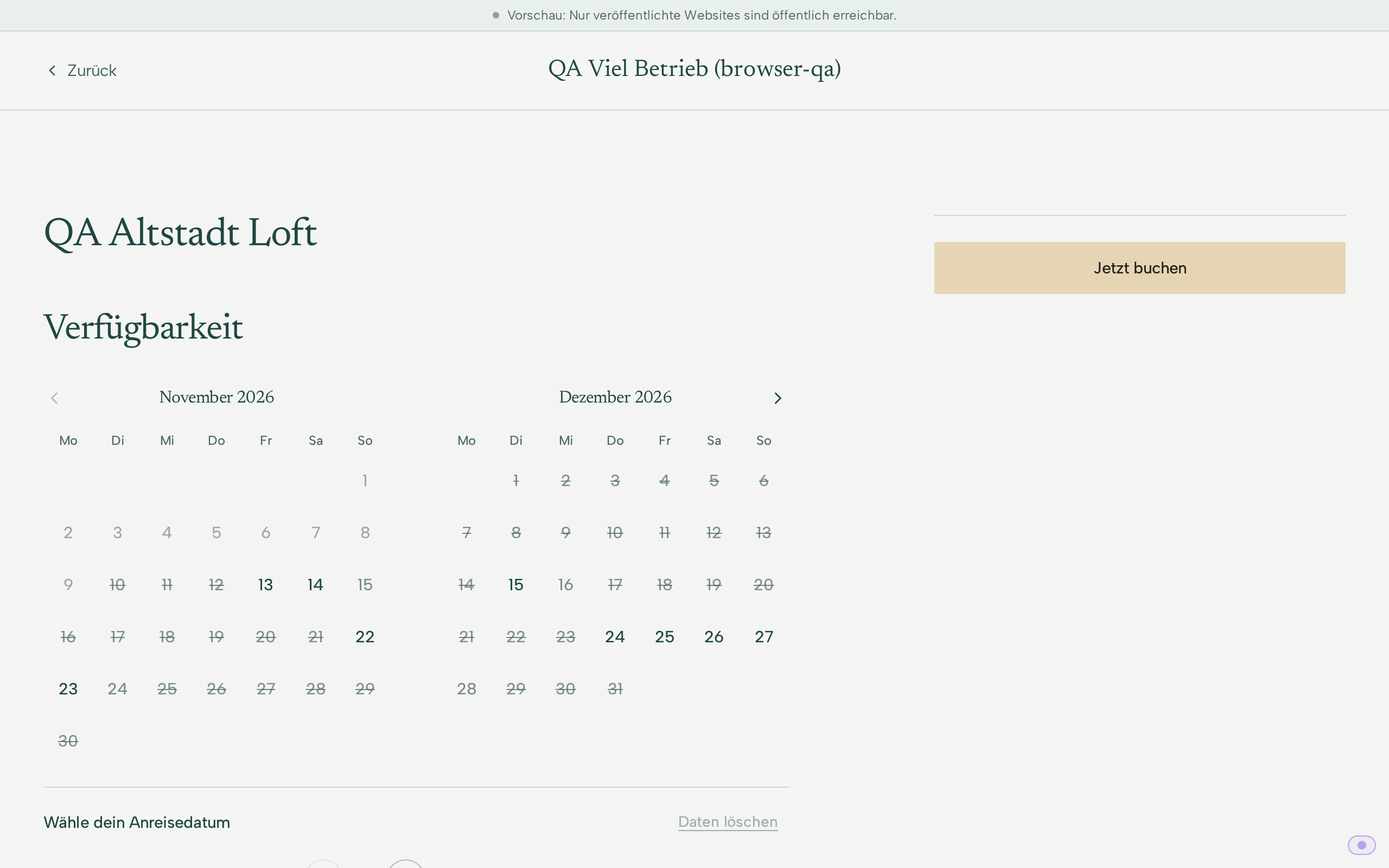 A property page without booking search, with the "Book now" button.
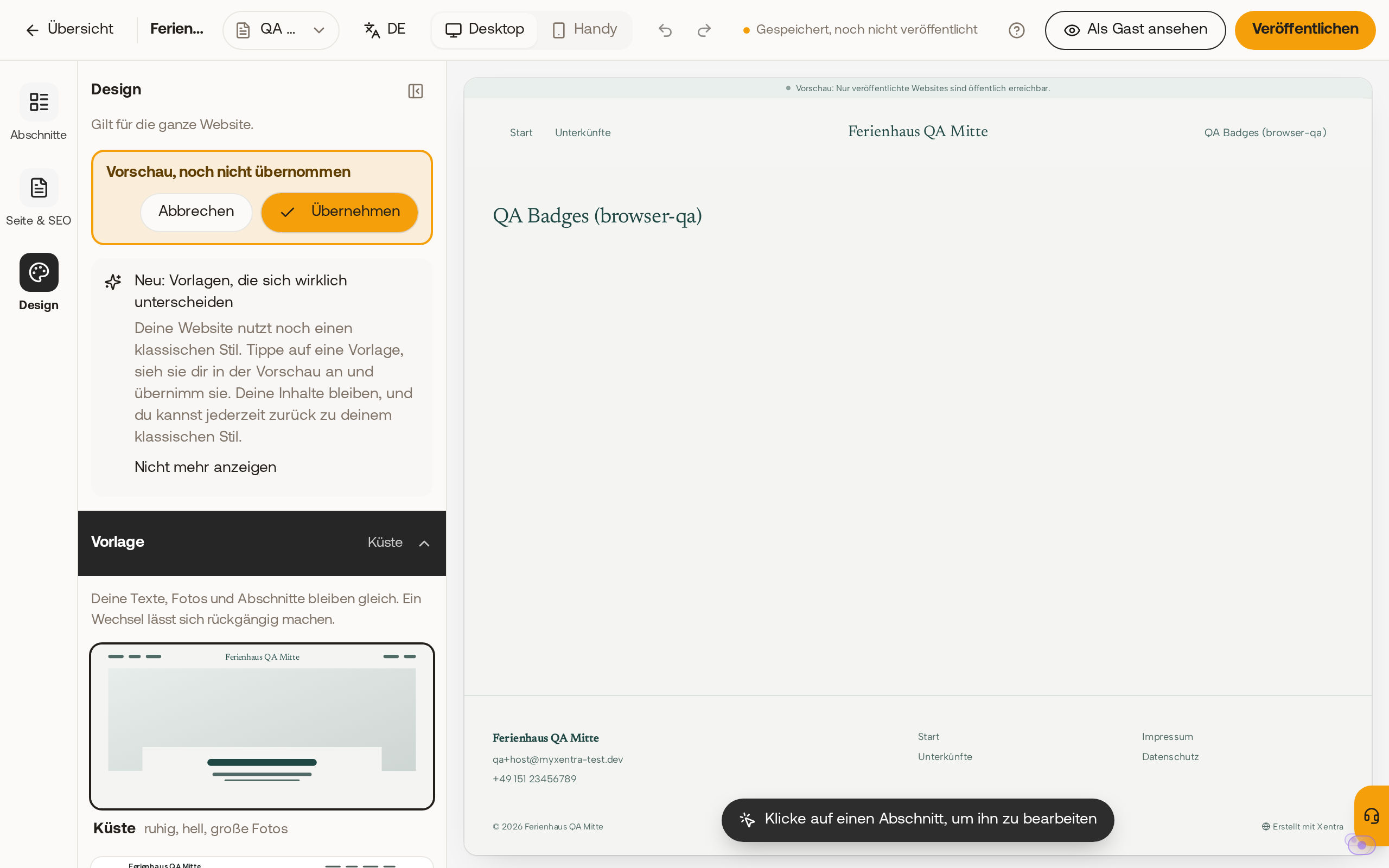 A template like Coast appears first as a preview and only applies after "Apply".
Photos in the media library
You upload images in the Media library. An image can be at most 8 MB in size, otherwise "Image too large (max. 8 MB)" appears. Then save it smaller and upload it again. JPG and JPEG are the same format.
Photos that you have already saved for your units can be found under My property photos and do not need to be uploaded again. Only your own images appear on your website.
Booking and availability
Here you choose which booking tool and which availability calendar run on the website. The website displays exactly the bookable units of this booking tool. If you change the selection in the booking tool, Xentra warns you if the website's availability calendar still has the old selection; adjust it then, otherwise you cannot publish the website again.
Legal
- Imprint and Privacy are created automatically by Xentra from your profile and kept up to date. It is a template, not legal advice. With Edit yourself, you take over the text yourself.
- Terms and Cancellation policy are created with Create from a German template.
- House rules: With Create, the page is prefilled with the house rules from your online check-in template. Without saved house rules, a template with placeholders in square brackets appears.
Published legal pages appear in the footer of the website. If profile details for the imprint are missing, the overview lists exactly the missing fields, for example "Missing in profile for your imprint: Postal Code, City." With Fix, you go directly to your profile details.
The website only shows a phone number if you have filled in the Public Phone field under Profile & Settings, Profile, in the Guest-Facing Contact Details card. The website does not use the phone number from your billing details for this. An imprint that has already been created keeps its old number and email address until you regenerate it.
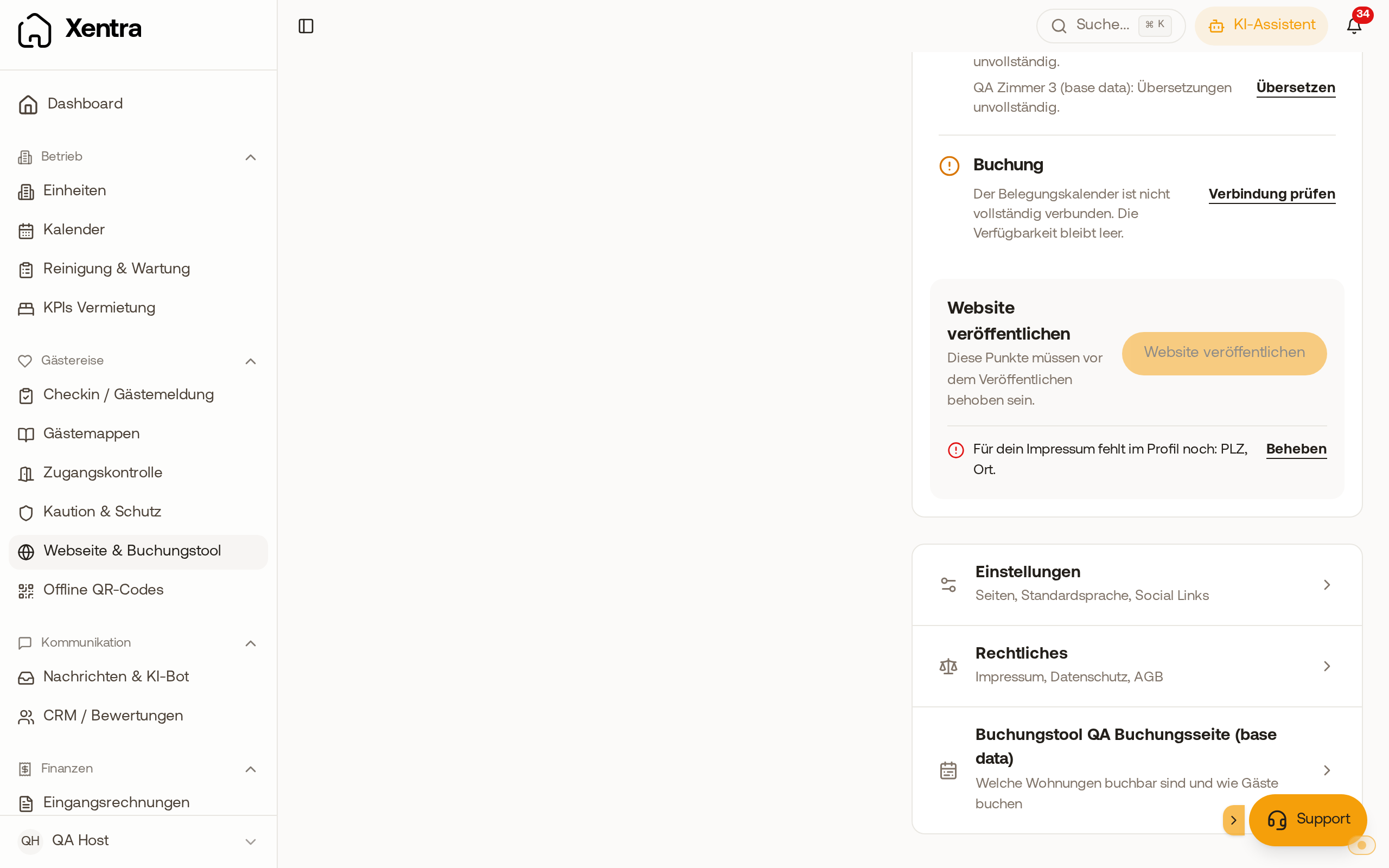 The overview lists only the details that are still missing for your imprint.
Contact form
Messages from the contact form are sent by email to your public email address from your profile. If you reply to the email, the response goes directly to the visitor. The form links to your privacy page.