
Dashboard & Command Center
Which widgets the dashboard has, how you customize and save it, and what the Command Center shows live.
Updated on November 7, 2026
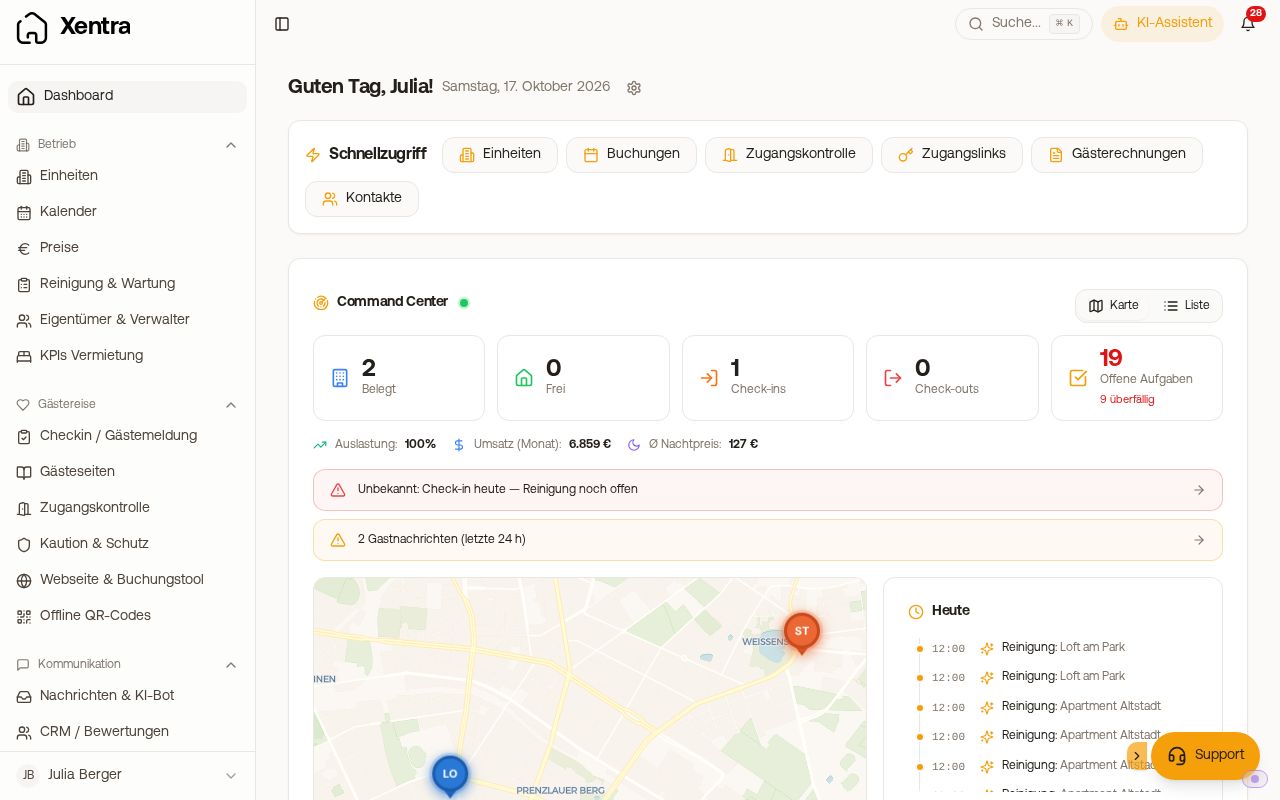
Dashboard
The Dashboard is your start page (at the very top of the menu). It shows what is coming up today. By default, you see these sections:
- Needs your attention: what is waiting for you today: cleaning, payments, guests, action required.
- Today: arrivals and departures with check-in, payment, code, and cleaning.
- Units tonight: how many units are occupied and vacant.
- Month: revenue to date, occupancy rate, and average nightly price.
- Activity: doors, messages, check-ins, and new bookings from the last few days.
- Next 7 days: arrivals and departures, occupancy, and short gaps.
You can add more sections under "Customize dashboard". New accounts also see the initial setup steps at the top.
Customize dashboard
At the top right of the dashboard, the slider icon "Customize dashboard" opens the settings (Customize dashboard). There you specify what your dashboard shows, in what order, and how much. Only the main account can change this.
- Templates: "Daily business" (default), "Numbers" (revenue compared to previous year, channels, 14 days), and "Operations & Team" (tasks today, inbox, activity). A template is a starting point, after which you can change everything. If your selection does not match any template, "Custom" is selected.
- Building blocks: What is turned on is listed under "On your dashboard". You sort by dragging or using the arrows, and use the eye icon to hide a section. Hidden and new sections are listed under "Additional building blocks" and can be brought back with "Add".
- Options (arrow on the right of the section): Today: which filter is open first and whether "Units tonight" appears. Month: comparison with the previous month or previous year, in each case up to the same day. Activity: which types (doors, messages, check-ins, bookings, tasks) and how many rows. Next days: 7 or 14 days and up to how many vacant nights a gap is highlighted. Inbox: how many rows.
- New sections: Inbox (guests waiting for a reply, with their message), Tasks today (cleaning and maintenance for the day per person: what is running, what is paused, and what nobody has), and Channels (month's revenue by channel; the amounts add up to the monthly revenue). They are turned off initially.
- Preview on computer: shows where each section ends up. On a computer, Needs your attention, Today, Inbox, and Tasks today are on the left, Month, Channels, and Activity on the right, and the next days below them. On a phone, the order applies to the entire page.
Reset restores the default.
Saving is not automatic. As soon as you change something, the bar "Unsaved changes" appears at the bottom. Only "Save" applies your selection, "Discard" reverts the changes. If you leave the page without saving, the changes are lost.
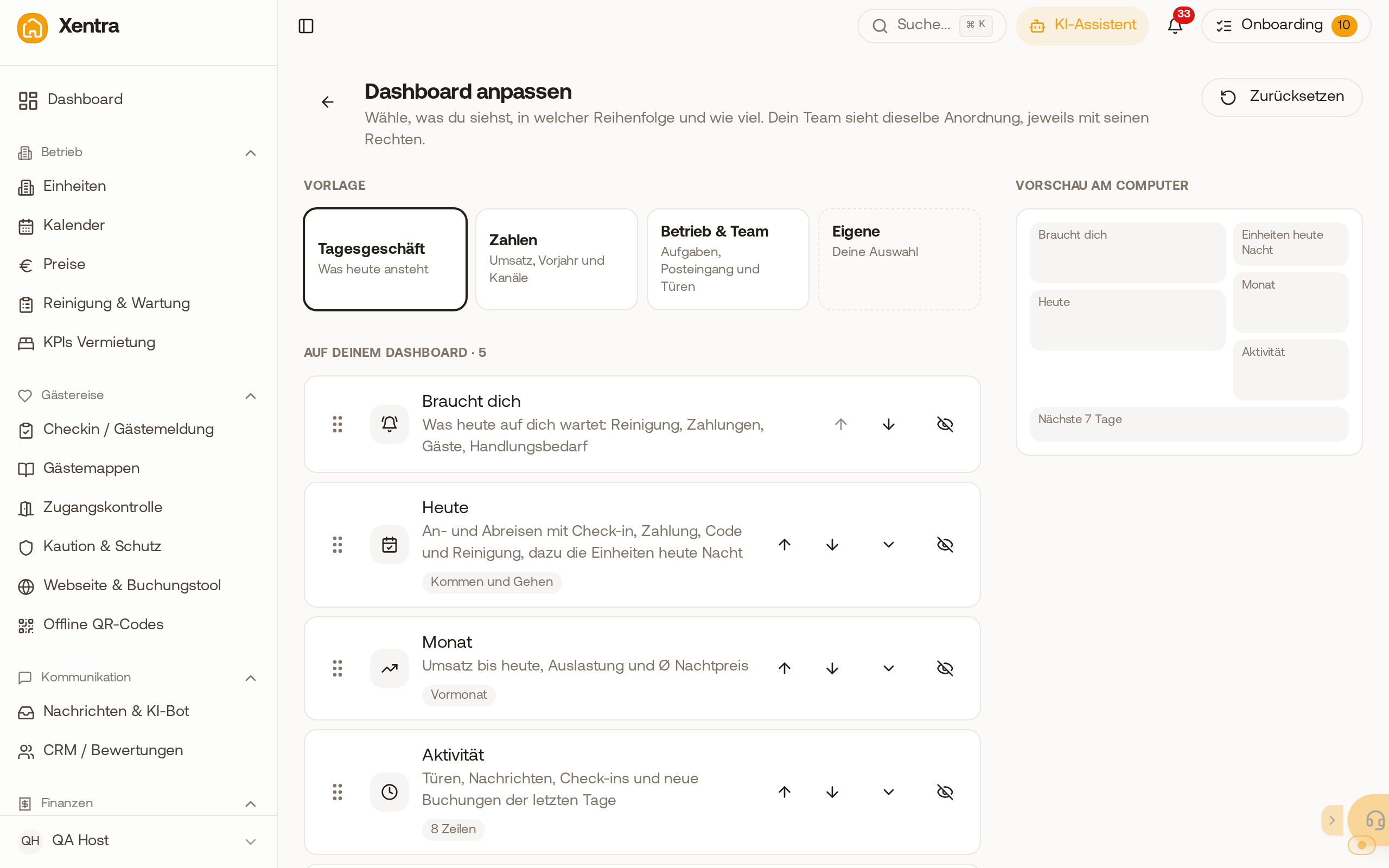 "Customize dashboard" with templates, the sections on your dashboard, and the preview on computer.
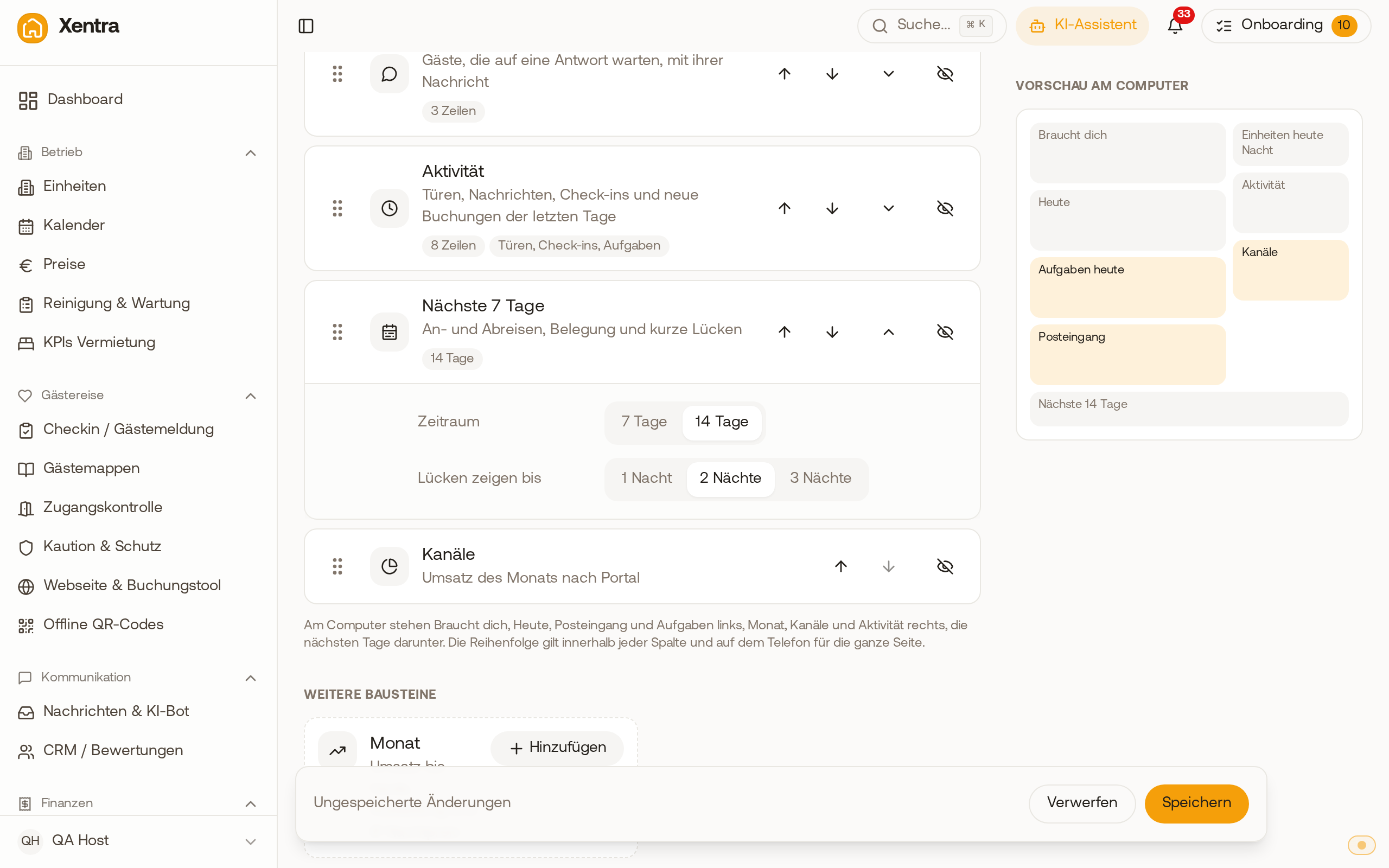 Options of a section, here "Next days" with 7 or 14 days and the gap length.
Command Center
The Command Center shows live what is happening in your units today. You open it on the dashboard under Units tonight via Map or via search (Ctrl+K or Cmd+K, "Command Center").
- Key figures at the top: Occupied, Vacant, Check-ins, Check-outs, Open tasks. A click filters the units accordingly.
- Map or List: On the Map, each unit is located at its address. Units without an address do not appear on the map, a note states how many there are; add the address to the unit. In the List, all units are shown with guest, status, and tasks.
- Today: the day's arrivals and departures with time.
- Live Activity: what is currently happening, for example new messages, door unlocks, and completed tasks. Changes appear immediately without reloading the page.
- Notes like "Check-in today, cleaning still open".
- A click on a unit opens its details with buttons for booking, message, access, and tasks.
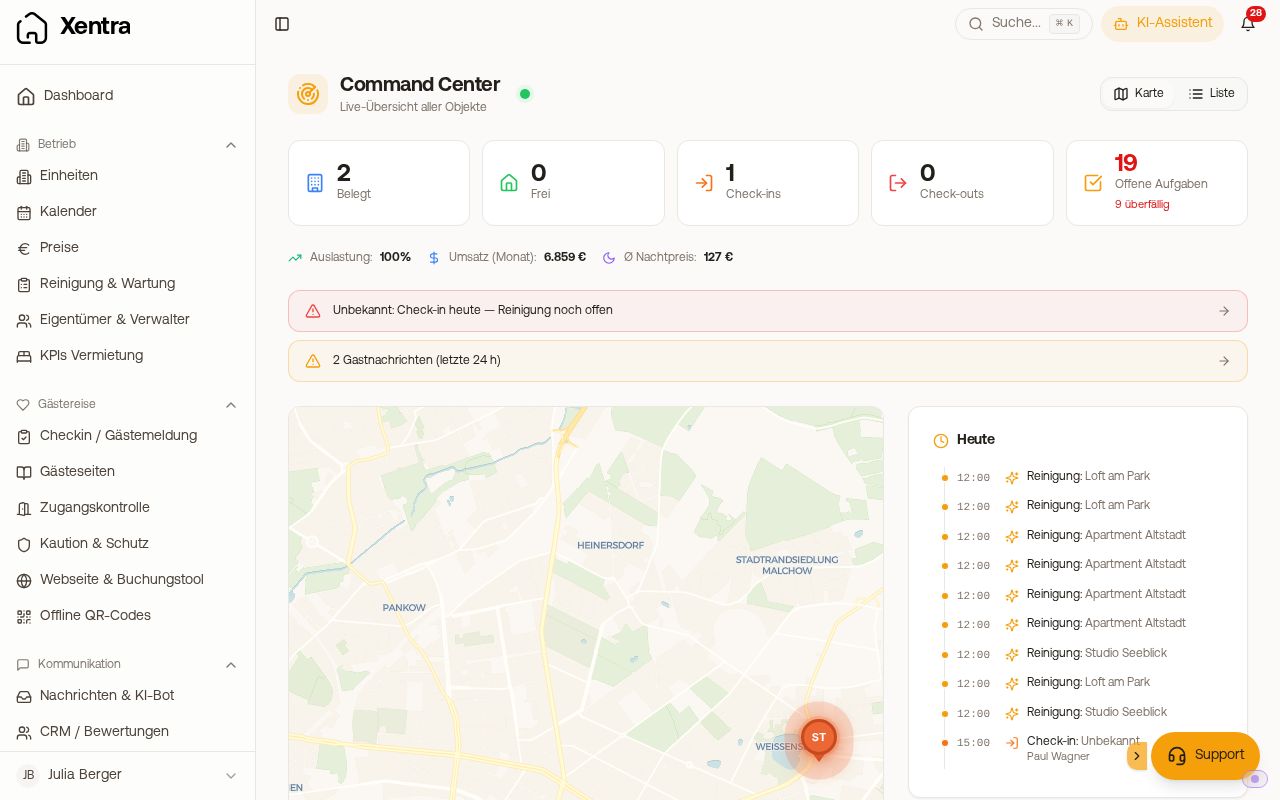 The Command Center with key figures, Map, "Today", and "Live Activity"
Why is a location pulsing on the map?
A dot pulses if the unit needs an action today: check-in today, check-out today, turnover, or cleaning. Vacant and occupied units without pending action do not pulse.
Team members
Team members see your dashboard in the same layout, but only the sections they have permissions for, and only for their own units. Cleaners, caretakers, managers, and owners start in the calendar by default. Only the main account can customize the dashboard. Team members with permission for the calendar can see the Command Center, only for their own units and with the fields you have enabled for them.