
Record and evaluate working hours (Time Tracking)
How your team records working hours, how you enter and correct times retroactively, evaluate by person, and export.
Updated on November 7, 2026
Record and evaluate working hours
Your team records their time directly on the task. You evaluate, correct, and export under Cleaning & maintenance, Management, Working hours.
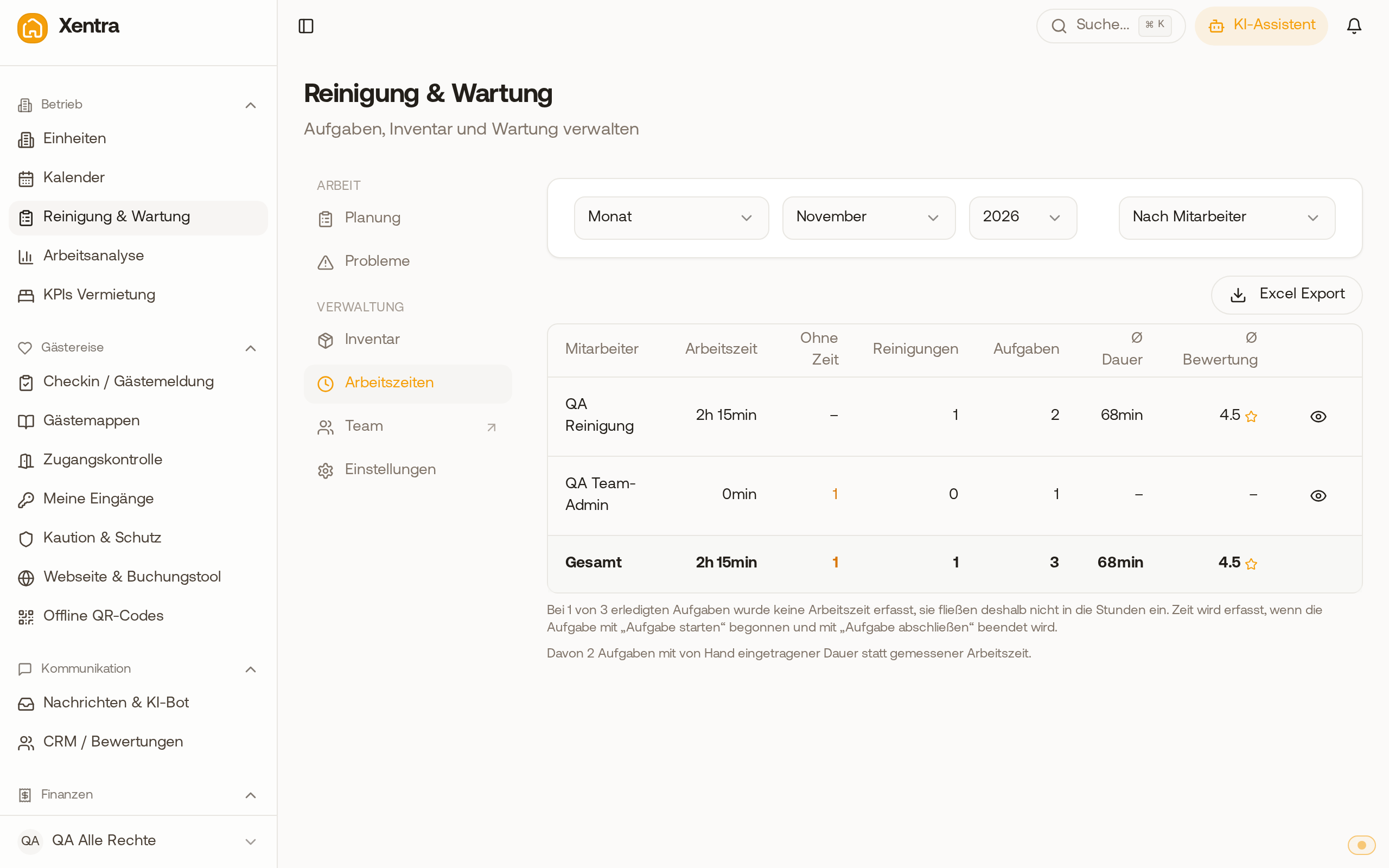
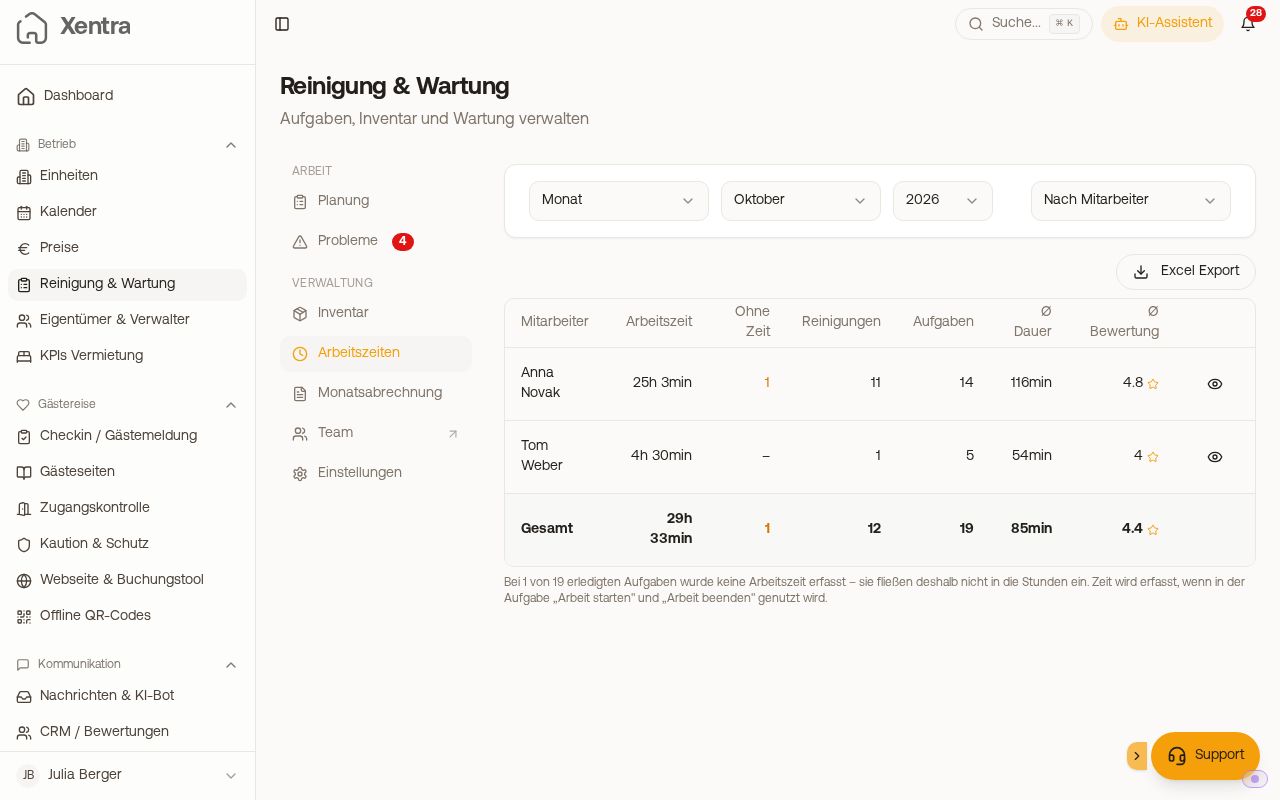 Working hours: hours per person per month
Record time
- In your cleaner's app: Start task starts the time, Complete task ends it and sets the task to completed. With Pause, they pause the time and note what is still open; Resume continues counting. Under one minute, no duration is saved.
- In the open task (your view): under Time Tracking with Start task and Complete task, the same wording as in your cleaner's app. Both stamp the current time (Started at, Finished at), Complete task sets the task to completed. On a completed task, they are hidden; you enter past time under Working hours. A task set to "Cancelled" has no Start task; reopening works via the status.
- Without stamping: If a task is checked off without running time, Xentra can ask for the duration. You enable this under Settings, More, Ask for the duration when completing; skipping is possible and enters nothing. In your cleaner's app, the question only appears upon completing if no time was measured, so without Start task or with less than one minute between start and completing. If the time ran longer, Xentra saves the measured duration and does not ask.
- Completed by mistake: Anyone who completed a task can take it back themselves in the first 10 minutes within the task using Reopen. After that, you set it back to open via Edit status, and you correct the time under Working hours.
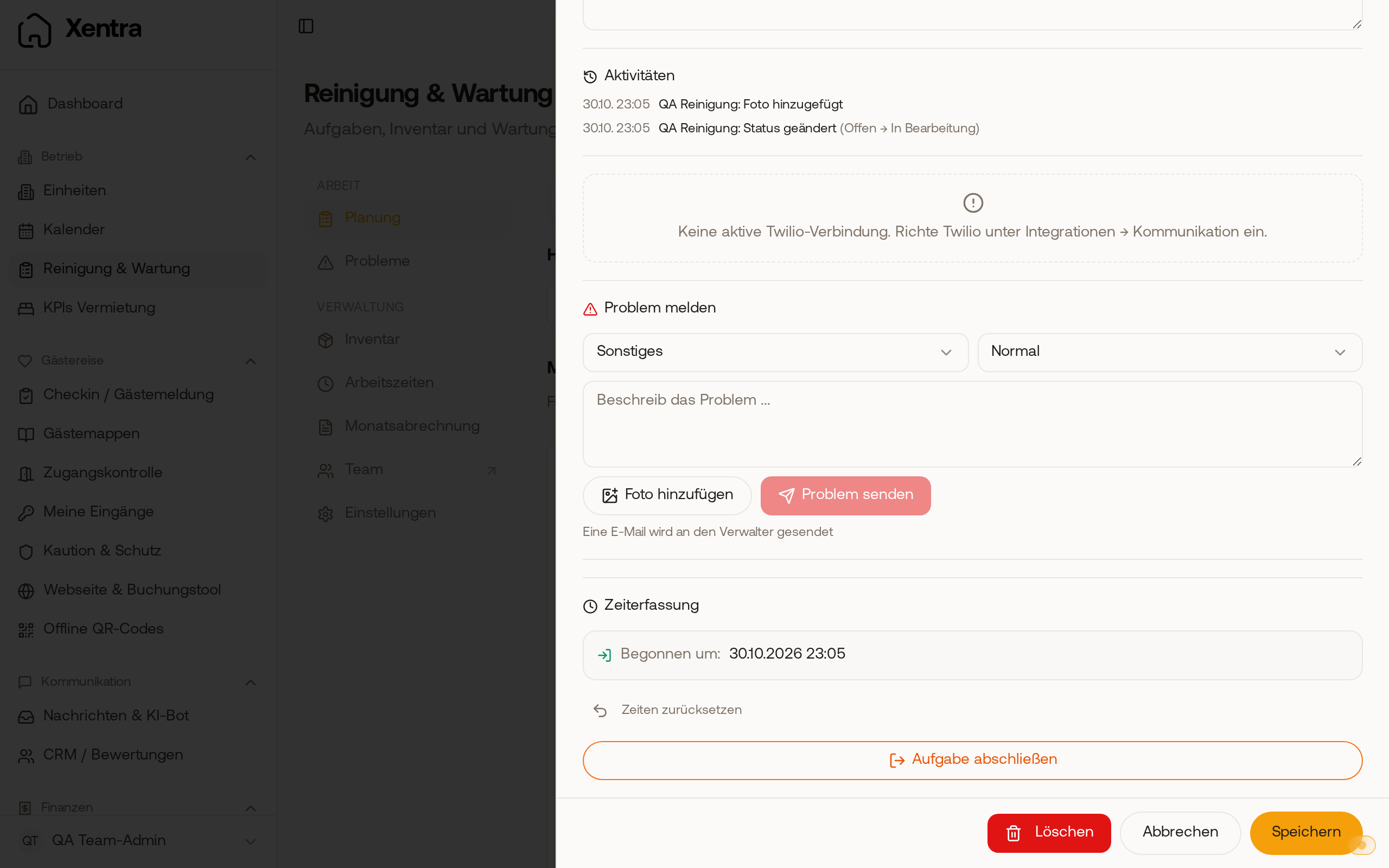 Time Tracking in the open task: Started at and the Complete task button
Multiple people on one task: A task has exactly one responsible person and therefore one time tracking entry. If several people clean at the same time, create a separate task for each person (same unit, same date).
Enter or correct time retroactively
Under Working hours, click on the Name or the Eye icon in the person's row (on mobile, tap the name). In their task list, Work started, Work ended, Duration (min), and Quality are directly editable. The tasks listed there were completed in the selected period, sorted by task day, oldest first: a cleaning from Monday that was only checked off on Thursday appears under Monday. Set an open task to completed first. You do not need a running timer.
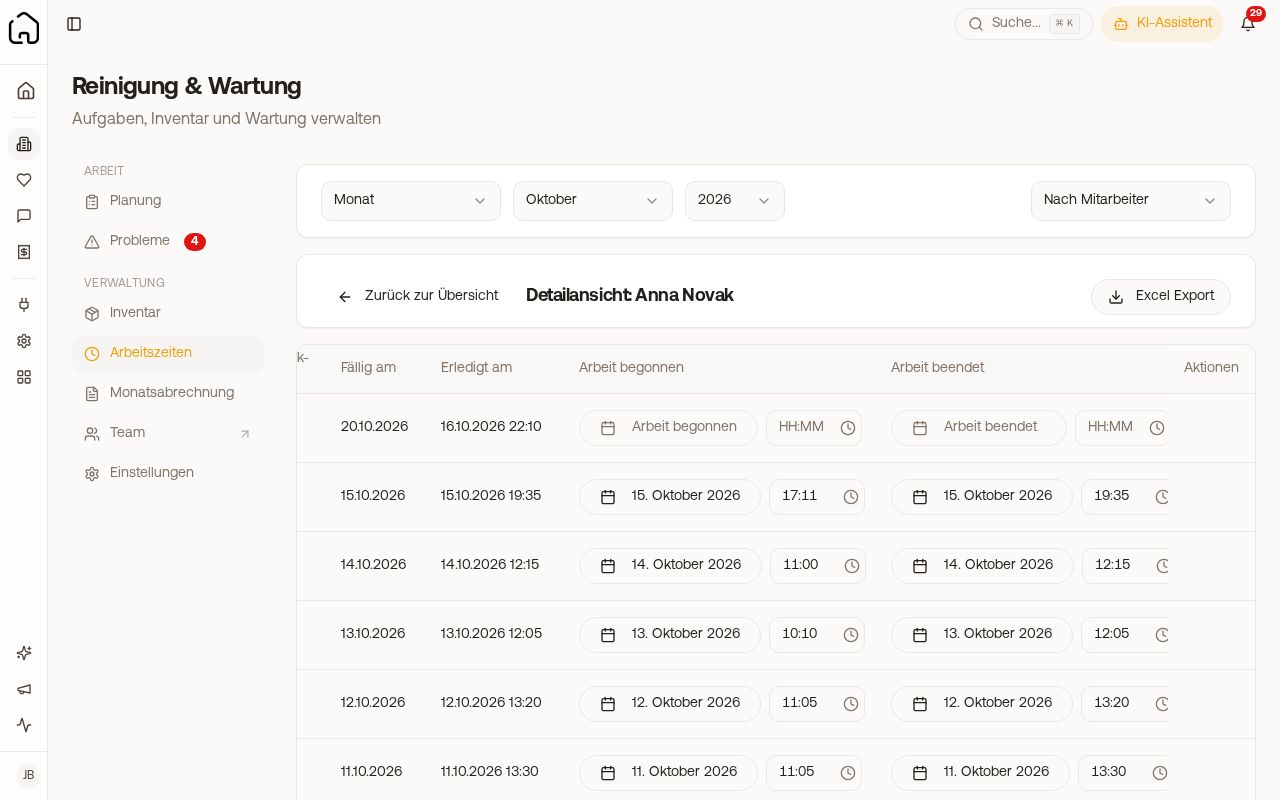 Working hours of a person with editable times
- Type the time (typing "930" turns into 09:30) or select it via the clock icon in 15 minute increments.
- With start and end, Xentra calculates the duration automatically, a recorded pause is not included. A duration you enter yourself takes precedence.
- If the end is before the start, "End is before start, no duration is calculated." appears underneath. Correct one of the two times.
- Changed rows are highlighted. Save with Save at the end of the row or Save all at the bottom, Discard reverts the changes.
- Every change to start, end, or duration of a completed task is listed in the task under Activities, with old and new values.
Your cleaner corrects times themselves: If you enable the toggle Let cleaners correct their time afterwards under Settings, More (off by default), your team can change From, To, and Duration (min) of their own completed tasks up to 7 days after completion themselves: tap Correct time in the completed task, change times, Save. Xentra suggests the duration excluding the recorded pause.
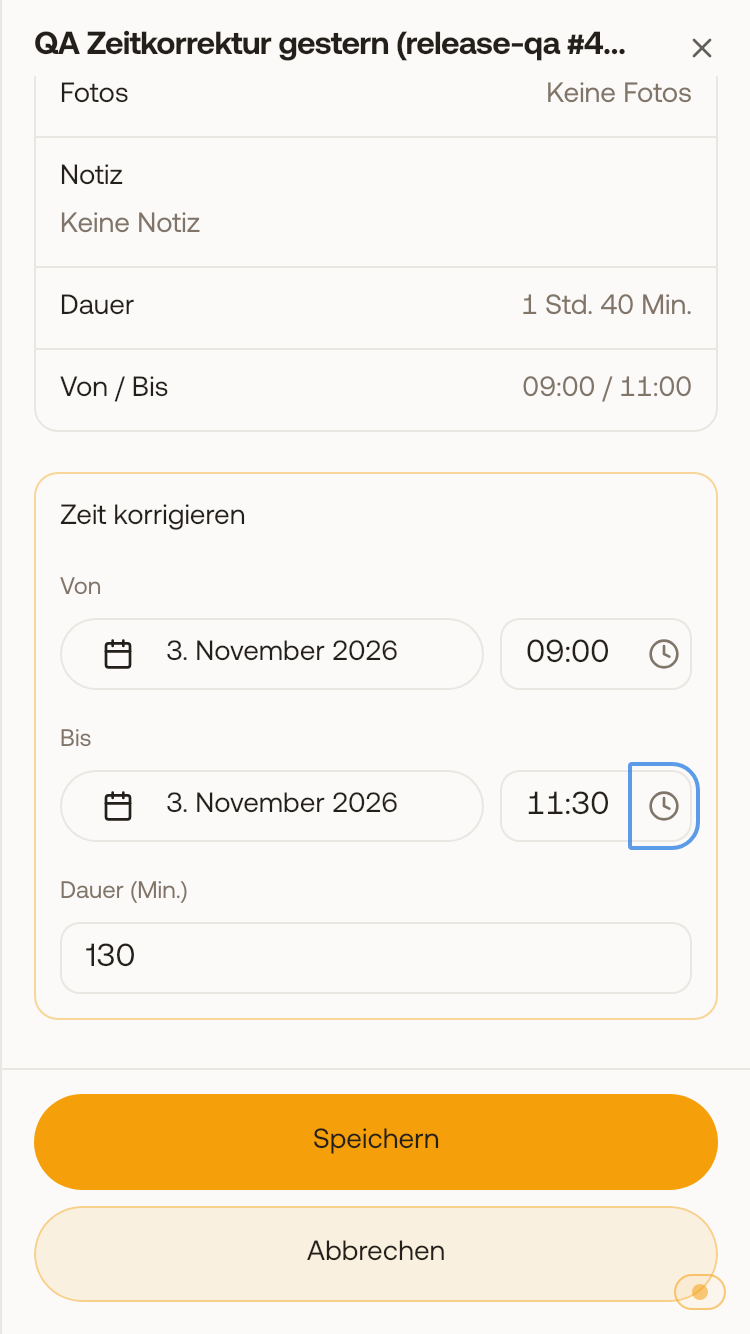 In the completed task, the cleaner changes From, To and Duration under Correct time.
Task missing for the person? A completed task counts for the person who checked it off, if that person takes tasks themselves (checkbox "Takes tasks" in team). So if a colleague who also cleans or plans checks off someone else's task, it no longer appears in that person's working hours, but under the colleague's hours. If you or an admin check it off, it remains assigned to the original person. To correct: set the task back to open via "Edit status", check it off yourself, then enter the time here retroactively.
Evaluate
- Periods: a switch with Week, Month, Quarter, Year, and Period (custom with From and To; when switching, the current month is displayed first).
- The table shows working hours, tasks without time, cleanings, tasks, average duration, and rating for each person. Below it, it states for how many completed tasks no time was recorded.
- Evaluation is done by person and period, not by unit. If you want to see two work areas separately (warehouse and renovation), distinguish them using the title of the task.
- Export Excel with totals.
What you pay your team is not listed here, but under Management, Monthly billing: see Pay cleaners.
Work without a property
For warehouse, renovation, or caretaking work, you do not need an additional unit: New task, under unit select No unit. Time is recorded on it in the exact same way.
Who is allowed to see and change times
- You and a team member with the Admin role: all people, all corrections.
- Team members with the permission "Working hours of the team", for example a property manager creating schedules: Under Management, Working hours, they see the hours of all colleagues who completed tasks in their units, read-only. Selecting a period, Export Excel, and viewing a person's tasks with their name or the Eye icon works; changing times and monthly billing does not. You grant this permission under Settings, Team & extra users in the member's permission grid, group Rental, row Working hours of the team set to View. It requires Tasks and cleaning: Xentra automatically sets this to View when checked.
 Working hours from the perspective of a team member with the permission "Working hours of the team": colleagues' hours, read-only
- Other team members only see their own hours at most, read-only, under My working hours: at the top the total in the selected period, right below their completed tasks, easy to read on mobile too. You enable this per person in the team with See own working hours. They can only correct their own completed tasks from the last 7 days if you enable Let cleaners correct their time afterwards; everything else goes through you or an admin.