
My day: How your cleaner works with Xentra
What your cleaner sees under My tasks: My day, requests, taking tasks, starting, marking off checklists, pausing, and completing.
Updated on November 14, 2026
Your cleaners and caretakers do not see your planning under Tasks (in the Cleaning & Maintenance menu), but their own My tasks page. It is built for mobile phones, but works just as well in the browser on a computer. After opening the app, a cleaner lands directly here, on My day: This is their Homepage by default. You can change the homepage for each person under Einstellungen, Team & weitere Nutzer at Homepage, for example to the calendar. This way, you know what your team sees when they ask you something.
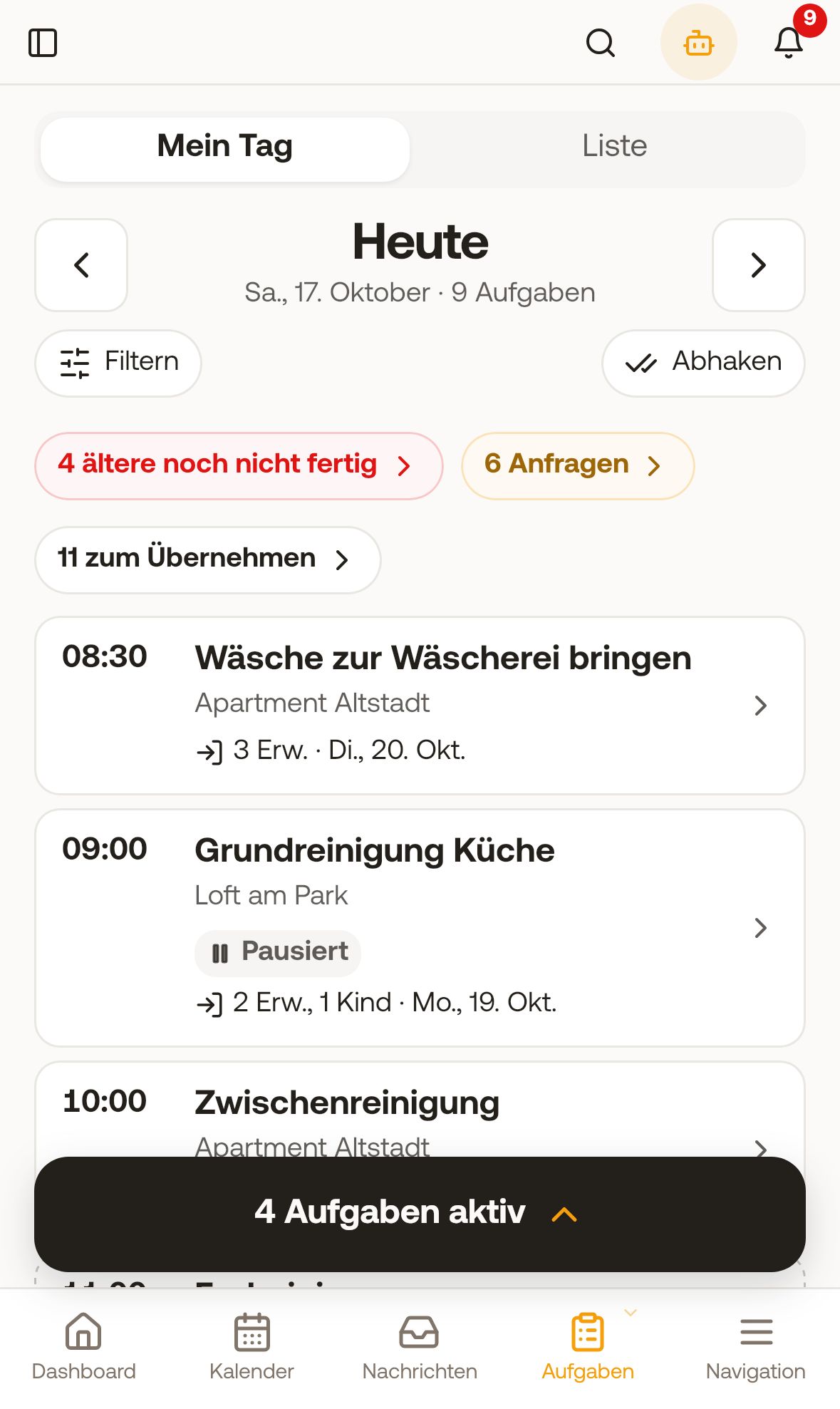 Cleaner's My day on a mobile phone
My day
At the top, the person switches between My day and List.
- My day shows one day; they scroll back and forth with the arrows. Each task is a card with time, title, unit, and, if you share the details, who is departing and who is arriving next, such as "Guests arrive on the same day · 2 adults".
- Notes at the top: "n older not done yet" (red), "n requests" (tasks they should accept or decline), and "n available to take" if you use the pool.
- They answer a Request directly on the card ("Will you do this task?") with Accept or Decline, including the deadline. They take an open pool task with Apply.
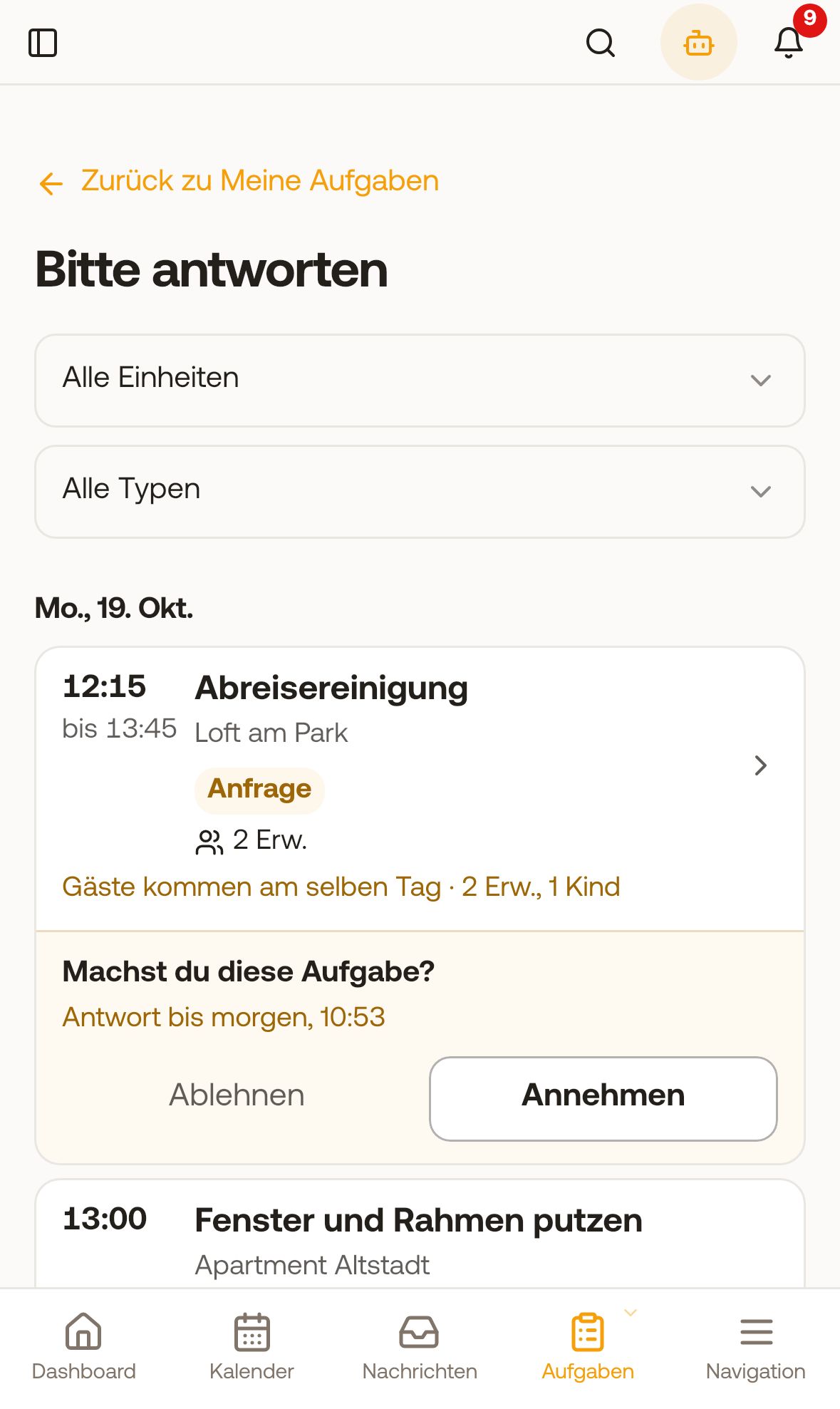 Cleaner requests with Accept and Decline
- At the bottom are No date and, collapsible, Available to take from other days.
- Filter narrows down by apartment and type.
List
The List has All (starting today, earlier days at the touch of a button), Still open (past, incomplete tasks), Done, and Available to take. If the person is allowed to see all tasks, Team is added.
Completing a task
- Tap card: The task opens with address, time, description, your notes (section Notes from the host), the shared booking details in the gray section Booking (where your Note from the host is also located), the collapsed card For the next guests with the check-in answers and booked extras of the next guests (see For the next guests: Check-in answers in the cleaning task), and the checklist. What the departing guests booked is displayed as a label under Departure. They do not see prices.
- Start task: Time starts running, the checklist becomes interactive to mark items done. At the bottom are the tools Photos, Note, Problem, plus Notes if you have added any. Under Photos, your cleaner can also Record video or choose a video from the gallery in the app (Android version 1.9 or higher, iPhone 1.10 or higher), up to 1 minute; longer videos are trimmed to the first minute. For supply items in the checklist, Missing appears: A tap opens the pre-filled issue report; after sending, the item is checked off in the checklist and shows Reported.
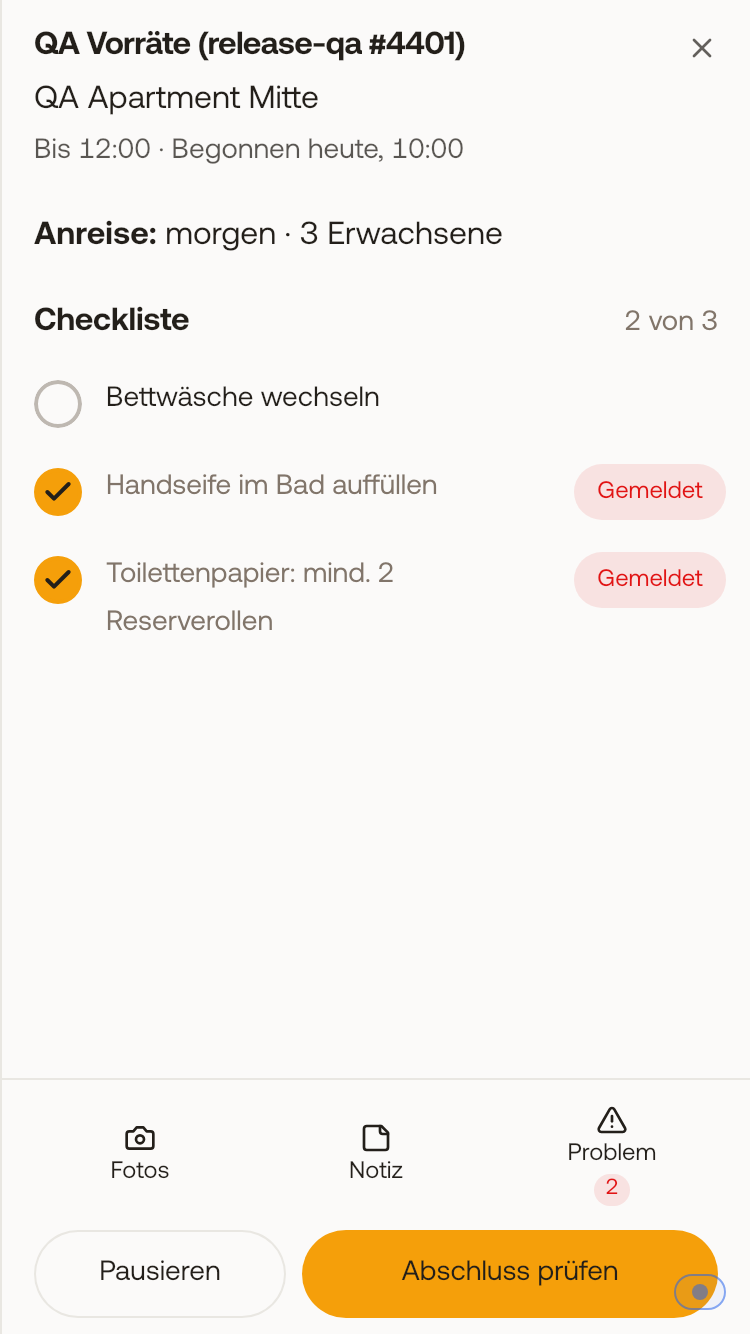 Two supply items after reporting: checked off and with Reported.
3. Review and finish shows how many items are done and open, photos, note, and duration. Complete task sets the task to Done, even if items are still open.
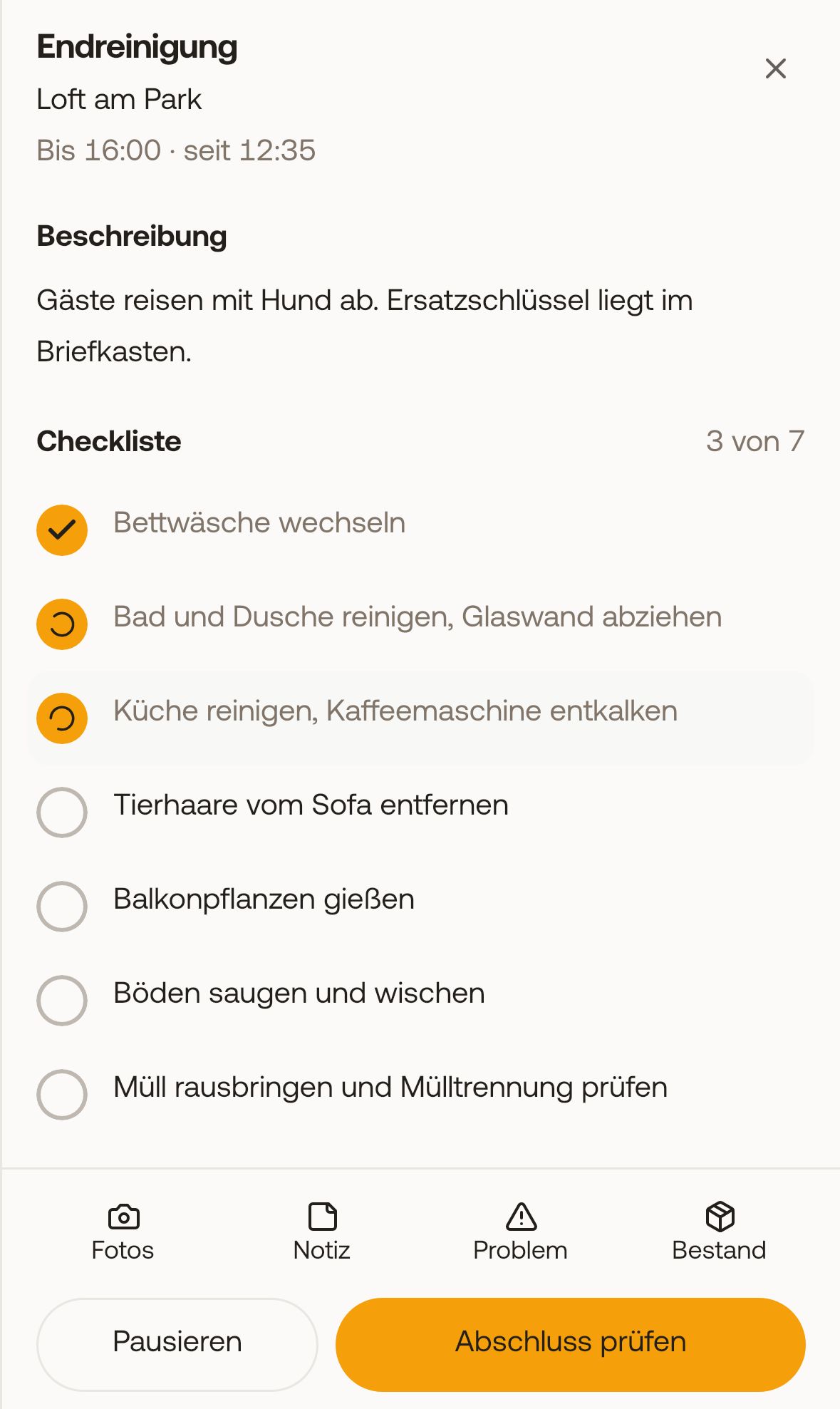 Task in progress with checklist and tools
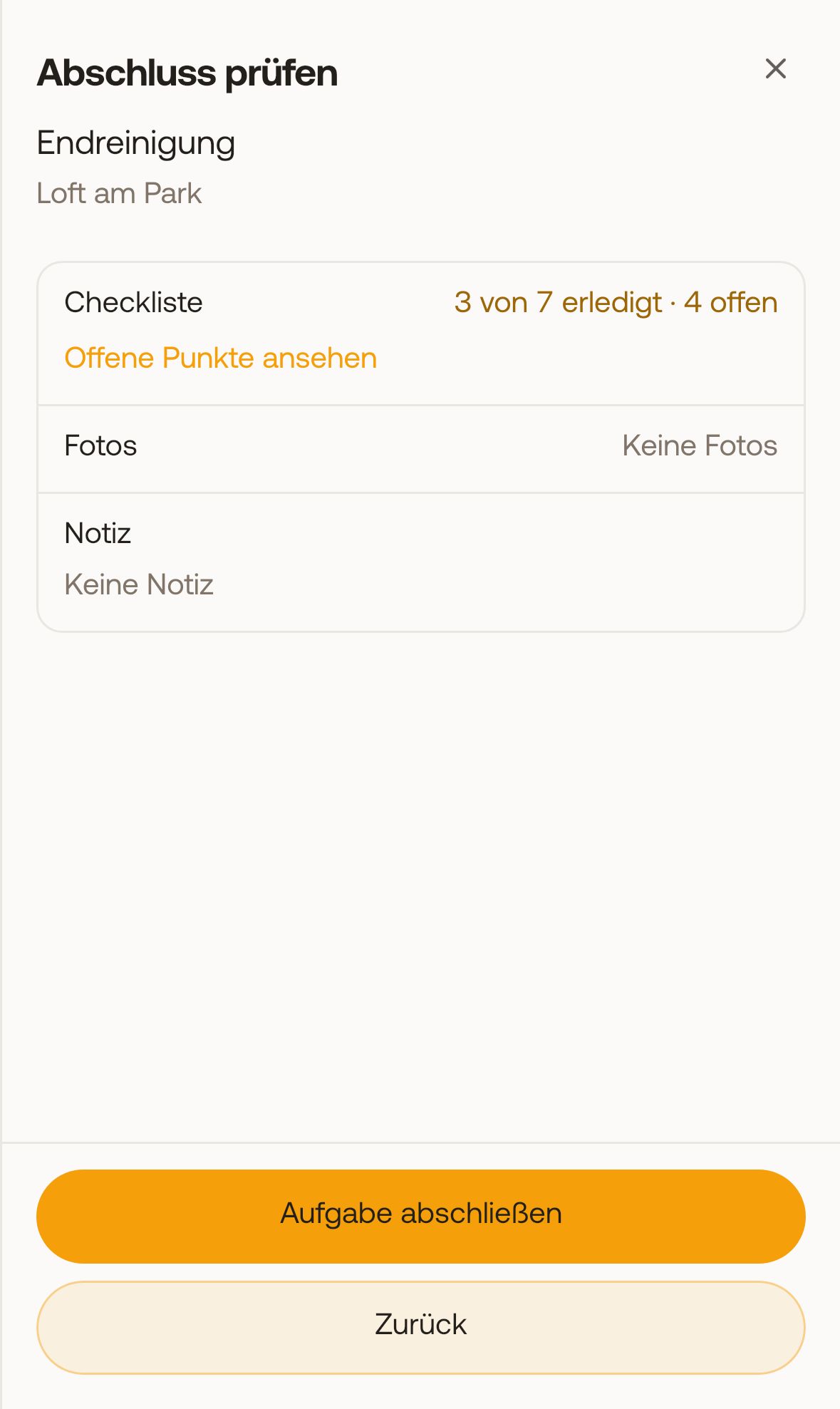 Review and finish with open items
If you turned on Door links for tasks in access control and the unit has a lock that opens online, Open door appears at the bottom on the day of the task, with the link validity underneath. The button opens the unit's access page. Outside of validity or if you revoked the link, it is grayed out with the reason underneath.
If they cannot finish, they tap Pause
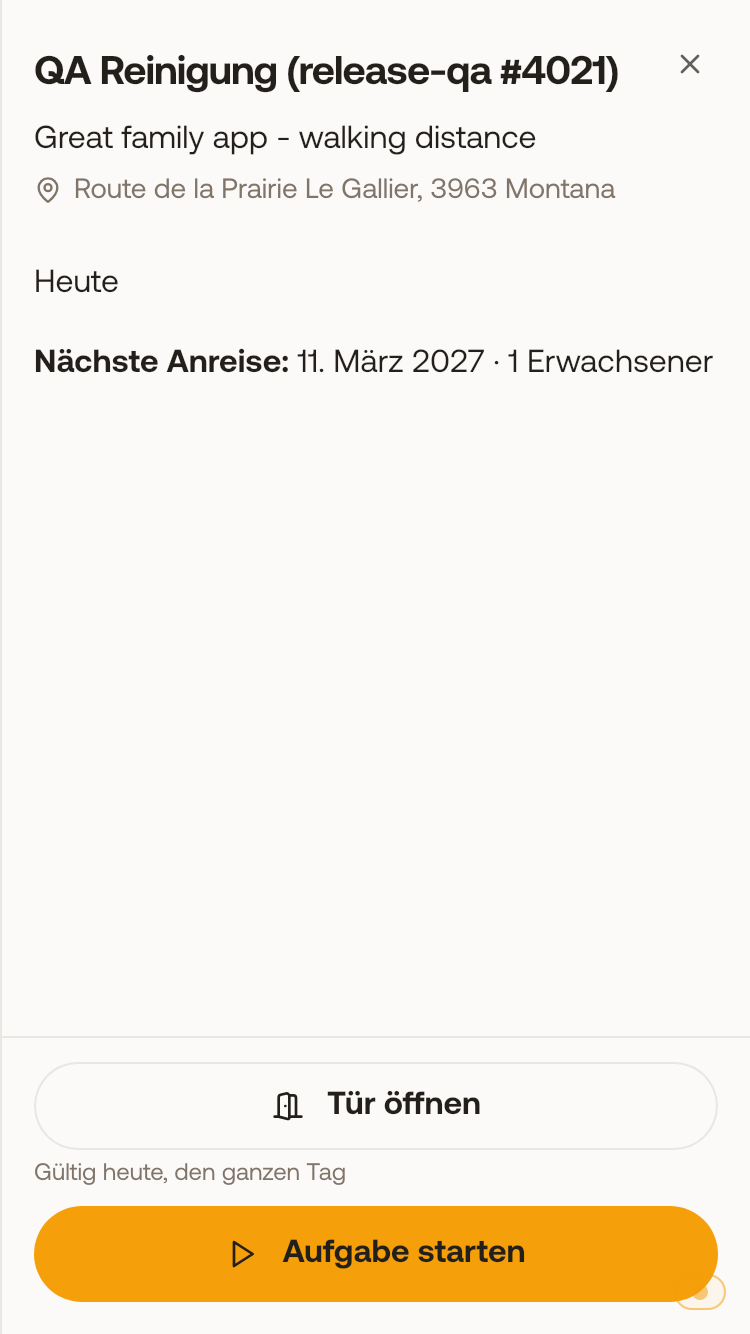 On the day of the task, Open door appears at the bottom with validity underneath. and write what is still open. You see this in your overview under "Needs you". Later, it continues with Resume. If they started by mistake and have done nothing yet, Not started after all cancels the start. Before starting, they can return a task with Back to the pool if you use the pool.
For quick cases, there is Mark done: tap multiple own tasks from today or earlier and report them as done together without opening them individually.
After completion
A completed task shows "Done by", checklist, photos, and note. With Add a photo or note, the person can attach something later. If you turned on Let cleaners correct their time afterwards, they can edit From, To, and Duration with Correct time up to 7 days later. Reopen works only in the first 10 minutes after completion, after that only through you.
Settings you configure for this
- You specify which booking details (number of guests, name, notes, booked extras) the person sees under field permissions in the team.
- You set See all tasks, Create tasks, See own working hours, and Available on per person under Settings, Team & additional users. Whether someone receives tasks and your notes is shown there as Takes tasks and Gets cleaning briefings (on by default for a cleaner).
- The person automatically sees the checklist in their app language, regardless of which language you wrote it in; while working, Show original shows your text. You set which language a template is written in under Source language in the template editor. They pull the title and description into their language with Translate.
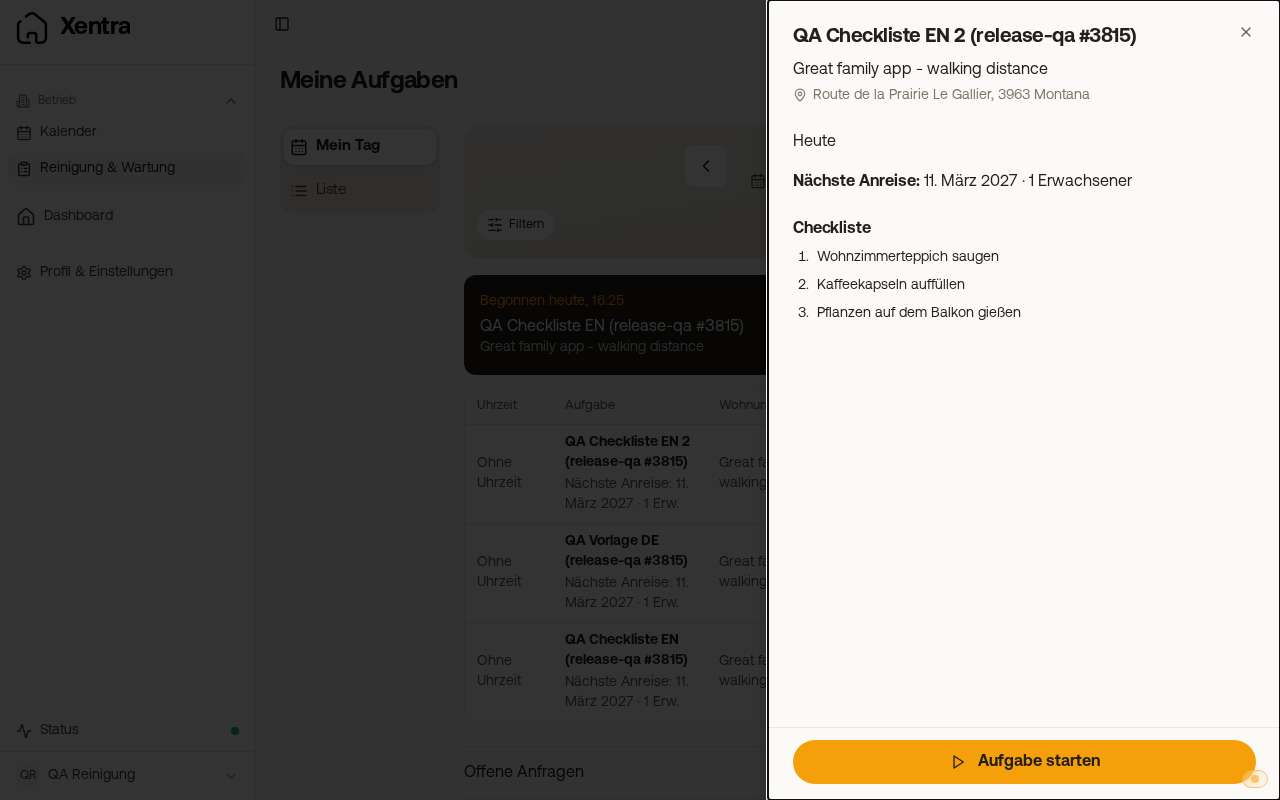 My day: How your cleaner works with Xentra
Instructions to share
Send your cleaner the illustrated instructions for mobile phones, without login, in 7 languages: Instructions for your team.