
Checklist templates for cleaning
Create checklist templates for cleaning, show items only when needed, assign templates to tasks, and attach them retroactively.
Updated on November 12, 2026
A checklist template is the list that your cleaner works through on the task, complete with photos and progress.
Where: Cleaning & maintenance, Management, Settings, Checklists. At the top, you define which template applies by default, below are your templates with New Template and Create with AI.
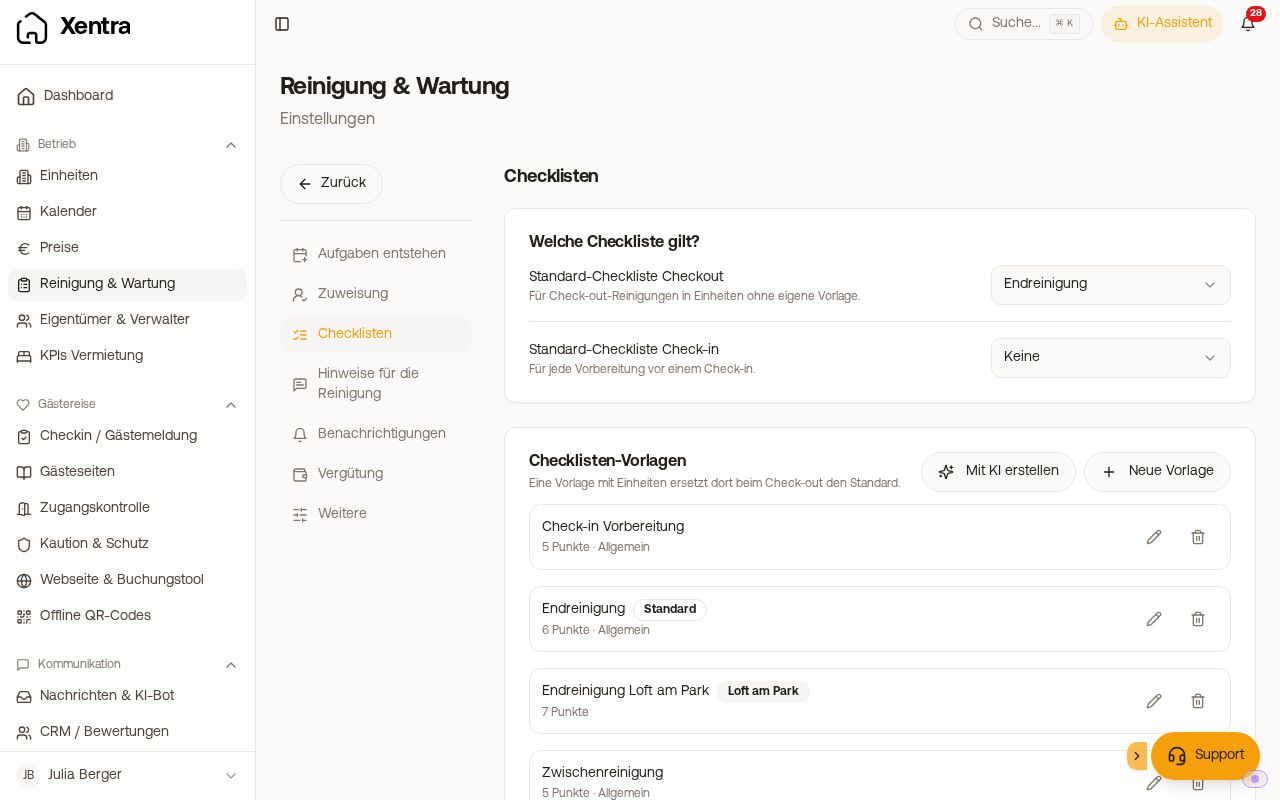 Settings, Checklists: Default checklists and templates
Editing a saved template
The items can be changed after creation, the input field just has no border and looks like plain text.
- Open template (pencil icon).
- Click directly on the text of an item and overwrite it.
- Save.
You change the order via Drag & Drop, your cleaner works through the items in exactly this order. Under each item, under How it should look, you add a reference photo showing how it should look when finished. Grouping items by rooms and requiring a photo as proof: see "Checklists: Groups and photo as proof".
Two restrictions: As long as a new template is not saved yet, you can only delete an item and rewrite it. And in an active task, items are only checked off, not rewritten.
Showing items only when needed
Via Condition on an item, you define when it appears ("Only show when"): by guests or dogs of this booking, by guests, children, or dogs of the next arrival, for same-day arrivals, or on specific days of the week. Example: "Set up crib" only if children of the next arrival is at least 1. If the information is not known for a cleaning, the item is still shown.
With the placeholder {{next_guests}} in the text, Xentra inserts the number, for example "{{next_guests}} towel sets set out". If the number is not known for a cleaning, a "?" appears in its place, for example if no next arrival is found or your cleaner is not allowed to see the number of guests. Xentra does not insert a fallback number such as maximum occupancy. This applies to all number placeholders in the checklist.
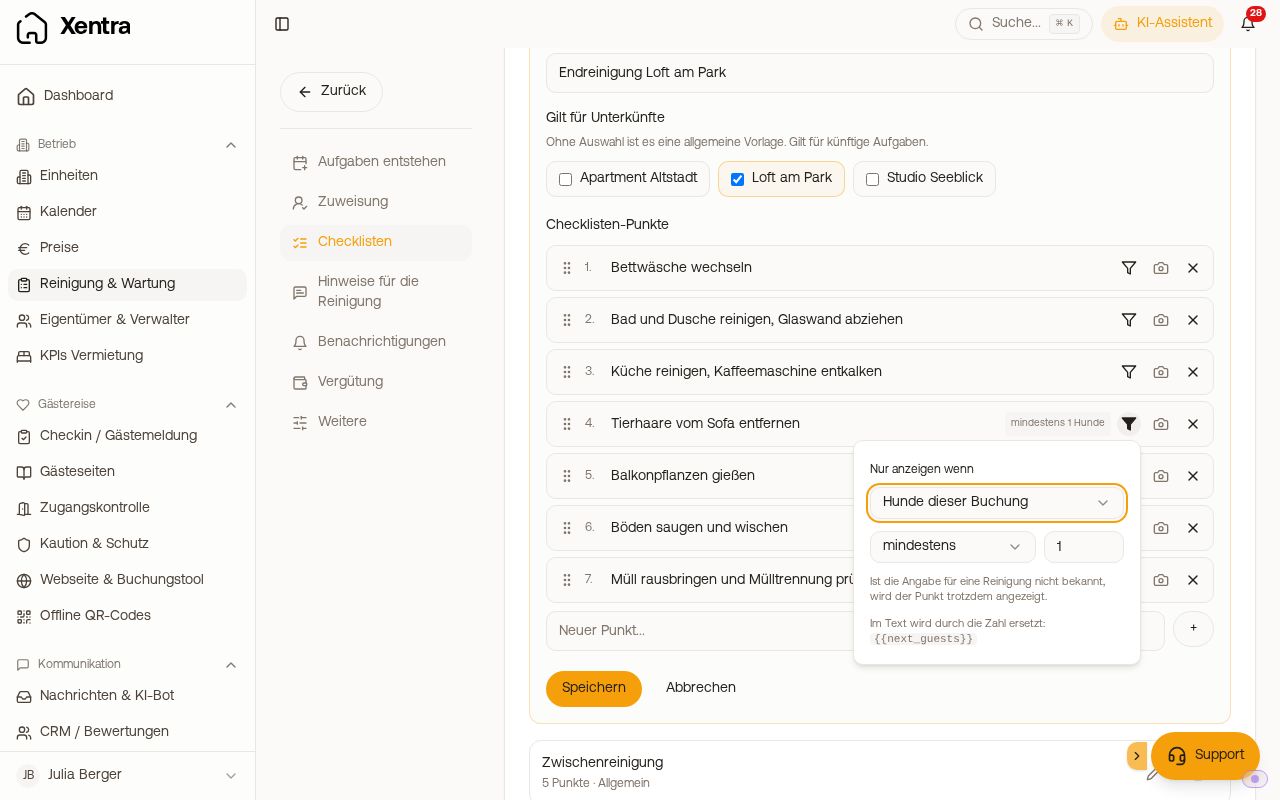 Edit template with condition on an item
Automatically generated checklists
With Create with AI, Xentra suggests a checklist for your unit. Afterwards, it is a normal template and can be edited as described above.
Which template a new task receives
If a cleaning is created automatically from a booking, the following applies:
- The template of the unit. In the template editor, you check the units under "Applies to Units" for this purpose. If multiple templates are attached to a unit, the last created one applies. In the template list, such a template carries the label "Replaces default in N units". Only units where it actually applies are counted. If a cleaning gets a different checklist than expected, you can see there which template in the unit replaces the default.
- Otherwise, the Default Checkout Checklist.
Templates for recurring tasks (garden, house rules, inspections) you do not check under "Applies to Units". Otherwise, every departure cleaning of these units gets this list instead of the default checklist. A recurring task does not need the checkmark, it takes the checklist you selected in its rule.
A preparation before check-in always receives the Default Check-in Checklist.
If you create a task manually, this exact template is preselected after choosing the unit; you can change it or choose "No Checklist".
Older tasks have no checklist
The checklist is attached at the moment the task is created, as a copy. Later changes to the template do not change existing tasks, and tasks created before the template have none. New tasks receive it automatically from now on.
You update individual tasks manually: open task, in the checklist section "Add checklist" and choose the template (the matching one is at the top). If the task already has a list, the item is called "Choose a different checklist"; swapping only works as long as nothing is checked off and no photo is attached to any item yet. You or a team member with edit permissions for tasks do this, cleaners do not see the selection. There is no way to attach a checklist to all existing tasks at once.
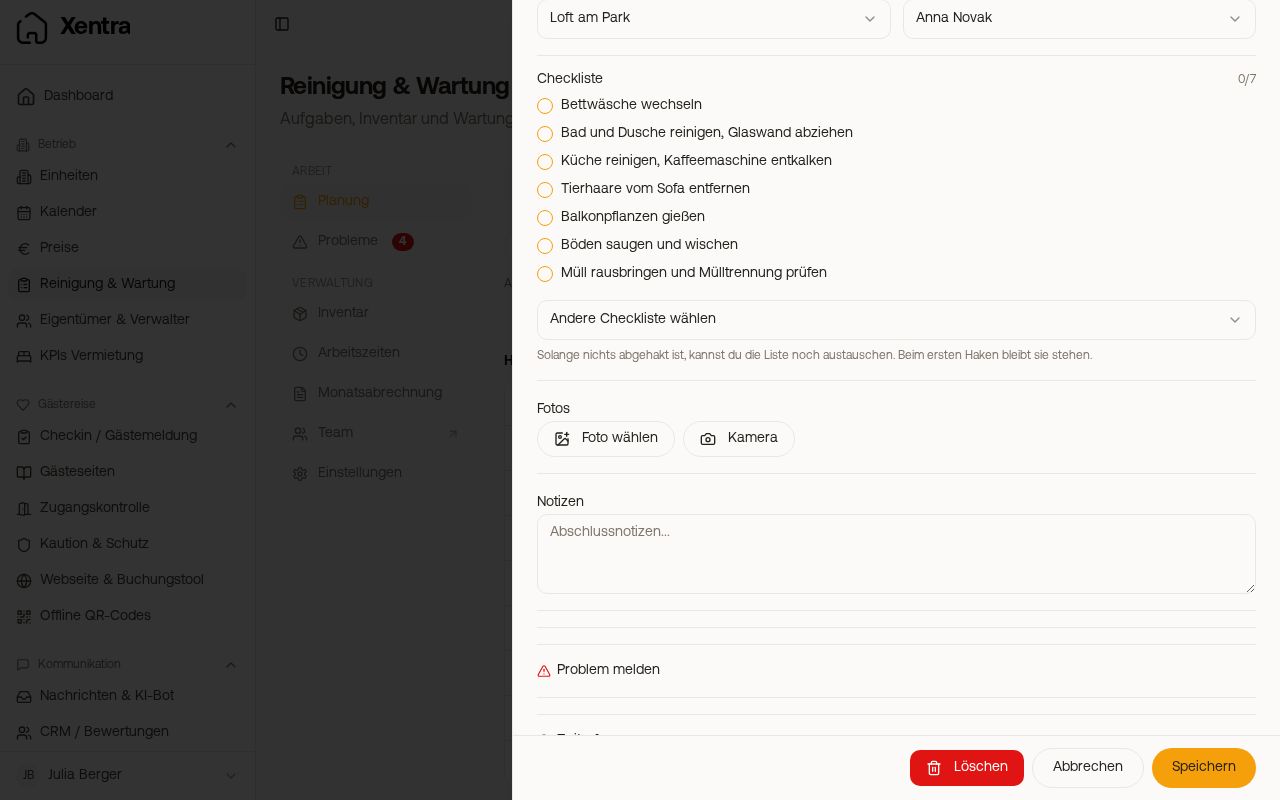 Checklist in the task with "Choose a different checklist"
Checkmarks in the checklist do not complete the task
The checkmarks only apply to the list. They do not change the status, and not all items need to be checked off. A task is overdue as long as it is not set to Done or Cancelled.
A cleaning is finished like this:
- Your cleaner taps Start task in their task, works through the list, and finishes with Review and finish and Complete task. Xentra displays open items during this, completing is still possible. Only a missing photo on an item with Photo required blocks completion.
- Or they report multiple tasks at once as done in their list using Mark done.
- You set the status in the task to Done or use Complete task in time tracking.
If acceptance confirmation is on, the cleaner must accept an assigned task beforehand.