
Planning: Overview, Calendar and List
The planning views under Cleaning & Maintenance: Overview with “Needs you”, weekly calendar, list with filters and batch assignment.
Updated on November 9, 2026
Under Cleaning & Maintenance, Planning, you see all tasks of your team in multiple views. At the top, you switch between Overview, Calendar, and List. You schedule tasks without a date under Reparaturen on free days, see Reparaturen einplanen: freie Tage je Einheit.
Overview: what needs to be done today
The overview is the start page of the area.
- Needs you: everything where you need to decide, also for the upcoming days. Each line states the reason and has a matching button, for example Nobody available (assign person), Acceptance expired, Declined (clarify assignment), Paused (check feedback), as well as for problem reports Problem: nobody in charge and Problem: check the fix (open problem). If nothing is listed there, everything is running smoothly.
- Today and Tomorrow: the tasks with time, unit, person, and status. An unassigned task is listed as "Available to take" (with pool) or "Unassigned".
- Older without completion report: how many past tasks are still open. A click opens them under List, Overdue.
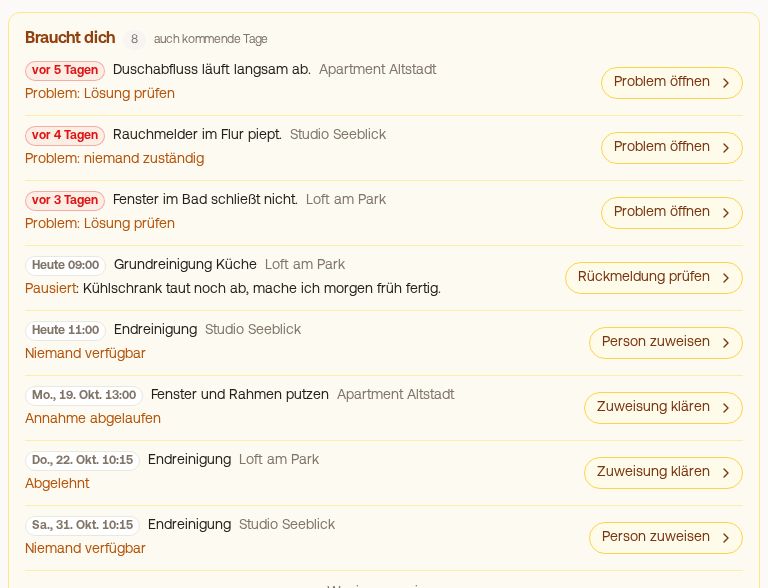 Overview, “Needs you”: what currently needs your decision, with the matching button
Calendar: the week at a glance
In the Calendar, you see the tasks for a week, optionally By employee or By Units. You flip through using the arrows, Today jumps back.
- Each day header shows how many tasks are pending, and a bar showing how full the day is compared to the week.
- A card names in the By employee view first the unit, in By Units view first the person, followed by the type or your title and the time. The colored border shows: green done, red overdue, yellow waiting for confirmation.
- A click on the day header opens the day view: all tasks of the day to mark done or reassign, with arrows to the previous and next day.
- Skipped tasks, for example from cancelled bookings, are not listed in the calendar.
Your team in the By employee view: Your main account is at the top, followed by your team in the order you specify, with Unassigned at the bottom. On a computer, you drag a line up or down using the handle to the left of the name; the order stays saved. Without a custom order, the team is sorted alphabetically. Days on which a person is absent according to the duty roster or does not work according to their working days are hatched and labeled with "Absent on Thu" or "Off on Sat". If you drag a task onto such a day, Xentra asks first: Assign anyway or Cancel.
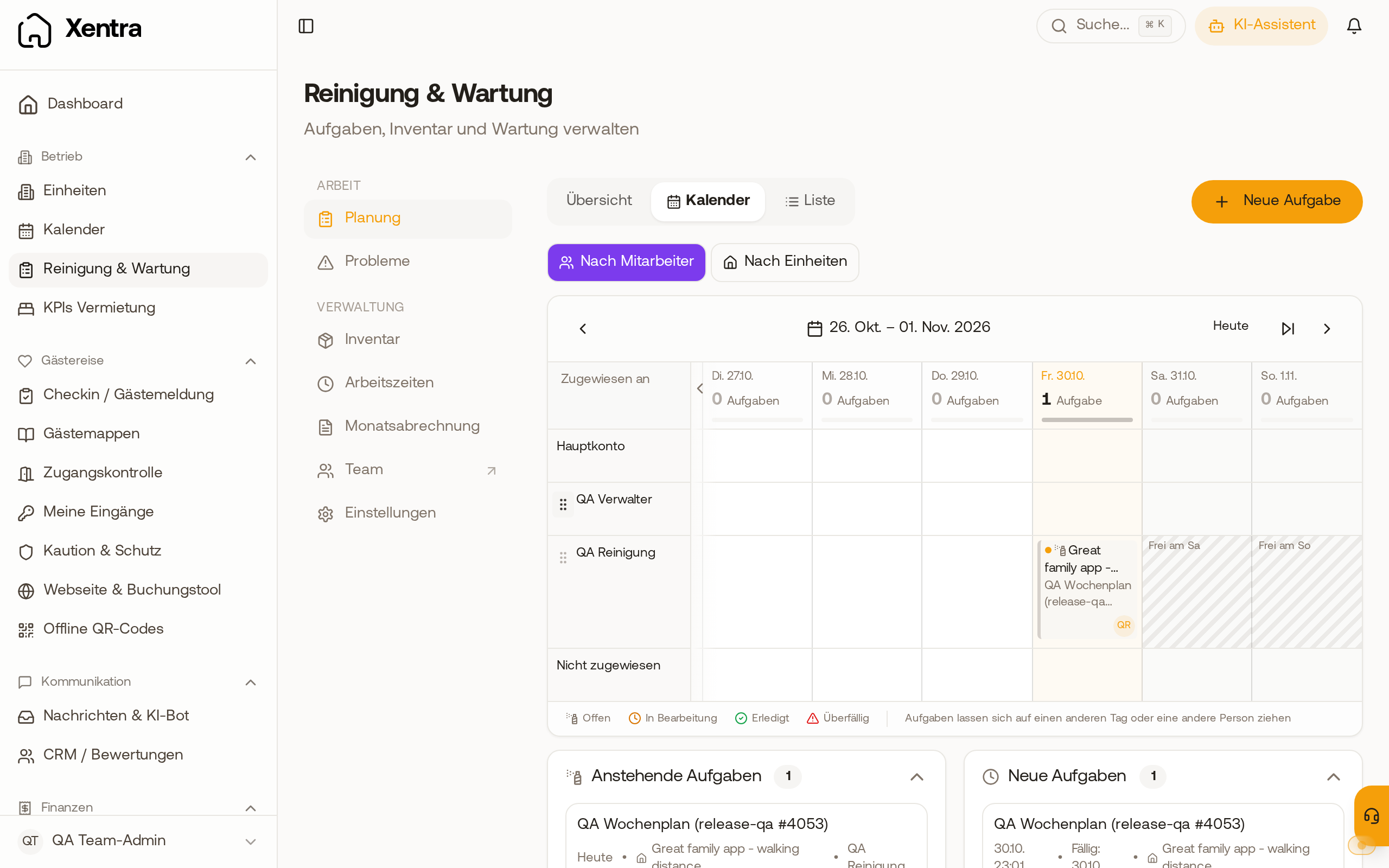 Calendar by employee: team rows with handle for sorting, free days hatched
On your mobile phone, you swipe sideways through the week.
Moving tasks: Drag a card in the calendar to another day, the time stays the same. In the By employee view, you can also drag it to the row of another person, then that person gets the task; in Unassigned, you remove the assignment. In By Units, you only move the day. On a mobile phone, press and hold the card briefly and then drag it. Afterwards, a bar appears at the bottom for 5 seconds, for example "Moved to Fri, 23 Oct", with Undo. Open and started tasks can be moved, provided you are allowed to plan tasks.
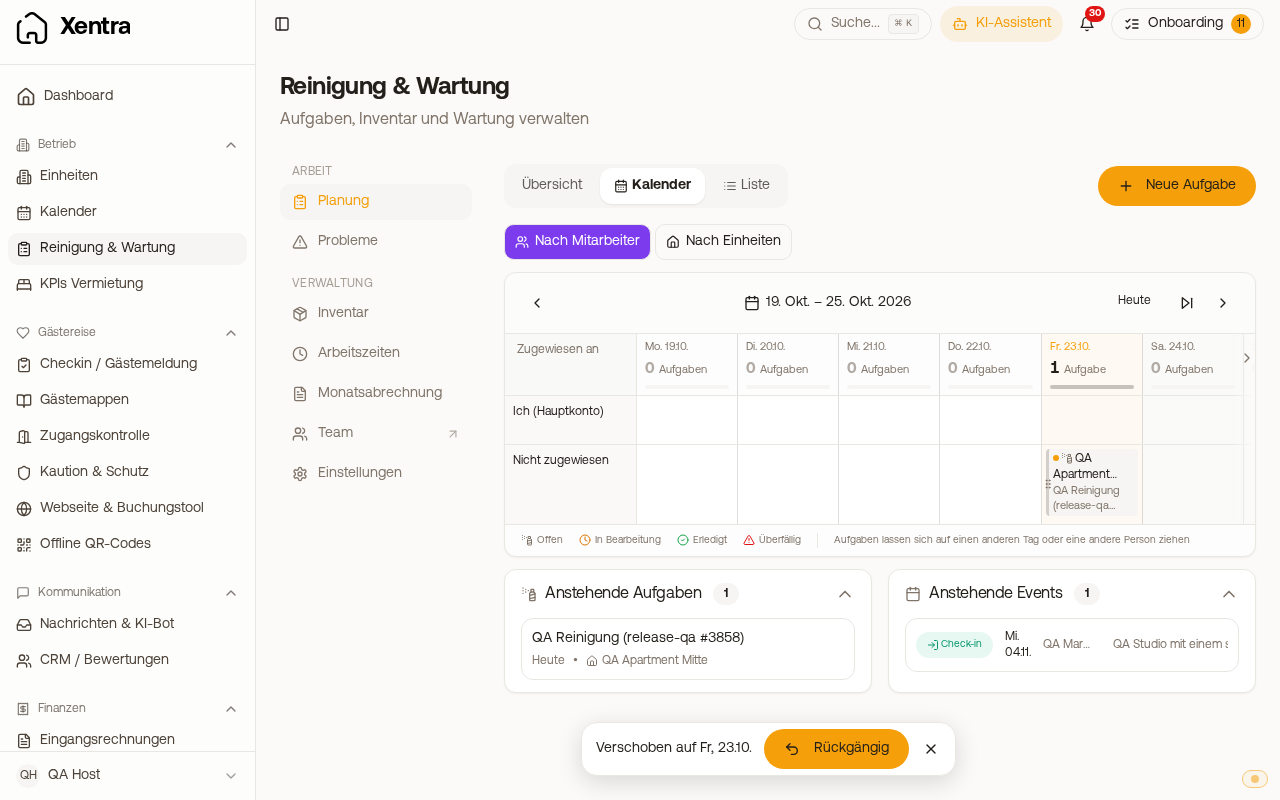 Planning: Overview, Calendar and List
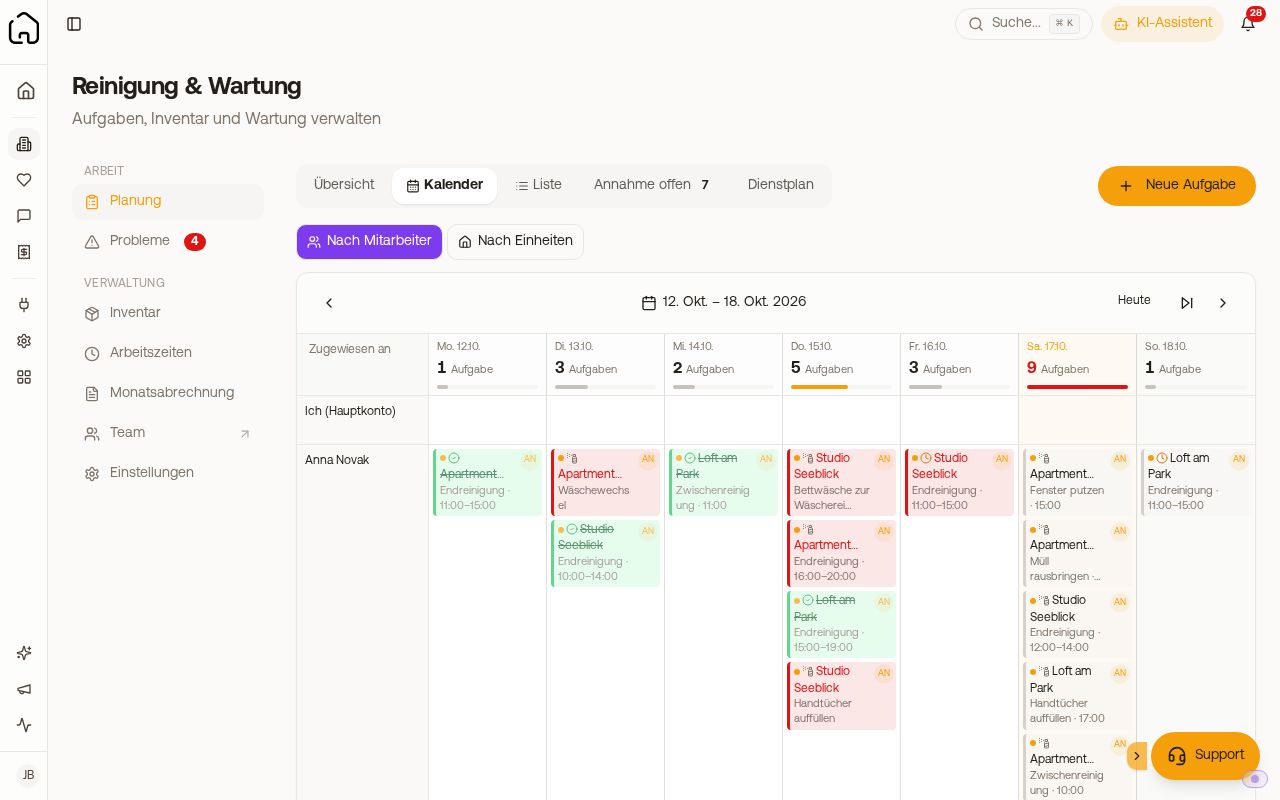 Calendar by employee with workload per day
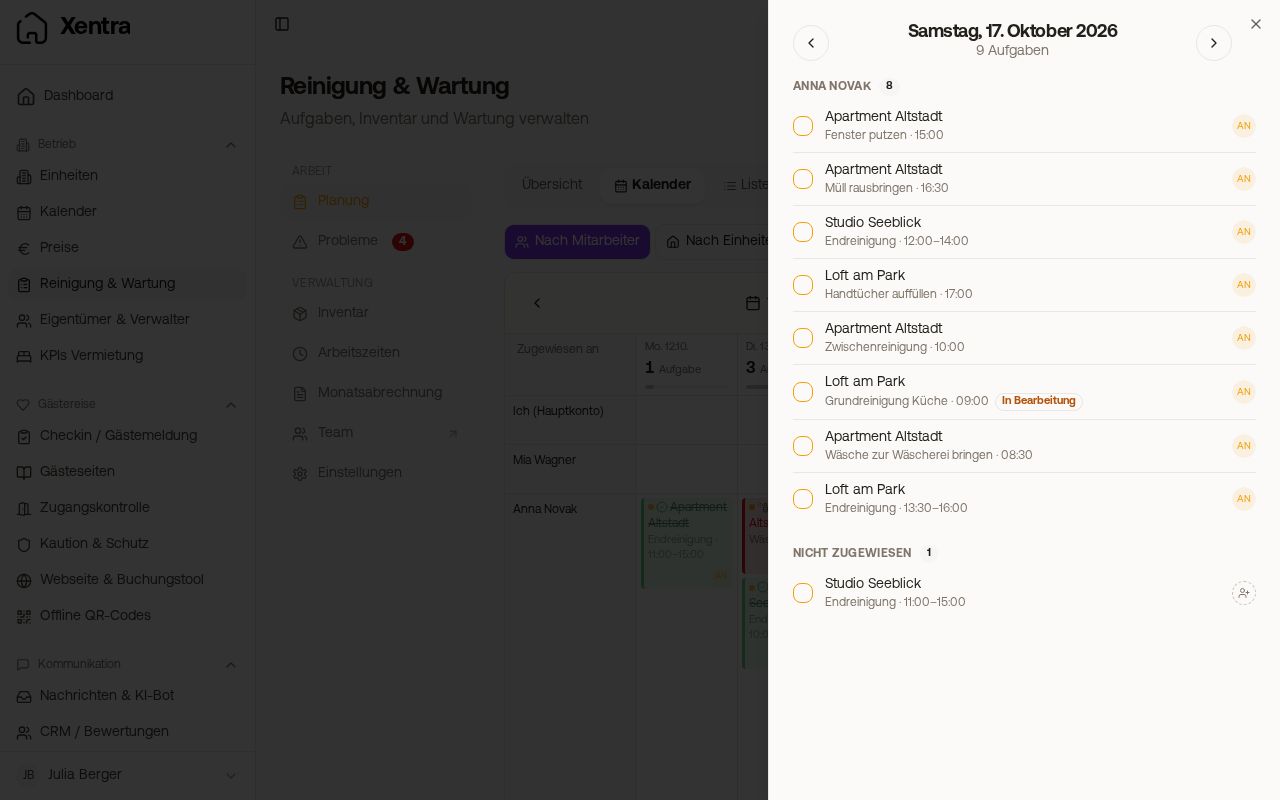 Day view: all tasks of a day to mark done or reassign
List: search, filter, mark done
The List has three presets:
- All: every task from today onwards, grouped by day. Show earlier tasks at the top loads past days, Show more at the bottom loads later ones.
- Overdue: past tasks that are not yet done, the newest first.
- Done: completed and skipped tasks ("Cancelled"), the newest first.
Filter opens the filters on the right: Period (From, To), Status, Unit (also entire location groups), Type, and Person (also "Unassigned"). With Apply, they appear as chips above the list; a click on the cross removes one.
Print puts all tasks on the list with your filters onto paper, see Print task list.
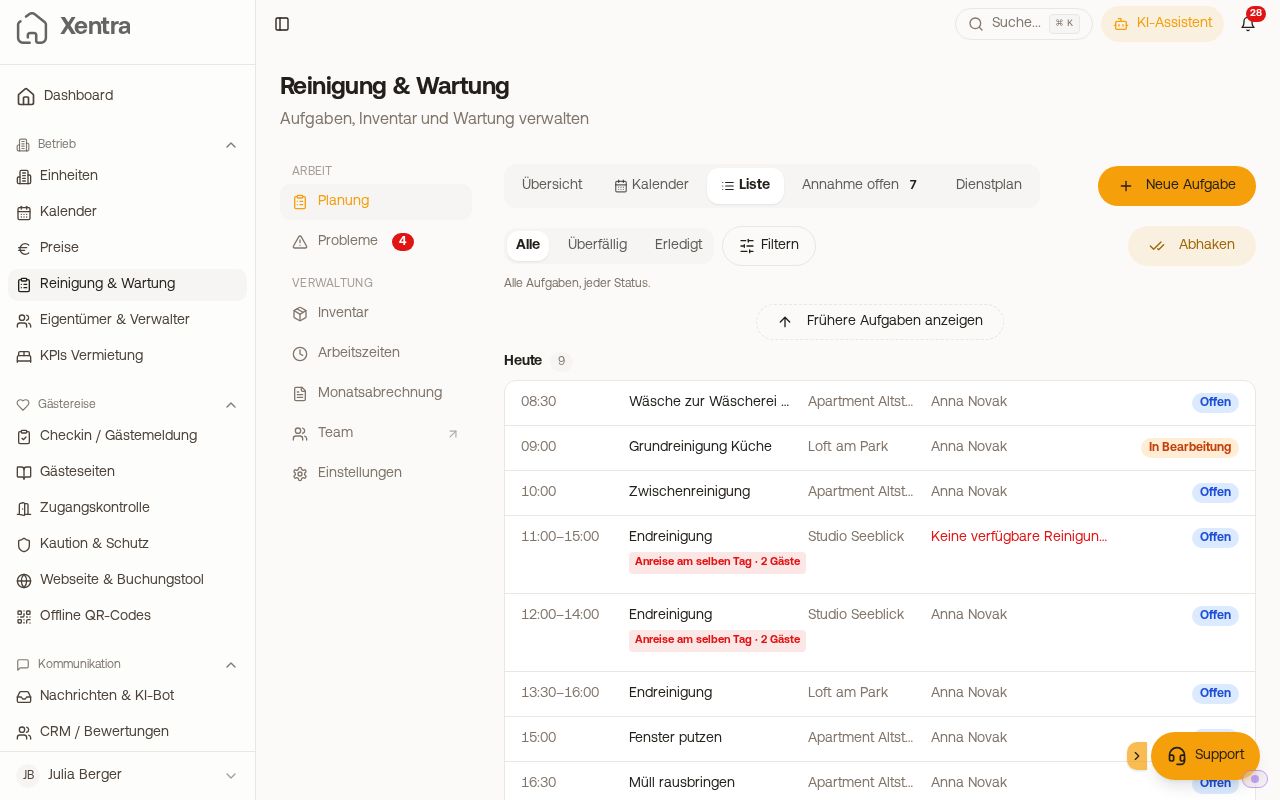 List with filters and marking done
Multiple tasks at once
- Mark done (in All and Overdue): Tap tasks, then Mark as done. With Assign, you give the selected ones to another person in one step. For tasks without assignment, Xentra asks once "Who did this task?" so that the monthly billing is correct.
- Select (in Done and Awaiting acceptance): Mark as done, Assign, or Delete.
Before saving, Xentra shows what changes and what stays, for example because a task is already done or the person does not work on that day. If acceptance confirmation is on, it starts from scratch for a newly assigned task.
Other views
- Awaiting acceptance: assigned tasks that are not yet confirmed (only with acceptance confirmation).
- Duty roster: who is on duty or absent when (only with active duty roster).
More on this under Assigning tasks: substitution, pool and duty roster.