
Cleaning & maintenance: Tasks overview
The Cleaning & maintenance section at a glance: Planning, Issues, Admin, how tasks are created, their types and status, and how you edit them.
Updated on November 14, 2026
You plan cleanings, prep work before an arrival, and maintenance tasks in the menu under Cleaning & maintenance (open).
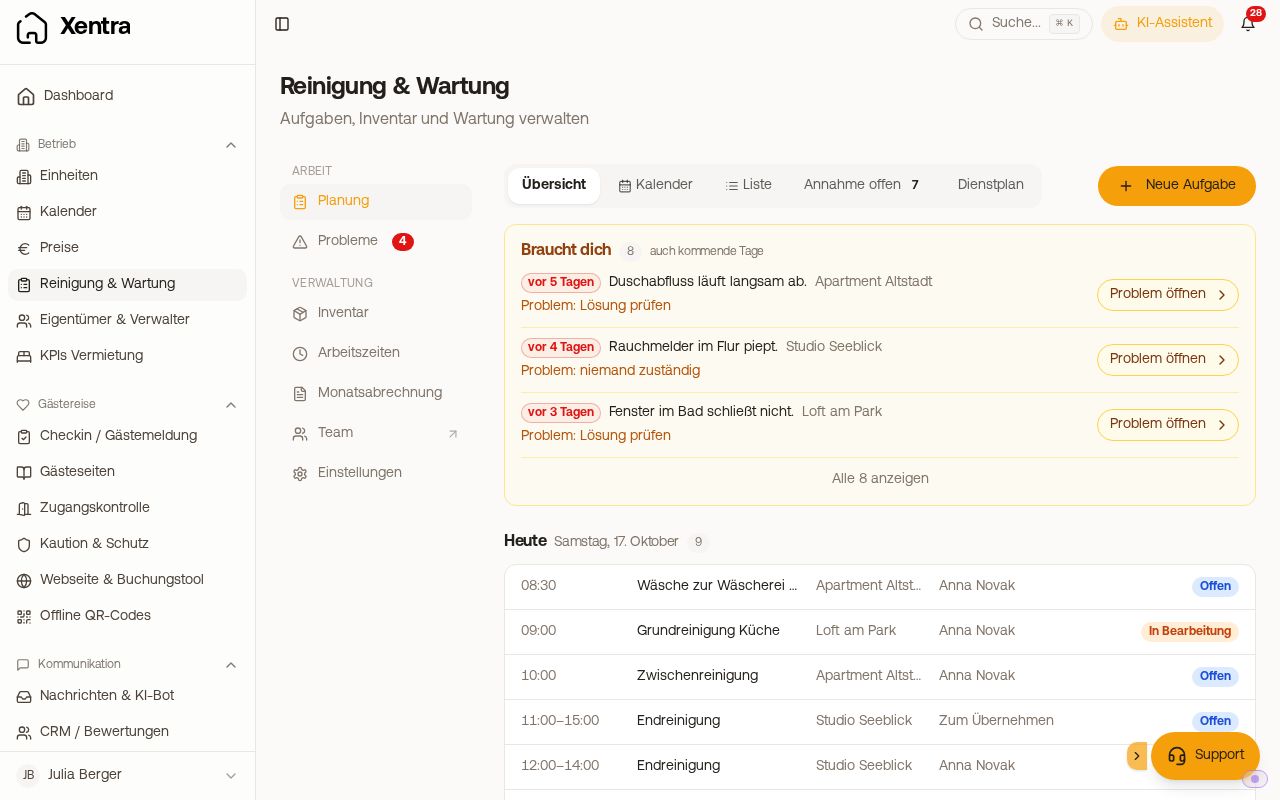 Cleaning & maintenance, Planning, Overview with "Needs you" and today's tasks
How the section is structured
On a computer, there is a dedicated bar on the left with two groups. On a mobile phone, you find the three tabs Planning, Issues, and Admin at the top.
- Work
- Planning: the views Overview, Calendar, and List. If you use acceptance confirmation, Awaiting acceptance is added, and with active duty roster, Duty roster.
- Issues: what your team reported from the tasks.
- My tasks: only for team members who receive tasks themselves.
- Admin: Supplies (what your staff reported with "Missing", by apartment and as a shopping list), Working hours, Monthly statement, Team (leads to Settings, Team & other users), and Settings.
The gear icon at the top right no longer exists. You can find all switches under Admin, Settings, sorted by topic: How tasks are created, assignment, checklists, cleaning instructions, notifications, compensation, and others. On a computer, all topics are listed below each other on one page: Clicking a topic in the list on the left jumps directly to it, and while scrolling, the list shows where you are. On a mobile phone, you open each topic via its card.
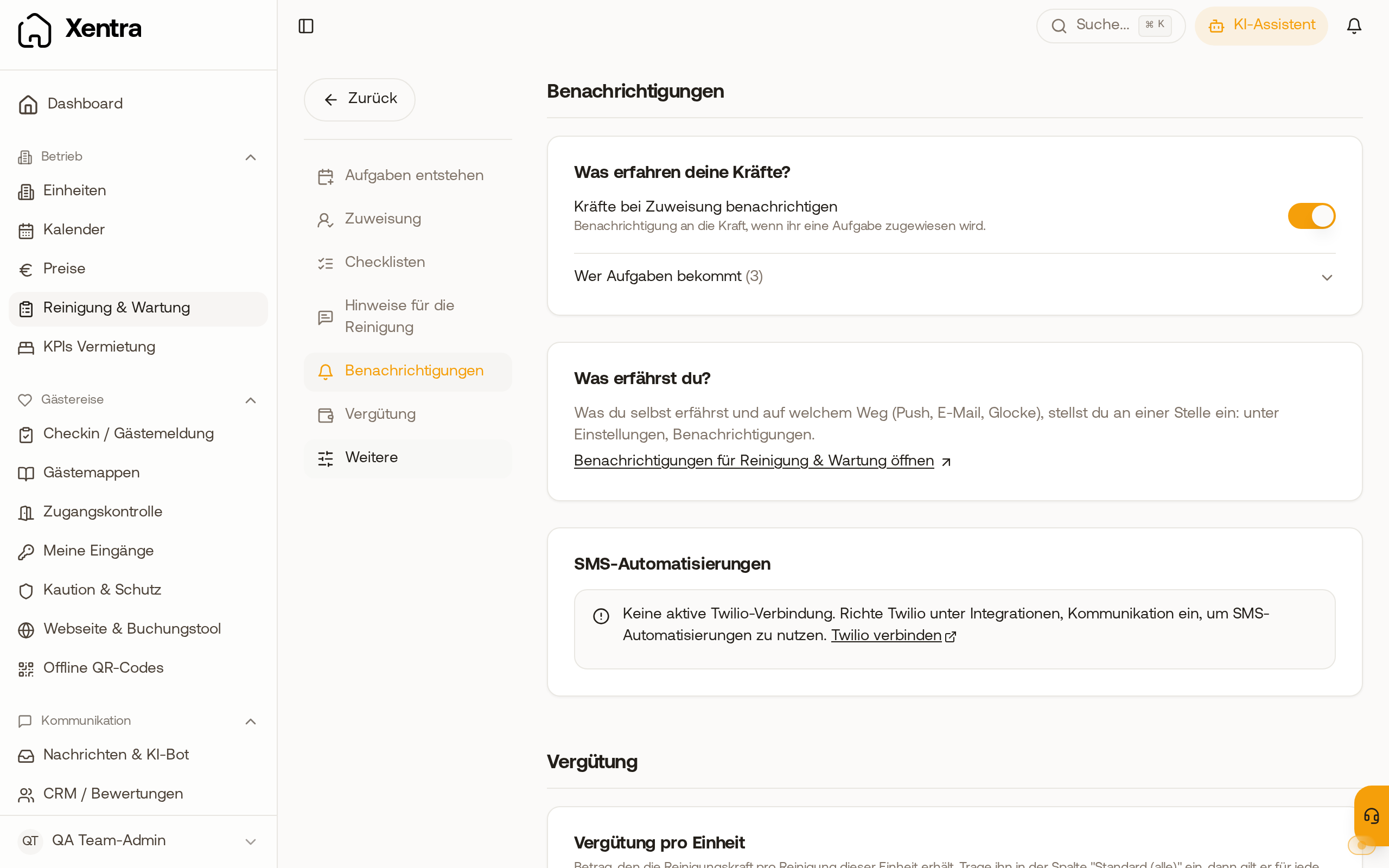 Settings on the computer: topic list on the left, all topics on one page on the right
How tasks are created
- Automatically from bookings: a cleaning at every check-out and, optionally, a preparation before every check-in. Enable this under Settings, How tasks are created.
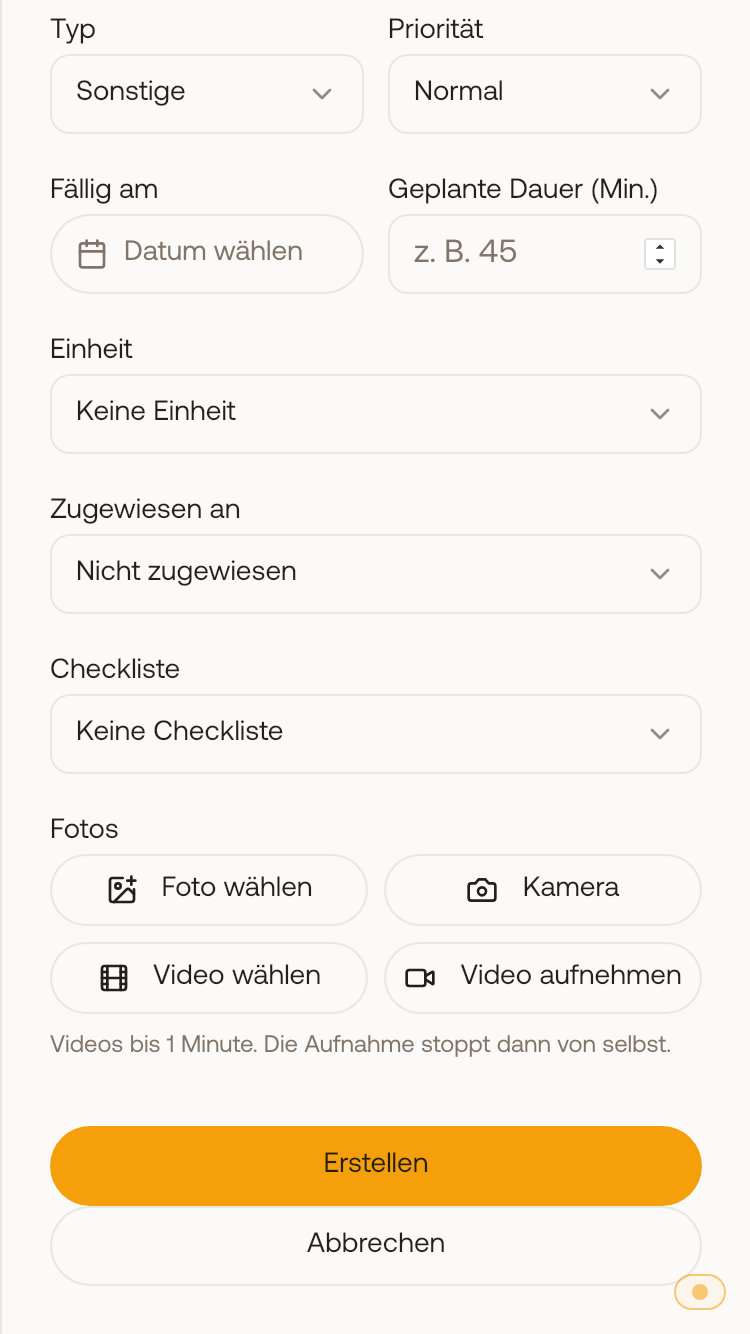
- By hand: top right New task, one-off or recurring, with or without unit.
- From an issue report of your team as a maintenance task.
When exactly a task is created, what happens with inquiries, cancellations, and recurring rules: see How cleaning tasks are created.
Type and state
Every task has a Type: check-out cleaning, check-in preparation, maintenance, or other. In the list, you separate them via Filter, Type, for example maintenance only.
The State is Open, In progress, Done, or Cancelled.
Open a task
Clicking a line opens the task on the right. There, you can change the title, description, unit, Due, time, and Assigned To, set the state, check off the checklist, upload photos, write notes, report an issue, or delete the task. You do not delete an open cleaning or preparation from a booking that is due today or later; instead, you set it to "Cancelled" using Cancel cleaning (preparation: Cancel task). That way, the next sync of the booking will not recreate it. You can upload photos on the task, as proof photos in the checklist, and in an issue report, both for you and your cleaners. In the Xentra app (Android from version 1.9, iPhone from version 1.10), Choose video and Record video are also available on the task and in the issue report: videos up to 1 minute, the recording then stops automatically. You can scroll through multiple photos in the enlarged view using the arrows, arrow keys, or by swiping.
 Under Time Tracking, you start with Start task and finish with Complete task; this sets the task to Done.
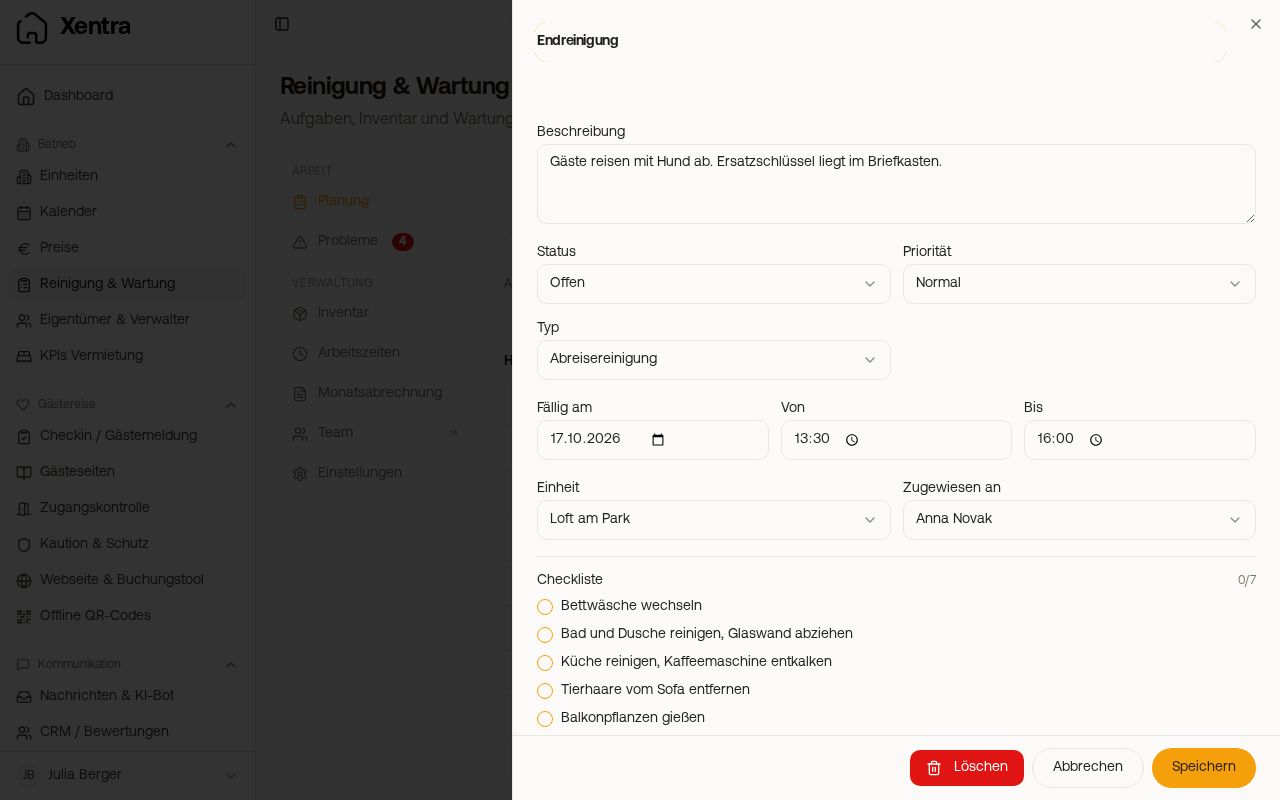 Opened task with state, assignment, checklist, and time tracking
Edit a completed task afterwards
If a task is set to Done or Cancelled, the checklist checkboxes are locked. To make additions, open it, change the state to In progress or Open, add your items, and set it back to Done.
Your cleaner can only reclaim a task they completed themselves within the first 10 minutes via Reopen. After that, it can only be done by you or a team member with the permission "Tasks and cleaning: Edit". They can still attach photos and a note later via Add a photo or note.
Notifications
Under Settings, Notifications, you specify what your staff is informed about (on assignment) and what you are informed about: acceptance or returning, completion, when no one is available, rejection, and optionally an evening message about tomorrow, but only if something for tomorrow is unassigned, unconfirmed, or rejected. Whether this arrives as an email or push notification is set in the general settings under Notifications. With a Twilio connection, you can also set up SMS rules there.
Guides for your team
For your cleaners, there is an illustrated step-by-step guide for mobile phones, without login, in 7 languages (German, English, Spanish, Polish, Turkish, Russian, Romanian): Guide for your team. You can easily share the link via WhatsApp or email.
For yourself, there is the guide for setup and daily use of the cleaning tool, in German and English: Guide for hosts.
- Planning: Overview, Calendar, and List
- Assigning tasks: Cover, pool, and duty roster
- My Day: How your cleaner works with Xentra
- Checklist templates for cleaning
- Handling issues from cleaning
- Tracking and analyzing working hours and Paying cleaners
- Cleaning: When tasks are missing or do not arrive (Troubleshooting)