
How cleaning tasks are created: bookings, recurring rules, cancellation
When Xentra creates a cleaning task, exceptions per booking, cleaning window, what happens upon cancellation, and how you plan recurring tasks.
Updated on November 14, 2026
How cleaning tasks are created
When Xentra creates a task, when cleaning should take place, what happens upon a cancellation, and how recurring tasks work. The switches for this are located under Cleaning & maintenance, Administration, Settings, Tasks created.
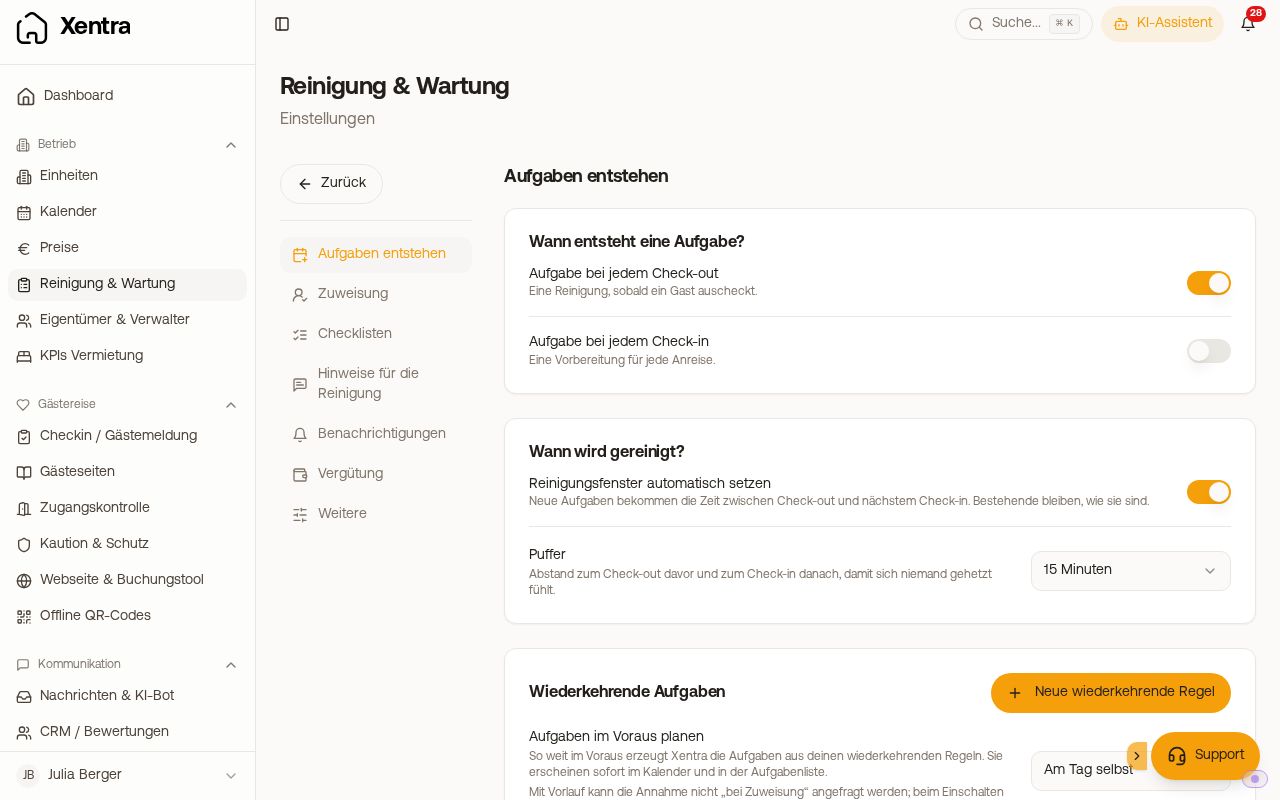 Settings, Tasks created: check-out, check-in, cleaning window, and recurring tasks
Tasks from bookings
- Task at every check-out: a cleaning as soon as a guest checks out.
- Task at every check-in: a preparation for every arrival.
The task is immediately in the calendar, complete with checklist and assigned person, as soon as the booking is there. For an open Request, no task is created yet; it comes automatically as soon as the booking is confirmed. Blockers never get a task.
The assigned person immediately gets the notification "New task assigned" with the cleaning day, so right when the booking is made and not just on the check-out day. If you turn on Task at every check-out anew and have tasks created retroactively for existing bookings, many tasks are created at once. Then only one notification arrives instead of dozens of emails; the tasks themselves are still all in their list.
Intermediate cleaning for long stays: There is no automatic cleaning in the middle of a stay. Tasks are created from a booking only at check-out and, if enabled, at check-in. Recurring tasks run by calendar and are not tied to bookings. Therefore, you create an intermediate cleaning manually as an individual task.
Individual booking without cleaning, for example during an extension: In the booking, turn off the switch "Create cleaning task automatically". This applies to cleaning and preparation; open tasks for this booking are skipped. The booking page then displays "Exception: no cleaning task". In an extension, the check-out cleaning always belongs to the booking that ends on that day: If you create the extension as a second booking, turn off the switch in the first booking, the one before the extension. If you extend the departure date of the existing booking instead, its cleaning automatically moves to the new departure day. Guests cannot cancel the cleaning themselves via the guest page. You only see the switch if tasks from bookings are turned on.
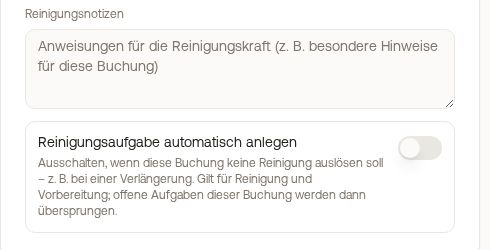 Switch "Create cleaning task automatically" in the booking
Past check-outs do not get a task. If you turn on Task at every check-out and have tasks created retroactively for existing bookings, they are only created for bookings whose check-out is today or later (for Task at every check-in, correspondingly the arrival). If a booking is added retroactively, for example through an import, it still gets a cleaning if its check-out is at most 7 days ago. Therefore, there is nothing to assign for older check-outs. If you still want to document a past cleaning, you create it manually: New task, One-time, enter title, under Type "Checkout Cleaning", under Due the day of the cleaning, then unit and Assigned To. You cannot select a past booking there; the task exists without a booking.
When cleaning takes place: the cleaning window
With Set the cleaning window automatically, every new task gets the time between check-out and the next check-in, for example 10:15 to 15:45. With Buffer, you keep a distance from both times. A late check-out for the booking moves the start time along with it.
Late check-out or early check-in as an extra: If a guest books a late check-out or early check-in whose product has a time, Xentra automatically adjusts the cleaning window: start at the earliest after the late check-out plus buffer, end at the latest before the early check-in minus buffer. This only applies if Set the cleaning window automatically is turned on. A manually entered time is never moved earlier; if the extra is cancelled, the previous time applies again. The assigned cleaner receives a notification "Task: time changed" with the new time. In the task, the extras are listed separately under Departing guest booked and Arriving guest booked.
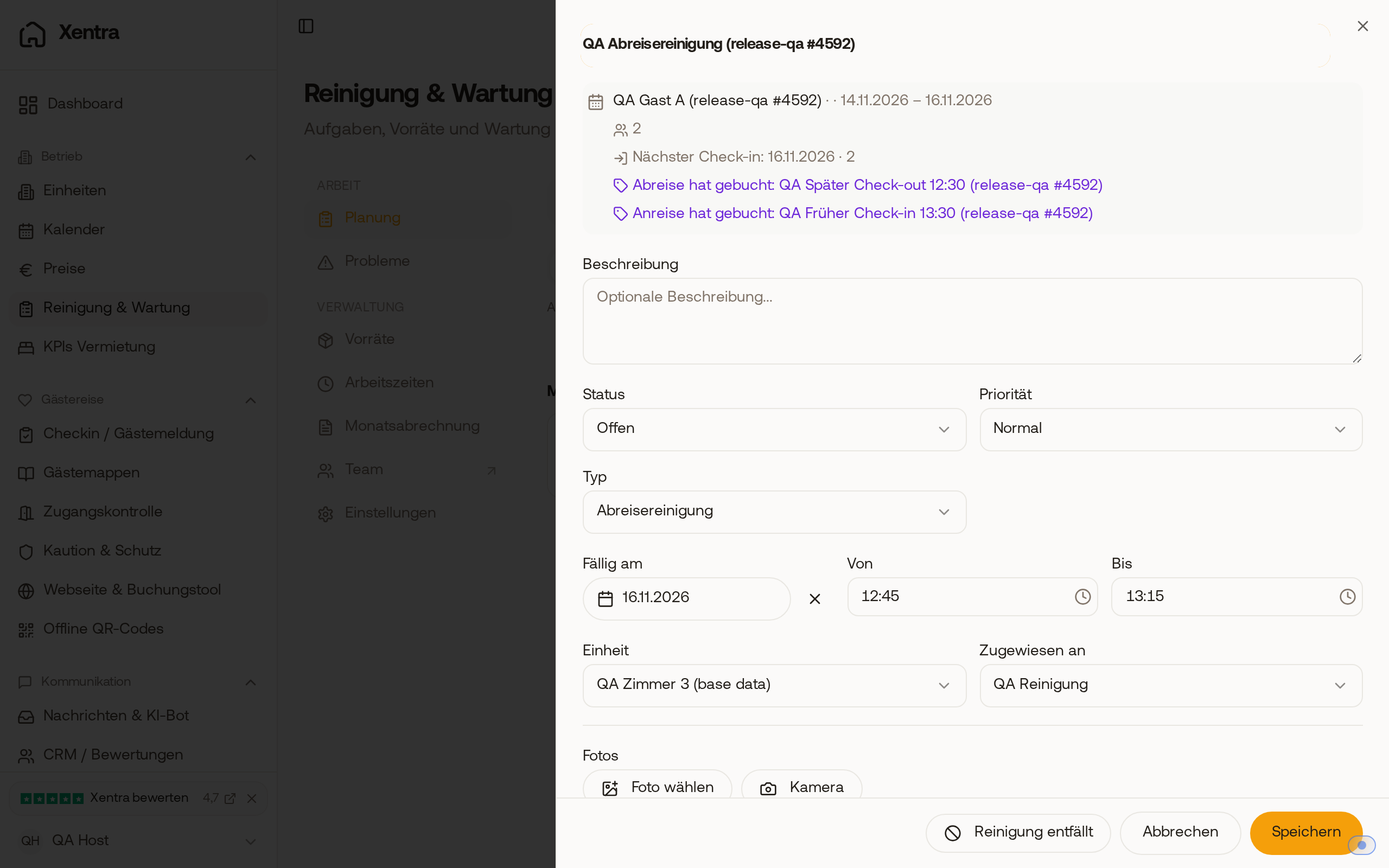 Task with booked late check-out and early check-in: the cleaning window is shortened to 12:45 to 13:15
If you later change the buffer, turn on the window, or change check-in or check-out times (for the account or a unit), Xentra asks: Update open tasks resets open cleanings and preparations from today onward, including manually changed times. New tasks only leaves them as they are. Completed and past tasks never change.
Cancelled bookings
If a booking is cancelled, its cleaning task is not deleted, but set to Skipped (in the list "Cancelled"). This applies to all open tasks for this booking, including manually created ones, and regardless of your settings. A cleaner can no longer complete or reopen such a task. Only you or a team member allowed to edit tasks can bring it back, for example if you undo the cancellation: open task, change status to Open.
Skipped tasks are not in the calendar. You can find them under Schedule, List, Completed. What your cleaner sees and gets notified about: Cancelled cleanings (cleaners).
Creating tasks manually
New task top right, then select title, Type, Due, unit, Assigned To, and checklist. For work without an apartment (storage, office), select No unit for unit.
At the top, switch from One-time to Recurring and directly create a rule with frequency (daily, weekly, monthly, yearly) and day of the week or day of the month. You, your admins, and team members allowed to edit tasks can see the toggle. A cleaner with the permission "Create tasks" only creates one-time tasks.
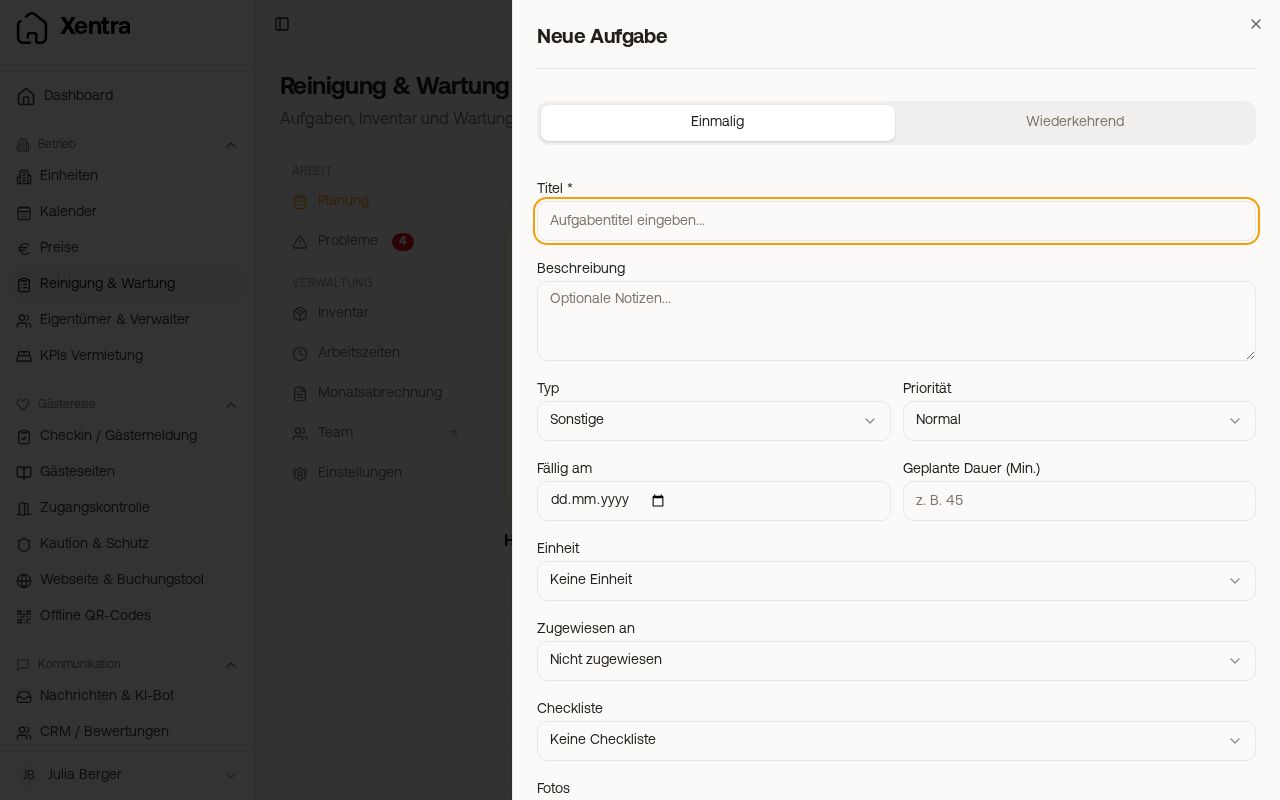 New task with the toggle One-time and Recurring
When recurring tasks appear in the calendar
When tasks from a rule appear in the calendar, how you plan them 7 to 14 days in advance, and what "Never runs" means: see Recurring tasks: when they appear in the calendar.
Calendar, list, and daily view: see Schedule: Overview, calendar, and list.