
Recurring tasks: when they appear in the calendar
Why a recurring task only appears on the morning of the date, how you plan 7 to 60 days ahead, and what happens when a person leaves the team.
Updated on November 10, 2026
Tasks from a rule (for example "Mop stairwell, every Monday") are generated by default only on the morning of the date. Before that, the day in the calendar is empty, even though the rule is set up correctly.
If you want to plan ahead, set Plan tasks ahead under Settings, Task generation, Recurring tasks to 7, 14, 30, or 60 days in advance. The tasks appear in Planning and calendar a few seconds after saving. "On the day itself" is the default setting.
With 30 and 60 days, tasks are fixed that far in advance. If you change a rule (title, time, person), this applies to all future tasks of this rule; tasks that you changed individually remain as they are.
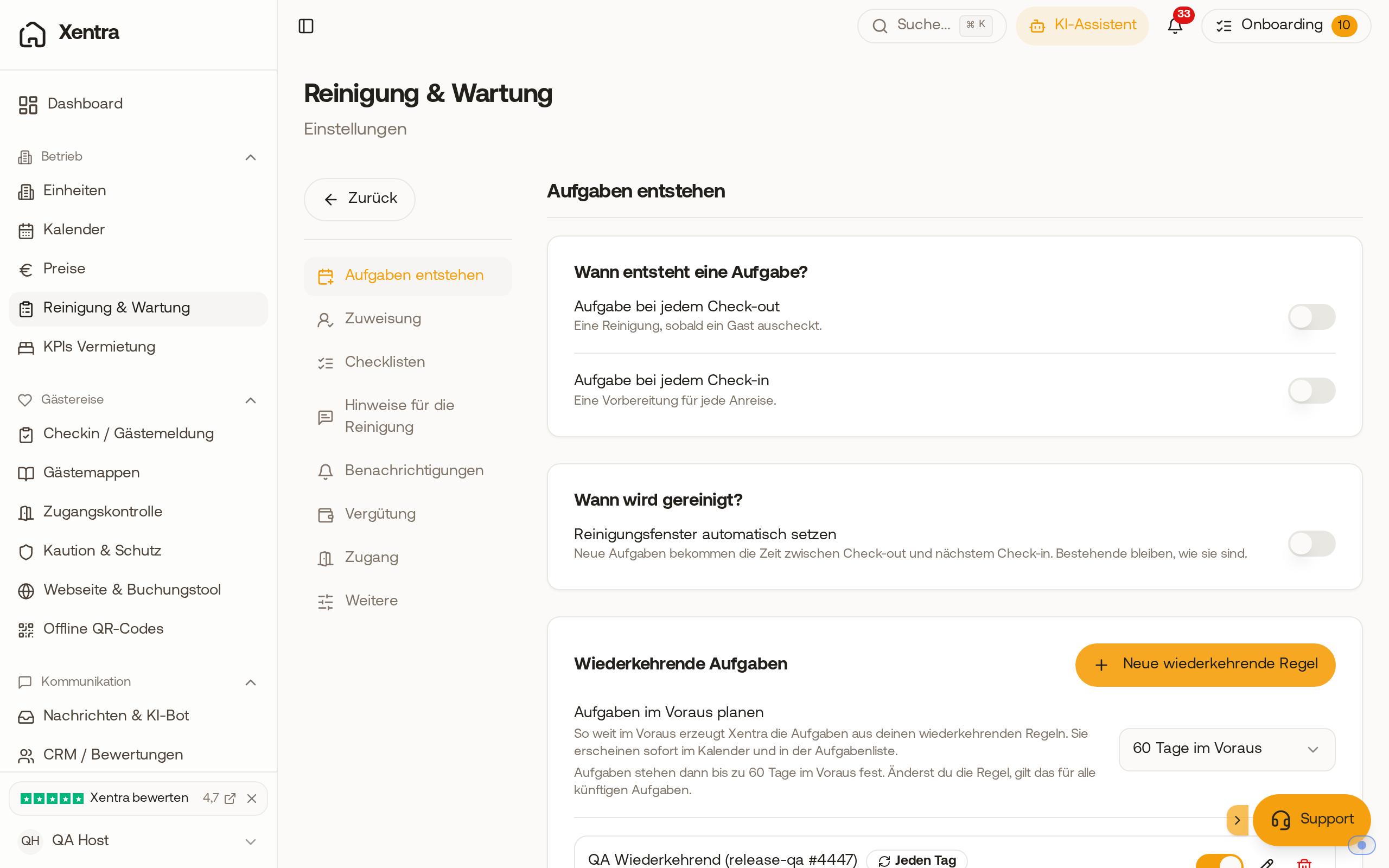 Plan tasks ahead set to "60 days in advance", below it the note that changes to the rule apply to all future tasks.
Good to know:
- If you change a rule, the already planned, unedited tasks are updated. If you delete an individual planned task, it will not come back.
- Your staff members get a digest notification instead of one per task.
- If you use acceptance confirmation, asking happens only a few days before the task when planning ahead (default setting 3 days). More on this under Assigning tasks: Cover, pool, and roster.
In the same list, you edit, pause, or delete any rule and see how many tasks have already been created from it. If it says "Never runs" there, the day of the week (weekly), the day of the month (monthly), or month and day (yearly) is missing: open rule, complete, save.
When a person leaves the team
If you delete or deactivate a team member, or if they no longer get tasks, their open tasks are released, and their recurring rules also lose the person. In the list of recurring tasks, the rule then says "Unassigned" and "Assignment cancelled (account can no longer take on tasks)". Open the rule and choose a new person: All future tasks of the rule go to them all at once. Reassign individual released tasks like this: Planning, List, Filter, person "Unassigned", Apply, Mark done, tap tasks (or Select all), Assign, select person, confirm.
Calendar, list, and day view: see Planning: Overview, calendar, and list.