
Assigning tasks: deputies, pool and duty roster
Who gets a new task, how the pool, the acceptance deadline and stand-ins work and how to enter shifts, vacation and sick days in the roster.
Updated on November 6, 2026
Who gets a new task, who steps in, how your people accept tasks and how you record an absence. Everything is under Cleaning & Maintenance, Admin, Settings, Assignment. At the very top, one sentence says which rule currently applies to the distribution.
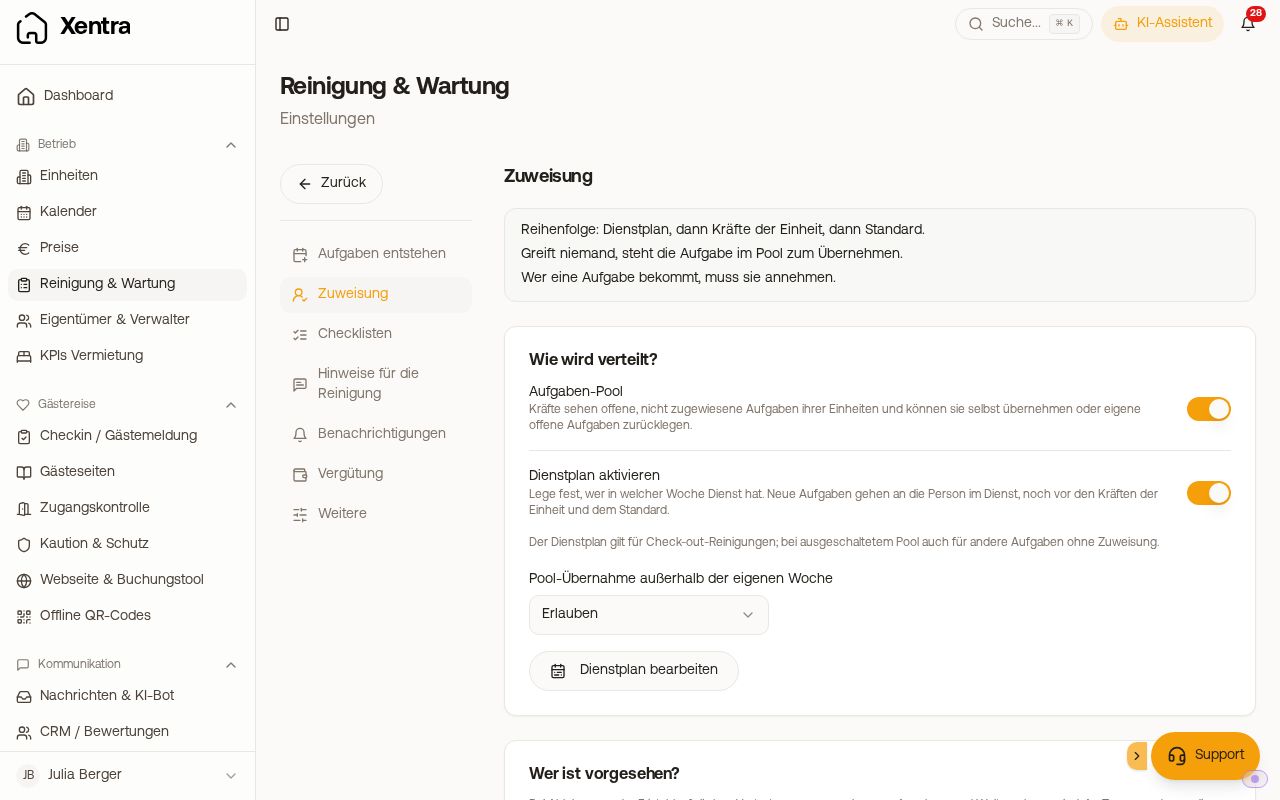 Settings, Assignment: rule, pool, duty roster and the staff per unit
Staff per unit: the order
Under Who is planned? every unit is listed with its people, for example “Anna Novak, deputy Tom Weber”. Tick one or more units and click Set staff (or the pencil on a row). The first person gets new tasks; the others are deputies. You change the order with the arrows.
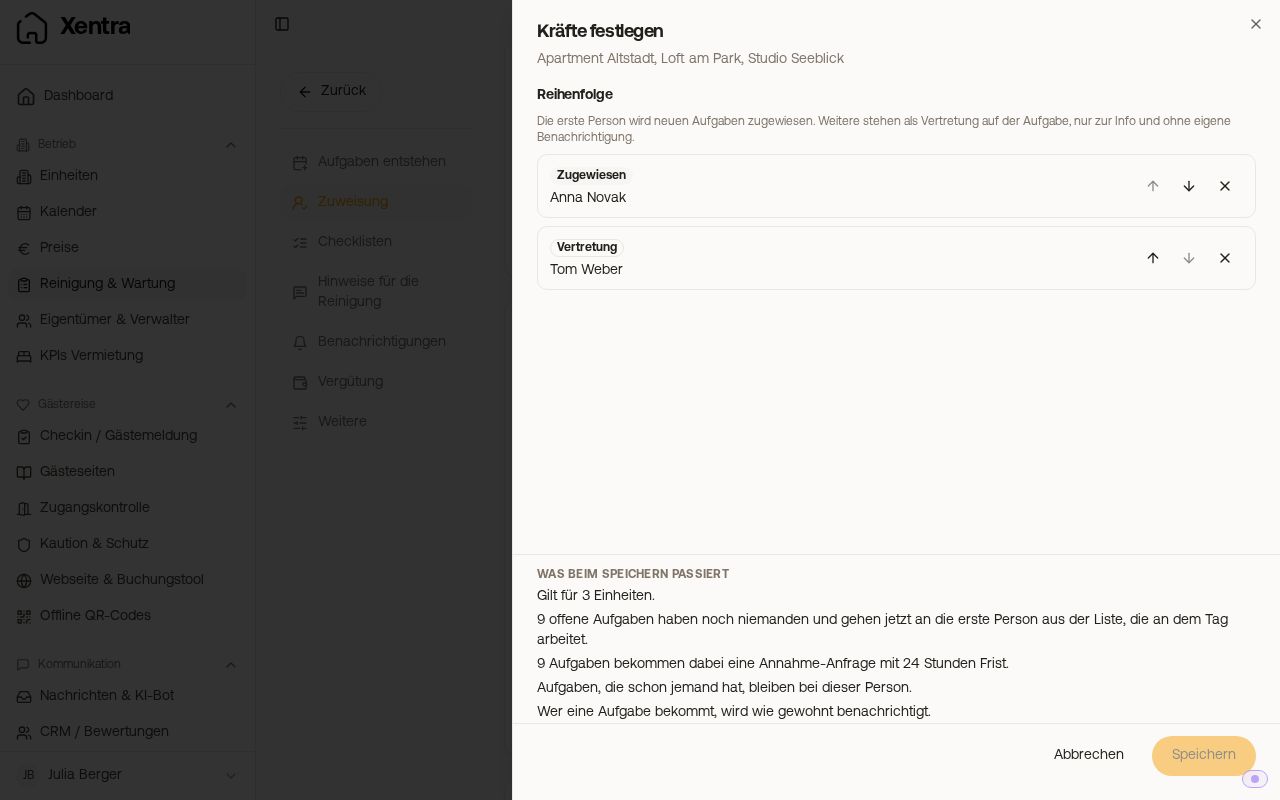 Set staff: order, working days and preview
When saving, Xentra first shows how many open, not yet assigned tasks the new list will receive. Tasks already assigned or started stay as they are. For units without their own staff, Default applies; if that is set to “Unassigned”, the task stays without a person.
Working days per person
Under Settings, Team & additional users, each person enters their weekdays under Available on. Automatic assignment takes the first person on the list who works on the day of the task. If nothing is entered, someone counts as available on all days. If nobody is available on that day, the task stays open, you get “No cleaner available”, and it appears in the overview under Needs you.
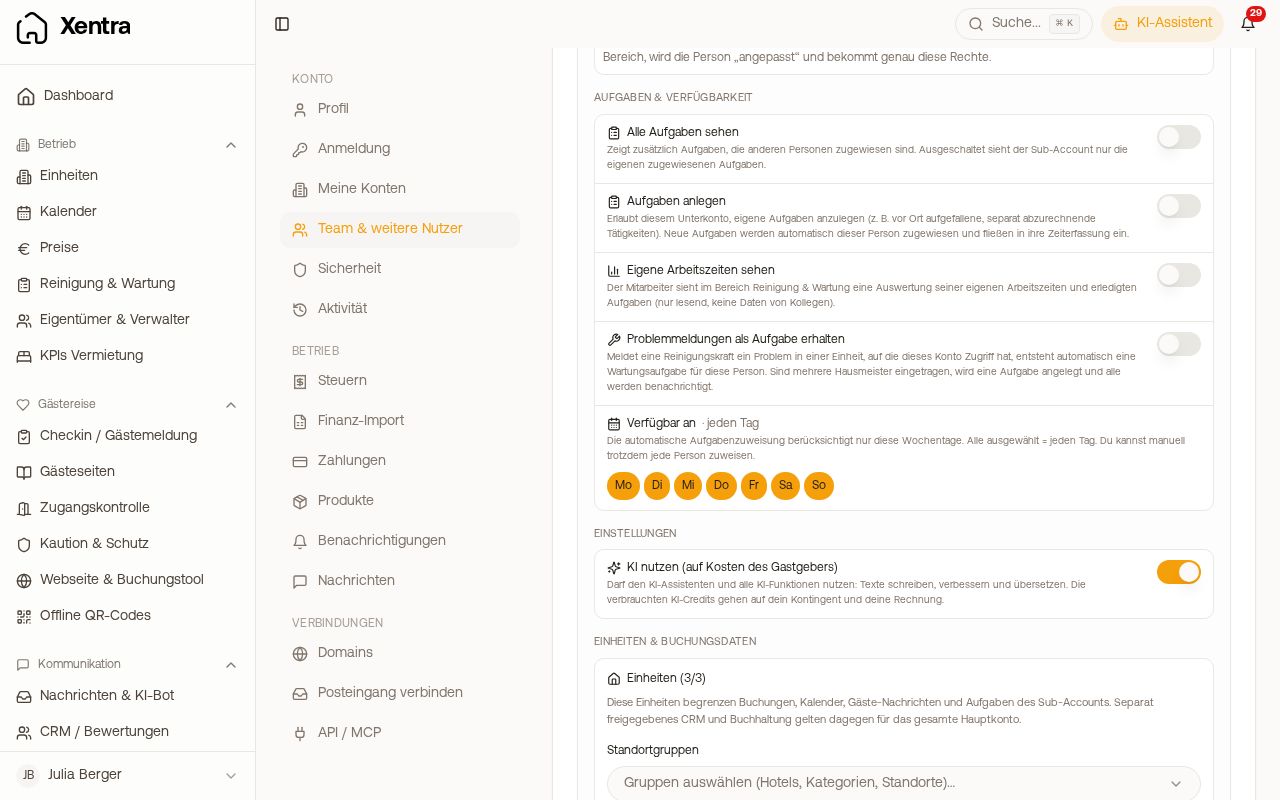 Team: task switch and “Available on” for one person
This is how you separate, for example, two cleaning companies by weekday: create both as their own team member, set “Available on” to Tue to Sat for one and to Sun and Mon for the other, and enter both for each unit. The fact that the second is listed as a deputy changes nothing; it still gets its days.
Units on a team member are visibility, not assignment
The units you enter for a person in the team only determine what they may see. Who gets a task is determined solely under Who is planned?. If a person has no access to a unit, Set staff shows this as “no access to …”, with the path to the team.
Task pool: take on yourself
With the Task pool, your staff see open, unassigned tasks of their units under Available to take and can take them. An own task not yet started they can give back via Back to the pool. With the pool, a task that nobody receives is offered there automatically.
Acceptance: confirm or decline
With Confirmation required, the person must accept or decline an assigned task. With Ask for confirmation you choose when to ask: On assignment or 1, 2, 3 or 7 days before. Until then, the task shows “Confirm from” with a date. If you plan recurring tasks in advance, “On assignment” is locked. The confirmation window (2, 6, 12, 24 or 48 hours, default 24) runs from the request.
Unanswered requests you see under Planning, Awaiting acceptance. Under Decline and deadline you set what happens when someone declines or the deadline passes:
- Pass on to deputy automatically: the next person of the unit receives it. This only works together with the acceptance confirmation; without it there is no trigger.
- On decline: Back to the task pool or Keep assigned (reassign manually). This only applies once no deputy is left.
- Not confirmed after deadline → to the pool.
Otherwise the task stays assigned and appears in the overview under Needs you.
You yourself as deputy: as a host you cannot put yourself in the order. If you want to step in, set On decline to Keep assigned (reassign manually) and leave Notification on decline on. If the last person declines, you select yourself under “Assigned To” in the task.
As long as a task is not accepted, the person cannot change its status. You, your admins and team members with “Tasks and cleaning: edit” can still set it to Done if the cleaning was done but never accepted. Only then does it count in the monthly statement.
Duty roster: who is on duty when
With Activate duty roster, new tasks go first to the person on duty, then to the staff of the unit, then to the default. The duty roster applies to checkout cleanings and, when the pool is switched off, to other tasks without an assignment too.
You keep the plan under Planning, Duty roster as a calendar or list. Add entry (or a click on a day): person, units (all or selected), From and To, and type On duty, Holiday, Sick leave or Other absence. Generate rotation creates weekly shifts for several people in turn. With Pool takeover outside own week (Allow, Allow with note, Block) you set whether someone may take pool tasks from a week in which another person is on duty.
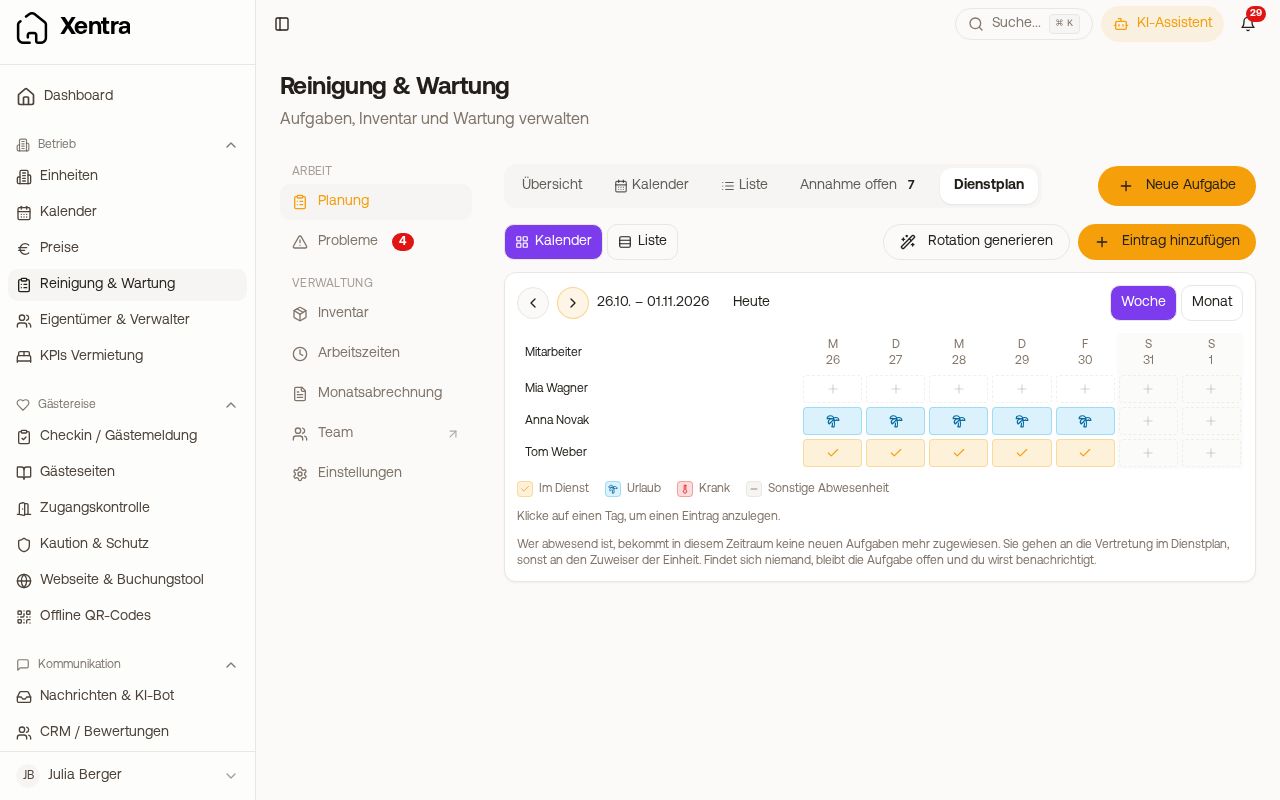 Duty roster with duty, holiday and sick leave
An absence takes the person out of the automatic assignment for those days, even if they are entered as on duty. New tasks then go to the deputy in the duty roster, otherwise to the next staff member of the unit. This only affects tasks that arise after the entry. Tasks already created you reassign; fastest under Planning, List with Tick or Select and Assign. Your staff see that someone is absent, but not why.
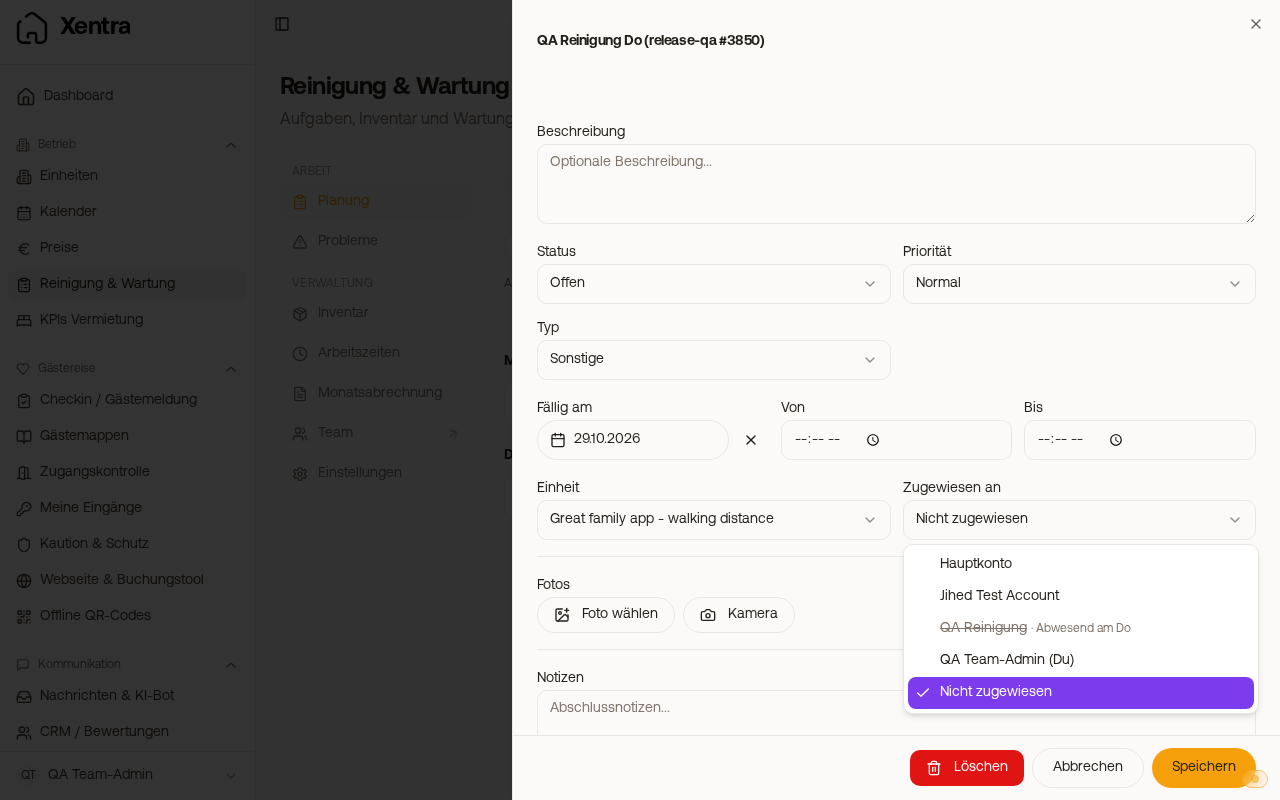
Absent people when assigning by hand: even if you assign yourself, you see who is missing according to the duty roster. In the task under Assigned To and in New task (as soon as a due date is chosen), a person who is absent on the day of the task appears greyed out and struck through with “Absent on Thu”, that is, the weekday of the task. In quick assignment in the calendar, that person is greyed out. Under Planning, List, Assign shows for the person how many of the selected tasks fall on a free day, and in the preview on the task “Absent on …”. You can still select the person. Days on which someone does not work according to Available on are marked the same way (“Not available on …”).
 Assigning tasks: deputies, pool and duty roster