
Schedule repairs: free days per unit
Schedule maintenance and other tasks without a date on free days of the unit, and when the person in charge is notified about it.
Updated on November 9, 2026
Under Cleaning & maintenance, Planning, Repairs, you will find all open maintenance and other tasks that do not have a date yet or whose date has already passed. This is how you schedule repairs on days when the apartment is vacant. Tasks from a recurring rule are not listed here.
The list
- Two groups: Overdue (the date has passed, for example "due 02.11.") and Without date (for example "since 09.11.").
- Each line states the unit, assigned person, how long the task has been open, and the next completely free day of the unit, for example "free today" or "free from Mon 16.11.".
- At the top, you choose how far Xentra looks for free days: 2 weeks or 4 weeks. Next to it, you can see how much is still open, for example "5 tasks left to schedule · 2 units". Filter narrows down by unit, type, and person.
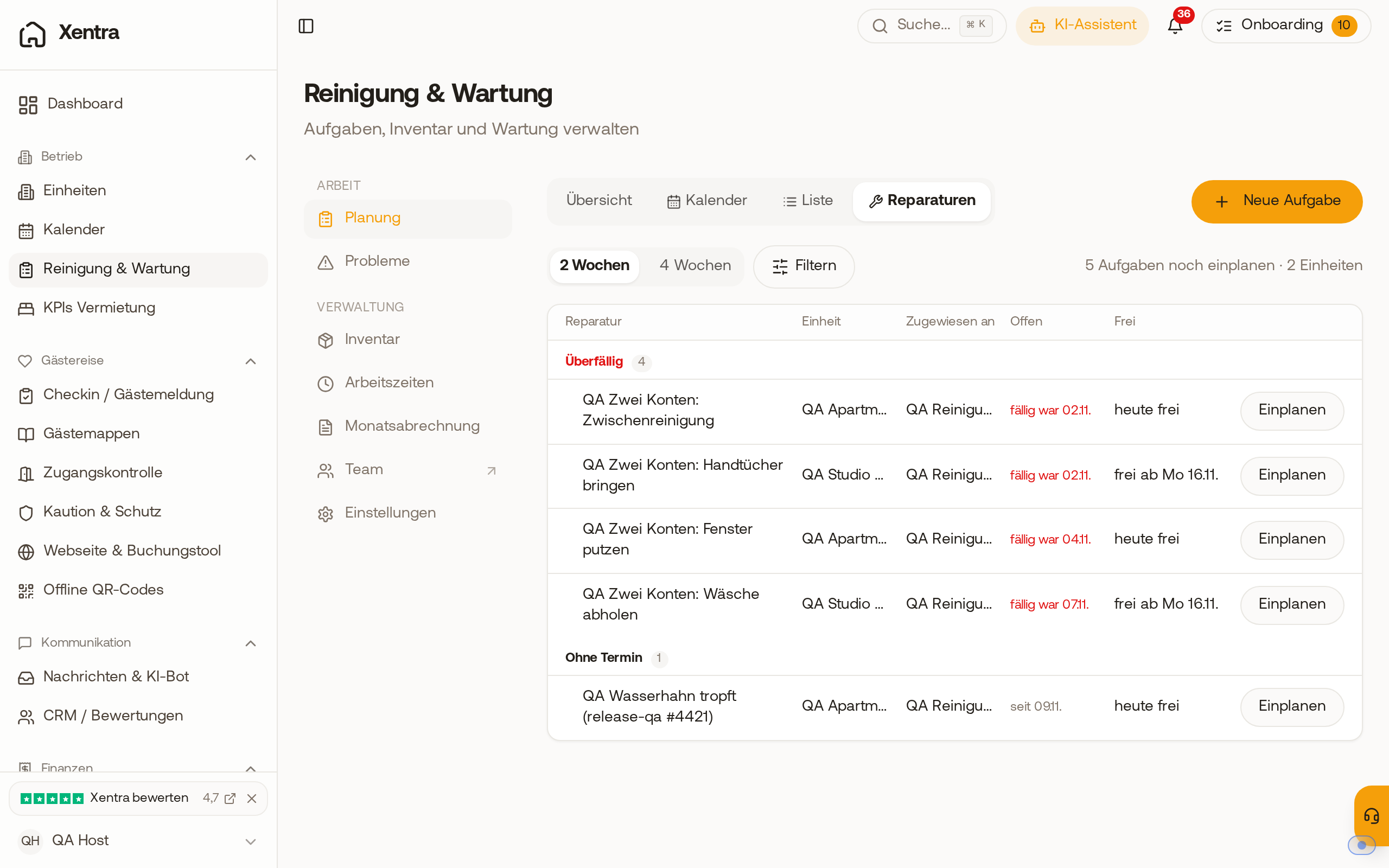 Repairs on the computer: overdue tasks and tasks without a date, each with the next free day of the unit
Selecting a day
Schedule opens the days of the unit on the right starting today, for 2 or 4 weeks:
- free: white days without guests.
- grey: guests in the apartment ("Guest present"), arrival or departure with time, or blocked in the calendar. If you select such a day, Xentra asks first, for example "Guests are in the apartment on this day. Schedule anyway?".
- If cleaning is scheduled on a day, you see it as its own card.
Under Assigned To, you select the person. Schedule on ... saves the day and person, without time. The task disappears from repairs and is listed in the calendar and in the planning list from then on.
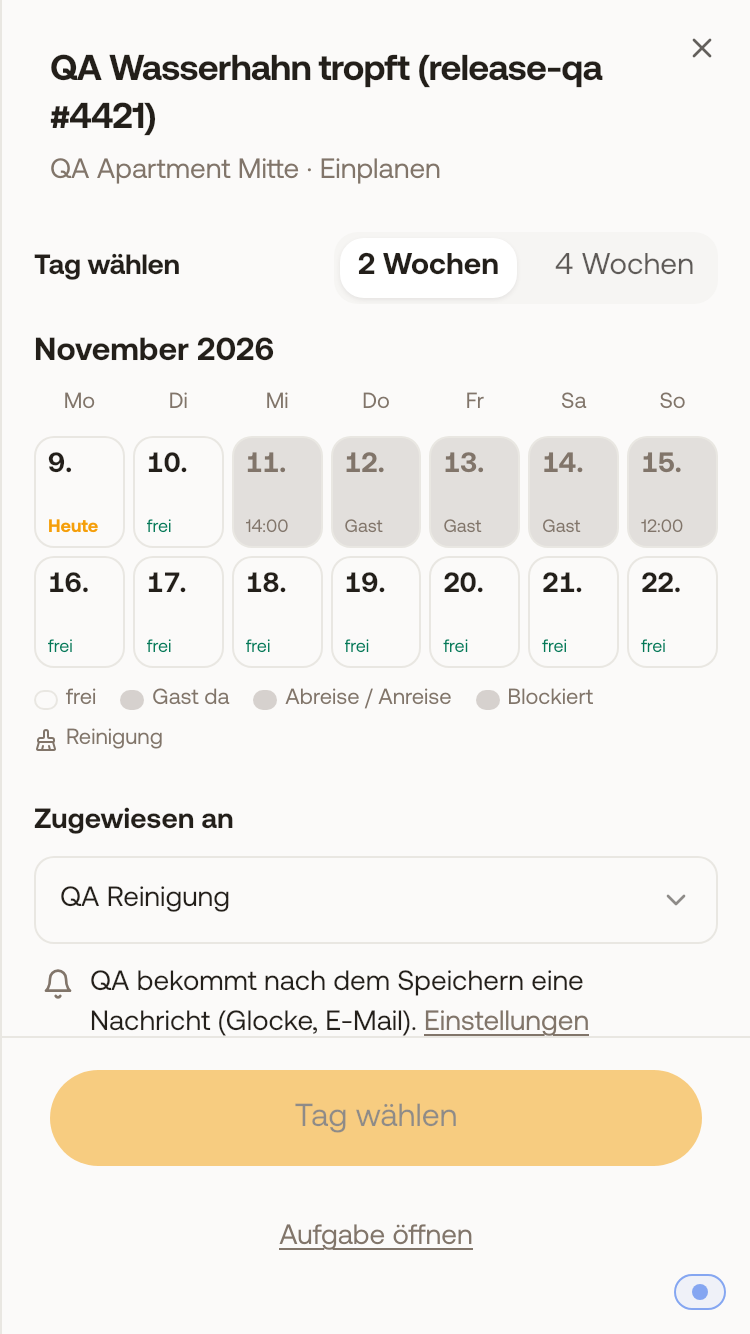 Scheduling on mobile: free days white, days with guests grey, below the assigned person and whether they get a notification
You can also reach the same step within the task itself (Schedule repair, for a task with a date Change date) and in a problem report (Create maintenance task).
Who gets notified
If an assigned maintenance or other task receives a date or a new one, the person receives a notification: in the bell icon, for example "Maintenance: Date set" with task, unit, and day, as push, and via email. Multiple dates in quick succession arrive in one email. There is no separate toggle for this: The person's setting New task for me applies. In the scheduling window, it states before saving whether and how they will be notified, such as "receives a notification after saving (bell, email)".
No notification is sent for tasks from a recurring rule, for tasks you assigned to yourself, and when Notify people when assigned is turned off under Settings, Notifications. If you switch the person at the same time, they receive the normal notification for the new task.
Read more about the other views: Planning: Overview, calendar, and list.