
WinTOP: Online guest registration form and tourist tax
Connect WinTOP/OMS (Reif Systemtechnik): Location ID, HausUniqueId, test and production system, tourist tax mode, and guest registration form PDF.
Updated on November 12, 2026
If your municipality uses the online guest registration form via WinTOP/OMS from Reif Systemtechnik, Xentra reports your guests directly there from the online check-in. The integration is marked as Beta in the app.
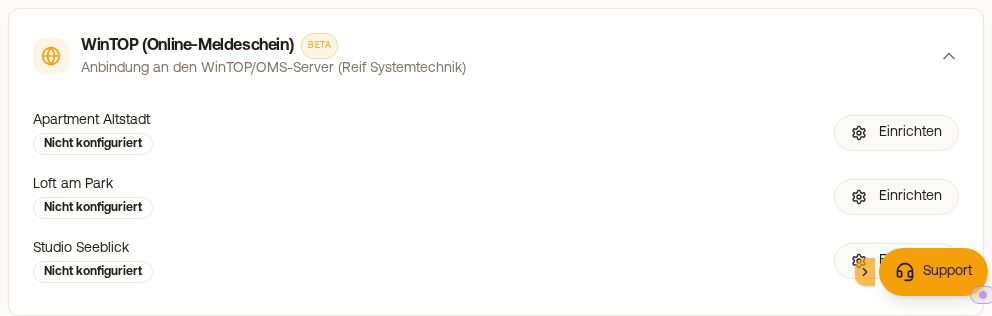 The card WinTOP (Online registration form) under the Guest registration tab
Requirement
Your business must be enabled for the interface at Reif Systemtechnik/WinTOP. You get the Location ID and the HausUniqueId from your tourist information office. Use the HausUniqueId, not the business number. You do not need your own source identifier, Xentra is registered with WinTOP as an interface partner.
Set up
- Checkin / Guest Registration, tab Guest registration, click Set up for WinTOP (OMS). Or Integrations, tab Guest registration, click Connect for WinTOP.
- In the WinTOP (Online registration form) card, configure each unit via Set up: Location ID, Property ID (HausUniqueId), and Environment.
- Environment: "Test (imeldeschein.de)" does not report anything to the municipality. Switch to "Production (emeldeschein.de)" as soon as Reif Systemtechnik has activated your business. As long as a unit is set to Test, the WinTOP card in the booking shows "Test system: registrations for this unit do not reach the municipality."
- Use Load config to fetch the guest classes of your location.
For WinTOP units, the check-in automatically requests the address of the primary guest and the date of birth of all travelers, because the municipality calculates the tourist tax based on age.
When Xentra reports
Xentra reports a guest as soon as they submit the guest registration step in the online check-in, regardless of the arrival date. Therefore, set up a unit only after all guests you have already reported yourself have completed their check-in or arrived, otherwise a second guest registration form is created. Xentra does not retroactively report guests who completed check-in before set up: You do this in the booking, Details tab, WinTOP Meldeschein card, with Report to WinTOP.
Tourist tax at check-in
Under Tourist tax at check-in, select:
- Show and collect the amount from WinTOP (default)
- Only show the amount from WinTOP, do not collect it
- Use your own rate from the tourist tax settings: The registration is still sent to WinTOP.
For the two WinTOP options, WinTOP calculates the amount from the guests' dates of birth; rates and age groups from your tourist tax settings do not apply then, and you do not need to enter anything there. They only count for your own rate.
By default, only the tourist tax is collected. With Also collect the tourism contribution, the guest also pays this contribution. If the unit does not have a tourist tax setting yet, Xentra creates one when saving.
Business travelers and exemptions
Guests select a Tourist tax category per traveler during check-in if your municipality maintains a class for it: business trip, person with a disability, or accompanying person. Without a selection, Xentra reports based on age. WinTOP then calculates the tourist tax itself, usually €0 for business travelers. This selection is available when WinTOP collects or only shows the amount, not when using your own rate.
If a guest forgot it: open booking, Details tab, in the WinTOP Meldeschein card under Guests and registration class change the class, e.g., "Business", then Save classes and file. Xentra modifies the guest registration form at WinTOP, and an open item "On account" is adjusted to the new amount. A tourist tax that has already been paid is not automatically refunded.
After reporting
- In the booking under the Details tab, the WinTOP Meldeschein card shows the registration form number and tourist tax according to WinTOP. Via PDF you download the guest registration form, via QR-Code you open the digital guest card. The guest also sees both buttons at the end of the online check-in.
- You send the guest card to the guest as a link: In the WinTOP Meldeschein card, there is the Guest link with Copy, or you insert the placeholder
{{wintop_guest_cards_link}}into a message or template (placeholder menu, Documents, "WinTOP guest card (link)"). The guest opens a page without logging in with Open digital guest card and Download guest card. The link always shows the current guest registration form, even if you change the registration later. Until the guest is reported, the placeholder remains empty.
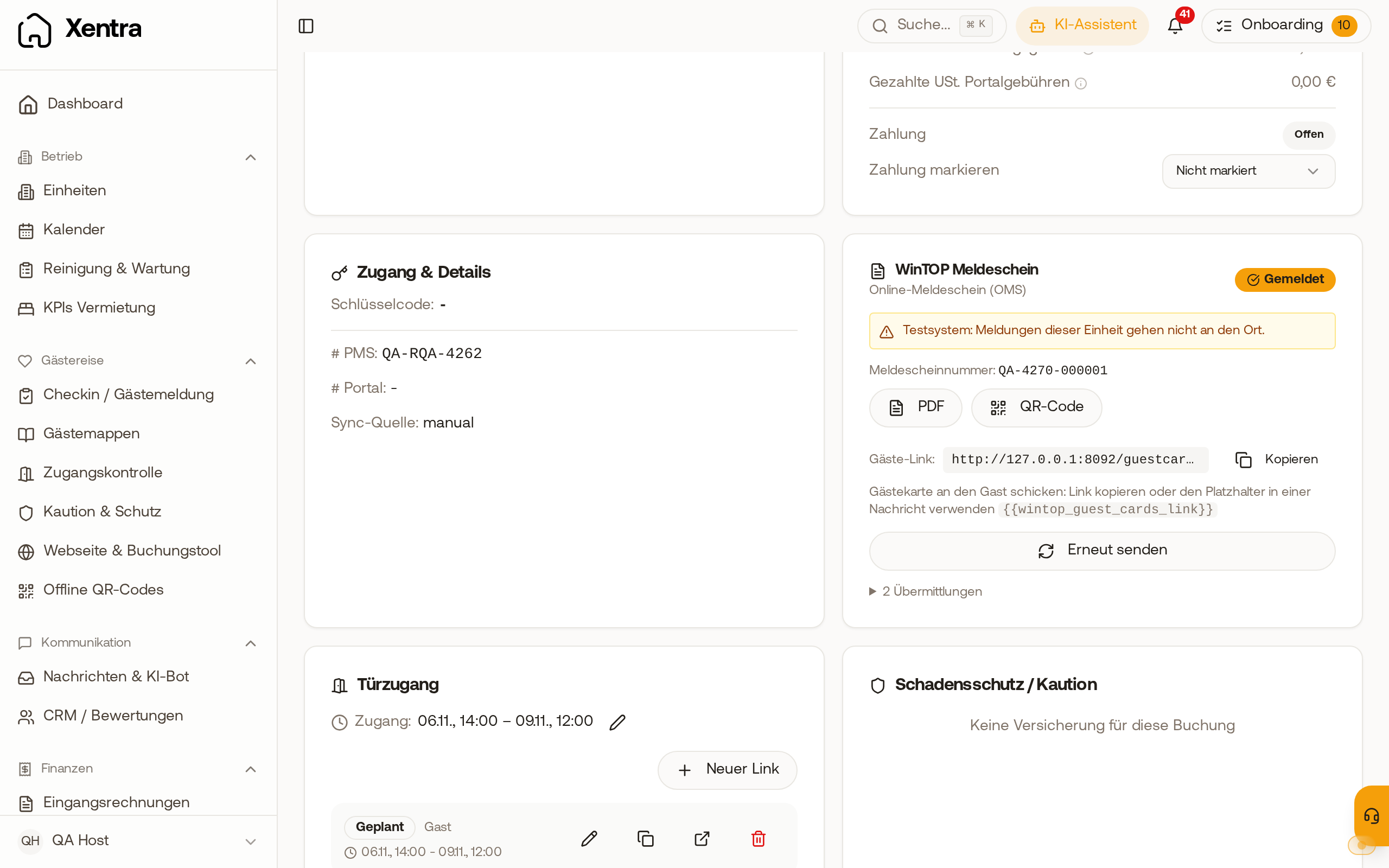 In the WinTOP Meldeschein card, copy the guest link or use the placeholder.
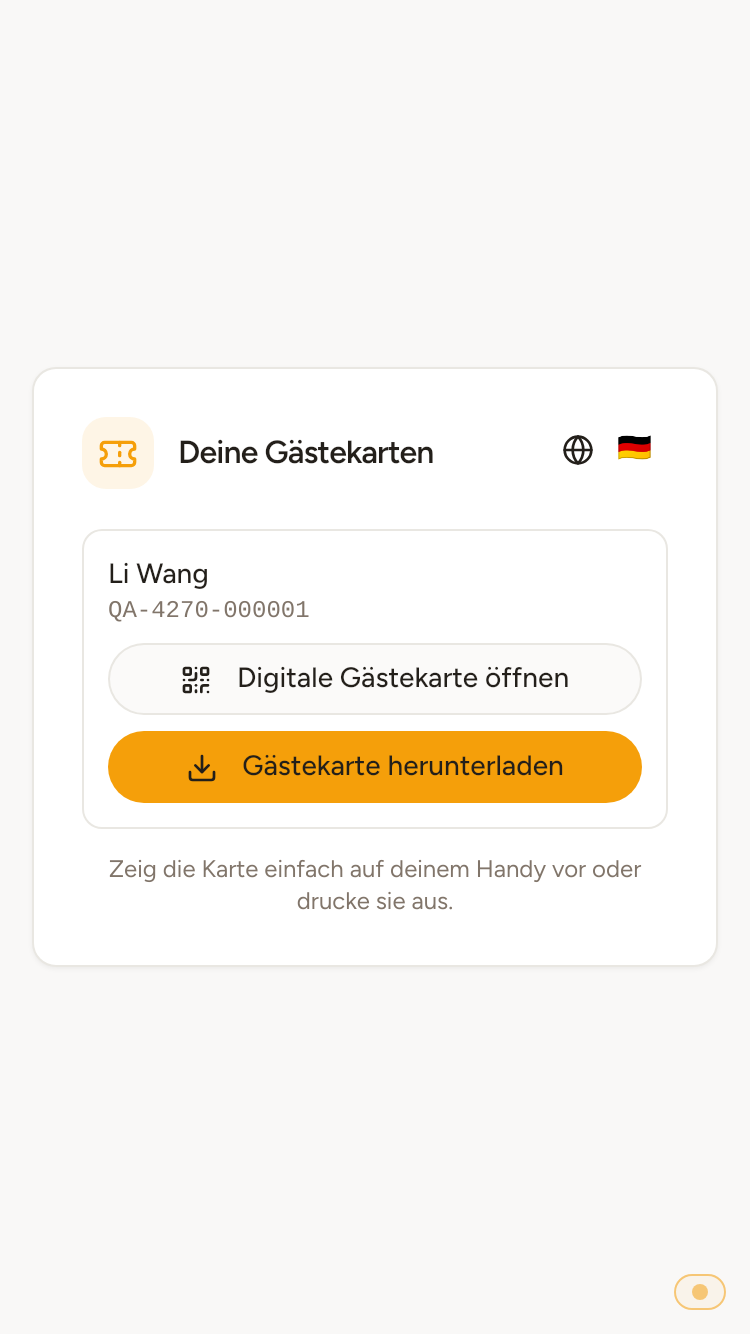 This is how the guest sees the page with their WinTOP guest card.
- If a reported booking is canceled, Xentra also cancels the guest registration form at WinTOP.
- Portals that you have excluded from authority reporting in the tourist tax settings are also not reported to WinTOP by Xentra. The booking then shows "No registration sent: This portal is excluded from official reporting."
Missing place of residence or registration form rejected
Add address, missing place of residence, and rejected guest registration forms: see WinTOP: Missing place of residence or registration form rejected.
Disconnect
Under Integrations, tab Guest registration, you can disconnect WinTOP. All units are unlinked, already submitted guest registration forms remain.