
AVS Direkt: Guest registration form, tourist tax, and digital guest card
How you set up AVS Direkt and use the guest registration form, tourist tax, and digital guest card, plus help with "Category invalid" and "Rate not found".
Updated on November 13, 2026
If your municipality uses AVS, Xentra sends the guest registration form from the online check-in directly to your tourist board, applies the tourist tax from the response, and ensures that your guests receive their digital guest card.
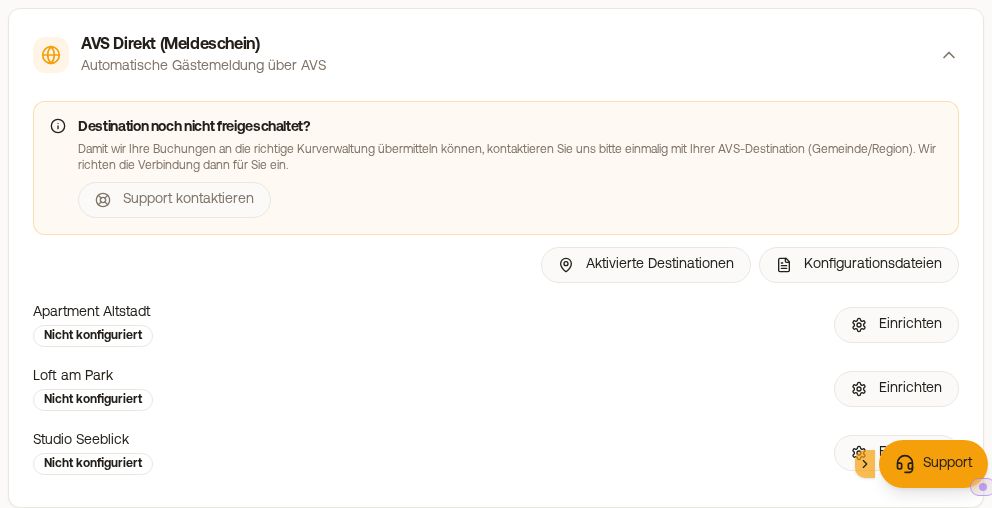 The AVS Direkt (guest registration form) card in the Guest registration tab
Set up
How you set up AVS Direkt (check municipality, upload tourist board PDF, assign units) is explained under Set up AVS Direkt: Check municipality, upload PDF, assign units.
For AVS units, the check-in automatically asks for gender, date of birth, nationality, country of residence, and address.
Tourist tax
The municipality calculates the amount via AVS from the guest categories, and the guest pays it during check-in. You do not maintain your own rates for this.
- The guest selects their category in the online check-in in the Travel details step, in the Registration category field for each person, including exemptions such as business trip, unless you turned them off under Categories from the tourist board. The category that matches the age is prefilled. In the Tourist tax step, they only see the amount per person; via Change registration category, they return to the travel details, and the municipality recalculates the tourist tax. If the tourist tax is already paid or you marked it as paid, the button does not appear.
- Show tourist tax only (no payment) in the unit's AVS card: The guest sees the amount for information only, nothing is collected.
- In the Tourist tax tab, open your configuration, Age Groups tab: Under Categories from the tourist board, you turn off what the guest should not select themselves, for example exemptions. You can still set any category yourself on the booking.
- There you also find the Default registration category: preselected when the age does not match any age category, usually "Adults". Never select a category that makes claims about the guest (business trip, exemption), only the guest specifies that themselves.
- Error "No registration category for ...": Every traveler needs a registration category. If someone has not selected one, their age (for example without date of birth) does not match any age category, and no Default registration category is set, the submission fails and the guest registration form is not sent to AVS. This happens, for example, with guests who checked in before AVS Direkt was set up. In that case, set the default registration category and click "Report to AVS" again in the booking, Online Check-in tab, in the AVS Direkt Registration Form card.
- General tab, Assessment basis for the AVS report: which amount goes to AVS as overnight stay fee (default: Net accommodation). Important only in places with a percentage tax; it has no effect with a fixed amount per person.
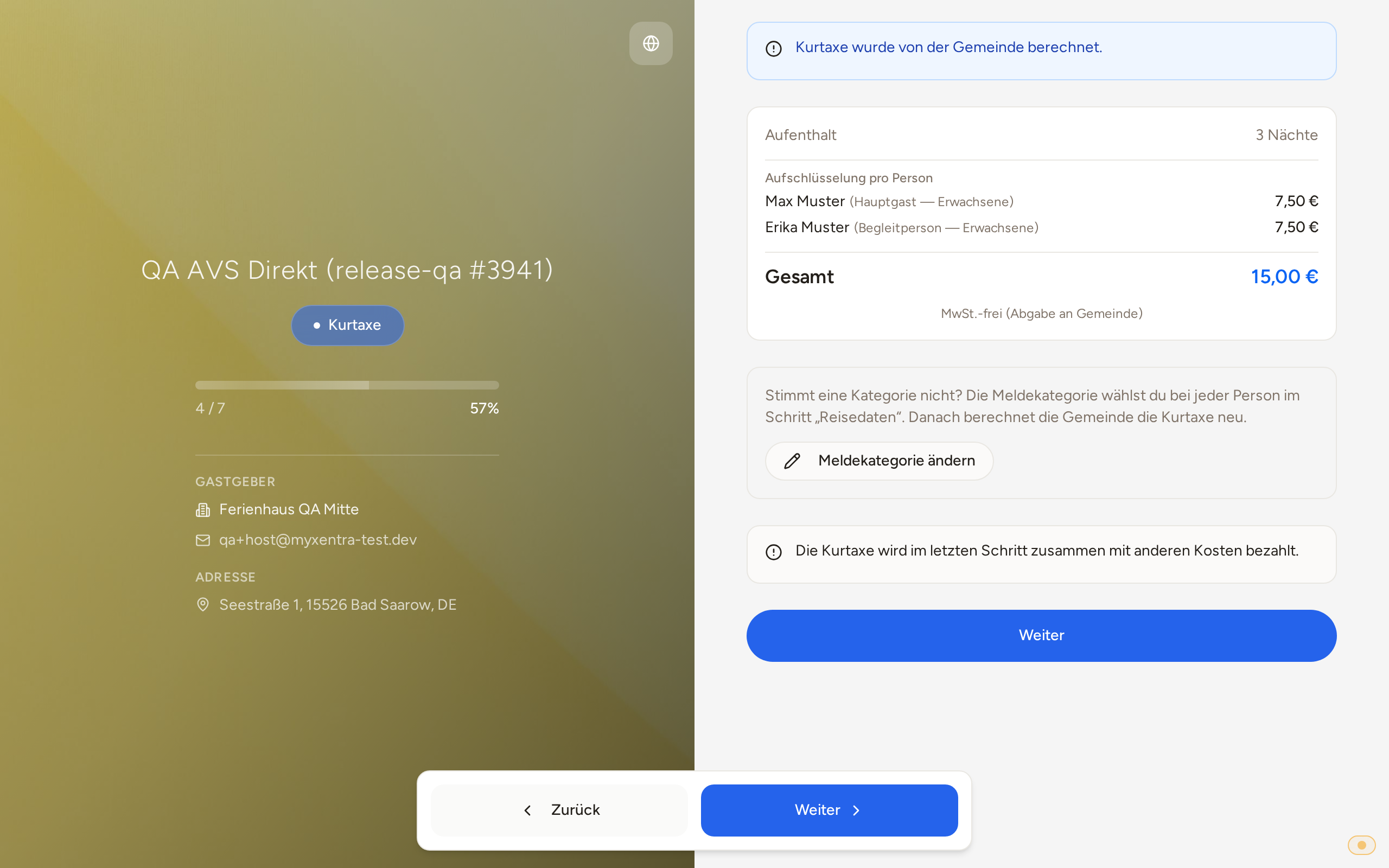 The Tourist tax step in online check-in: the tourist tax per person, calculated by the municipality, with "Change registration category"
Digital guest card
You do not have to send anything manually in AVS. When the guest submits the check-in, Xentra creates the guest registration form at AVS and finalizes it ("Filed (printed)"). During this, AVS immediately sends the digital guest card via email to the guest, to the address from the check-in, never to an anonymized portal address (…@guest.booking.com). If the guest does not enter an email address in the check-in, AVS cannot send a card. When the card arrives therefore depends on when the guest completes the check-in: If you want your guests to get their cards earlier, send the check-in invitation earlier. An unpaid tourist tax does not hold up the card.
- If the guest opens the check-in again without changing anything, Xentra does not resend anything so they do not receive the card multiple times. If something changes (name, dates, category, email), the guest registration form is sent out again along with the cards.
- More reliable than the AVS email, which could land in spam or go to a mistyped address, is a link from Xentra: Insert
{{avs_guest_cards_link}}(AVS guest cards) or{{avs_direkt_meldeschein_link}}into a message, for example with a "Receipt of guest data" automation. The guest registration form carries the same QR code as the guest card. For portal bookings, the message goes via portal chat; for direct bookings, via email. - No card for a unit: turn off the Digital guest card toggle for the unit.
Xentra saves the guest registration form upon finalization. After that, it remains accessible via the link and in the booking even after departure.
In the booking
In the Online Check-in tab, you find the AVS Direkt Registration Form card with registration form number, status, tourist tax, and the Guest cards section (copy guest link, Download PDF). There you also find Resend (AVS then sends the cards again), Add companion, and Cancel. If the guest registration form is set to "Created" instead of "Filed (printed)", Finalize now finalizes it.
Extend or move stay: If you change the arrival or departure of a booking (edit, Period card, save), Xentra automatically reports the new data to AVS. The guest registration form is modified under the same registration form number, not created anew, and the guest card is sent to the guest again with the updated data. If the tourist tax changes as a result and the guest has already paid, the difference appears in the booking under Payments, as "Tourist Tax Surcharge" or "Tourist Tax Credit". For bookings from Smoobu, Hostaway, or Guesty, the same happens as soon as the change arrives from there.
AVS rejects
What to do for "Category invalid!" or "Rate not found!" is explained under AVS rejects the guest registration form: Category invalid or rate not found.