
Set up AVS Direkt: Check municipality, upload PDF, assign units
In three steps to AVS Direkt: Check municipality and request activation, upload the PDF from the tourism office, and assign the properties to your units.
Updated on November 12, 2026
This is how you connect your accommodations with AVS so that Xentra automatically sends guest registration forms, tourist tax, and guest cards to your tourism office. How this works in everyday practice is explained under AVS Direkt: Guest registration form, tourist tax, and digital guest card.
Where you start
Checkin / Guest Registration, Guest registration tab, at AVS Direkt click Set up. Or under Integrations, Marketplace, open AVS Direkt and click Set up in Guest Registration. The page then shows only AVS Direkt with three steps. With Choose another connection you return to the selection.
1. Is your municipality activated in Xentra?
Xentra only reports to tourism offices that AVS has activated for us. Type your municipality into Search municipality, Xentra will tell you immediately whether it is activated. If it is missing, click Request activation: The support chat opens with pre-written text, you just send it. Activation can take up to 2 days. Team members without support chat see a notice instead of the button: Activation is requested by the account owner or a team admin.
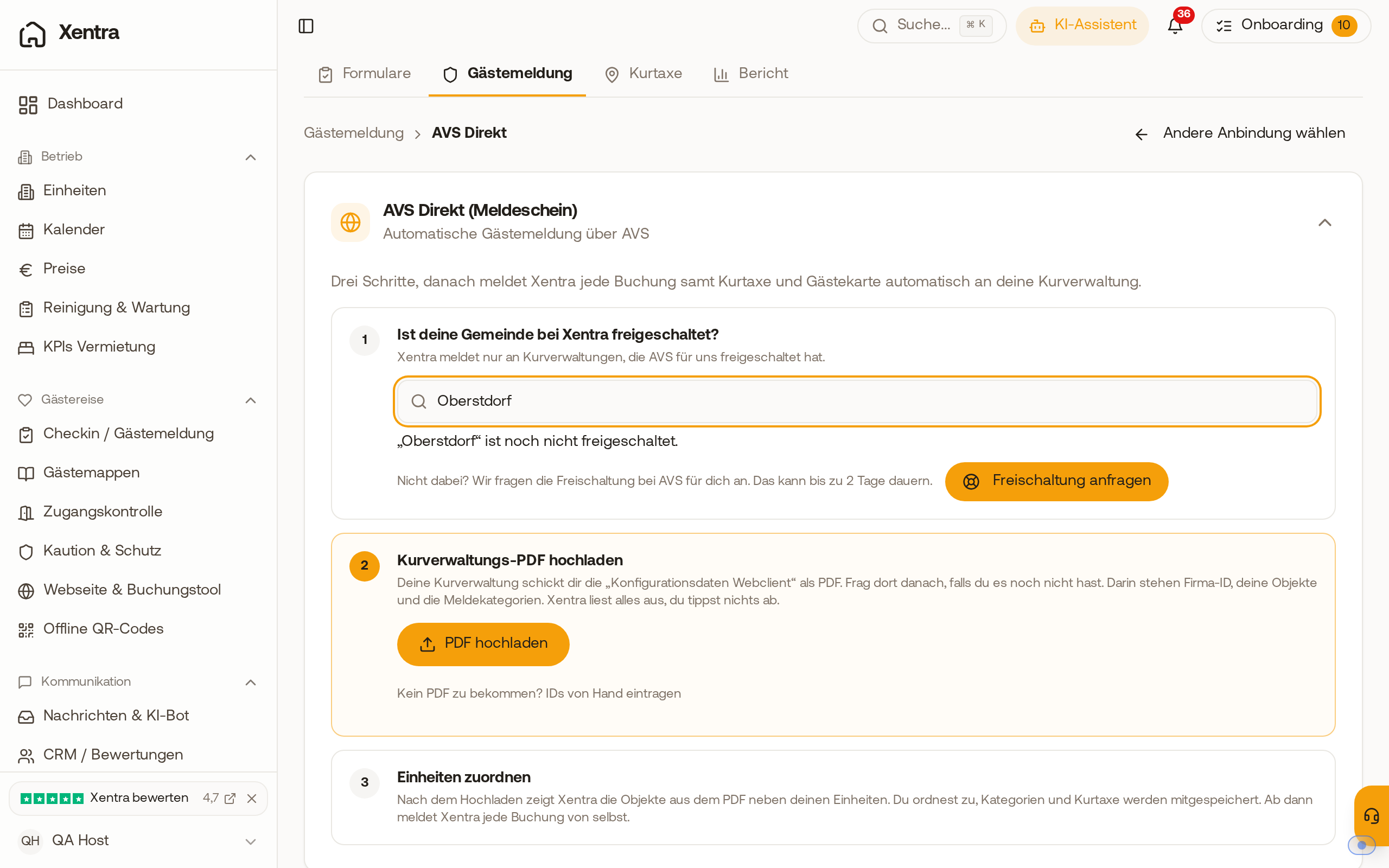 Set up AVS Direkt: The search shows that "Oberstdorf" is not yet activated, next to it "Request activation", below it step 2 with "Upload PDF".
2. Upload tourism office PDF
Your tourism office will send you the "Konfigurationsdaten Webclient" as a PDF. Ask them for it if you do not have it yet; your AVS credentials alone are not enough. With Upload PDF, Xentra extracts Company ID, your properties, and the registration categories, you do not type anything. You do not enter amounts for the tourist tax, the municipality calculates them via AVS.
Cannot get a PDF? Under Enter IDs manually your units appear. For each unit, click Set up, enter Tourism office ID (municipality), Company ID, and Property ID, and click Save & Activate.
3. Assign units
After uploading, Xentra shows the properties from the PDF next to your units. You assign them, categories and tourist tax are saved as well. An AVS property can be assigned to multiple units. From then on, Xentra reports every booking automatically.
When AVS is running
The header of the card shows how many of your accommodations are being reported for. There you will also find:
- Activated municipalities: which places are connected to Xentra; you can request a missing municipality there.
- Tourist office PDFs with the number of your uploaded PDFs: assign additional units later without uploading the PDF again.
- Upload another PDF, for example for a second property.
For a second guest registration, for example for another municipality with a different system or another country: Add another guest registration at the bottom of the page.