
Guest pages / Set up digital guest guide
Create guest guide, assign units, sections, languages, products and payment toggles, send link to guest.
Updated on November 12, 2026
Guest pages: the digital guest guide
A guest page (in the app also Guest guide) is a website for your guests with everything they need before and during their stay: arrival, Wi-Fi, house rules, tips, contact, and optionally additional services to book. Each booking automatically gets its own link, you do not have to create it yourself.
You can find it under Guest Journey → Guest pages (Open guest pages).
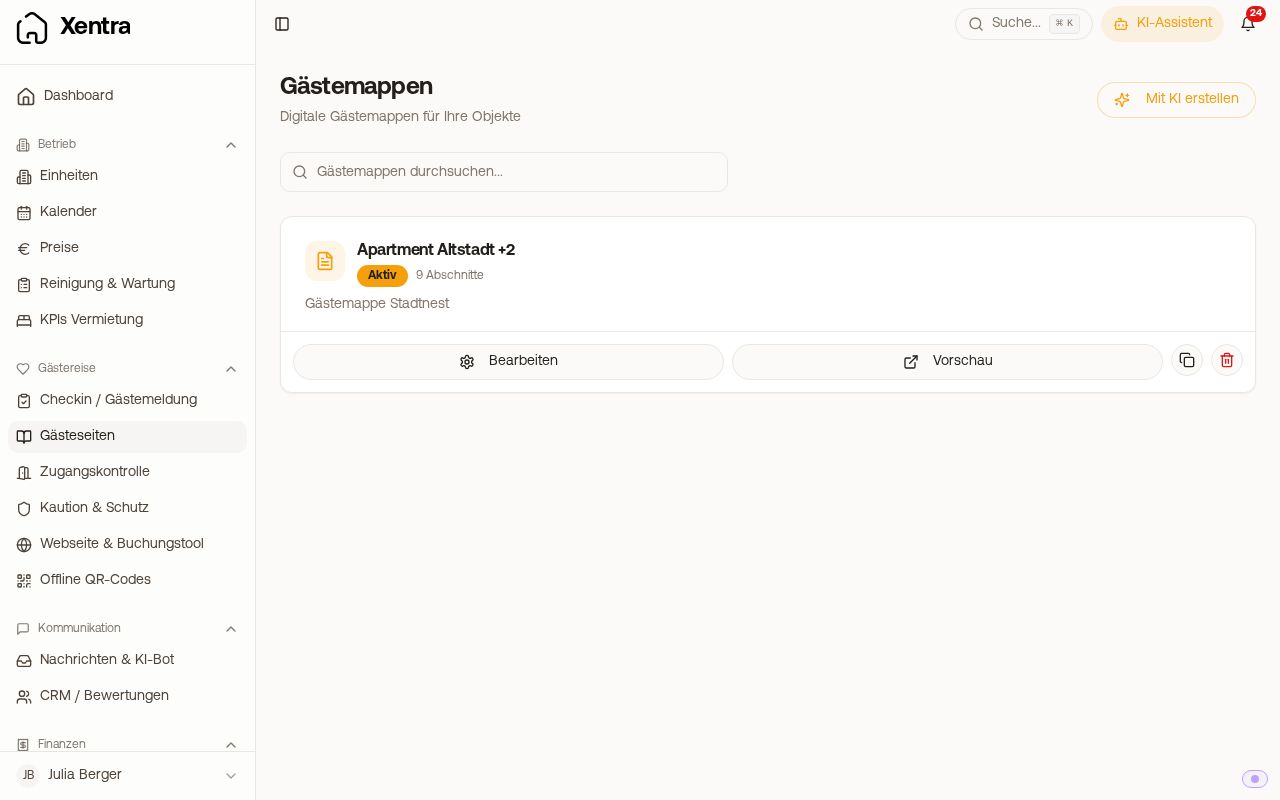 List of guest guides with an active guest guide for three units
Setup
- Guest Journey → Guest guides → New guest guide. Choose how you want to start: With the AI assistant (a few keywords are enough), From a template (the starter package, a template for your type of accommodation, or a copy of one of your guest guides, including a classic one: the copy gets the new appearance), Upload your documents (for example an old guest guide, your house rules, or photos; the AI builds your guest guide from it and takes over the photos from a PDF. PDF, Word, Excel, PowerPoint, OpenDocument, Text, Markdown, HTML, RTF, and images are read, up to 10 files with a maximum of 25 MB each. You export a guest guide from Notion or Canva as a PDF beforehand) or Blank. Then choose name and Assigned units and click Create. A new guest guide starts as a draft.
- In the Settings tab: Name and Active switch. A guest guide can apply to several units, but each unit belongs to exactly one guest guide. Without an assigned unit, no guest sees the page.
- Create and fill sections (see below). The editor has the tabs Content, Appearance, Languages, Shop, Settings, and Statistics.
- Check with Preview at the top right. It opens in a separate tab, at the top you select device, phase of the stay, language, booking, and whether the online check-in is confirmed. It shows the saved state.
- Send the link: In message templates and automations, insert the placeholder
{{digital_guestbook_link}}. It will be replaced for each booking by its own link. You can find the link of an individual booking at the top of the booking under Guest page.
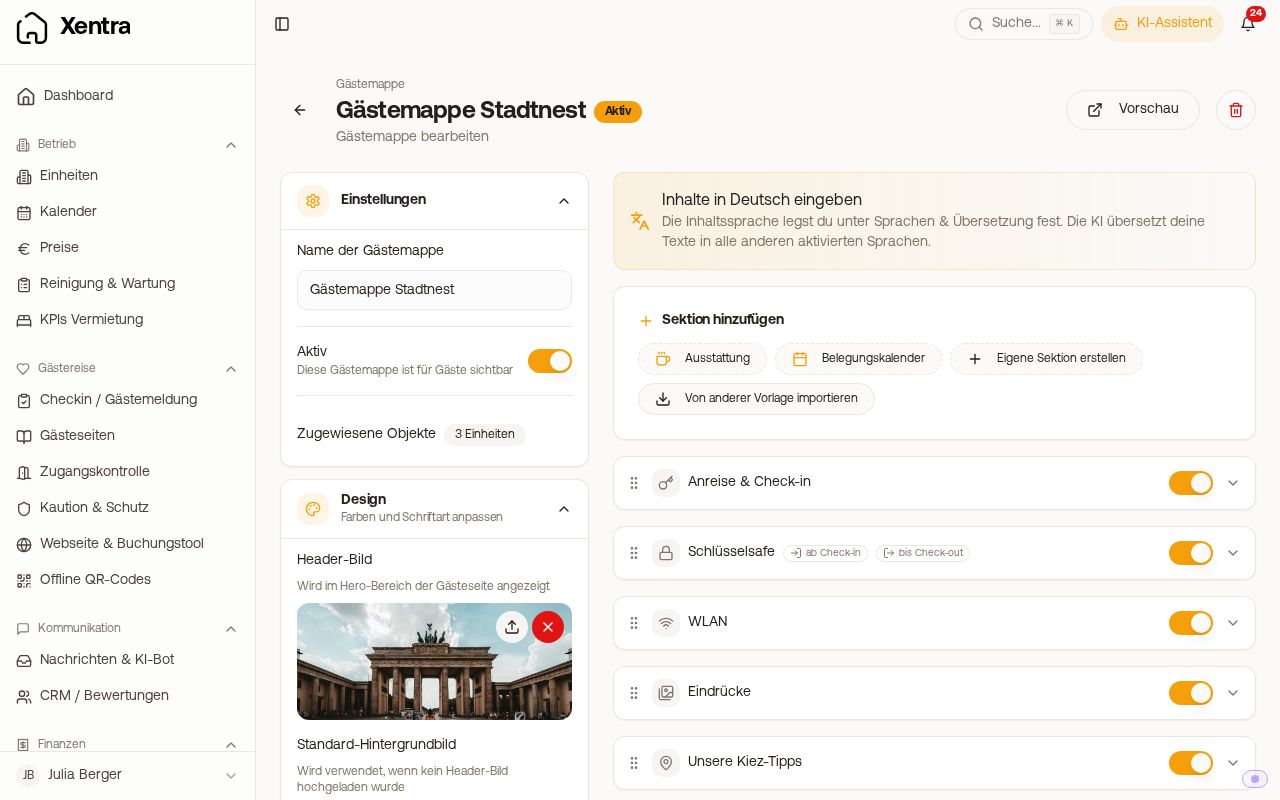 Guest guide editor: Settings and Appearance on the left, sections on the right
After online check-in, the guest can automatically be redirected to their guest page. You set this up in the check-in template (see Online Check-in).
Sections
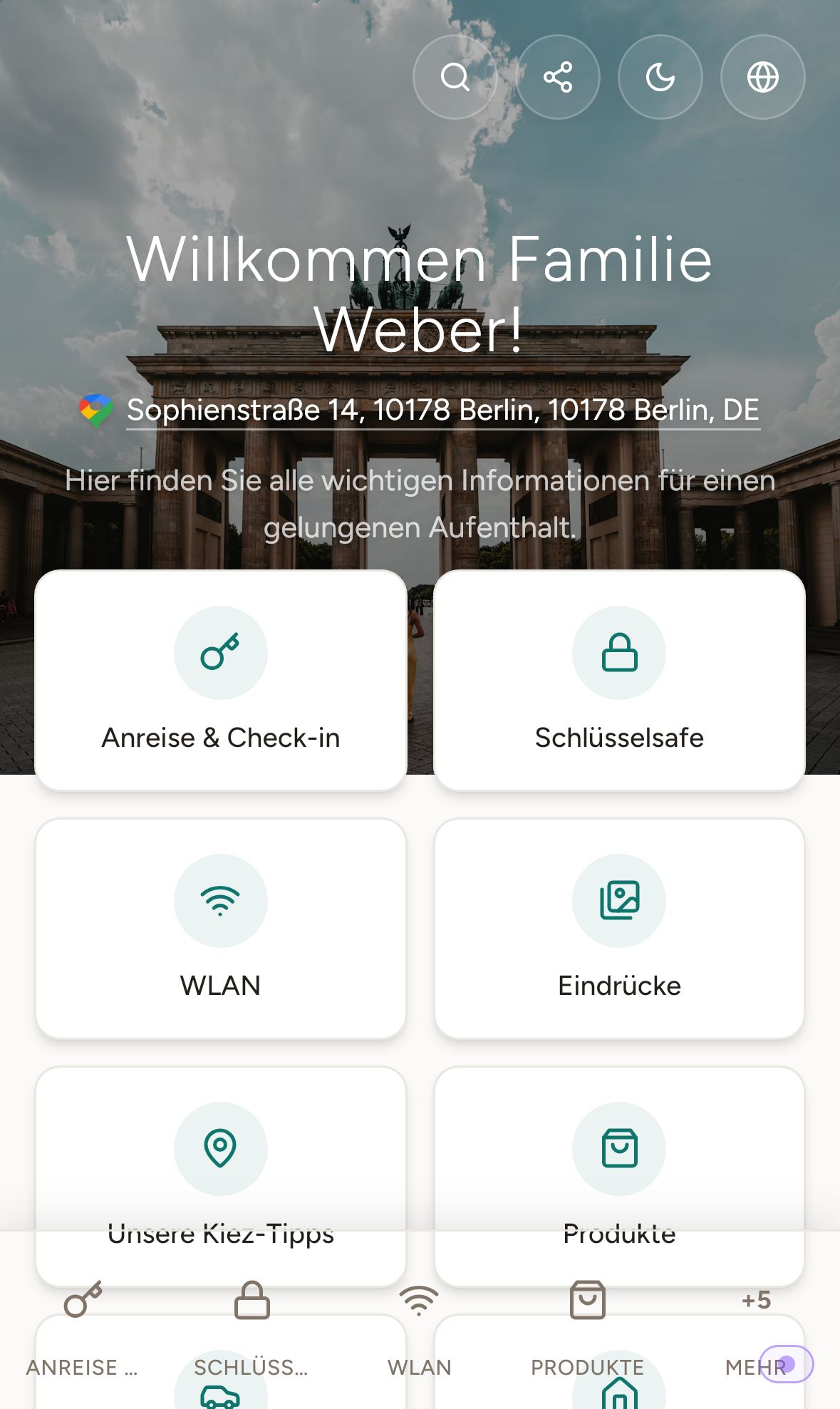 Guest page on mobile: welcome message, address, and overview of sections
Under Add Section, choose a Blank text block, a block such as Check-in, Wi-Fi, Check-out, FAQ, Emergency, Weather or Recommendations, ready-made questions, or a text template: see Guest guide: Check-in, Wi-Fi, Check-out, FAQ, Emergency, Weather, and Recommendations blocks. Import from Another Template imports sections from another guest guide. Via the menu of a section, copy it with Copy to another guest guide.
- Change order by dragging the handle on the left, show or hide each section individually with the switch.
- The text editor supports headings, lists, links, tables, images, and videos. You insert videos as a link from YouTube, Vimeo, or VideoPress. Do not upload PDFs and other files: link the shared PDF (for example from Google Drive) or insert the pages as images.
- Placeholders like
{{guest_first_name}},{{wifi_name}},{{wifi_password}}, or{{unit_address}}are filled with data for each guest. Custom fields of your units work too ({{unit.feldname}}). - For guests to open the door directly from the guest guide (Nuki, Ring, and other locks from access control), insert the placeholder Xentra Door Access (
{{entrance_link}}) in the section text via Placeholders. Each guest sees their own access link there, which is valid during the access period of their booking.{{key_code}}is intended only for units without a smart lock. - The AI menu of a text section rewrites or revises it: see Create guest guide with AI.
When a section is visible to the guest (for example the door code only on arrival day) is controlled per section: see Guest page: Show sections only upon arrival (visibility).
Above the sections in the new design, there are the fixed blocks Map and Your Arrival (steps before arrival, confirm mobile number and email): see Guest guide: the "Your Arrival" block and Guest guide: the top map (stay map).
Languages
In the Languages tab under Languages & Translation, you specify the content language and which languages guests see: German, English, French, Spanish, Italian, Dutch, and Polish. With Translations active, the AI translates your texts into all activated languages; in the Translation Center, you see per section and language whether the translation is ready. Whether the page addresses the guest formally or informally comes from your bot settings. This also applies to the greeting with first name at the top of the page; your sections address the guest the way you write them.
Messages from the guest guide
Upon request, we activate messages for a guest guide. Guests then write to you directly from the guest guide, the message lands in the inbox for the booking, and the guest sees your answer there.
More about the guest guide
Separate articles exist for: converting classic guest guide, statistics, offline and printing, check-out, questions for the guest, and placeholders in the guest guide. Products to book, "Your Purchases", and payment methods of the guest guide: see Guest guide: Products, purchases, and payment. Appearance, images, contact footer, and link preview in WhatsApp: see Design guest page: Appearance, images, and contact footer. The guest cannot open the link: see The guest page link does not work for the guest.