
Units: Master data, type and costs
The master data of a unit: Name, address, guests, bedrooms and beds, type, availability, running costs and description.
Updated on November 12, 2026
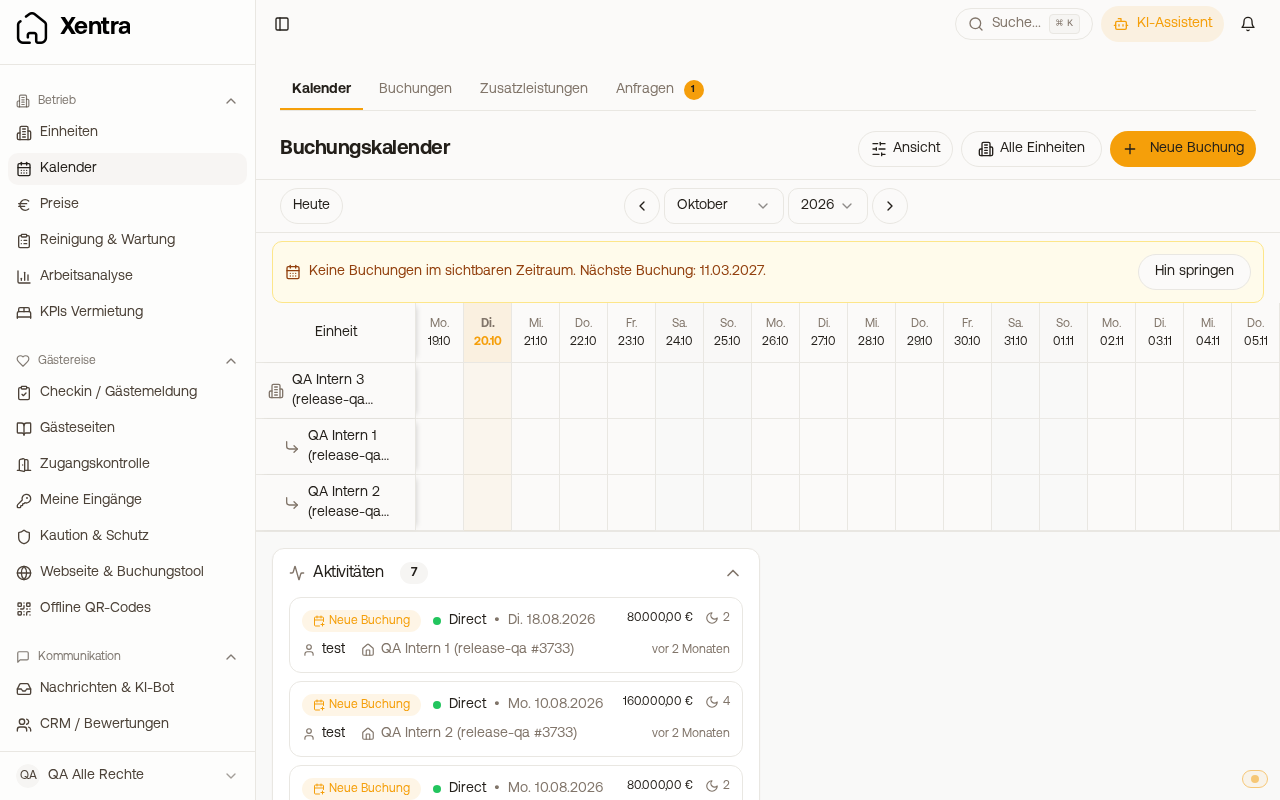
Under Units lies the master data of every property. At the top you search by name, location or internal name, filter by type or No channel, sort and switch between Grid and List. Each card shows channels, locks and what is happening today, for example "Occupied until Mon, Nov 9". Create a new one via Add unit. You set up a hotel with room categories there with Property type "Hotel / multiple units", see Setting up a hotel with room categories: Hotel, categories, rooms and sales.
A click on the card opens the page of the unit with the tabs Dates, Photos and description, Amenities, Finance, Access and Wi-Fi and Custom fields. As soon as you change something, Discard and Save appear at the bottom. The ⋮ menu of the card contains Open in calendar, Duplicate and Delete. After a confirmation prompt, Duplicate creates a new unit with description, amenities, address, size and capacity; photos, channels, locks, Wi-Fi and placeholders are not copied, and the new unit counts towards your subscription.
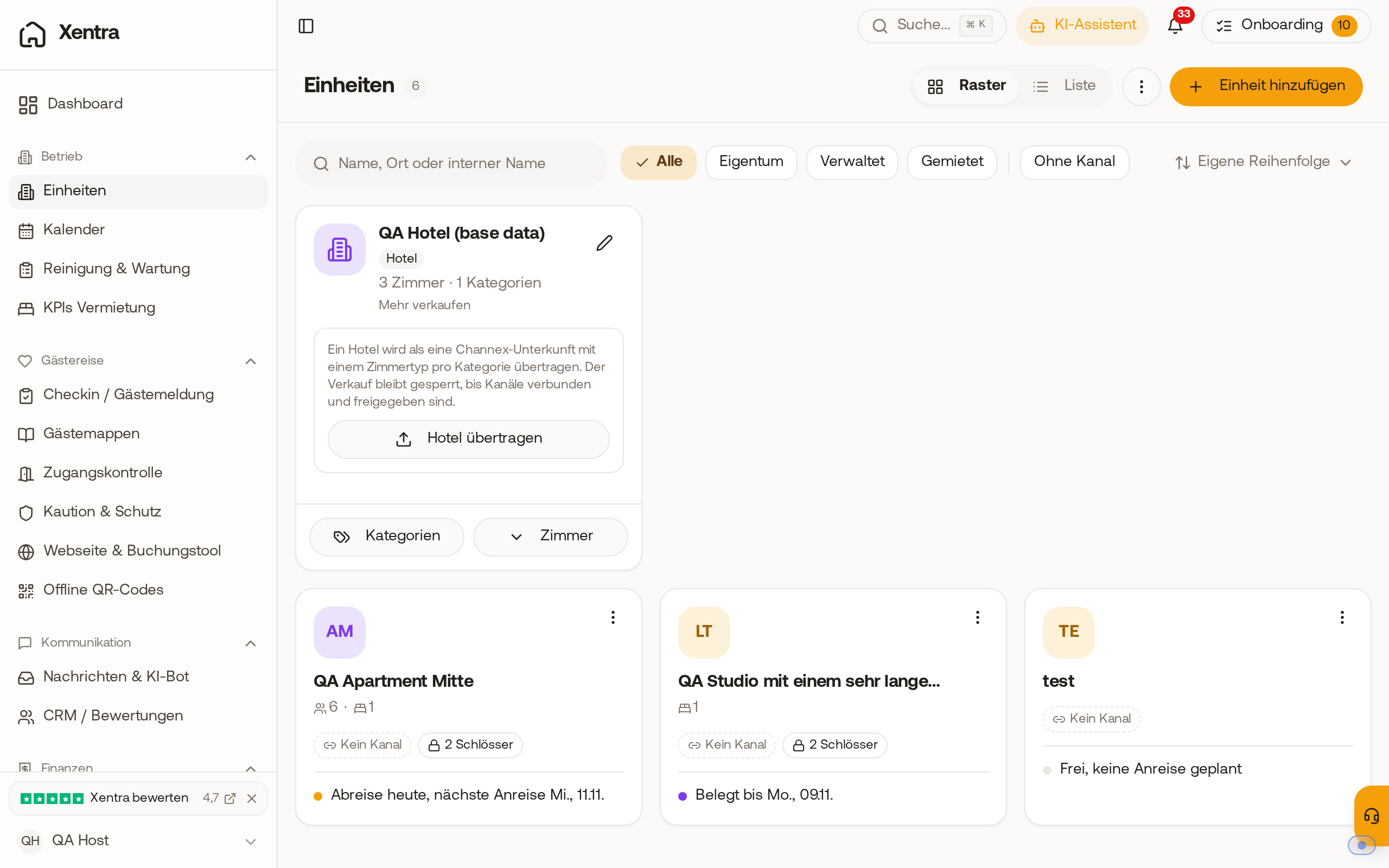 The units overview with search, filters and one card per unit.
Name and internal name
Guests see the Name, for example in the booking tool, on your website, in the guest guide and during online check-in. It is not continuously synced with Airbnb or Booking.com: A change in Xentra does not change your listing and vice versa. Only when importing an Airbnb listing does Xentra take over the name. If you rename a unit, existing bookings remain assigned to it. Via Translate all languages next to the field, you translate the name for guests in other languages.
The Internal Name is only for you and never appears to guests. Which name you see yourself in the calendar, booking list, filters, quote, price calendar, PriceLabs setup and under Cleaning & Maintenance (overview, cleaning calendar, tasks), you select at the top right under Settings, Display: Public Name, Internal Name or both. The display setting applies per login: Each team member can set it for themselves. If a team member has not chosen anything yet, they see the names as you set them for yourself. This also applies to your cleaners in My day, in the List and in the open task.
Address, guests, bedrooms and beds
The Address feeds the map in the Command Center, the location check of the access control and the placeholder {{unit_address}}.
Directly below Size (m²) are Max guests, Bedrooms, Beds and Bathroom. Guests see Max guests, Bedrooms and Beds on your direct booking page, and no more guests than the maximum number can book there. You enter bathrooms in half steps (for example 1.5 for a bathroom and a guest toilet); an empty field or 0 means "not specified". If you import a unit from Airbnb or from your PMS, Xentra takes over the number of bathrooms as long as you have not entered your own.
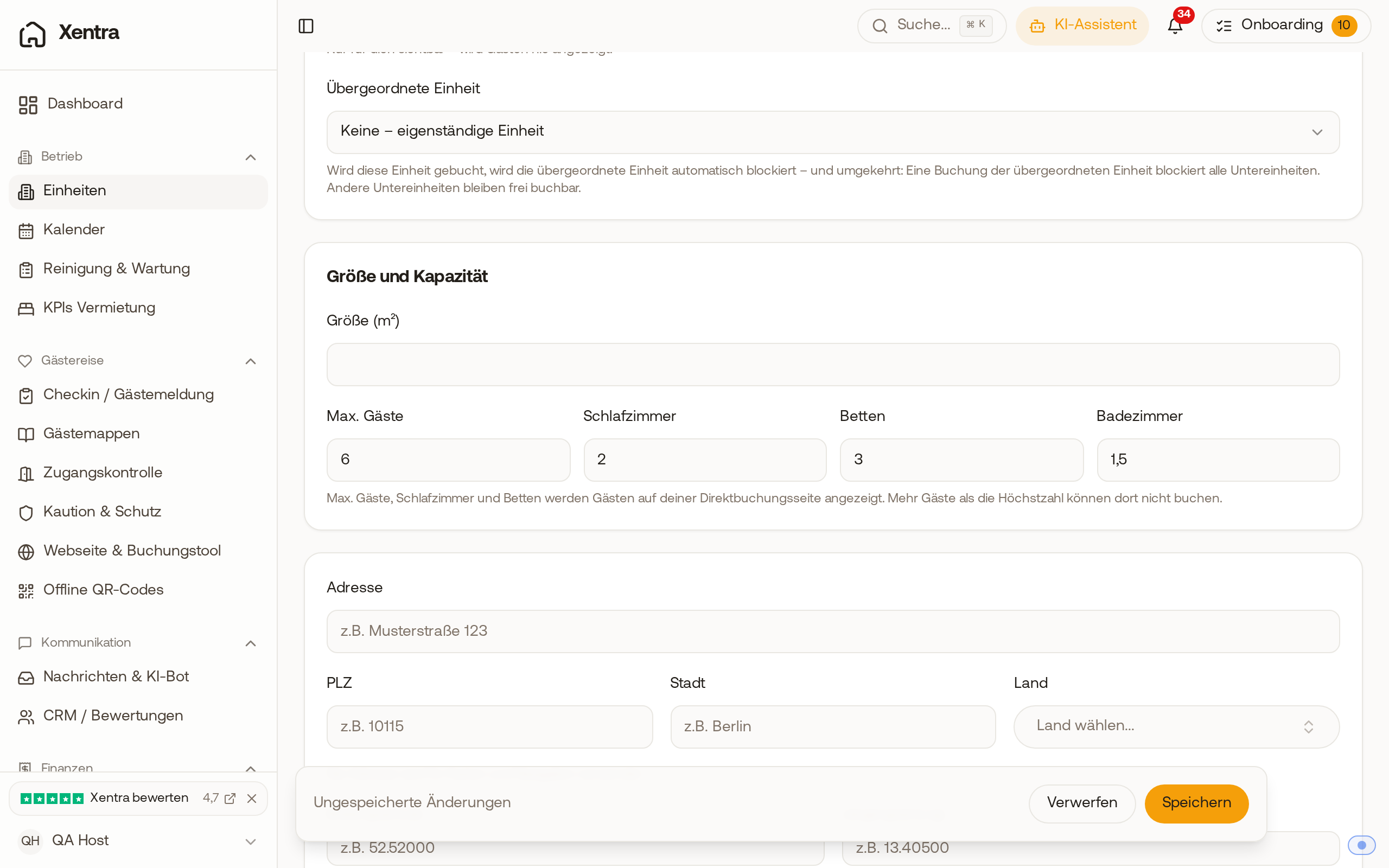 In the size and capacity area, Max guests, Bedrooms, Beds and Bathroom are next to each other. If you enter guests or beds, also specify the bedrooms. For a studio, enter 0 bedrooms. If you use PriceLabs, the number of bedrooms determines the comp set there. Max guests and Bedrooms are the same values as under Rates, Settings tab.
Type: Owned, Rented, Managed
In the Type field, you specify who owns the property. This only affects the financial evaluation, not bookings or guests; the type appears as a label on the card.
- Owned: The property belongs to you. With purchase price, building and land value, Xentra calculates the depreciation.
- Rented: You rent yourself and sublease. The monthly rent counts as an expense in the evaluation.
- Managed: You operate the property for an owner, without depreciation and rent. Owner and management commission are only displayed on the unit page, with the link Open Owners & Managers; they are maintained under Owners & Managers. In the evaluation, the full booking revenue of the unit still counts.
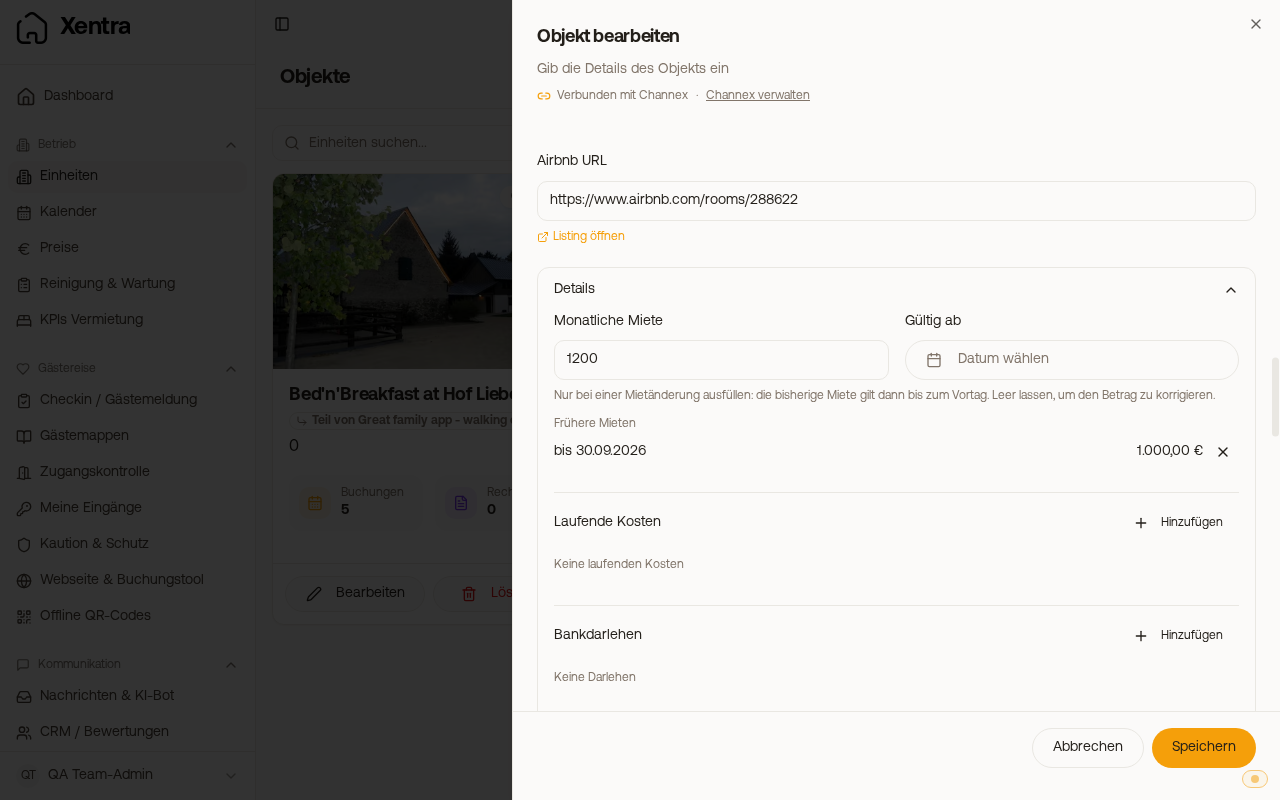
Change rent with "Valid from"
For a rented unit, the Finance tab shows the Monthly Rent and next to it Valid from. If your rent changes, you enter the new amount and select the first day from which it applies under Valid from. The previous rent then applies until the day before and is listed under Previous rents after saving. Cash-basis accounting, financial analysis and KPIs calculate each period with the rent that applied at that time: An increase starting in October does not change your numbers for January to September. If you leave Valid from empty, you only correct the amount, and it applies to all periods. You remove an incorrect previous rent via the X next to it and save.
 Units: Master data, type and costs
Order in the calendar
You determine the order in which the units appear below each other in the calendar: Units, top right menu ⋮, Sort calendar, then drag the units into the desired order. This applies to your entire account; team members do not see this option. The price calendar under Rates also shows the units in this order, on mobile devices the unit selection at the top. Your booking tool also uses the same order: In the Property dropdown and in the list of properties, hotels, room categories and units appear just as in the calendar, identical on every page load.
Since when a unit has been rented out
In the Dates tab, section Availability Period, you enter Available From and Available Until, for example the opening. The occupancy rate in the key metrics calculates from this date; if empty, from the first arrival of the unit.
Running costs and bank loans
The Finance tab also includes Running Costs and Bank Loan (only after the unit has been saved once). You create new ones via Add, edit and delete them via the pencil and trash icons. For running costs, under Applies to you select: This unit, All units, Selected units (location) or a Location group; for multiple units, the amount is distributed evenly, and a unit added to the group later is automatically included.
Description in multiple languages
You write the description for the booking page and website in the "Description (for booking widget)" field, optionally using Generate with AI. For other languages, click "Translate all languages"; the translation is only saved with the unit. If you change the text later, translate again.
Further articles on units
- Custom placeholders and Wi-Fi: Custom placeholders and Wi-Fi data of units
- Groups and sub-units: Location groups (property groups) and sub-units
- Import Airbnb listings: Import Airbnb listings: via channel connection
- Delete: Remove unit: Deleting and unlinking from Xentra