
Set up notifications: push, email, and bell
Which notifications arrive via push, email, and bell, how you filter by source and unit, and what to do if nothing arrives.
Updated on November 9, 2026
You set up all notifications for your account in one place: at the bottom left on your name, Notifications, or Settings, Notifications.
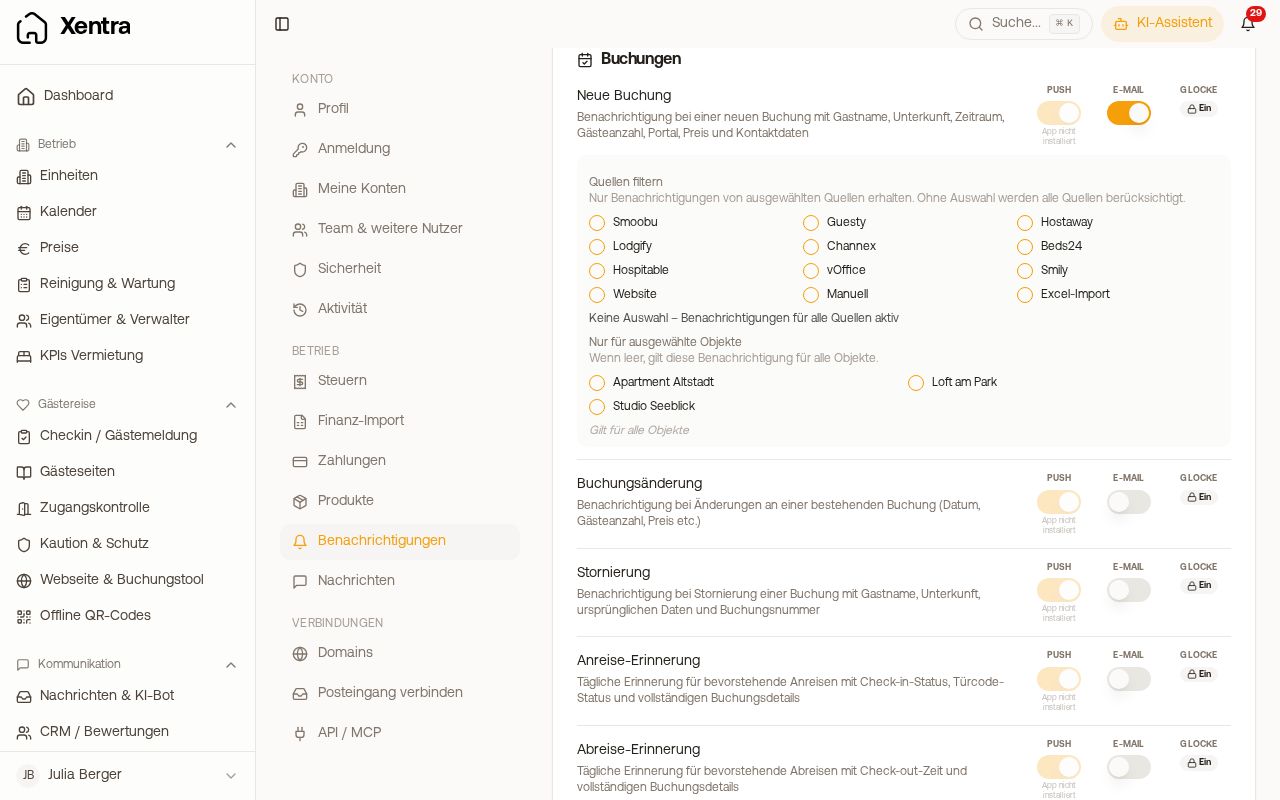 Settings, notifications with push, email, and bell per row
Three ways, one row
Each notification has one row with three columns:
- Push to your phone only comes via the installed Xentra app (App Store or Play Store), even if the app is closed. Requirement: log in once in the app and allow notifications, per device. At the top in the Connected apps card, you can see if your iOS or Android app is connected to the account. There are no push notifications in the browser.
- Email to the addresses from the Email recipients card (see below).
- Bell at the top right in Xentra. For most notifications, it is always on and cannot be turned off (display "On" with lock). Exceptions are the three notifications that you turn on yourself (see below): there, the bell arrives as soon as push or email is on. And for Cleaning & maintenance, the bell is a separate toggle (see below).
The sections: Support (reply from Xentra Support), Bookings (new booking, booking change, cancellation, time overlap during guest turnover, arrival and departure reminder), Messages (new guest message, unsent or undelivered message, unassigned email or guest message, bot handed over, conflict with check-in/check-out times), Check-in (submission, identity verified, payment, tourist tax payment failed, Deposits, tourist tax exemption, extra services booked, Extra service requests, booking and booking request via the booking tool), Invoices (guest invoice sent, invoice paid, Guest invoice problems), Cleaning & maintenance, and Notices & system (Notices and warnings: automation failed, webhook disabled, AVS municipality active, team invitations). Every message that comes as a push has its own row where you turn off its push. For Deposits, Guest invoice problems, and Notices and warnings, there is no email; the bell always stays on. For Extra service requests, bell and push only arrive if email is also turned on. The toggle Guest message received applies to all push notifications for guest messages. At the very top, you also turn Product updates on or off: the toggle applies to email as well as push notifications for updates and event reminders. Anyone who unsubscribes via the link in a product email will also no longer receive these push notifications.
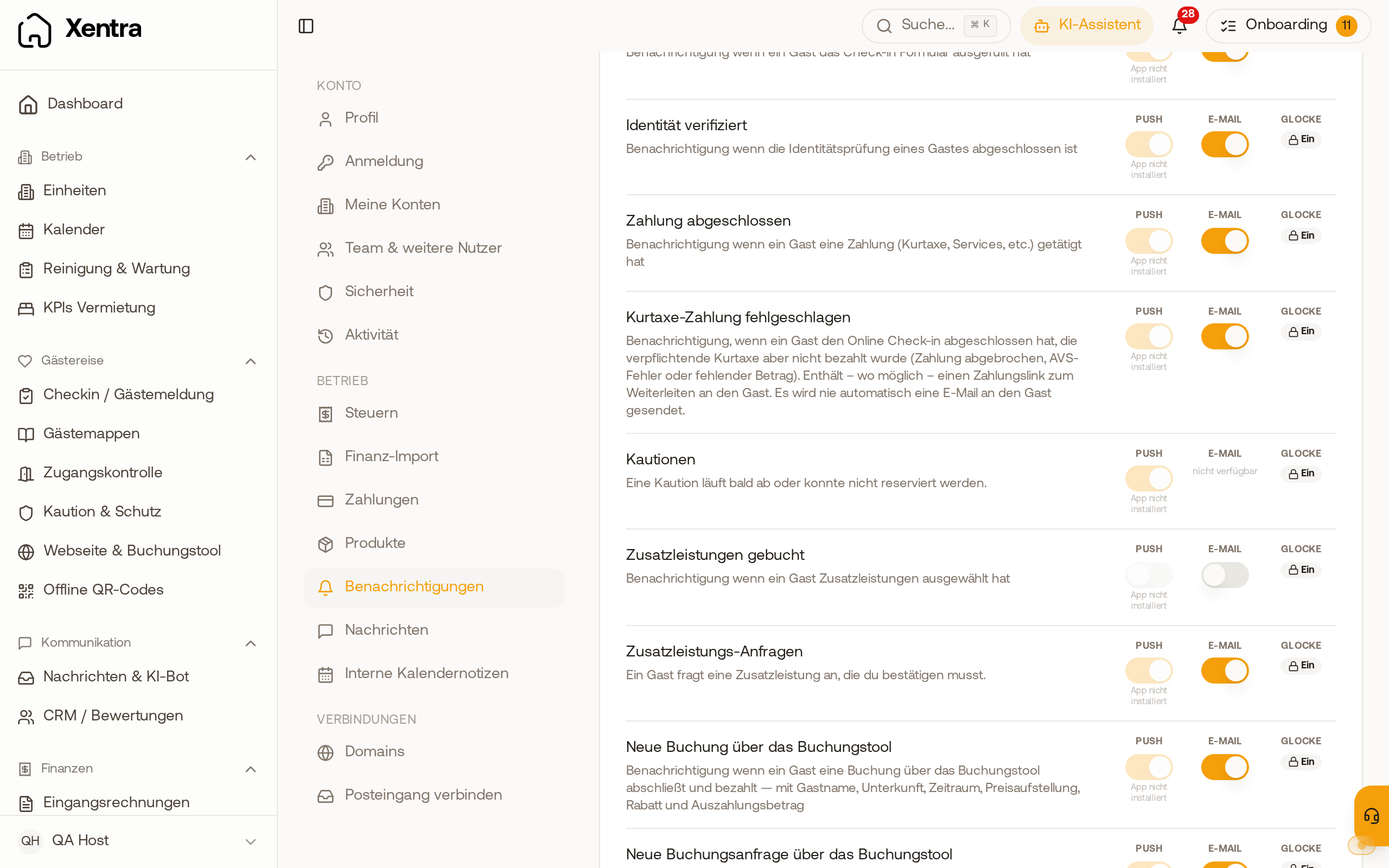 Under Check-in, the rows Deposits and Extra service requests are now also listed, each with its own push toggle.
Filters: only specific sources or units
For booking notifications and some other rows, you can restrict once email is turned on:
- Filter sources: only bookings from specific sources, for example Channex, Smoobu, Website, or Manual. Without selection, all apply.
- Only for selected properties: only specific units. Empty applies to all.
What is turned on by default
Most notifications are turned on. "Message could not be sent", "Message did not arrive", and "Unassigned email" are off; as long as you do not turn them on, nothing arrives for them, not even in the bell. You turn push and email on separately there: push only, email only, or both. If both are off, the bell shows "Off".
Which addresses the emails go to
By default, to the email address of your account. In the Email recipients card at the very bottom:
- Turn off the Use account email toggle if the account address should no longer receive anything,
- enter any number of additional addresses under Additional email addresses.
These addresses receive all enabled email notifications, except support replies, which only go to your account. There is no separate address for each notification type.
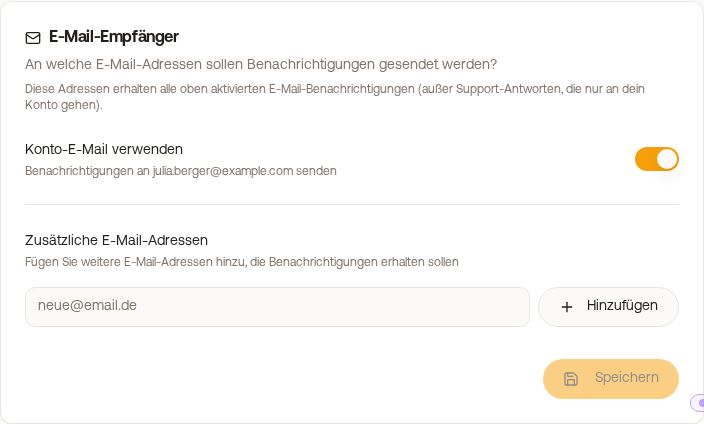 Email recipients card with additional addresses
What is in the booking emails
Emails about bookings show dates in plain text ("Arrival: 02.09.2026"), dogs in the guest count (only if one was booked), and the stay ("Stay: 02.10.2026 → 05.10.2026 (3 nights)"). A Booking request arrives as its own email "New booking request" with the button "View request"; only the confirmed booking arrives as "New booking". The email arrives in the language of your active template, otherwise in German.
Cleaning & maintenance: everything in one place
What you learn about tasks yourself is set up here, in the Cleaning & maintenance section: Taken or put back, Decline, Task completed, Nobody available, and Cleaning day-ahead, each with push, email, and bell. The Bell is the main toggle there: if it is off, nothing arrives for this event, not even an email (for taken and completed, push then only comes in special cases). For example, to get only push and no email for Task completed: bell on, push on, email off. Decline is only available if task acceptance is turned on. If it is off, this row shows dashes instead of toggles, and Turn on acceptance takes you to the setting under Cleaning & maintenance, Assignment. Under Cleaning & maintenance, Settings, Notifications, a link leads directly here.
All sections are collapsed; the header shows how many notifications arrive via push, email, and bell (for example "Push 2 · Email 1"). A click expands it. The filters for sources and properties are collapsed into one line ("Filter: all sources · all properties"), Customize opens them.
What is shown in bell and push
Notifications about a booking, for example new booking, booking request, online check-in, cancellation, booking change, payment at check-in, or guest invoice sent, end in the bell and push with the stay: "Anna Schmidt - Loft · 11.01.2027 → 14.01.2027". This way you see which booking it is without clicking. Notifications about tasks, for example "New task assigned", state the day of the task at the end ("· 28.10.2026"). The date is formatted in the language of the recipient: in German and Polish 11.01.2027, in English, French, Italian, and Spanish 11/01/2027. There is no setting for this.
Bot handoff and paid invoices
- Bot handed over: If the AI bot hands over a conversation to you, the notification arrives in the bell, by email, and via app push. A click on the notification in the bell or on "Reply" in the email opens the conversation in the inbox. You can see the bot draft directly above the input field as Bot Suggestion: with "Apply" you bring it into the input field, customize it if needed, and send it.
- Invoice paid: If a guest pays an invoice via the payment link, you receive a notification; for a partial payment with an open remaining balance, for SEPA direct debit first "debit in progress" and then a second one when the money arrives.
If nothing arrives
- No emails: Is the Email column in the row turned on? Are the addresses under Email recipients correct? Is a source or property filter set that excludes the booking?
- No push: Is the Xentra app installed on the device, are you logged in there, and have you allowed notifications? The Connected apps card shows it.
Guest messages (translation, stay in title, summarizing): see Notifications for guest messages. Notifications for your team: see Notifications for team members.