
Location groups (property groups) and sub-units
Bundle units into location groups for FAQs, templates, automations, team, and filters, and create sub-units with linked availability.
Updated on November 12, 2026
Location groups (property groups)
A location group bundles multiple units that belong together, typically the apartments of a building. They are created and maintained under Units, top right Settings, Location groups.
Location group and "property group" are the same. The interface uses both words. The name of the group also fills the placeholder
{{property_name}}("building the apartment belongs to").
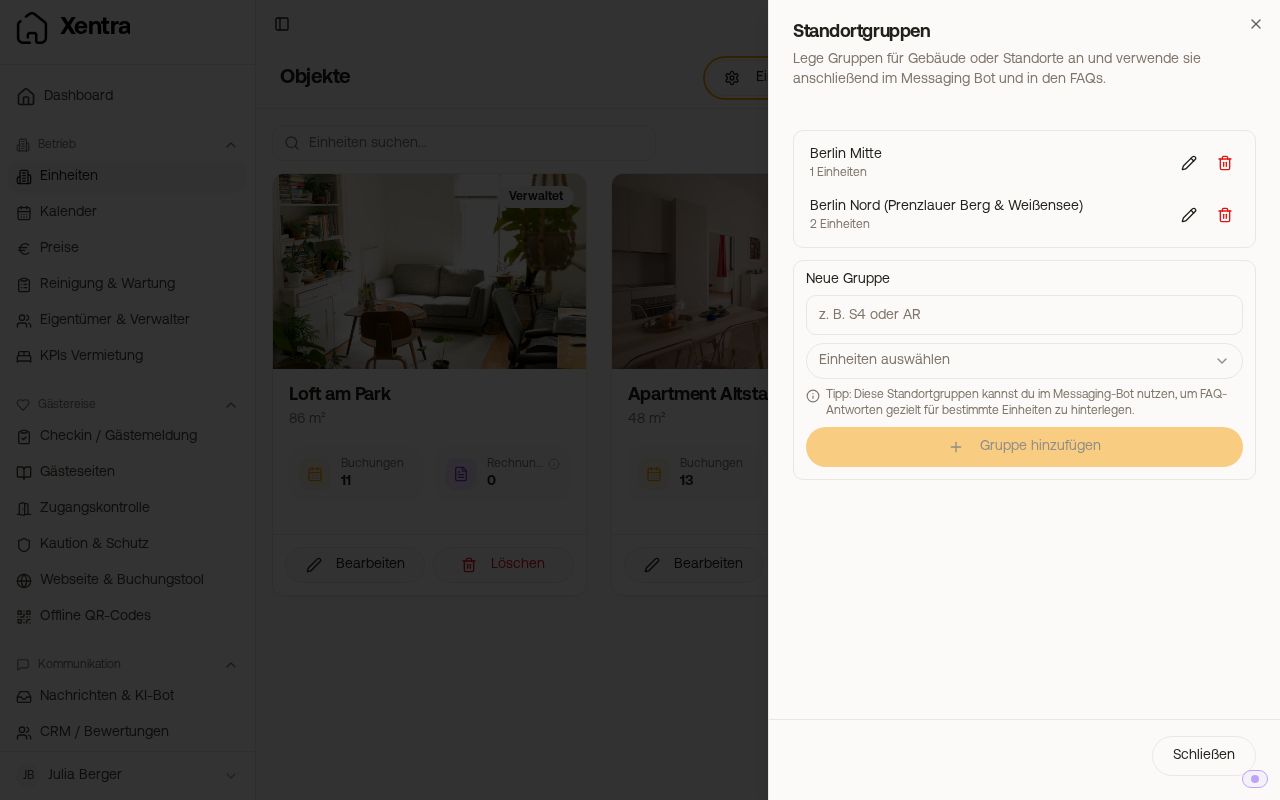 Location groups dialog with groups and assigned units
Assigning units to a group
The assignment happens in the group, not in the unit. In the master data of a unit, there is no field "Location group".
- Open Units, top right Settings, Location groups.
- New group: enter the name in the "New group" section, check the apartments in the Select units field, and click Add group.
- Change existing group: click the pencil icon next to the group in the list (the row itself is not clickable). The form changes to "Edit group"; check the apartments there.
- Save.
A group can be created and still be empty. As long as there is no unit in it, it has no effect anywhere.
What you need them for
Instead of checking the same apartments individually for every setting, you select the group. If a unit is added to the building, you add it to the group, and it inherits everything attached to the group.
- Bot FAQs: one answer for all units in the building. Units selected via a group appear dashed in the picker.
- Message templates and automations: narrow down by group.
- Team members: give a cleaner access to entire location groups; new units in the group are added automatically.
- Filters: in the calendar, in rental KPIs, and in financial analysis, you select an entire group in the unit filter. Under Cleaning & Maintenance, Planning, List, Filter, Unit you can do the same; you can also check individual apartments.
- Running costs: under Units, Edit property, Running costs, Applies to: Location group. The amount is distributed equally among the units in the group.
- Invoice series: at the invoice sender under "Assigned properties", you check an entire group at once (Invoice settings, "Invoice series" section). The individual properties are saved; if an apartment is added later, you check it additionally at the sender.
Sub-units: linked availability
The sub-unit is different from this. With it, you represent that a large unit consists of smaller ones: the whole house and the individual apartments, or a suite and its single rooms.
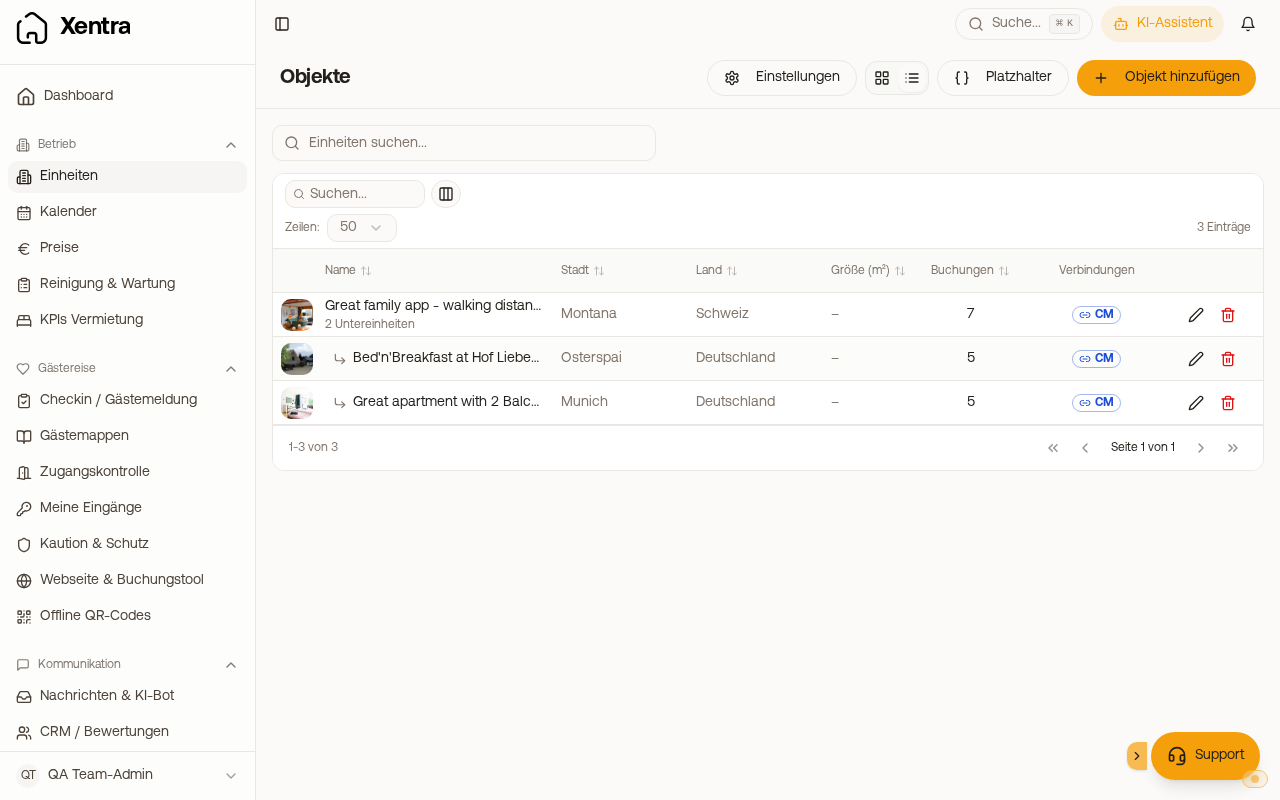
How to create them: open the smaller unit (Units, Edit property) and select the large unit in the Parent unit field. The tiles then display "Part of ..." or "2 sub-units". In the list view under Units, the sub-units are located directly under their parent unit, indented with a small arrow, and the parent unit shows "2 sub-units" under its name. If you sort the list by a column or search in the table, "Part of ..." appears under each sub-unit instead. On mobile, this line is always under the name.
What happens: If a sub-unit is booked, the parent unit is automatically blocked, and a booking of the parent unit blocks all sub-units. The other sub-units remain freely bookable. In the calendar, such a block appears with the note "Blocked by a booking in a sub-unit". Sub-units always appear directly under their parent unit in the calendar, even if you change the order under Settings, Sort calendar.
Two rules
- A unit that has sub-units itself cannot additionally be subordinate to another unit. Two levels, not three.
- Linked availability does not replace mapping in the channel manager: every unit you want to sell needs its own listing or portal room (Channel Manager, Units view, on the unit "Room and rate mapping").
Combined listing from two apartments
If you also rent out two apartments together as one listing (for example, a suite consisting of a studio and an apartment), you create the combined listing as a parent unit and assign both apartments as sub-units. Then a combined booking blocks both apartments, and a single booking blocks the combined listing.
In reports, a booking counts towards the unit it is on: revenue and nights of a combined booking are listed with the combined listing, not proportionally with the apartments. In occupancy, the combined listing counts as its own unit. For the total, you select both apartments and the combined listing in the unit filter under Rental KPIs.