
Custom Placeholders and Wi-Fi Data for Units
Create custom fields for each unit, use them as {{unit.feldname}}, maintain a placeholder for all units, and store your WiFi name and password.
Updated on November 10, 2026
With custom placeholders, you save details that differ by apartment, such as parking instructions, directions, or trash collection days, and use them in a single template for all units.
Create Custom Fields
You define a field once for your whole account (name and label): Units, edit a unit, Custom fields section, Add field. After that, it appears on every unit to be filled in.
You can use the values in messages, automations, and guest guides as {{unit.<feldname>}}, for example:
{{unit.parkhinweis}}
If a field is empty for a unit, the space remains empty when sending. How to use, translate, and apply these fields in messages for multiple rooms is explained under Custom Fields as Placeholders in Messages.
Remove a field: Units, edit a unit, Custom fields section, click the X on the right side of the field, and confirm. The field disappears from all units at once; removing it for individual units is not possible. Check beforehand whether {{unit.<feldname>}} is still used in a template or guest guide: without the field, the space remains empty when sending.
Maintain a Placeholder for All Units at Once
The values always belong to a unit; there is no input at the location group level. However, you do not have to enter them unit by unit:
- Units, click Placeholders at the top. You see all custom placeholders and, for each one, how many units are still missing it ("missing in 3 out of 13").
- Click a placeholder. Each unit has its own field, empty ones are highlighted; with Empty only, you only see those.
- For the same value across multiple units, check the units (or Select all, or pick a location group via Select a group), enter the value, and click Apply.
- If you modified translated texts, click Translate before saving. Then Save.
You can reach the same section in the unit editor under "Custom fields" via Edit for all units.
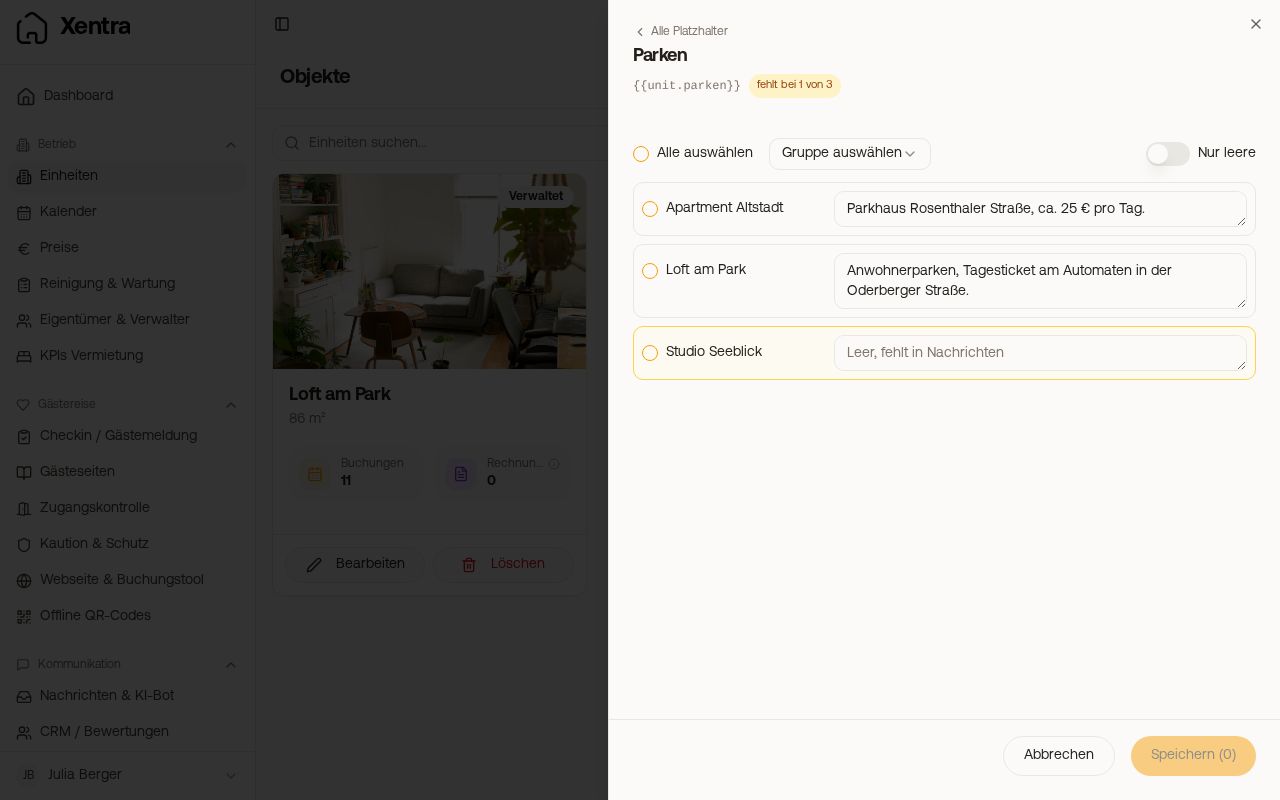 "Placeholders" section with values per unit
Different Contact Details for Individual Units
The Guest-Facing Contact Details (Go to settings, Profile section) apply to your entire account, meaning {{host_phone}} and {{host_email}} in all messages and guest guides. A separate contact person per unit does not exist there. If you need this, for example because units belong to different owners or someone else is responsible on site, create custom fields, such as Contact person and Contact person phone, and enter them for each unit (using Placeholders on the units page for multiple at once as well). In templates and guest guides, you then write {{unit.ansprechpartner}} and {{unit.ansprechpartner_telefon}} instead of {{host_phone}}. If a field is empty for a unit, the space remains empty. If the template applies to all units, enter your own details there as well.
Fixed Code for a Key Box
If you have a key box or a safe with a fixed code (without a connected lock), create a custom field named key_code (edit unit, Custom fields, Add field) and enter the code for each unit. A built-in "Door code" field does not exist in the master data of the unit.
{{key_code}}first takes a code directly attached to the booking itself, otherwise the value from the key_code field of the unit, otherwise from a door_code field. It never displays a Nuki, TTLock, or Tedee code generated by Xentra.- If you have apartments with and without a smart lock and want one template for all, use
{{rooms_access_codes}}: It displays the smart lock code and, where there is none, the fixed code (on the booking, otherwise from the key_code field of the unit). For a booking with one room, only the code itself appears.
If the code changes, you only enter it again in the field; all messages will use the new one from then on.
WiFi Name and Password
{{wifi_name}} and {{wifi_password}} are built-in; you do not create a custom field for them. They work in message templates, automations, and guest guides, and the AI bot uses them to answer guest questions about the Wi-Fi.
You maintain the values in two places; it is the same data:
- Units, edit unit, WiFi Access section (WiFi Name (SSID) and WiFi Password)
- Offline QR Codes, select unit, WiFi Access card (there they additionally feed the Wi-Fi QR code)
Do not confuse: The Wi-Fi checkbox under amenities is only an amenity feature for the listing presentation. If nothing is stored for a unit, the Wi-Fi placeholders in the message remain empty.
All other placeholders (guest, booking, host): see Placeholder System (Merge Tags).