
Translations: Keeping guest pages, descriptions, and custom fields up to date
Translate templates, guest pages, descriptions, and custom placeholders, and re-translate after changes: the source language of guest pages.
Updated on November 12, 2026
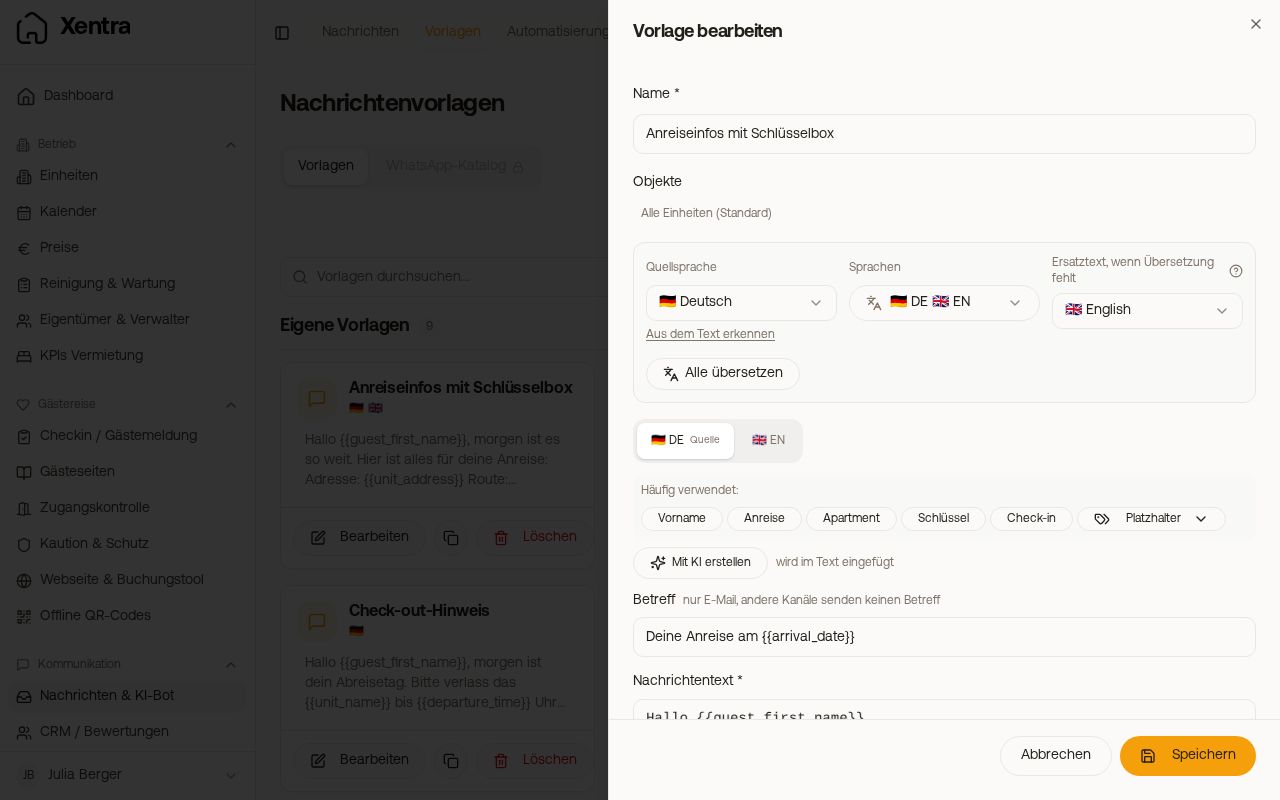
You write texts once in your language, Xentra translates them using AI into your guests' languages. Important: Translation only happens when you trigger it. If you change the text later, the translations do not update automatically.
Message templates
You translate templates in the template editor using "Translate all": source language, fallback text, and the notice "Translations out of date" are explained in Templates in multiple languages: Source language, translation, and fallback text. There as well: Nothing is re-translated when sending, after a text change you translate again.
Guest pages: the source language is never translated
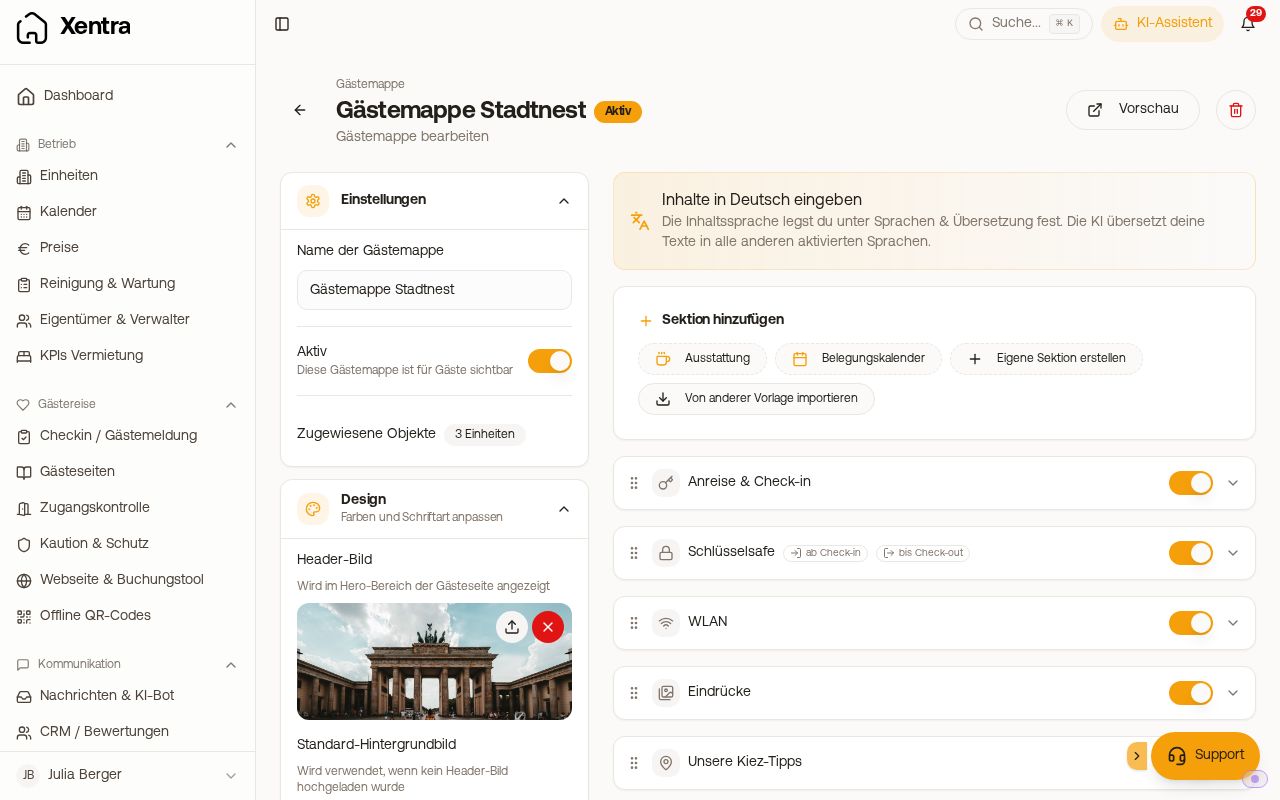 Guest guide editor: The note at the top names the source language in which you write; the AI translates into all other activated languages.
Every guest page template has a Source language (Guest pages, open template, Languages & Translation). This is the language in which you wrote the sections. Xentra translates into all activated languages except this one; the source language is always delivered in the original and appears in the list with the tag (source).
If the source language is set incorrectly, that specific language receives the original text. Example: You wrote in German, but the source language is set to English. Then guests in French, Spanish, Italian, Dutch, and Polish see a translation, while guests in English see the German text instead.
How to fix it: Open template, Languages & Translation, set Source language to the language in which the texts are actually written, save, and click Translate missing in the translation center.
Re-translating changed texts
If you change the title or text of a section, its translation is considered outdated. Under Languages & Translation, the language then shows Source changed. Guests no longer see an outdated translation, but your original text until a new translation is made. This also applies to older translations as soon as you change the section.
The Translate missing button in the translation center translates missing and outdated sections. You re-translate an individual section on the far right of its line.
Writing a language yourself, for example with your own image
AI does not translate images. If you replace an image in your language, such as a graphic with check-in or Wi-Fi details, or if a section in one language should differ from the translation, you write that language yourself: Open guest guide, expand the section in the Content tab, and select the language next to the title, for example Write English yourself. In the Edit translation window, change the title and text and insert your own image using Insert image. Then click Apply and Save changes. The language selection on the section appears as soon as the guest guide has more than one language.
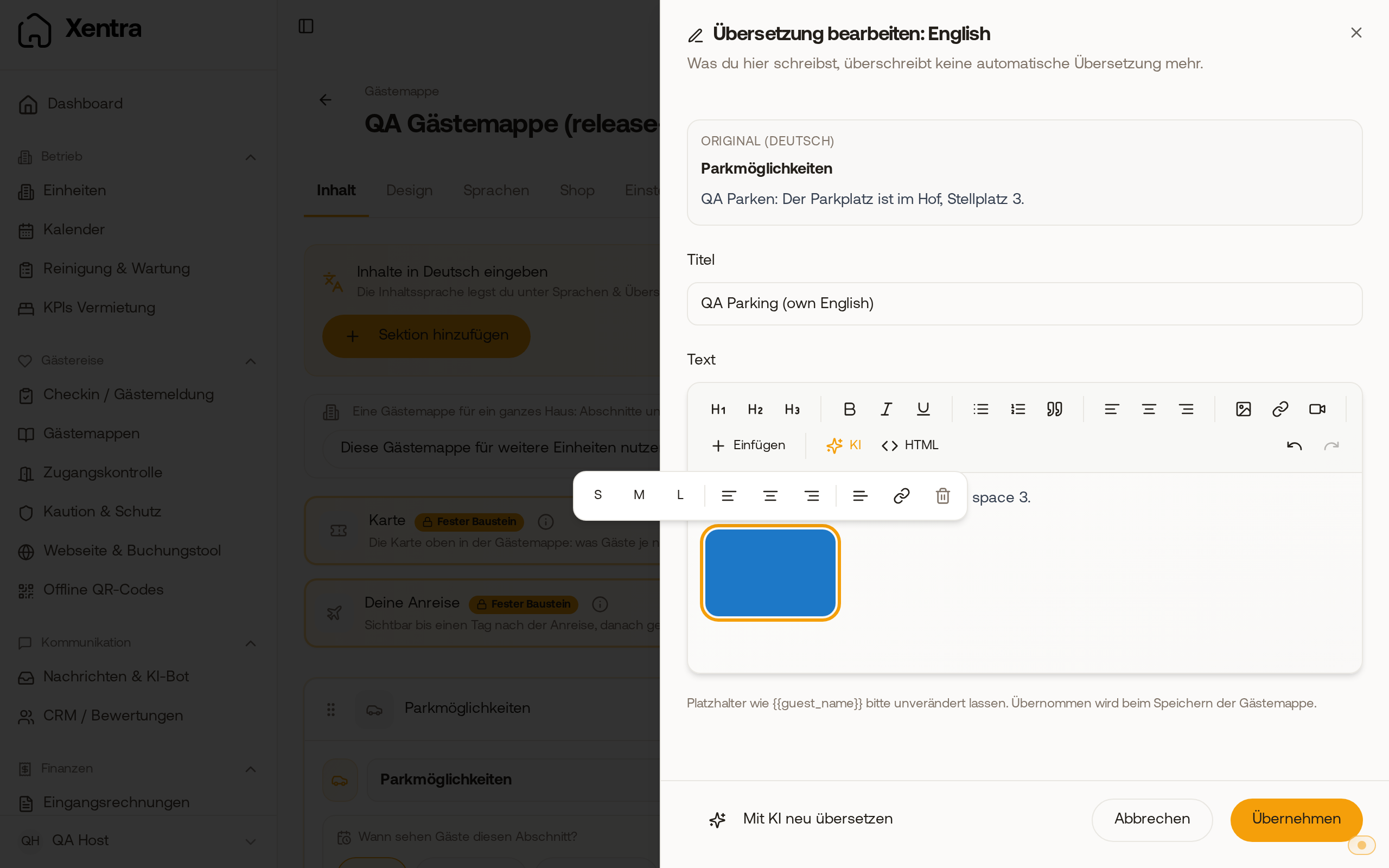 "Edit translation: English" window: German original at the top, followed by your own English title, text, and your own image below.
What you write yourself is not overwritten by automatic translation, not even by Translate missing. If you change the original later, the section shows Source changed for that language, and you decide: adjust it, confirm with Still correct, or hand it back to the automatic system with Translate again with AI. You can also reach the same window under Languages & Translation (expand language, click Edit on the section) and in the translation center.
Checking in preview
If you select a language at the top of Preview in which sections are not yet translated, a notice appears at the top such as "1 section is not yet translated into English". Click Translate now to complete them for this language. Manually written sections remain unchanged.
Check-in form: outdated translations
If you change a German text in the check-in form (welcome message, house rules, privacy policy, newsletter, confirmation, or a custom field), the editor marks translations as outdated: They stem from the old version. If you open the language, a notice explains that guests continue to see this translation. Unlike guest pages, guests in the check-in process receive the last translation until you re-translate.
How to update them: Check-in / guest registration, open template, Languages tab. Next to Translate texts, it says, for example, "Outdated: EN". Translate texts saves your changes and re-translates all texts, after which the tag disappears. For custom fields, translate using Auto-Translate. A translation that you adjust manually is considered up to date again.
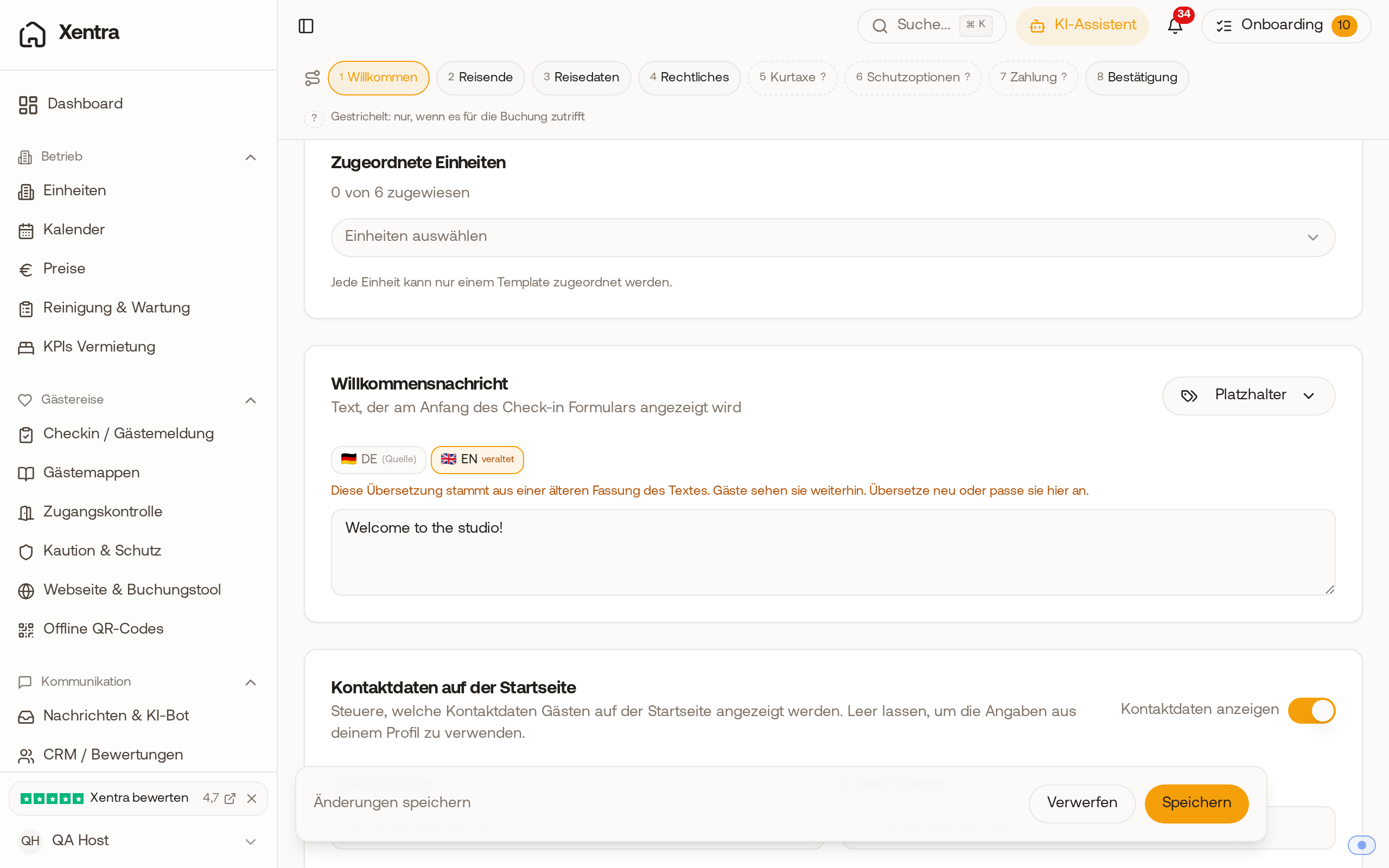 Check-in template: After a change to the German text, the EN tab shows "outdated", with a notice below stating that guests will continue to see the old translation.
Descriptions and custom fields of units
- Description (for booking widget): under units, edit property, below it "Translate all languages". The translation is saved only when the unit is saved.
- Custom placeholders: in the Placeholders section on the unit page, click "Translate" before saving.
Which language a guest receives and how you set informal or formal address: see Languages: App language, guest languages, and guest form of address.