
Transactions, Xentra fee, and Excel export for accounting
Where you see all guest payments, how the Xentra fee is retained, and what is included in the Excel export.
Updated on November 12, 2026
Transactions and billing
Where you see your payments
You can find all guest payments via Xentra (booking tool, check-in, products, tourist tax, security deposits, payment links) under Open Billing, "Finance" tab. The Excel export for your accounting is also located there.
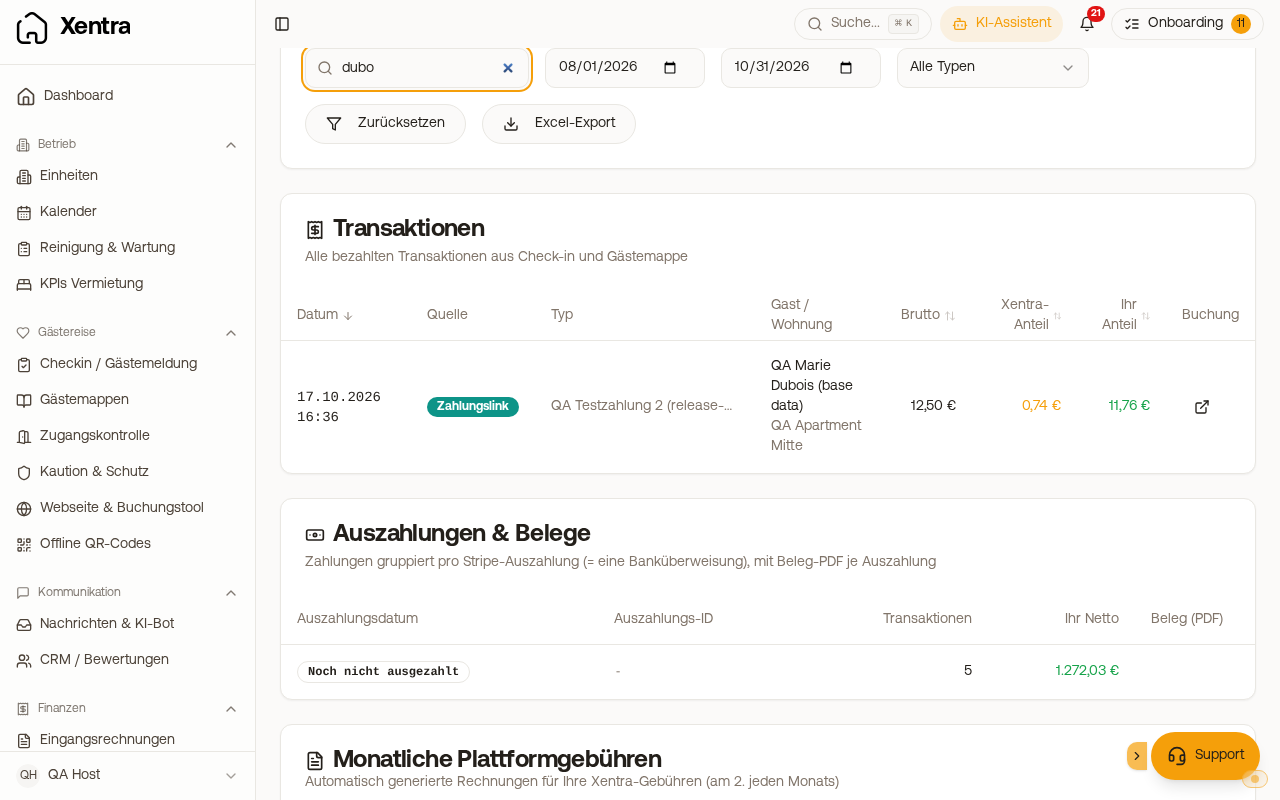
You can find a specific payment there via the "Search..." search field at the start of the filter bar: type part of the guest name or email, the unit, the booking number, an item (for example "breakfast"), a product from the shop, or the purpose of a payment link. With multiple words, all must match. The search works within the selected date range (From and To) and together with the Type; the totals at the top continue to show the full period. "Reset" also clears the search field.
 Transactions, Xentra fee, and Excel export for accounting
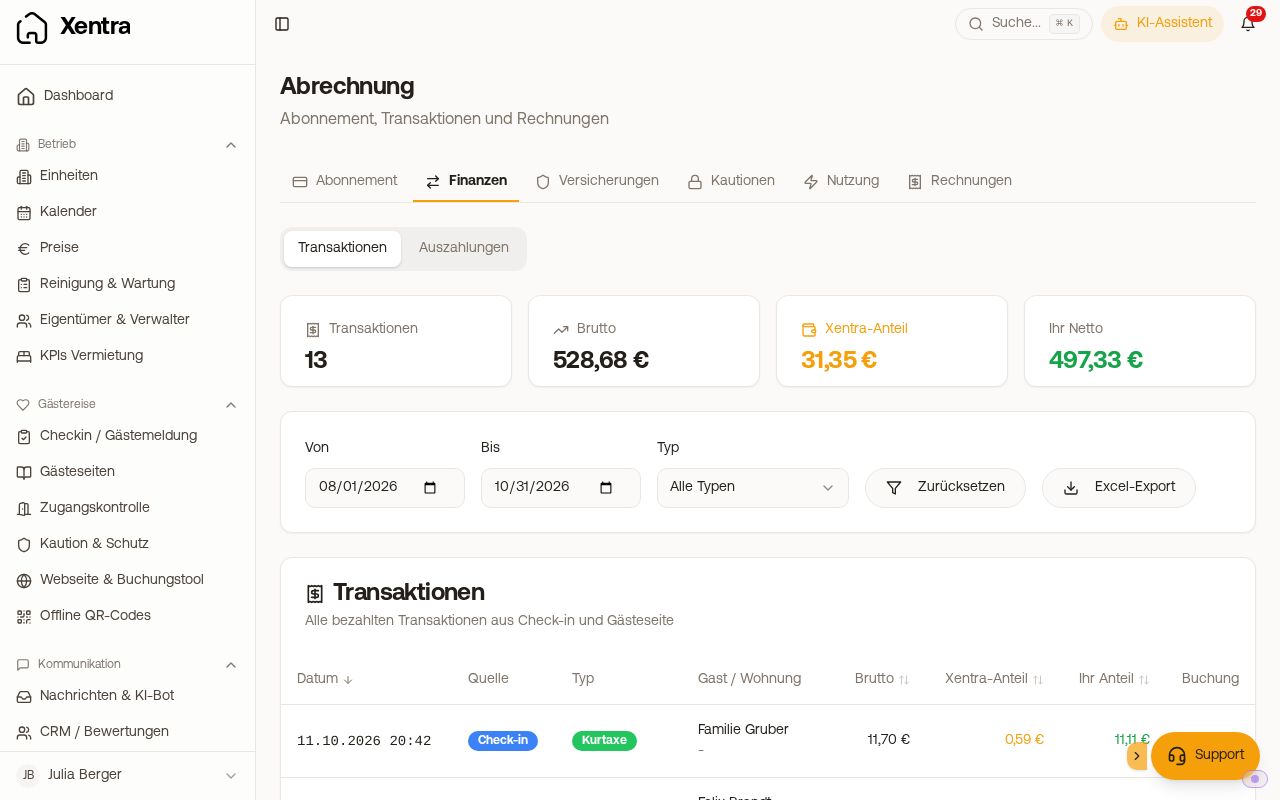 The "Finance" tab under Billing
There is also a compact list of all incoming payments with filters by type, status, and time period under Transactions. You can also find it via the search at the top (keyword "Transactions"). Purchases in the guest guide shop (source "Guest page") and paid tourist tax payment links (source "Payment link") are also listed there; in the "Finance" tab, they have their own line.
In the "Payment links" tab under Transactions, you see all payment links you sent. At the top, four tiles show "Open", "Paid", "Fees", and "Failed". Below that, you search by guest, purpose, or booking, filter by date range and unit ("Reset filters" clears everything), and select the status: "All", "Open", "Paid", "Failed", "Deactivated", "Partly refunded", or "Refunded". "Export" downloads the filtered list as a CSV. This way, you can see at a glance which links are still open.
Clicking a link opens the details on the right: guest and stay with "Go to booking" and the history. For a paid link, the amount, platform fee, VAT, and payout to you are listed there; for an open one, you can copy or deactivate it. You and team members who are allowed to read outgoing invoices can see this tab.
Fee and monthly invoice
A platform fee applies to every payment via Xentra (net plus VAT; you can find the current rate on the pricing page). It is retained directly upon payment receipt; there is no separate receipt per booking. How high it is, which VAT applies to it, and what is on the monthly invoice is explained in Platform fee: how high it is and how to prove it.
For your accounting, rely on the export: fee base, fee rate, net amount, and VAT per payment are listed there. If your rate changed between two periods, two payments may appear to cost different amounts, even though both are correct.
Excel export for accounting
Under Billing, "Finance" tab, there is an Excel export with several sheets:
- a Detail sheet per payment with booking number, guest, unit, portal, arrival and departure, fee base, fee rate, net amount, and VAT,
- a Monthly sheet,
- a Control sheet that checks the totals of the detail sheet against the monthly fee invoice,
- the Payouts sheet: per Stripe payout, how many payments and which amount are contained in exactly one bank transfer, compared with the actual bank receipt.
For accounting, the rule is: gross guest payment minus platform fee = payout. No additional Stripe fee is deducted from you; Xentra pays that.