
Subscription & Billing: Plan, Price, and Add-ons
Manage your Xentra subscription: Pro plan per unit, Add-ons, prices and costs, coupon code, payment method, invoices, and cancellation.
Updated on November 6, 2026
Subscription & Billing
You manage your Xentra subscription under open Billing, "Subscription" tab; you can also reach it via your name at the bottom left of the sidebar, entry "Billing". The page is only available in the browser and only for the main account; team members see the note "Access via Main Account" there.
Plans and Price
- Free trial: 7 days free to try it out.
- Pro: all features, billed per unit and month.
Without an active subscription, the "Subscription" tab shows the plan selection: top "Your current plan" with "Runs until ..." or "Expired on ...", below Xentra Pro with all features in groups. On the right (on mobile directly below the name) is what your account costs: the "Monthly license price" per unit, units × price, and "Total per month, plus VAT". A click on "plus transaction and usage fees" jumps to the fee list. If you subscribe during the free trial, it says "Due today €0": the free trial continues, the first billing arrives at its end. With "Choose Pro", you proceed to billing details and payment; on mobile, a bar with the monthly amount and "Choose Pro" stays fixed at the bottom when scrolling.
Each plan includes a monthly quota of AI Credits per unit; how many is stated in the plan selection and with an active subscription in the "Your subscription" card. You can only subscribe to Pro as a new plan. Older subscriptions on Basic continue to run; there you will find the "Upgrade to Pro" button.
What Pro and the add-ons currently cost can be found on the pricing page. The price applies per unit and month, not per account, plus your country's VAT. Every created unit is counted, even one without bookings; sample units from the demo data do not count. If you created a unit twice by mistake and there are already bookings on it, write to hello@support.myxentra.com before deleting: the bookings are preserved when deleting, but lose their unit.
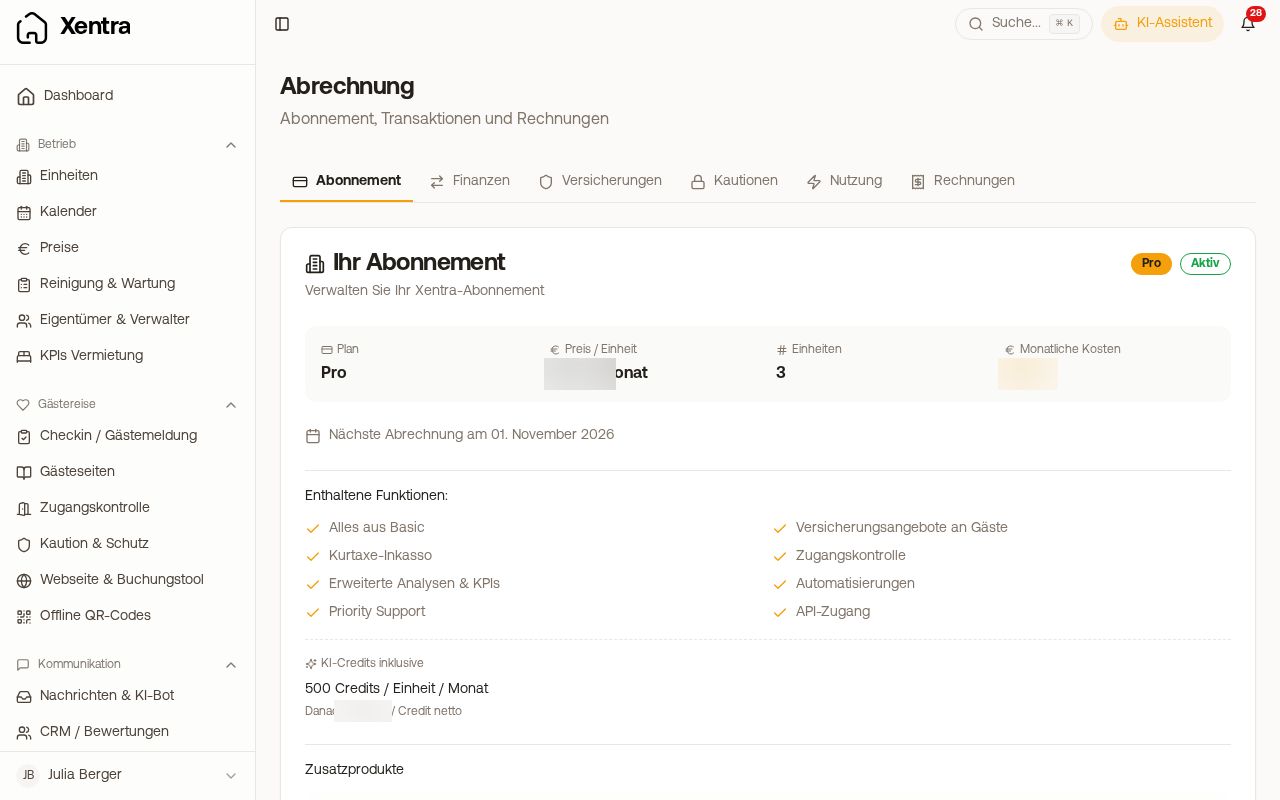 Subscription tab with plan, price per unit, units, and monthly costs
With an active subscription, the "Your subscription" card shows the plan and status, "Price / Unit", "Units", "Your subscription per month", and "Next billing" (in case of a cancellation, "Ends on"). The price per unit is your price after discount; if it is lower than the list price, the list price is crossed out below it. "Your subscription per month" is the amount we bill, including discounts and add-ons. Active coupons and discounts are listed below, with an end date if they have one. Under "Included in your subscription", you see all features of your plan.
Add-ons
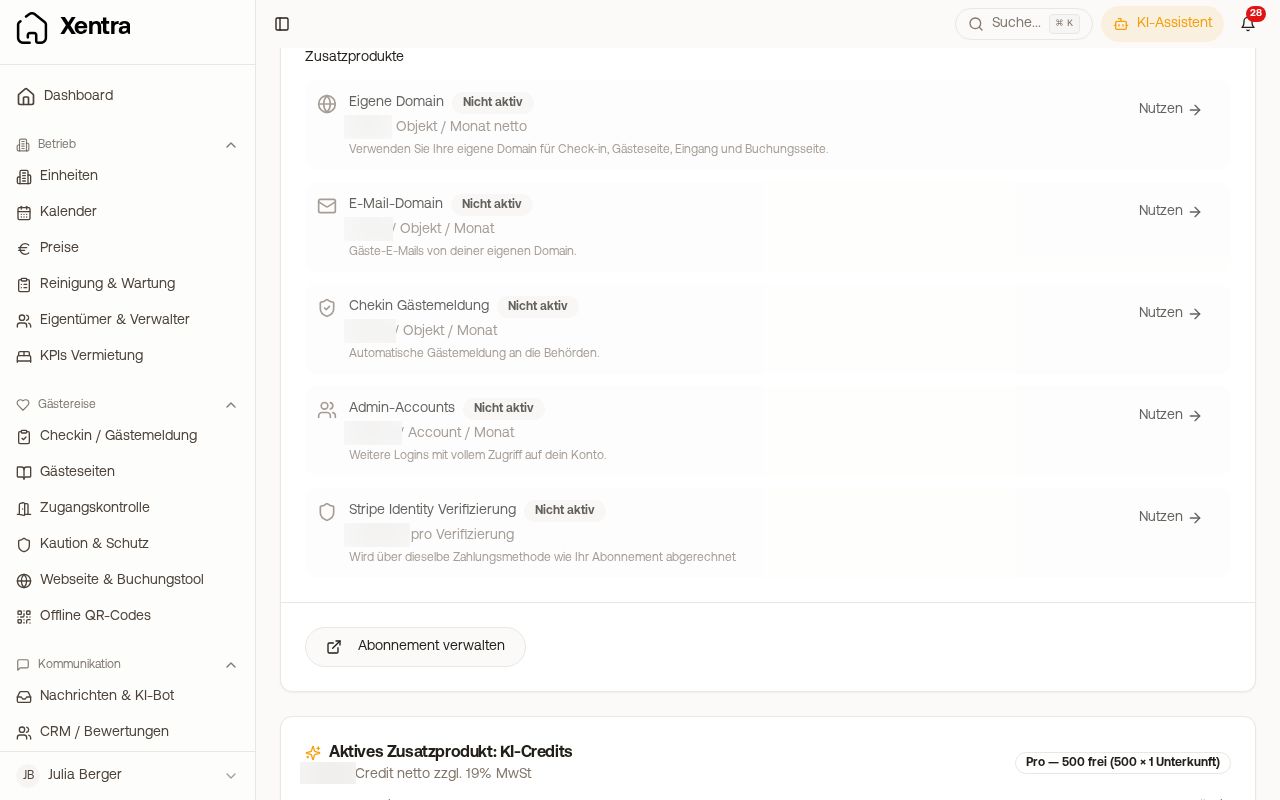 Add-ons with custom domain, email domain, Chekin, admin accounts, and Stripe Identity
Under "Add-ons" in the same card, you see what is active and how much it costs. With "Use", you reach the relevant setting. You end custom domain and email domain there with "Stop".
- Custom domain: billed per unit and month (all units are counted, not the domains). Stopping is only possible once you have removed your domains in the settings.
- Email Domain (custom sender address): per unit and month, same rule.
- Chekin guest registration: per month for each unit activated for Chekin.
- Stripe Identity Verification in the online check-in: per verification performed.
- AI Credits: the credits in your plan are free, additional ones are billed per credit. Consumption and costs for the current month are shown in the "AI Credits" card in the same tab, broken down by feature.
- Additional team members: A portion is included in your plan; how many is stated above under Team & additional users. Each additional one is charged monthly; Xentra shows the price before creating it and asks for confirmation. Details in "Team & additional users: separate logins for your team".
Current prices can be found on the pricing page and in the card itself. All prices are subject to VAT.
Coupon code
You enter a coupon code during checkout: in the plan selection, tap "Redeem a coupon code", enter the code, "Apply". A percentage discount lowers the displayed price immediately, the old price is crossed out next to it. The discount is displayed with description and term, and applies to your subscription. If your subscription is already running, the field is no longer available; send the code to hello@support.myxentra.com in that case. Discount codes for guests in the booking tool are something else, see price management.
Payment method, invoices, and cancellation
- Change credit card or payment method: at the bottom in the "Manage Subscription" card. This opens the customer portal in a new window.
- Invoices: "Invoices" tab, "Subscription Invoices" list, each as a PDF. The monthly invoice for platform fees is also located there, see "Platform fee: how high it is and where you verify it".
- Credit notes: If we refund something to you or credit you a discount, it is listed in the "Invoices" tab in the "Credit notes" card with date, "For invoice", amount, and status: "Refunded" (money is back), "Applied" (applied to an invoice), or "Refund pending". The card only appears if there is a credit note.
- Contract term: corresponds to the billing period, one month for monthly plans, and renews automatically unless you cancel with a notice period of one month to the end of the term. Cancellation can be made in text form; an email to hello@support.myxentra.com is sufficient. The right to extraordinary cancellation remains unaffected.
Free trial, blocked access, or failed payment: see "Trial period and account deletion" and "Access blocked: trial expired or payment failed".