
Team members day to day: bookings, messages, locks and check-in data
What team members may do with bookings, requests, e-invoices, guest messages, door locks and check-in data, and how you release it.
Updated on October 27, 2026
You set what a team member may do on their card: Settings, Team & additional users, expand the member. The rights in the grid decide, not the name of the role (see Team rights: template, rights grid and “customised”). This article explains what that means in practice.
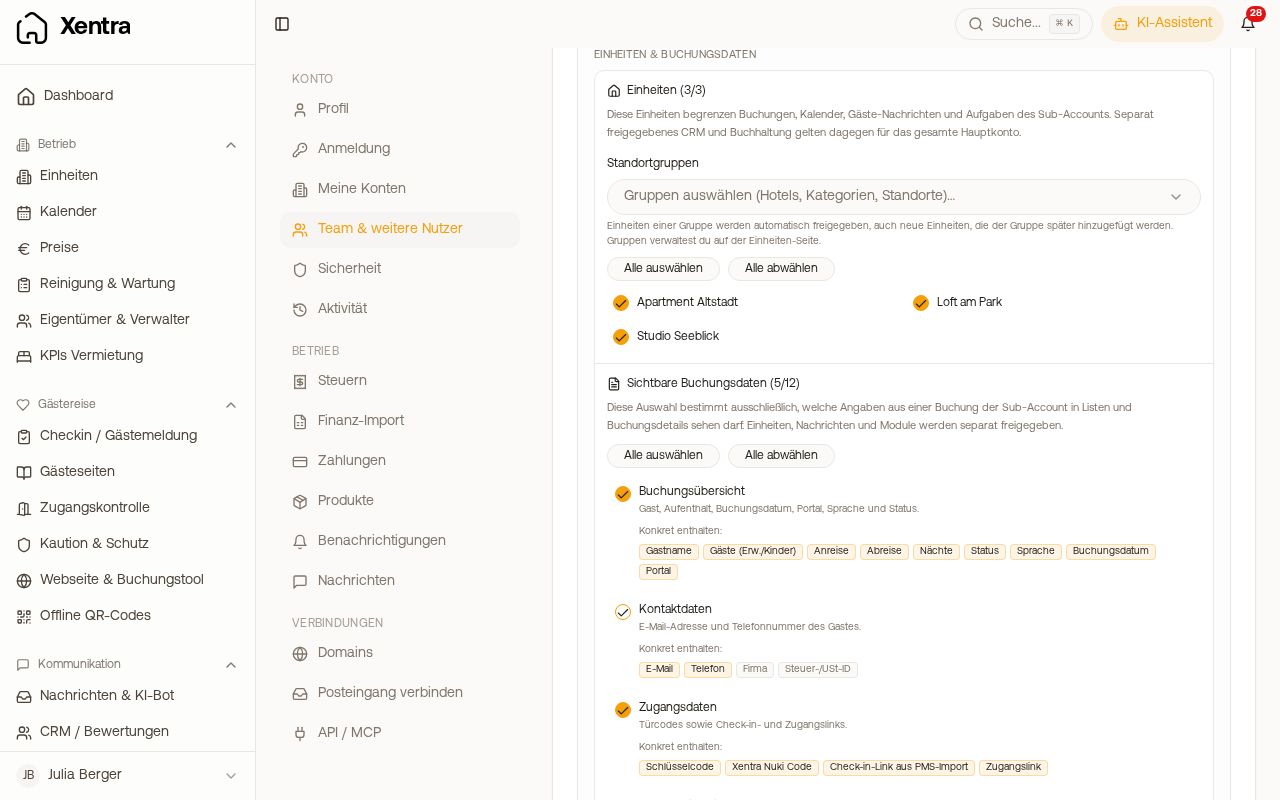 Team member card with units and visible booking data
Units and visible booking data
Team members only see the units you assign to them (individually or via Location groups). Under Visible booking data you also choose which details of a booking they see, such as guest name, number of guests, contact details, prices and purchases, internal notes or access data.
Guest name is its own tick right below Booking overview. If you untick it and leave the booking overview on, the person sees the number of guests, arrival, departure, nights and status in tasks, calendar and bookings, but not the guest's name. That way your cleaner knows, for example, how many guests to prepare for without seeing who is coming. New team members start with guest name on; every change to the ticks saves right away.
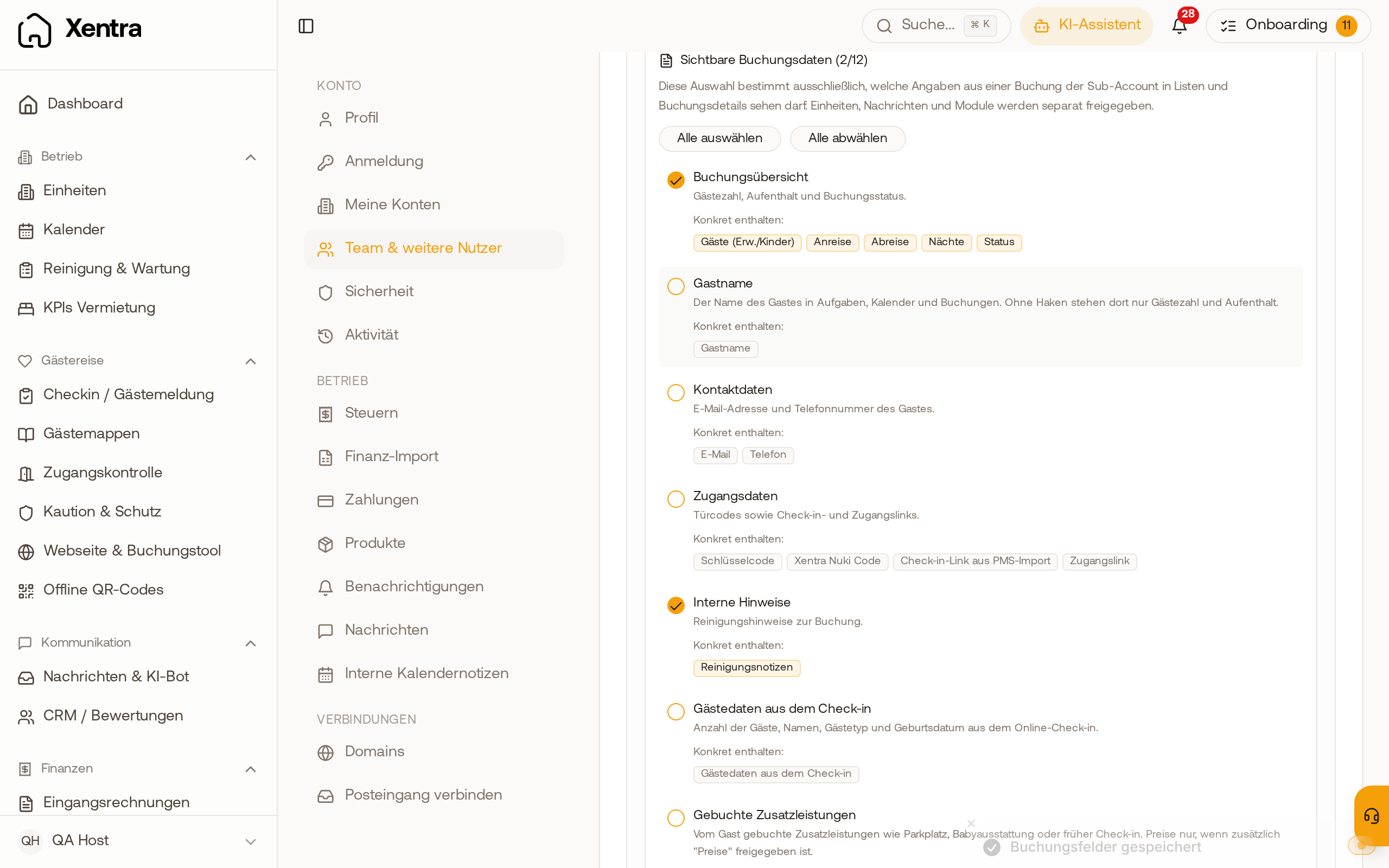 Visible booking data of a team member: booking overview on, guest name off
Assigning is not a permission. If you assign a person a task for a unit they have no access to, the task remains invisible to them.
Amounts from the portal: Booking.com and Airbnb include commission, payout and fees in the booking notes. Without the release Prices and purchases, a team member does not see these lines, and a caretaker never does. Below the note it then says “Amounts from the portal, such as commission and payout, are hidden.” If the person changes the note, the hidden lines are kept for you.
Guest messages
You set in the grid under Guest messages whether someone sees guest messages and may reply (No access, View, Edit). Cleaners and caretakers at most read in their template; booking managers can reply, and owners too if you allow it.
As soon as someone sees messages, you set under Conversation visibility which ones: Everything, New + assigned or Assigned only. This is a hard lock: it also applies in search and when opening a shared link. Details in the article “Inbox in the team”.
Bookings and requests
- Answering requests: with “Bookings: Edit” a team member accepts booking requests and Airbnb requests, declines them or pre-approves them, only for their own units.
- Creating and changing: a team member with certain units only creates bookings there and only changes bookings there. Moving a booking to someone else’s unit is not possible.
- Cancelling works with “Bookings: Edit”, except for owners. Refunds remain with you and your admins.
- E-invoice: with “Guest Invoices: Edit” a team member creates invoices in the booking via the E-invoice button; with “View” they see the invoices of the booking.
- Owners only enter personal use: if an owner may create bookings, the window Add owner use opens for them. With it they block days on which they themselves are in the unit; they cannot create a guest booking. In the calendar these entries appear in their own colour with the label Owner use, for you and for them.
Door locks in access control
With “Access Control: Edit” team members operate the locks of their units: open, close, and create and delete codes. This applies equally to Nuki, TTLock, Igloohome, Salto, SwitchBot, Tedee and Ring. With “View”, nobody opens a door; the caretaker template only has “View” and therefore opens doors via My Entrances with their personal access links (see Opening doors with “My Entrances”).
Team members only see the devices of their units. A device without a unit is only visible to you and your admins; if your team needs it, assign it to a unit under Access Control. Only you and your admins connect and sync locks. With “Access Control: Edit”, team members also see the card with access links and door codes in the booking.
Releasing check-in data
Under Visible booking data there are separate releases for online check-in, all off by default:
- Guest data from check-in: number, names, guest type and date of birth.
- ID and registration data: nationality, home address, ID data. Only release these if the person really needs them.
- Answers from check-in: answers about arrival, departure and your own questions, for example about bed setup. Files, signatures and consents remain hidden.
- Online check-in link and Guest page link: view, copy and send again to the guest. The team member cannot create new links.
- Send guest registration manually: trigger a stuck registration to the police or statistics office again. A second click does not report twice.
Even with these releases, a team member only sees the bookings of their units.
Sharing tasks with cleaners
There is no iCal export for tasks. The intended way is their own login: the cleaner signs in in the browser or in the Xentra app and lands on My day. There they only see their tasks and units, work through checklists, upload photos and complete tasks. Whether someone receives tasks is controlled in the team member’s card by the switches Gets tasks, Gets cleaning briefings, Available on and, for the caretaker, Receive issue reports as tasks. How this looks for the cleaner: My day: how your cleaner works with Xentra.