
Team & additional users: own logins for your team
Create separate logins for cleaners, caretakers, owners, booking managers and admins. What team members cost and how to switch roles.
Updated on November 6, 2026
Give cleaners, caretakers, owners, booking managers or a second person with full access their own login, instead of sharing passwords. Every action is assigned to the login that triggered it (settings, activity).
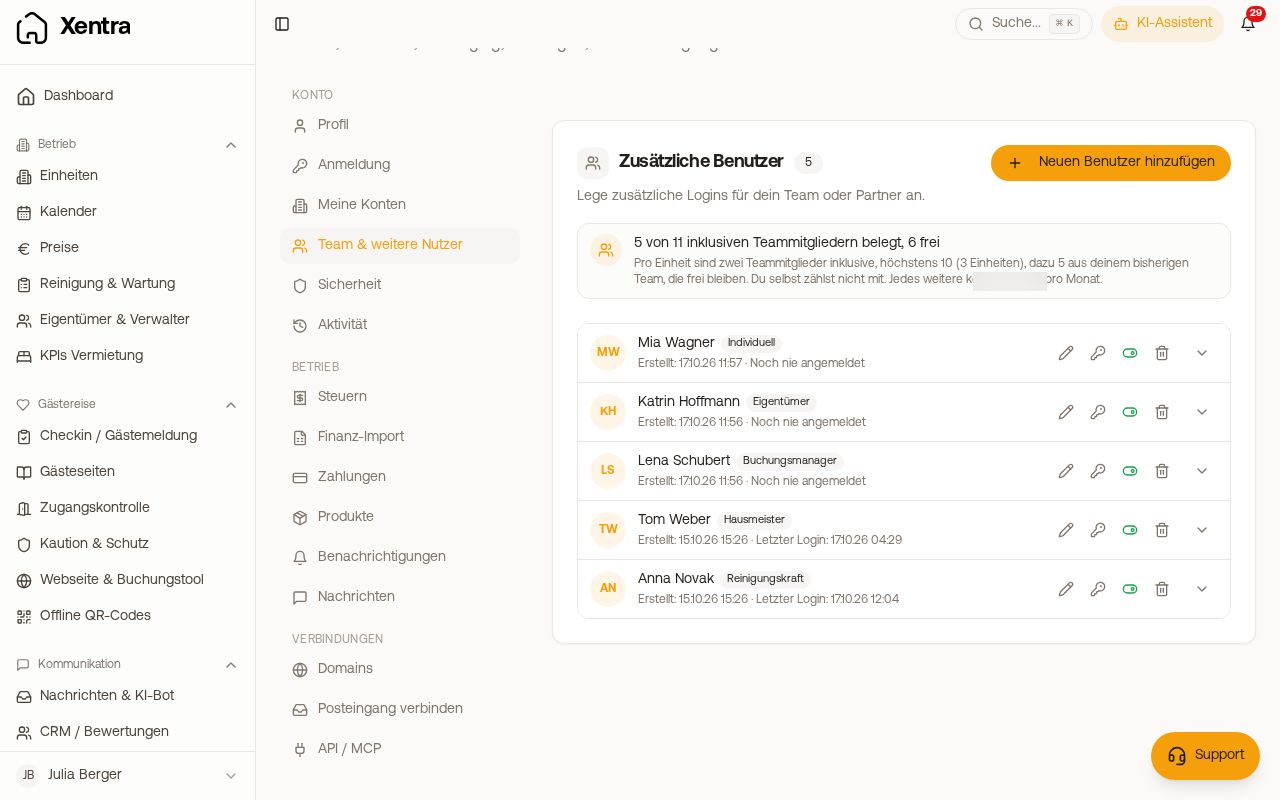 Settings, Team & additional users with quota and team members
Where you create team members
Settings, Team & additional users, Add New User. You enter display name and email, choose the Role and define for which units the person is responsible. Cleaner, caretaker, owner and booking manager need at least one unit. Instead of individual units you can release whole location groups; then new units of the group are added automatically.
How the person signs in for the first time (invitation by email, own password, email with existing Xentra login): see Sub-account login: sign-in, password and email with existing login.
Don't confuse: the page Owners & Managers is something else. There you maintain master data, commissions and statements of owners. You create logins exclusively under Settings, Team & additional users.
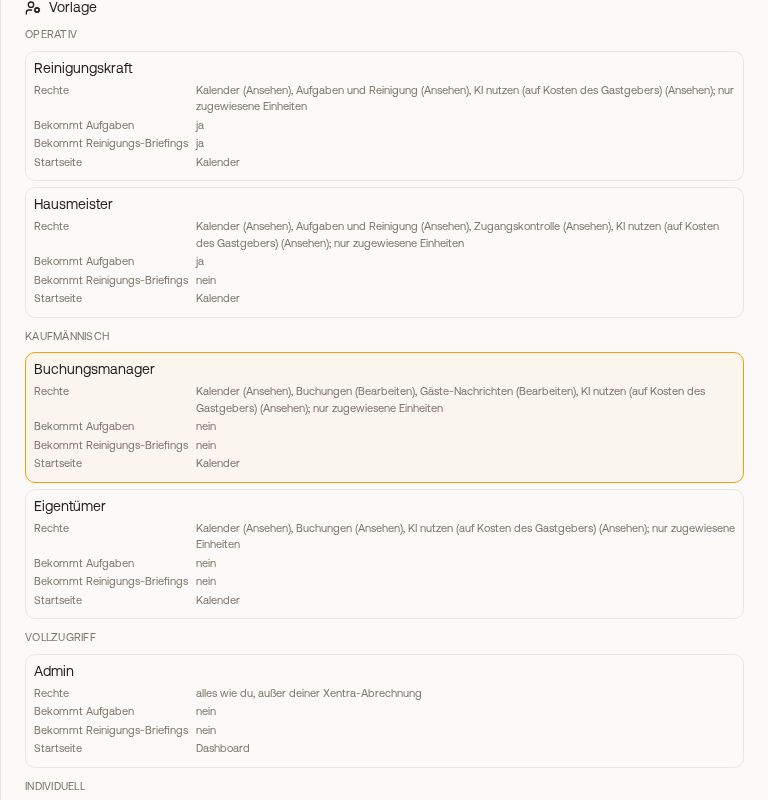 New team member: templates with rights, tasks and start page
The roles (templates)
Under Template the roles are shown as cards in groups: Operational (cleaner, caretaker), Commercial (booking manager, owner), Full access (admin) and Custom. Each card shows which rights the template brings, whether the person gets tasks and where they start after signing in.
| Cleaner | Caretaker | Owner | Booking manager | |
|---|---|---|---|---|
| Calendar of own units | ✅ | ✅ | ✅ | ✅ |
| Booking list | ❌ | ❌ | ✅ | ✅ |
| Create bookings | ❌ | ❌ | optional, only for own use | ✅ |
| Tasks | ✅ | ✅ | optional, view only | ❌ |
| Access Control | ❌ | view | ❌ | ❌ |
| Guest messages | optional, read | optional, read | optional | ✅ |
| CRM, accounting | ❌ | ❌ | ❌ | optional |
Not one of these four roles sees, in its basic form, integrations, subscription or your account settings. What a role may do exactly, you see and change in the rights grid of the team member: see Rights in the team: template, rights grid and "customised".
Admin is not a restricted team member, but a second fully-fledged login, intended for business partners or an assistant. An admin can do everything you can, except for your Xentra subscription and Xentra invoices, the payout account, deleting the account, and creating further admins and custom team members. An admin receives the notifications of your account (for example new booking, new guest message, bot hand-over) in their own bell and as a push, as soon as they use the Xentra app with their login. They do not get additional emails from this.
Custom starts without rights; you assemble them yourself in the grid.
What team members cost
A certain number of team members is included in your plan; it depends on the number of your units. All roles count the same, including admins and Custom. You yourself do not count, open invitations do. At the top of Team & additional users it shows how many seats are included, used and free.
Each additional team member costs a monthly fee; you find the current amount on the pricing page. Before such access is created, the form shows the price and you confirm it. The member then carries the note Extra seat in the list. Billing is done without pro-rated charges: the amount appears on your next Xentra invoice and drops off from the following one when you delete the access. Anyone who already had more team members before this rule keeps those seats for free; this is then also shown at the top under the quota.
In the trial phase you can already create team members, up to your included quota. It works exactly as with a subscription; at the top of Team & additional users you see how many seats are free. If the quota is full, the form shows "Trial allowance used up": for further team members, choose a plan under Billing. Extra seats for a fee are only available with a subscription.
After the trial phase without a subscription, with an expired subscription or with a payment that has failed for more than 7 days, the app shows "New team members are available with an active subscription. Activate it under Billing." Existing team members are kept in every case. API keys and webhooks are still only available with a subscription.
Switch role, deactivate, delete
- Switch role: expand the team member in the list, choose a different role under Template and confirm Switch template. The person then gets exactly the rights and settings of the new template; additional areas, CRM and accounting drop away in the process.
- What doesn't work: an admin cannot be switched to another role, and an existing team member does not later become admin. Custom and customised team members (for example "Cleaner, customised") cannot go back to a fixed template. In these cases you delete the access and create it again with the desired role.
- Deactivate (switch in the row) blocks the login without deleting it. The person's open tasks are released in the process and can be reassigned. History, monthly statement and stored pay amounts are kept, and a deactivated person takes up no seat in the team.
- Delete (trash icon) requires the name as confirmation and is logged. Bookings created by the booking manager remain. For tasks the person has completed, it is then no longer shown who did them, also not in working hours (analysis) and the monthly statement; the amounts remain stored. Their stored pay amounts are deleted. The delete dialog names both with counts and offers Deactivate instead. If someone is just stopping, deactivating is usually the better choice.
What team members may specifically do with bookings, messages, locks and check-in data: see Team members in daily use: bookings, messages, locks and check-in data.