
Support & Contact
How you reach the Xentra team (chat with file attachments, email), the knowledge base, and how to book the free onboarding call.
Updated on November 6, 2026
How you reach the Xentra team:
- Chat in the app: at the bottom right on Support (on mobile phones, the narrow tab on the right edge of the bottom bar). On the computer, the yellow Support button appears large briefly when opening the app and slides after a few seconds as a narrow tab with a headset to the right edge; a click on the tab opens the support chat. If a reply from support is waiting, the button stays large. With the small arrow to the left of the button, you slide it permanently to the edge. In the chat, you can attach pictures (including iPhone photos in HEIC format), PDF, Word, Excel, and PowerPoint (including old .doc/.xls/.ppt), CSV, TXT, ZIP, videos, and voice recordings, up to 15 MB per file and 5 files per message. On desktop, you can enlarge the chat window.
- Email: hello@support.myxentra.com
- Help Center: Under Help Center at the bottom of the sidebar, you will find instructions for all areas of Xentra, sorted by topic and with pictures. At the top, you search directly for a keyword, under All Articles, you see the complete list. With Copy link, you share an article. If your app is not in German, you read the articles in English. You can also find the public instructions without logging in at help.myxentra.com.
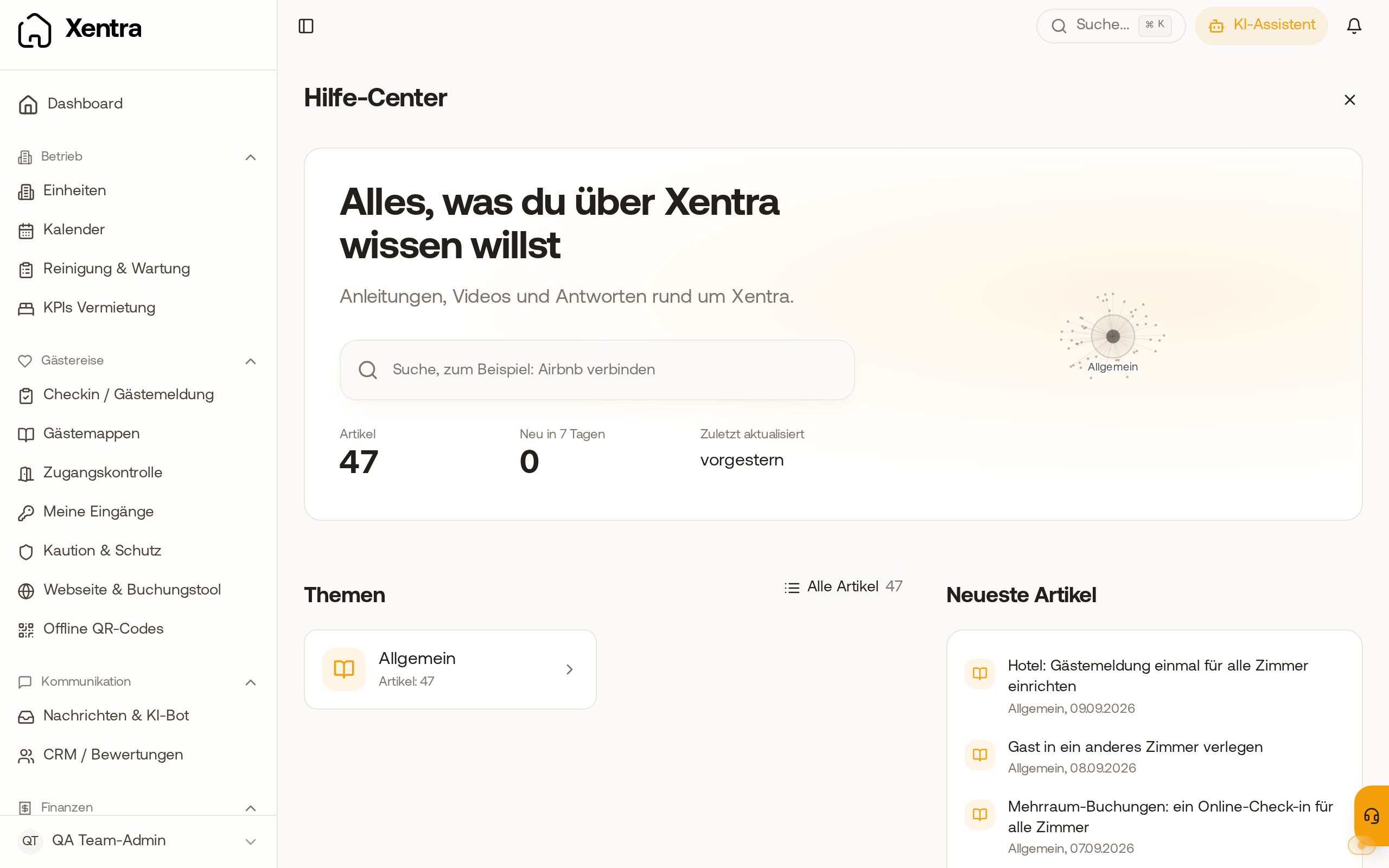 The Help Center in the app with search, topics, and the latest articles. The AI Assistant at the top right also answers your questions.
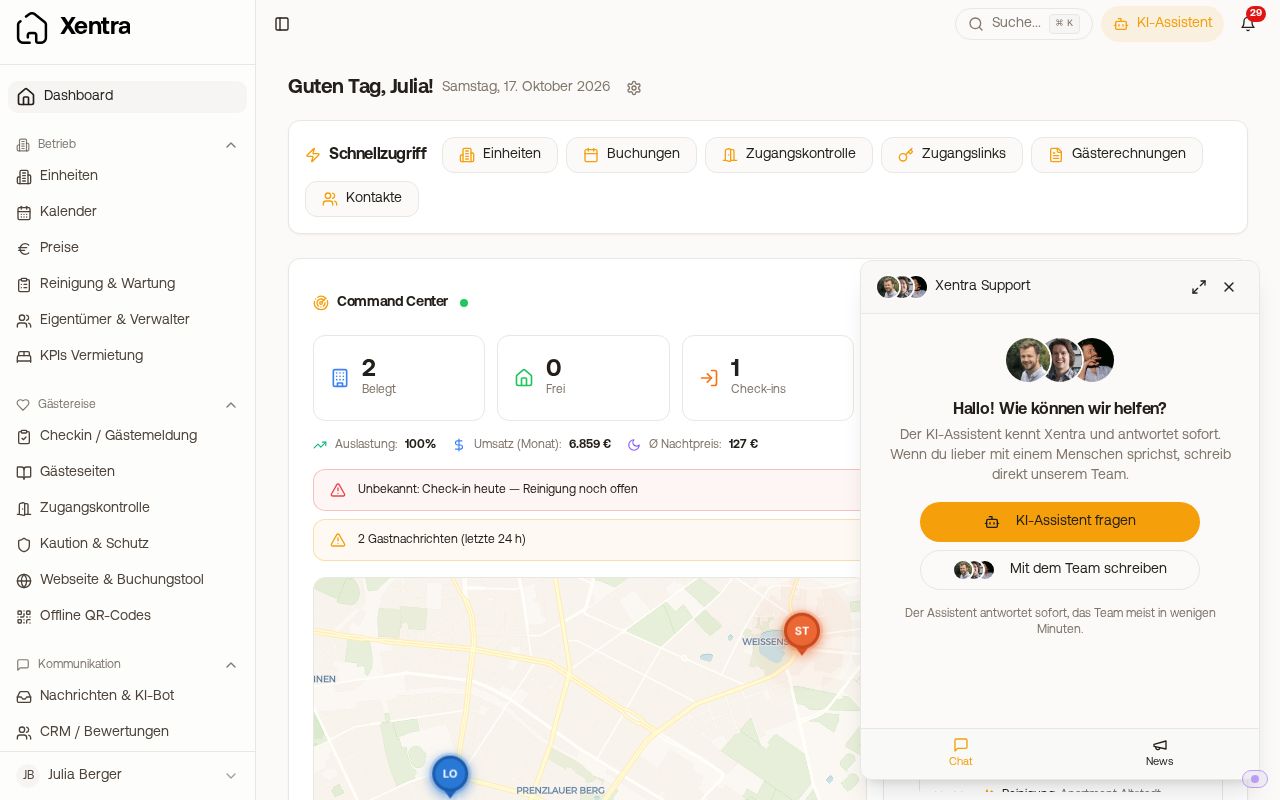 Support chat with attachment button
You receive replies from support as push notifications (with the Xentra app) and by email; you can configure this under Settings, Notifications, line "Reply from Xentra Support".
Free Onboarding Call
A personal setup call is free. You book it via the "Book call" button at the top in the header, via Getting Started, or via the banner that appears when your setup stalls.
If you cannot find the button: It addresses accounts in the trial phase that have not booked a call yet. It disappears as soon as you have booked an appointment and does not appear on paid accounts and not in the mobile app. You can still get an appointment at any time: write to us in the chat or at hello@support.myxentra.com.
Is something currently disrupted?
Whether Xentra, the booking portals, and the PMS are currently running can be seen on the Status page; see "Status and disruption notices: when a portal is currently not delivering".
The Xentra app for mobile phones (download, login, Face ID, which pages are available there): see Xentra App for iPhone and Android.