
Sample data: Try Xentra without real bookings
Why there are sample bookings in your account, how to recognize them, and how to get rid of them.
Updated on November 13, 2026
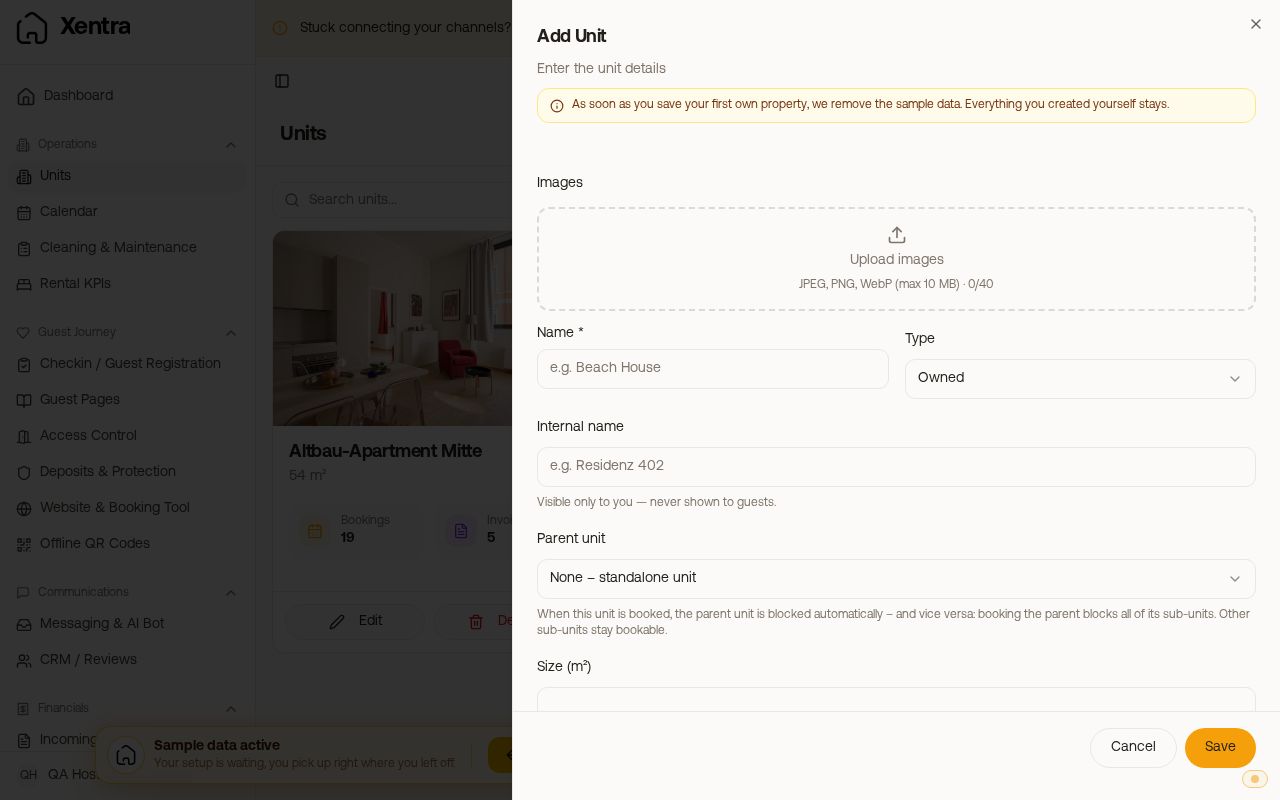
To try things out, your account can be filled with Sample data: fake units, bookings, and messages, so your calendar, reports, and inbox are not empty while you do not have your own data yet.
How to recognize them
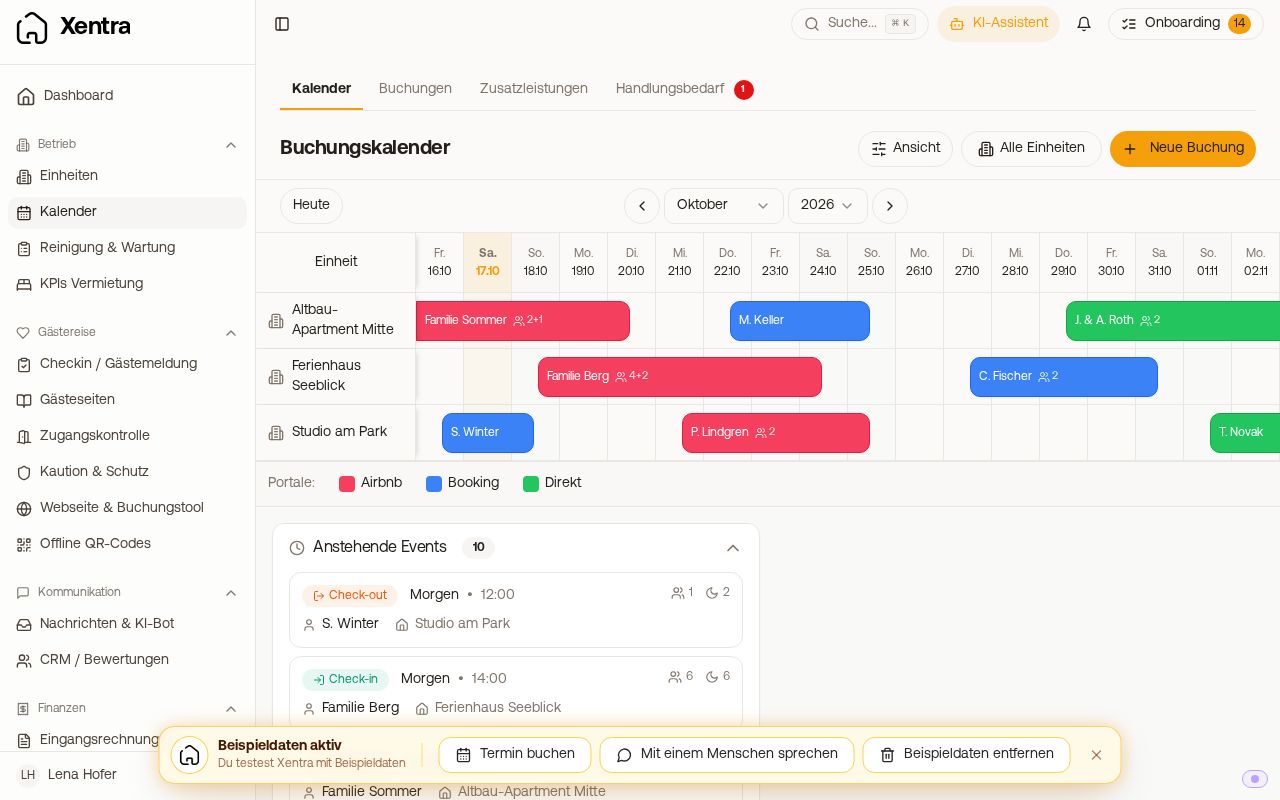 Calendar with sample data: The bottom bar shows "Sample data active" and the button "Remove sample data".
A small box floats over the app at the bottom center:
Sample data active · You are testing Xentra with sample data
Inside it you find Book a call and Talk to a human.
The box can be collapsed into a small pill; Xentra remembers your choice. On mobile, it is collapsed by default and never covers navigation, the save bar, or the message field.
Getting rid of sample data
In the box at the bottom center, you tap Remove sample data (on mobile, expand the pill first) and confirm. All sample units, bookings, messages, and related items are deleted, including bookings and invoices that you entered yourself on a sample unit or imported there via calendar import (iCal). Your invoice numbers start over again afterwards, as long as none of these invoices were sent or transferred to your accounting. Everything else you created or set up yourself stays. The sample data does not return afterwards.
They also disappear automatically as soon as you create or import your first own unit (for example via a PMS connection or Airbnb). If you create the unit yourself, your own bookings and invoices on sample units are also deleted in the process. When you tap Add unit under Units, the form warns you beforehand. Deleting sample units individually does not work because sample bookings are still attached to them.
Team members do not see the box.